
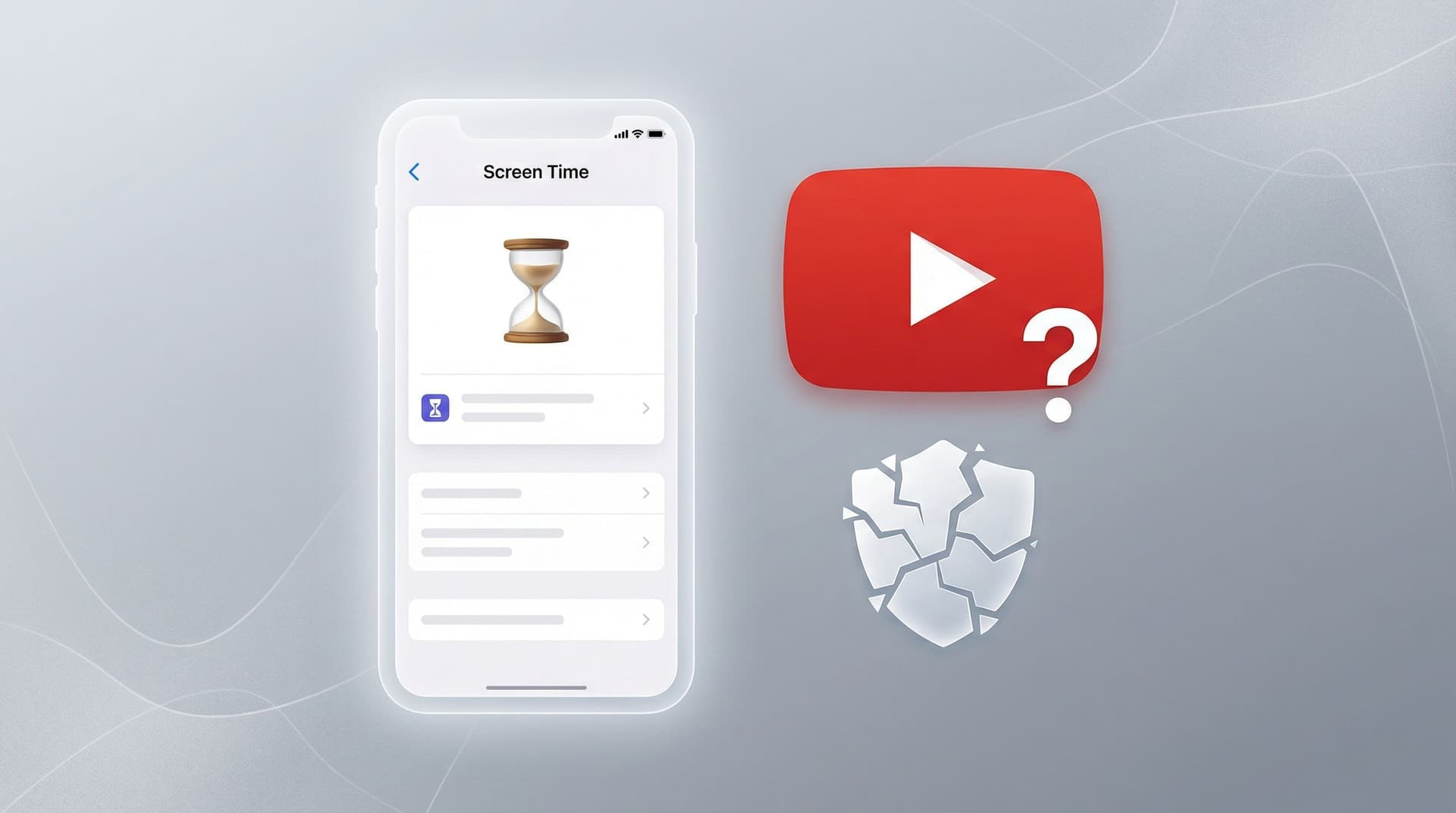

TL;DR: Apple Screen Time controls how long your child uses YouTube, but it cannot control what they watch. There is no setting in Screen Time to filter YouTube channels, block specific videos, or restrict content within the app. For actual YouTube content filtering on iPhone or iPad, you need a dedicated tool like WhitelistVideo that works at the content level, not just the app level.
Screen Time Is Apple's Parental Control. It Can't Filter YouTube.
Apple Screen Time is the parental control feature built into every iPhone, iPad, and Mac. It launched in 2018, and most parents know about it. Many rely on it as their primary tool for keeping kids safe on Apple devices.
Here is the problem: Screen Time operates at the app level. YouTube content exists at the video level. These are two entirely different layers, and Screen Time cannot reach the one that matters for YouTube safety.
Screen Time can tell you that your child spent 47 minutes in the YouTube app today. It can limit that to 30 minutes. It can block the YouTube app entirely after bedtime.
What Screen Time cannot do is tell you which channels your child watched, which videos played, or whether any of that content was age-appropriate. It has zero awareness of what happens inside the YouTube app once it is open.
This distinction matters enormously, because the danger with YouTube is not how long kids watch -- it is what they watch.
Will WhitelistVideo Work for Your Child?
Answer 4 quick questions about your child's devices and age — get a personalized setup recommendation.
10,000+ families · FreeWhat Screen Time Actually Does for YouTube
Screen Time is not useless. It does several things well. But parents need to understand exactly what those things are so they do not overestimate the protection it provides.
App Time Limits
You can set a daily time limit specifically for YouTube (or for the entire "Entertainment" category). Once your child hits the limit, the app locks behind a passcode screen. This is genuinely useful for managing screen time.
Downtime Scheduling
You can schedule periods (bedtime, homework hours, dinner) when YouTube and other apps are unavailable. During downtime, only apps you explicitly allow will work.
App Blocking
You can block the YouTube app entirely by restricting it under Content & Privacy Restrictions. The app icon either disappears or becomes inaccessible. This is the nuclear option -- no YouTube at all.
Content Ratings (App-Level Only)
Screen Time lets you restrict apps by age rating. YouTube is rated 17+ in the App Store. If you restrict apps to 12+ or below, the YouTube app becomes unavailable. But this also blocks other 17+ apps your child may need, and it does not affect YouTube accessed through Safari.
Web Content Filtering (Limited)
Screen Time offers "Limit Adult Websites" which blocks some explicit web content in Safari. But this does not filter YouTube content -- it only affects websites loaded in the browser, and YouTube's own app bypasses it entirely.
Summary: Screen Time gives you a timer and an on/off switch for YouTube. It does not give you a content filter.
What Screen Time CANNOT Do for YouTube
This is the section that matters. These are the capabilities parents assume Screen Time has -- but it does not.
Scroll horizontally to see all columns.
| What Parents Want | Screen Time Can Do This? |
|---|---|
| Limit YouTube to 1 hour per day | ✅ Yes |
| Block YouTube during homework time | ✅ Yes |
| Remove the YouTube app entirely | ✅ Yes |
| Allow only specific YouTube channels | ❌ No |
| Block violent or scary YouTube videos | ❌ No |
| Prevent YouTube from autoplaying into inappropriate content | ❌ No |
| See which YouTube channels your child watches | ❌ No |
| Block specific YouTube creators | ❌ No |
| Filter YouTube search results | ❌ No |
| Stop YouTube Shorts from showing inappropriate content | ❌ No |
Screen Time sees "YouTube" as a single app. It cannot see inside that app. Whether your child is watching Sesame Street or a conspiracy theory video makes no difference to Screen Time -- it sees 47 minutes of "YouTube" either way.
No Channel Filtering
There is no Screen Time setting that lets you approve or block YouTube channels. You cannot whitelist educational channels like Khan Academy and National Geographic while blocking everything else. It is all or nothing.
No Video-Level Blocking
Screen Time cannot block a specific video. If an inappropriate video goes viral among your child's friends, there is no way to prevent your child from watching it through Screen Time -- unless you block YouTube entirely.
No Content Awareness
Screen Time does not analyze video titles, descriptions, thumbnails, or content categories within YouTube. It has no concept of "this video is about science" versus "this video contains graphic content." Apple deliberately designed Screen Time as a time management tool, not a content intelligence system.
No Protection Against the Algorithm
YouTube's recommendation algorithm is the primary way children encounter inappropriate content. A child starts watching Minecraft videos and, within a few autoplay sessions, ends up watching something entirely different. Screen Time cannot intervene in this journey because it does not know it is happening.
The Gap Between Expectation and Reality
This gap is the core problem. Parents configure Screen Time, see the settings panels, and reasonably assume their child is protected on YouTube. Apple's interface does not warn you that content filtering within apps is not possible.
Why Parents Overestimate Screen Time
- "Apple handles security": Apple has built a reputation for privacy and safety. Parents assume these principles extend to content filtering within apps. They do not.
- The settings look comprehensive: Screen Time has sections for Content & Privacy Restrictions, App Limits, Communication Limits, and more. It looks like it covers everything.
- No warning about the gap: When you set a YouTube time limit, Apple does not say "This limits usage time but does not filter content." The absence of a warning implies adequacy.
- "Content Restrictions" sounds like content filtering: Screen Time has a "Content Restrictions" section. But this restricts content by app store rating and media purchase rating -- not by what appears within an app.
The Real-World Consequence
A child with a 2-hour YouTube Screen Time limit watches exactly what they want for 2 hours. That is two full hours of unrestricted access to any video YouTube's algorithm serves. The algorithm does not know or care about your child's age. It optimizes for engagement, and engaging content is not always appropriate content.
Parents who rely solely on Screen Time for YouTube safety are managing the quantity of exposure while ignoring the quality. Both matter. For many families, what a child watches in 30 minutes matters far more than whether they watch for 30 minutes or 60.
What devices does your child use for YouTube?
Can YouTube's Own Settings Help?
Before looking at third-party solutions, it is worth addressing YouTube's built-in options -- because parents often combine them with Screen Time and assume the combination is enough.
YouTube Restricted Mode
YouTube offers a Restricted Mode toggle that attempts to hide mature content. The problems:
- Studies show it misses 20-30% of inappropriate content
- Children can turn it off in the YouTube app settings
- It over-blocks educational content about sensitive topics (history, health education)
- It is not designed as a parental control -- YouTube calls it a "best effort" filter
YouTube Kids
YouTube Kids is a separate app with a curated content library. But:
- Inappropriate content regularly slips through (disturbing Elsagate-style videos)
- The algorithm still drives recommendations within the "safe" library
- Older children (8+) often outgrow it and want real YouTube
- It does not offer channel whitelisting -- you cannot choose exactly which channels appear
Supervised Google Account
Google's Family Link lets you create supervised accounts with YouTube content settings. But the controls are limited to broad age categories (Explore, Explore More, Most of YouTube), not specific channels. And children can easily discover they need to log out or use a different browser to bypass it.
None of these options, alone or combined with Screen Time, let you say: "My child can only watch these specific, parent-approved YouTube channels."
How to Actually Filter YouTube Content on iPhone and iPad
The only reliable approach to YouTube content safety is channel whitelisting -- approving specific channels and blocking everything else. This is what WhitelistVideo does.
How WhitelistVideo Works on iOS
WhitelistVideo's iOS child app provides the content layer that Screen Time is missing:
- Channel whitelisting: Parents approve specific YouTube channels. Children can only watch videos from those channels.
- Everything else is blocked: If a channel is not on the whitelist, videos from that channel will not play. No algorithmic rabbit holes.
- Works on WiFi and cellular: Unlike VPN-based solutions that fail on cellular data, WhitelistVideo works on all connections.
- Cannot be bypassed by the child: The filtering happens at the content level, not the network level. Incognito mode, switching browsers, or toggling WiFi does not help.
- Parent dashboard: Manage the whitelist from any device at app.whitelist.video. Add or remove channels anytime.
What This Looks Like in Practice
A parent approves 15 channels: Khan Academy, National Geographic, Crash Course, Mark Rober, a few gaming channels they have reviewed, and some art tutorial channels. Their child opens YouTube and can browse, search, and discover -- but only within those 15 channels. Everything else is blocked before it loads.
The child still gets a real YouTube experience. They can search, watch playlists, see thumbnails. But every video they can access has been pre-approved at the channel level by their parent.
This is the control that Screen Time cannot provide.
Using Screen Time + WhitelistVideo Together
Screen Time and WhitelistVideo are not competitors. They solve different problems, and they work best when used together.
Scroll horizontally to see all columns.
| Control Layer | Screen Time | WhitelistVideo |
|---|---|---|
| How long can my child watch YouTube? | ✅ Time limits | -- |
| When can my child use YouTube? | ✅ Downtime scheduling | -- |
| Which YouTube channels can my child watch? | -- | ✅ Channel whitelisting |
| Can my child search for any video? | -- | ✅ Blocked unless channel is approved |
| Can the algorithm lead to inappropriate content? | -- | ✅ Blocked at content level |
| Does my child need a separate app? | No (built into iOS) | Yes (iOS child app) |
| Cost | Free | From $6.99/mo per child (US); free 2-hour test period |
Recommended Setup for iPhone / iPad
- Install WhitelistVideo's iOS child app on your child's device. Set up your parent account and build your channel whitelist. (Download from the App Store)
- Finish the in-app setup: allow Screen Time access (you approve it), block or delete the YouTube app when setup asks, let the YouTube access check pass, and set the parent PIN. Don't block
youtube.comin Screen Time (Never Allow, Limit Adult Websites or Allowed Websites Only); the app needs it. There is no need to block Safari. - Recommended, on your iPhone: Screen Time → Content & Privacy Restrictions → iTunes & App Store Purchases → Deleting Apps: Don't Allow.
- Configure Screen Time with a daily YouTube time limit (e.g., 1 hour on school days, 2 hours on weekends).
- Enable Screen Time Downtime to block YouTube during homework, dinner, and bedtime.
- Set a Screen Time passcode your child does not know. This prevents them from overriding time limits.
- Optional: block google.com in Screen Time (Google results play video snippets) and set DuckDuckGo as Safari's search engine.
With this setup, Screen Time handles "how long" and "when." WhitelistVideo handles "what content." Together, they cover both dimensions of YouTube safety that neither can address alone.
Frequently Asked Questions
Can I just block YouTube entirely with Screen Time?
Yes, and for very young children (under 5), this is a reasonable option. But for school-age kids who need YouTube for homework, hobbies, or age-appropriate entertainment, blocking it entirely creates conflict and teaches kids to find workarounds. Whitelisting specific channels is a better long-term approach -- it says "yes, but only these" instead of "no, never."
What about blocking YouTube in Safari with Screen Time?
When using WhitelistVideo, do not block youtube.com in Screen Time: it must remain permitted so approved videos can play. That means no Never Allow entry, no Limit Adult Websites restriction and no Allowed Websites Only list that leaves it out. Instead, install and activate WhitelistVideo, allow its Screen Time access, block or delete the YouTube app when setup asks, let the YouTube access check pass, and set the parent PIN. Once Screen Time access is approved, WhitelistVideo blocks youtube.com in Safari and other browsers whenever it isn't on screen, so there is no need to block Safari. Setting Deleting Apps to Don't Allow is recommended.
Does Screen Time work differently on iPad vs. iPhone?
No. Screen Time works identically on both devices. The same limitations apply -- time limits and app blocking are available, but content filtering within YouTube is not possible on either device.
Will Apple ever add YouTube content filtering to Screen Time?
Unlikely. Content filtering within third-party apps would require Apple to inspect data inside those apps, which conflicts with their privacy architecture. Apple would need YouTube's cooperation to implement in-app filtering, and YouTube has shown no interest in providing that level of third-party control. Apple's approach has consistently been to manage apps as units, not to manage content within apps.
The Bottom Line
Apple Screen Time is a solid time management tool. Use it for what it does well: limiting how long and when your child uses YouTube.
But do not rely on it for content safety. Screen Time has no ability to filter what your child watches within YouTube. No channel blocking. No video filtering. No content awareness. That is not a flaw -- it is simply not what Screen Time was designed to do.
For YouTube content filtering on iPhone and iPad, you need a dedicated solution that works at the content level. WhitelistVideo's iOS app fills the exact gap that Screen Time leaves open -- letting you approve specific channels while blocking everything else.
Use both tools together. Let Screen Time manage time. Let WhitelistVideo manage content. That is how you actually make YouTube safe on an Apple device.
Try WhitelistVideo Free -- Channel Whitelisting for iPhone and iPad →
Need YouTube Content Control on iPhone?
Screen Time limits time. WhitelistVideo filters content.
Frequently Asked Questions
No. Screen Time can limit how long kids use the YouTube app or block it entirely, but it cannot filter content within YouTube. Screen Time has no awareness of what videos or channels are being watched—only which app is open and for how long.
No. Screen Time operates at the app level, not the content level. It can block the YouTube app entirely or set a daily time limit, but it cannot whitelist or blacklist specific YouTube channels or videos.
Use WhitelistVideo's iOS child app for YouTube channel whitelisting, combined with Screen Time for overall device time limits. Screen Time handles 'how long'; WhitelistVideo handles 'what content.'
Screen Time can set time limits for YouTube Kids just like any app. But YouTube Kids has its own content issues (algorithm-driven, inappropriate content slips through). Neither Screen Time nor YouTube Kids offer channel whitelisting.
When enabled, 'Block at End of Limit' immediately blocks the app when the time limit expires instead of showing a reminder. This prevents kids from dismissing the warning and continuing. It works with Family Sharing for remote management — parents can set and enforce limits from their own device. However, this only controls time, not YouTube content.
Go to System Settings > Screen Time > Family Sharing, select your child's name, then configure App Limits, Communication Limits, and Content & Privacy Restrictions. You can manage these remotely from your own Mac or iPhone. Note: macOS Screen Time can limit YouTube time but cannot filter YouTube content — for content control, give your child their own Mac account, add WhitelistVideo's extension to Chrome or Edge there, run the desktop installer from whitelist.video/download as administrator, and use Screen Time to block Safari and other browsers. Don't block youtube.com.
Yes. Go to Settings > Screen Time > Content & Privacy Restrictions > Content Restrictions > Web Content. Options are Unrestricted, Limit Adult Websites (blocks known adult sites), or Allowed Websites Only (whitelist mode). However, this controls website access, not content within YouTube. Even with 'Limit Adult Websites' enabled, kids can still access any YouTube video through the app.
Yes. Go to Settings > Screen Time > Content & Privacy Restrictions > iTunes & App Store Purchases > Installing Apps > Don't Allow. This prevents kids from installing new apps, including alternative YouTube apps or VPN apps that could bypass other restrictions.








Published February 6, 2026 · Updated September 6, 2026
About WhitelistVideo Editorial Team
Editorial & Testing Team
The WhitelistVideo Editorial Team tests parental controls on real devices — iPhone, iPad, Android, Windows, Mac, Chromebook and Android TV — and writes up what we find, including where our own product falls short. Where a claim comes from a vendor's own documentation or from third-party testing, we cite it. Articles are reviewed by Arul Prakash, the founder of WhitelistVideo.
You Might Also Like

Best Bark Alternatives for iPhone (2026): Why Bark Doesn't Work on iOS
Bark's iOS monitoring only works on WiFi, not cellular data. Kids bypass it instantly by turning off WiFi. Here are better alternatives that actually work on iPhone.

Bark Failed on My iPhone - Here's What Actually Works (2026)
Bark's iOS VPN fails 60% of the time. 14,000+ parents switched to WhitelistVideo after Bark stopped working. Here's why it actually works on iPhone. Try free →

YouTube Safety for Kids: The Complete 2026 Parent's Guide to Every Option
Compare every YouTube control: YouTube Kids, Restricted Mode, Family Link, and whitelist controls. Learn which actually works and which is security theater.
Curious what Google knows about us?
Add WhitelistVideo as a trusted source on Google — get instant context on how families keep kids safe on YouTube.
Ask Google about WhitelistVideo








