
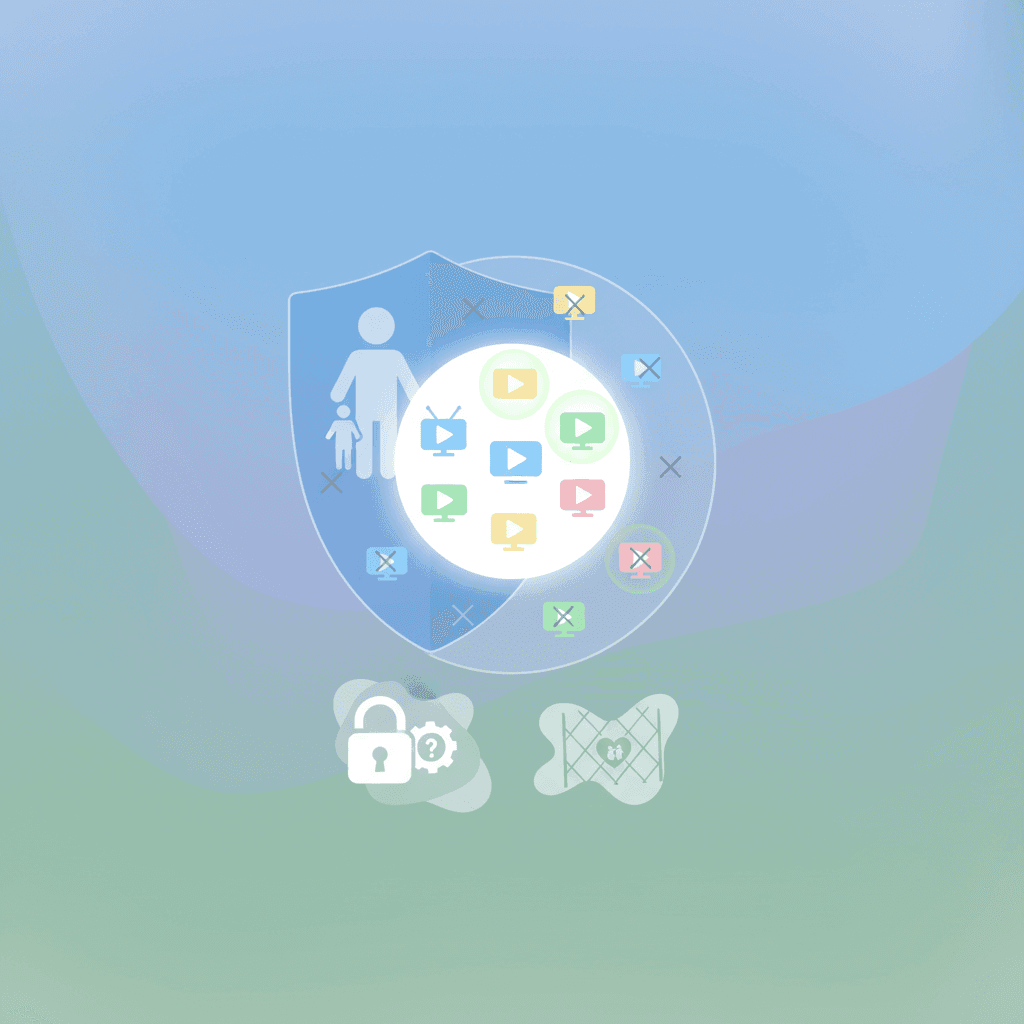

Resumen (TL;DR): Las "aplicaciones de fuentes desconocidas" son cualquier descarga que se realice fuera de la tienda oficial Play Store. Representan un riesgo de seguridad importante para los teléfonos de los niños. Aunque Google Family Link tiene las herramientas para bloquear estas instalaciones, no es una solución de "configurar y olvidar". Es necesario configurar los ajustes correctamente y mantenerse alerta para asegurarse de que sus hijos no encuentren trucos ingeniosos.
Puntos clave
- "Fuentes desconocidas" se refiere a tiendas no oficiales o descargas directas, que a menudo conllevan malware o riesgos de privacidad.
- Google Family Link actúa como un guardián para la Play Store y puede bloquear instalaciones de terceros si se configura correctamente.
- El paso más importante es desactivar manualmente los permisos de "Instalar aplicaciones desconocidas" para cada aplicación en el dispositivo del niño.
- Los niños son expertos en tecnología; a menudo intentan eludir estas reglas. Las revisiones periódicas del dispositivo y las conversaciones abiertas son tan importantes como el software.
- Family Link es excelente para la gestión de aplicaciones, pero no filtra el contenido de YouTube de manera efectiva. Para eso, necesitará una herramienta como WhitelistVideo.
Entendiendo la amenaza: ¿Qué son las "aplicaciones de fuentes desconocidas"?
En el mundo de Android, una "aplicación de una fuente desconocida" es básicamente cualquier cosa que no provenga de Google Play Store. Esto incluye aplicaciones descargadas directamente de un sitio web (APKs), archivos enviados por Bluetooth o aplicaciones de mercados de terceros. Aunque no todas las aplicaciones no oficiales son "malas", permitirlas en el teléfono de un niño elude los controles de seguridad que realiza Google.
El verdadero peligro aquí es el malware. Las tiendas oficiales examinan las aplicaciones para asegurarse de que no escondan spyware o virus. Cuando un niño descarga algo de un sitio aleatorio, esa protección desaparece. Estas aplicaciones pueden robar datos personales, llenar el teléfono de anuncios o incluso tomar el control de la cámara y el micrófono. Algunas están diseñadas específicamente para ocultarse de los controles parentales o exponer a los niños a contenido que no deberían ver. Es un gran dolor de cabeza para cualquier padre que intente mantener un entorno digital seguro.
¿Cómo gestiona Google Family Link las instalaciones de aplicaciones?
Google Family Link es esencialmente un control remoto para el teléfono de su hijo. Su función principal es asegurar que usted tenga la última palabra sobre lo que se instala. De forma predeterminada, si su hijo intenta descargar algo de la Play Store, usted recibe una notificación en su teléfono para aprobarlo o denegarlo.
Pero Family Link va un paso más allá al ayudarle a cerrar las instalaciones por la "puerta trasera". Los dispositivos Android suelen bloquear las fuentes desconocidas por defecto, pero esos ajustes pueden activarse o concederse a aplicaciones específicas (como un navegador web). Family Link le permite profundizar en estos permisos y bloquearlos. Esta es la mejor manera de evitar que un niño intente esquivar sus restricciones de la Play Store descargando software no aprobado en otros lugares. Solo tenga en cuenta que, si bien Family Link es excelente para controlar *qué* aplicaciones están en el teléfono, no controla realmente lo que sucede *dentro* de ellas, especialmente en plataformas como YouTube.
¿Funcionará WhitelistVideo para tu hijo?
Responde 4 preguntas rápidas sobre los dispositivos y la edad de tu hijo y obtén una recomendación de configuración personalizada.
Más de 10.000 familias · Gratis¿Puede un niño saltarse Family Link para instalar aplicaciones desconocidas?
Family Link es una herramienta sólida, pero seamos realistas: los niños son persistentes. Si quieren un juego al que juegan sus amigos y usted ha dicho que no, podrían buscar una forma de saltarse las reglas. La mayoría de las elusiones ocurren debido a un pequeño descuido en los ajustes o mediante simple ingeniería social.
Por ejemplo, si a una aplicación de gestión de archivos en el dispositivo se le dio accidentalmente permiso para "Instalar aplicaciones desconocidas", su hijo podría usarla para instalar lo que quiera. Los teléfonos más antiguos también pueden tener brechas de seguridad que los más nuevos no tienen. Datos de Qustodio muestran que la mayoría de los adolescentes admiten haber intentado eludir los controles parentales. Es un juego constante del gato y el ratón. Sin embargo, la mayoría de estos trucos pueden detenerse si revisa los ajustes con regularidad. A diferencia de las herramientas generales de las que los niños a veces pueden escabullirse, las herramientas especializadas como WhitelistVideo utilizan bloqueo por VPN y detección de incógnito para ir un paso por delante.
¿Cómo pueden los padres prevenir eficazmente las instalaciones de aplicaciones desconocidas?
Si desea detener las aplicaciones no aprobadas definitivamente, debe ser proactivo. Se trata de combinar los ajustes técnicos adecuados con un poco de crianza a la antigua. Aquí le explicamos cómo blindar el dispositivo:
-
Compruebe los permisos de "Instalar aplicaciones desconocidas":
Este es el punto clave. En el teléfono de su hijo, vaya a Ajustes > Aplicaciones > Acceso especial a aplicaciones > Instalar aplicaciones desconocidas. Revise la lista. A menos que una aplicación lo necesite de forma absoluta, desactívelo para todo. Esto evita que cualquier aplicación actúe secretamente como puerta de entrada para otro software.
-
Gestione los permisos de Google Play Store:
Abra Family Link en su propio teléfono, vaya al perfil de su hijo y busque Ajustes del dispositivo > Aplicaciones > Aprobaciones de aplicaciones. Establézcalo en "Requerir aprobación para todo el contenido". Esto asegura que nada, ni siquiera un juego gratuito, entre en ese teléfono sin su autorización.
-
Revise regularmente las aplicaciones instaladas:
Tómese cinco minutos cada semana para desplazarse por su menú de aplicaciones. Si ve algo que no reconoce, pregúntele al respecto. Si no debería estar allí, elimínelo y compruebe los ajustes para ver cómo llegó allí en primer lugar.
-
Mantenga el software del dispositivo actualizado:
No ignore esas notificaciones de actualización del sistema. Las actualizaciones a menudo parchean brechas de seguridad que los niños (o las aplicaciones que descargan) utilizan para eludir las restricciones de Family Link.
-
Hable con su hijo:
Explique *por qué* está haciendo esto. No se trata de ser controlador; se trata de proteger su privacidad y evitar que el teléfono quede inutilizado por un malware. Si entienden los riesgos, es menos probable que busquen formas de saltarse las reglas.
-
Asegure el acceso físico:
Los niños son observadores. Si conocen su código de acceso, pueden cambiar ellos mismos los ajustes de Family Link. Utilice una contraseña fuerte o biometría en su propio dispositivo para mantener privados los ajustes de "padre".
Protección para los dispositivos que usa tu hijo
Más allá de las aplicaciones desconocidas: Asegurando la experiencia de su hijo en YouTube
Bloquear aplicaciones desconocidas es un gran primer paso para la seguridad, pero no resuelve el problema de lo que los niños ven dentro de las aplicaciones que *sí* aprueba. YouTube es el ejemplo perfecto. Family Link puede establecer un límite de tiempo o bloquear la aplicación por completo, pero no puede evitar que el algoritmo recomiende videos extraños o inapropiados. Es por eso que tantos padres buscan formas de bloquear canales específicos de YouTube.
WhitelistVideo fue creado para llenar este vacío. En lugar de intentar filtrar el contenido "malo" (lo cual es casi imposible con millones de horas de video subidas diariamente), le permite elegir exactamente qué canales son seguros. Todo lo demás, incluidos los adictivos y a menudo problemáticos YouTube Shorts, queda bloqueado. Le otorga un control total sobre sus hábitos de visualización sin tener que estar vigilando por encima de su hombro.
Tome el control de YouTube
Ponga en la lista blanca canales específicos de YouTube y bloquee YouTube Shorts para crear un espacio de visualización seguro para su hijo.
Preguntas Frecuentes
Las aplicaciones de fuentes desconocidas son aplicaciones instaladas en dispositivos Android desde lugares distintos a las tiendas de aplicaciones oficiales como Google Play. Estas pueden incluir aplicaciones descargadas directamente de sitios web o tiendas de aplicaciones de terceros.
Google Family Link permite a los padres aprobar o bloquear las aplicaciones que sus hijos desean descargar de Google Play Store y puede evitar la instalación de aplicaciones de fuentes desconocidas a través de los ajustes del dispositivo, ayudando a gestionar situaciones donde las aplicaciones desconocidas son una preocupación.
Family Link es robusto, pero los niños decididos pueden encontrar soluciones alternativas, especialmente si los ajustes del dispositivo para fuentes desconocidas se habilitan accidentalmente o si obtienen acceso de administrador. Esto puede suponer un riesgo de saltarse el control de Family Link sobre aplicaciones de fuentes desconocidas.
Bloquear estas aplicaciones ayuda a prevenir la instalación de malware, contenido inapropiado o aplicaciones que podrían comprometer la privacidad o eludir los controles parentales existentes, manteniendo el entorno digital del niño seguro frente a los peligros de las aplicaciones desconocidas que saltan Family Link.
Family Link puede establecer límites de tiempo o bloquear la aplicación YouTube, pero no puede controlar qué canales o videos específicos ve su hijo dentro de ella. Para ese nivel de control granular, como poner canales específicos en una lista blanca o bloquear YouTube Shorts, es necesaria una herramienta dedicada como WhitelistVideo.








Publicado el 13 de mayo de 2026 · Actualizado el 14 de mayo de 2026

Acerca de WhitelistVideo Editorial Team
Editorial & Testing Team
The WhitelistVideo Editorial Team tests parental controls on real devices — iPhone, iPad, Android, Windows, Mac, Chromebook and Android TV — and writes up what we find, including where our own product falls short. Where a claim comes from a vendor's own documentation or from third-party testing, we cite it. Articles are reviewed by Arul Prakash, the founder of WhitelistVideo.
También Te Puede Interesar
Cómo bloquear canales de YouTube de las recomendaciones (Guía 2026)
Deja de recibir recomendaciones de canales de YouTube que no quieres ver. Guía paso a paso para escritorio, móvil y TV, además de un enfoque de lista blanca que bloquea todo excepto lo que apruebes.

La madriguera del algoritmo de YouTube: Por qué el 70% de las vistas provienen de recomendaciones
El algoritmo de YouTube impulsa el 70% de las vistas y arrastra a los niños hacia contenido extremo. Aprende por qué el filtrado de videos falla y el whitelisting de canales es la solución.
Verificación de edad en redes sociales en Japón: Guía 2026 para padres
Japón está debatiendo controles de edad obligatorios y una posible prohibición de redes sociales para menores de 16 años. Conozca cómo estas regulaciones afectan a su familia y cómo mantener seguros a sus hijos.
¿Tienes curiosidad por lo que Google sabe de nosotros?
Agrega WhitelistVideo como fuente confiable en Google y obtén contexto inmediato sobre cómo las familias protegen a sus hijos en YouTube.
Ask Google about WhitelistVideo








