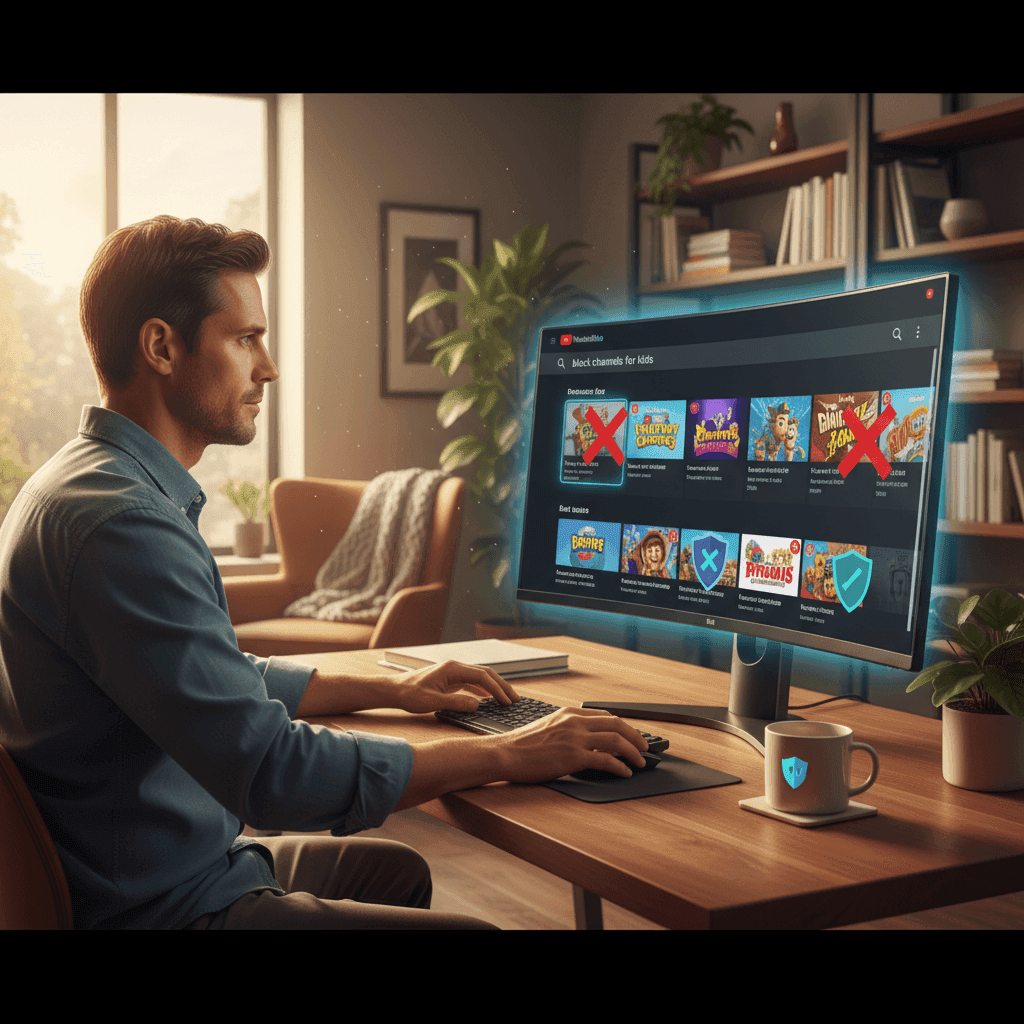
TL;DR: YouTube's "Don't recommend channel" hides a channel from your feed but doesn't truly block it — your child can still search for it. "Block user" only stops comments. Neither scales when 500 hours of video are uploaded every minute. The whitelist approach (approve good channels, block everything else) is the only method that actually works across devices.
YouTube's Built-in Channel Blocking (What It Actually Does)
YouTube offers three options that sound like blocking but work differently than most people expect:
"Don't Recommend Channel"
Available from the three-dot menu on any video. This tells YouTube's algorithm to stop suggesting that channel in your Home feed and Up Next sidebar. What it doesn't do: the channel still appears in search results, subscription feeds, and direct links. Your child can find it in seconds.
"Block User"
Found on the channel's About page or via the flag icon. Blocking a user prevents them from commenting on your videos and hides their comments from your view. What it doesn't do: it does not remove their videos from your feed, search results, or recommendations. Despite the name, it's a comment moderation tool — not a content filter.
"Hide User From Channel"
This option appears in YouTube Studio for channel owners. It removes a specific user's comments from your channel. What it doesn't do: absolutely nothing related to video recommendations or content access. It's strictly a comment management feature.
In short: YouTube has no built-in way to truly block a channel so that its videos become completely inaccessible.
How to Block a Channel on Desktop (Step by Step)
Here's how to use every available option on desktop browsers:
Remove from recommendations:
- Find any video from the channel you want to hide
- Hover over the video thumbnail and click the three-dot menu (⋮)
- Select "Don't recommend channel"
- The channel's videos will stop appearing in your Home and Up Next feeds
Block the user:
- Go to the channel's page directly
- Click the flag icon or three-dot menu on their About tab
- Select "Block user"
- Confirm the block
Limitation: Both actions are tied to your Google account. If your child uses a different account, signs out, or uses incognito mode, these settings don't apply.
What Kind of Digital Parent Are You?
Discover your archetype among 6 research-backed parenting styles and get personalized tips.
10,000+ parents · FreeHow to Block a Channel on the Mobile App
The YouTube mobile app (iOS and Android) supports the same two options:
Remove from recommendations:
- Find a video from the channel in your feed
- Tap the three-dot menu (⋮) next to the video title
- Tap "Don't recommend channel"
Block the user:
- Open the channel's page
- Tap the three-dot menu in the top right
- Tap "Block user"
Limitation: No browser extensions are available on mobile, so you can't add third-party blockers. The YouTube app doesn't support content filtering beyond these two options. Children can undo "Don't recommend channel" by clearing their watch history.
How to Block a Channel on Smart TV
Smart TVs and streaming devices (Roku, Fire TV, Apple TV, Android TV) have the most limited options:
- "Don't recommend channel" is available on some TV interfaces — navigate to a video, open the menu, and look for the option
- "Block user" is not available on most TV apps
- No extensions can be installed on TV platforms
- No third-party blockers work directly on the YouTube TV app
The only reliable way to control YouTube on a TV is through the Google account's supervised settings — or by using a dedicated app like WhitelistVideo for Android TV that enforces a whitelist before any video plays.
Why Blocking Individual Channels Doesn't Scale
Here's the math problem with the blocking approach:
- 500 hours of video are uploaded to YouTube every single minute
- That's 720,000 hours per day — from millions of channels
- New channels appear constantly, and the algorithm recommends them before you've had time to review them
- Every "Don't recommend" action handles one channel — while thousands more go unchecked
Blocking channels one by one is a game of whack-a-mole. You'll never catch up. Even if you blocked 10 channels a day, the platform adds more creators in an hour than you could review in a year.
For parents, this is especially dangerous. A child only needs to find one inappropriate channel that you haven't blocked yet. The reactive approach — find bad content, then block it — means your child sees the bad content first.
The Whitelist Alternative: Allow Only What You Want
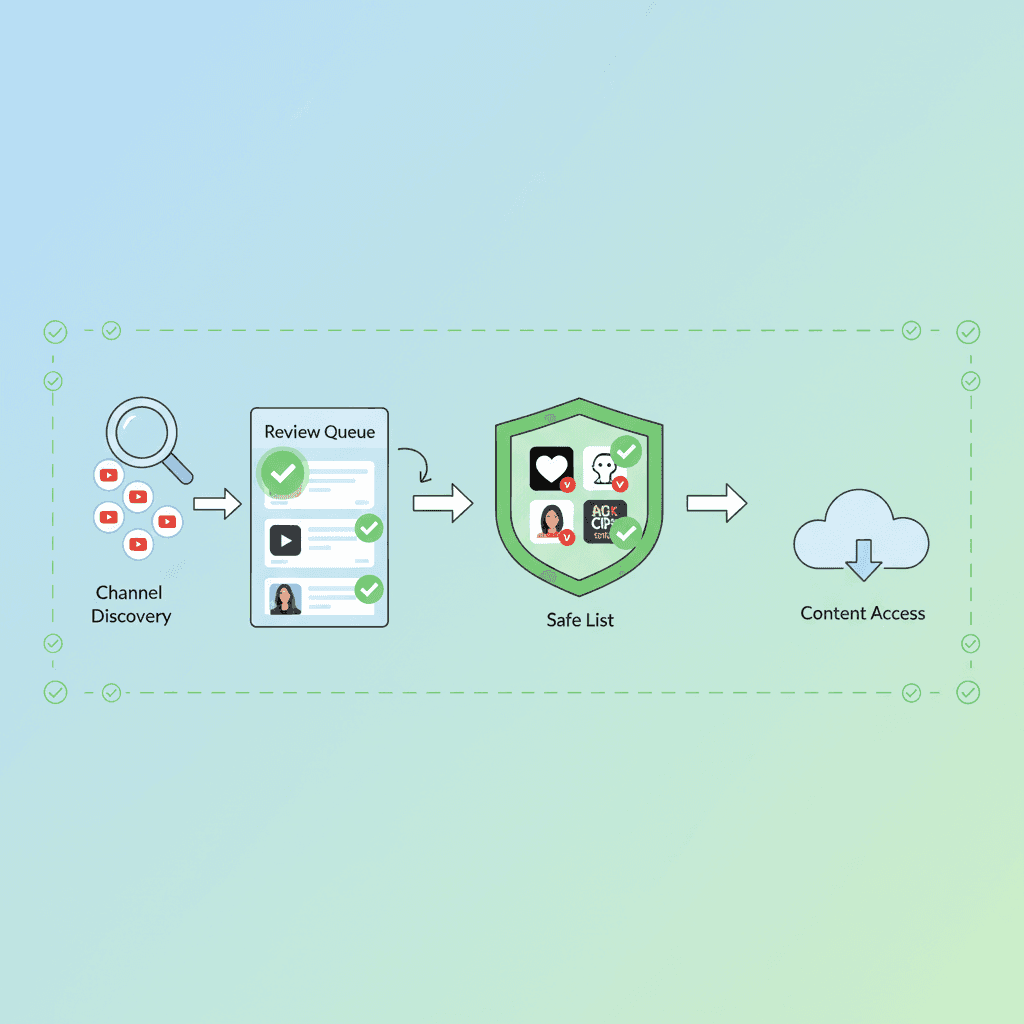
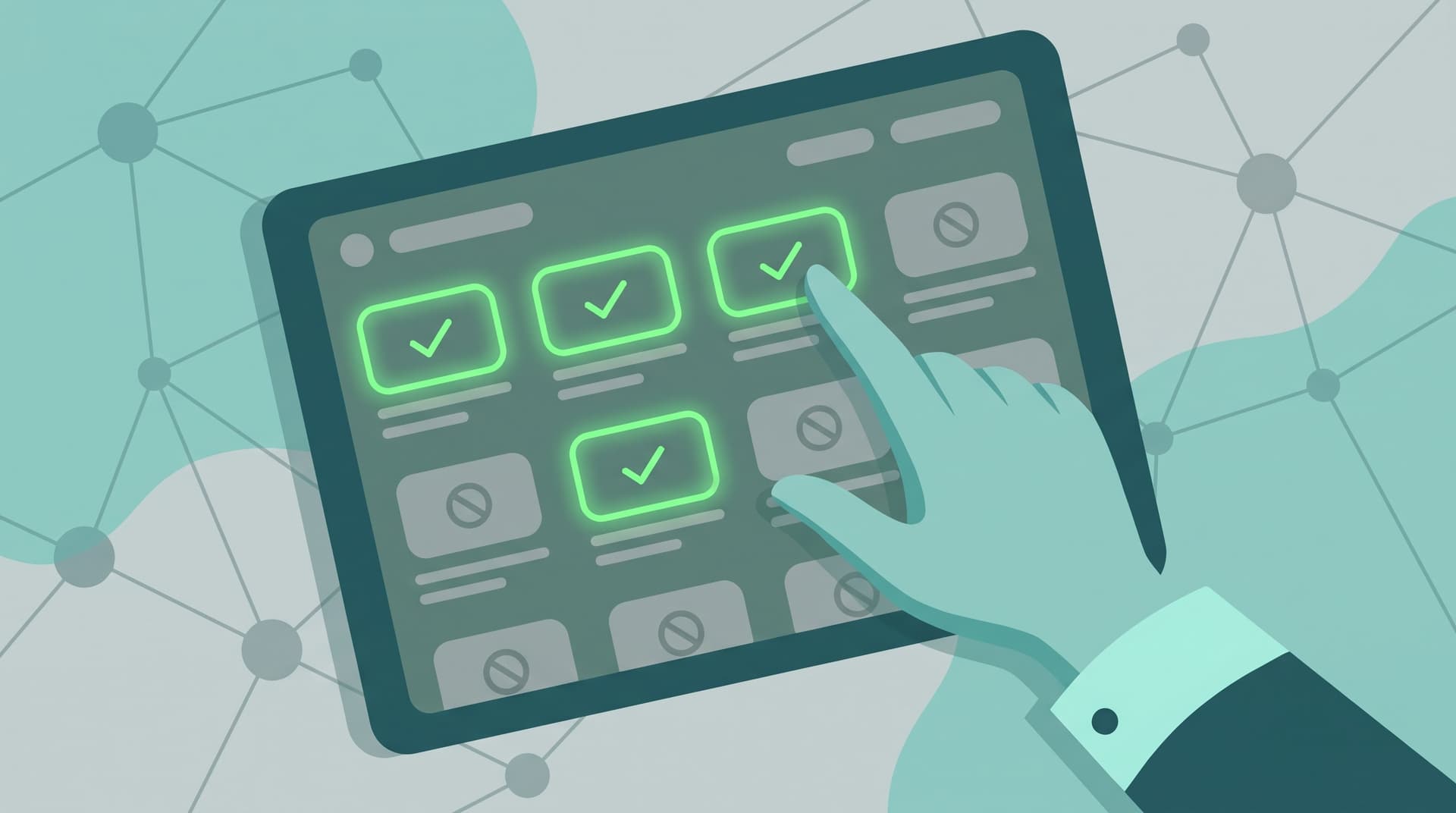
Instead of blocking thousands of bad channels, approve the handful of good ones. That's the whitelist approach.
WhitelistVideo flips YouTube's model:
- Every channel is blocked by default — nothing plays until you approve it
- You build an approved list of channels your child can watch
- New channels can't sneak through — if it's not on the whitelist, it doesn't play
- Works across all devices — the same whitelist syncs to desktop, Chromebook, iPhone, Android, and Android TV
- Children can request channels — they find something interesting and send an approval request to the parent app
With Auto-pilot mode, WhitelistVideo also uses category filtering — you set which content categories are acceptable, and the system enforces your rules automatically. You stay in control without needing to block channels one at a time.
The result: your child gets a YouTube experience with only the content you've reviewed and approved. No surprises, no whack-a-mole, no relying on YouTube's algorithm to behave.
Cómo Bloquear Canales de YouTube
Si quieres bloquear canales de YouTube para no ver sus videos, YouTube ofrece la opción "No recomendar canal" desde el menú de tres puntos en cualquier video. Esto oculta el canal de tus recomendaciones, pero no lo bloquea completamente — tu hijo aún puede buscarlo.
Para bloquear un canal de YouTube que no quieres ver de forma permanente, la solución más efectiva es usar un enfoque de lista blanca. WhitelistVideo bloquea todos los canales por defecto y solo permite los que tú apruebas. Funciona en computadora, Chromebook, iPhone, Android y Android TV.
En lugar de bloquear canales uno por uno (un proceso interminable), aprueba solo los canales que consideras seguros. Todo lo demás queda bloqueado automáticamente.
Frequently Asked Questions
How do I tell YouTube to not recommend a channel?
Click the three-dot menu (⋮) on any video from the channel and select "Don't recommend channel." This removes the channel from your Home feed and Up Next suggestions. It does not block the channel from search results or direct links.
Is there a way to only allow certain YouTube channels?
Yes. WhitelistVideo lets you create a whitelist of approved channels. Every channel not on your list is automatically blocked. This works across desktop, Chromebook, iPhone, Android, and Android TV — so your child only sees content you've approved, regardless of which device they use.
What does "hide user from channel" do on YouTube?
This is a comment moderation tool for channel owners. It hides a specific user's comments from your channel's comment section. It has no effect on video recommendations, search results, or content access. It does not block the user's videos from appearing anywhere.
Can I block YouTube channels on a smart TV?
The YouTube app on most smart TVs only supports "Don't recommend channel" — and not on all TV platforms. You cannot install extensions or third-party blockers on TV apps. For Android TV and Google TV, WhitelistVideo's TV app enforces your approved channel list directly on the device.
How to block a YouTube channel so you don't see their videos at all?
YouTube's built-in tools cannot fully hide a channel's videos from search and browse. The only complete solution is a whitelist-based parental control that blocks all channels by default and only allows approved ones to play. WhitelistVideo provides this across all major platforms.
Does blocking a channel on YouTube actually work?
"Block user" on YouTube is a comment moderation tool — it stops someone from commenting on your videos. It does not prevent their videos from appearing in your feed or search results. "Don't recommend channel" is closer to what most people want, but it only affects the algorithm's suggestions, not search access.
Frequently Asked Questions
On any video from the channel, click the three-dot menu and select 'Don't recommend channel.' This removes the channel from your Home and Up Next feeds. It does not block the channel — you can still find it via search. For a permanent solution, use a whitelist tool like WhitelistVideo that only allows pre-approved channels.
Use the three-dot menu on any video from the channel and choose 'Don't recommend channel' to remove it from your feed. To also block the user entirely, visit their channel page, click the flag icon, and select 'Block user.' Neither method prevents access via direct search — only a whitelist-based parental control blocks the channel completely.
In 2026, YouTube still offers only 'Don't recommend channel' via the three-dot menu. This hides the channel from recommendations but not from search results. For full blocking, use browser extensions on desktop or a parental control app like WhitelistVideo on all devices.
Yes. WhitelistVideo lets you create a list of approved channels. Any channel not on your whitelist is automatically blocked — on desktop, Chromebook, iPhone, Android, and Android TV. Instead of blocking channels one by one, you approve only the ones you trust.
Selecting 'Hide user from channel' removes that person's comments from your channel's comment section. It does not block their videos from appearing in your feed or search. It is a moderation tool for channel owners, not a content filter for viewers.
Use 'Don't recommend channel' to remove them from your feed, and 'Block user' on their channel page to prevent interaction. Neither fully prevents you from seeing their videos in search. The only way to completely prevent access is a whitelist-based tool like WhitelistVideo that blocks all channels except approved ones.
Published: April 29, 2026 • Last Updated: April 29, 2026

About Sarah Mitchell
Consumer Technology Analyst
Sarah Mitchell is an independent technology analyst specializing in family safety software evaluation. She holds a B.S. in Information Systems from MIT and spent seven years at Gartner as a research analyst covering enterprise endpoint security. Sarah has conducted hands-on testing of over 80 parental control applications, publishing methodology-driven reviews in The New York Times Wirecutter, CNET, and PCMag. She developed the "Bypass Resistance Index," an industry-cited framework for evaluating parental control robustness. As a mother of three, she brings personal experience to her professional analysis. She is a guest contributor at WhitelistVideo.
You Might Also Like
GuidesHow to Block YouTube Channels in 2026 (All Devices + Screenshots)
Block YouTube channels on iPhone, Android, Chromebook, or desktop in 3 steps. Works in 2026 (tested on all devices). Takes 3 minutes. Free guide with screenshots →
GuidesHow to Block YouTube Channels on Mobile App (2026 Guide)
Learn how to block YouTube channels on Android and iOS mobile apps. Step-by-step instructions for the YouTube app's limited features plus more effective parental control solutions.
GuidesYouTube Restricted Mode: Complete Guide — What It Blocks, What It Misses (2026)
YouTube Restricted Mode is a content filter, not a parental control. Learn how to enable it on every device, what it actually blocks, what it misses, common error messages, and better alternatives for keeping kids safe.