
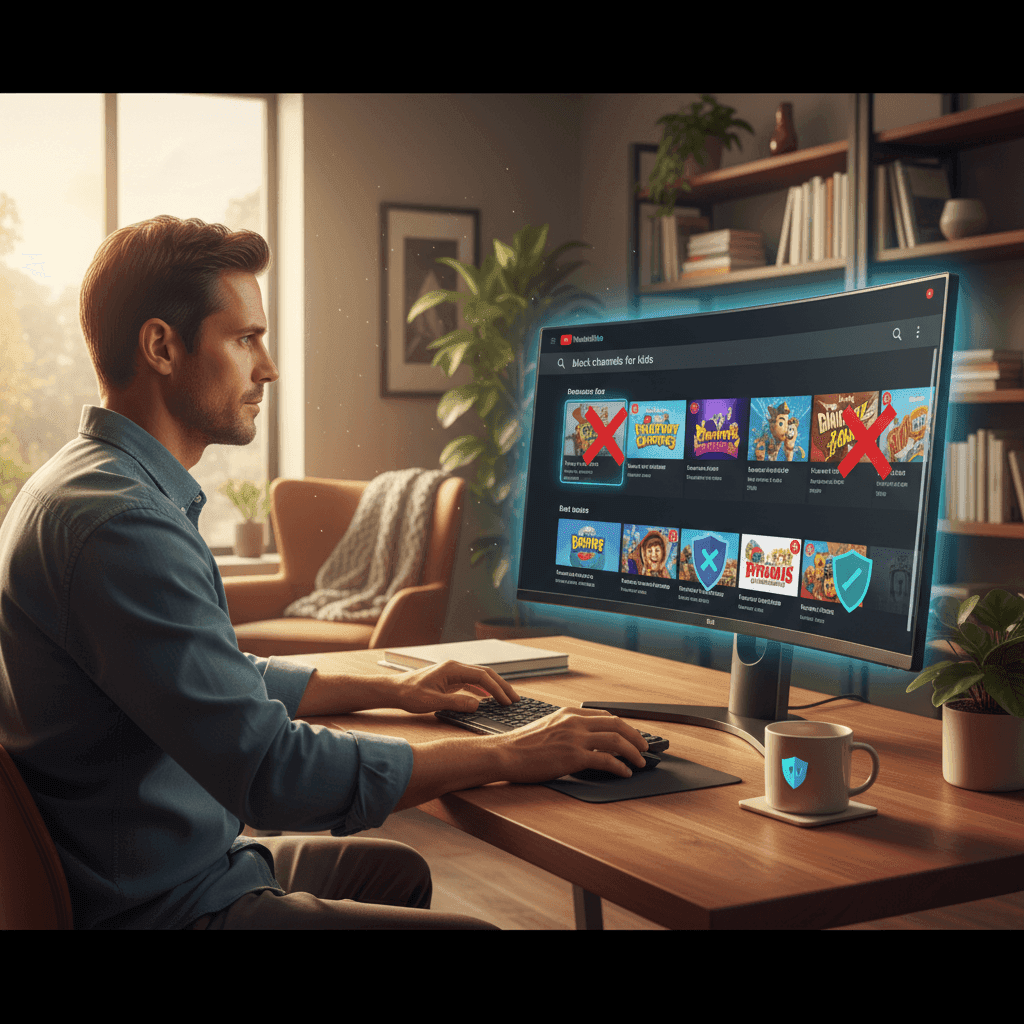

TL;DR: You can hide channels using YouTube’s "Don't recommend" button, but it’s easy to bypass. For something permanent, use a whitelist tool like WhitelistVideo: its extension covers Chrome and Edge on the computer, and its child app covers phones, tablets and Android TV. Whitelisting is the only way to block everything by default and only allow the channels you actually trust.
The reason is simple: blocking channels one by one is a game of whack-a-mole you can't win. There is always another channel, every block lives on one device, and a child can clear it in seconds. An approve-only whitelist turns it around: you say yes once to the channels you trust, and everything else stays off on every device.
Blocking channels is one layer. For everything a parent can control on YouTube, and what each device leaves to you, see the YouTube parental controls overview.
Why Parents Need to Block YouTube Channels
YouTube has over 800 million videos—and let's be honest, a huge chunk of them aren't meant for kids. Even with YouTube's filters, weird stuff gets through all the time:
- Clickbait and junk — Channels that use bright, loud thumbnails to lure kids into low-quality content.
- The "Switch" — Videos that start out looking like a normal cartoon but take a dark or inappropriate turn halfway through.
- Random Creators — Anyone with a webcam can upload content, and they don't always have your kid's best interests in mind.
- The Algorithm — YouTube is built to keep people watching, not to keep them safe. It will suggest whatever gets a click.
The best fix is to block specific channels entirely. This guide walks through every way to do that in 2026. If you want a deeper look at all your options, check out our YouTube parental controls guide.
Will WhitelistVideo Work for Your Child?
Answer 4 quick questions about your child's devices and age — get a personalized setup recommendation.
10,000+ families · FreeMethod 1: YouTube's Built-in "Don't Recommend Channel" Feature
YouTube has a native way to hide channels from your feed. It’s simple, but it’s not a "hard" block. For the desktop, mobile and TV versions of this step, see blocking channels from YouTube recommendations.
Step-by-Step Instructions:
- Find a video from the channel you want to get rid of.
- Click the three vertical dots next to the title.
- Select "Don't recommend channel."
- That’s it. The channel should stop showing up in your suggestions.
The Catch:
- It’s not a real block — If your child searches for the channel name, it will still show up.
- Easy to undo — A kid who knows their way around settings can reset these preferences easily (here is how kids usually bypass these things).
- Device-specific — If you do this on your laptop, it might not carry over to the tablet.
- Requires a login — This doesn't work if you aren't signed into a Google account.
The bottom line: This is fine for hiding annoying toy reviews, but it won't stop a determined kid from finding content you've banned. For better options, see our list of the best YouTube parental control apps.
Method 2: Block User Feature (Channel Page)
You might see a "Block user" button on a channel’s "About" page. It sounds like what you need, but it’s actually pretty useless for parents.
Step-by-Step Instructions:
- Go to the channel's main page.
- Click the three dots (usually near the Subscribe button or under the 'About' tab).
- Select "Block user."
- Confirm the block.
What This Actually Does:
- It mostly just stops that channel from commenting on your videos.
- It might hide them from your homepage, but it’s inconsistent.
- It does NOT stop your child from watching that channel's videos.
The bottom line: Don't rely on this. It’s meant for creators to stop trolls, not for parents to filter content.
Method 3: Browser Extensions (Desktop Only)
If your kids watch YouTube on a computer, a browser extension is a much stronger choice than YouTube's own buttons. There are two kinds: blocklist extensions that hide the channels you name, and the WhitelistVideo extension, which blocks every channel except the ones you approve.
Recommended: the WhitelistVideo extension (Chrome and Edge)
- Everything on YouTube is blocked by default. Only the channels on your approved list load, in search, in the sidebar and through shared links.
- You manage the list from the parent app on your phone. The same list applies on your child's phone, tablet and Android TV, so a channel approved once is approved everywhere.
- Shorts are off by default, with a toggle in the dashboard if you want them back.
- Your child can ask for a channel from inside the extension. You approve or decline with one tap.
- The lock-in installer for Windows and Mac force-installs the extension, blocks other extensions, Incognito, Guest and new profiles, and restores the policy within about a second if anything changes. Only the computer's administrator can remove it, so keep that password yours and keep your child on a Standard account.
How to install:
- Sign in to the child's Standard Windows or macOS account.
- Open the Chrome Web Store, search for "WhitelistVideo" and click "Add to Chrome" (or "Add to Edge").
- Run the WhitelistVideo lock-in installer when the extension asks, then activate the extension and link it to your parent account.
- Add the channels you trust in the parent app. From that moment, every other channel stops loading on that computer.
The full walkthrough, with screenshots, is in the desktop YouTube parental controls guide.
Other extensions parents try:
- Video Blocker blocks by keyword. It helps if you want to hide everything related to one show or trend, but you have to know the keyword first, and it stops at the browser it is installed in.
- Unhook does not block channels. It hides the sidebar and recommendation feed, which turns YouTube into a search-only site. Search still returns every channel on YouTube.
The catch with blocklist extensions:
- Desktop only — They don't work in the YouTube app on iPhones, iPads or TVs. WhitelistVideo pairs its extension with child apps for those devices.
- Easy to bypass — A smart kid can open an Incognito window or disable the extension. The WhitelistVideo installer closes both doors.
- Manual work — You have to find the bad stuff first to block it. A whitelist blocks it before you ever see it.
Method 4: Router or DNS Filtering (NextDNS, CleanBrowsing, Cloudflare)
I get asked about this a lot, but here is the truth: You cannot block specific YouTube channels through your router or a DNS filter. A router or DNS service can block YouTube entirely or force Restricted Mode on your home Wi-Fi, but it cannot allow one channel and block another. To choose channels, parents use a device-level whitelist such as WhitelistVideo, which blocks every YouTube video except the channels you approve and keeps working on mobile data and away from home.
Why it doesn't work:
YouTube delivers all its videos from the same web address. Your router can't tell the difference between a math lesson and a mindless prank video. You can only use a router to:
- Block YouTube entirely.
- Set "internet off" times.
- Force SafeSearch on Google.
- Force YouTube Restricted Mode for every device on the network (DNS services such as NextDNS and CleanBrowsing's Family filter offer this).
YouTube traffic is encrypted, so the router only sees "youtube.com", never which channel is playing. And the filter stops at your front door: on mobile data, at school or at a friend's house, it no longer applies.
If you want to pick and choose channels, you have to do it at the app or browser level. That is what WhitelistVideo does: the whitelist lives on your child's device, so it works on any network. A router or DNS filter still makes a good extra layer for the rest of the web.
What devices does your child use for YouTube?
Method 5: YouTube Kids (For Younger Children)
For toddlers and younger kids, YouTube Kids is the easiest starting point.
The Good Stuff:
- The content is pre-filtered.
- You can set it to "Approved Content Only," which means they can only watch what you pick.
- It has a built-in timer to end screen time automatically.
The Bad Stuff:
- The filters aren't perfect; weird videos still pop up.
- Once kids hit 8 or 9, they usually hate the "baby" interface and want the real YouTube.
Method 6: Whitelist-Based Parental Controls (Most Effective)
Most blocking methods are a game of whack-a-mole. You block one bad channel, and the algorithm just finds another one to show your kid. It’s exhausting.
Why blocking one channel at a time never ends
- There is always another channel — New channels and re-uploads appear every day. A blocklist only covers what you have already seen.
- Each block lives on one device — Hiding a channel on the phone does nothing on the iPad, the school Chromebook or the TV.
- Search and links stay open — "Don't recommend" only cleans the feed. Your child can still search for the channel or open a link a friend sends.
- It resets in seconds — There is no password on YouTube's channel settings, so a child can clear them.
The same goes for trying to block YouTubers one by one. Popular creators run several channels, collaborate on each other's videos and get re-uploaded by fan accounts, so blocking a YouTuber's main channel rarely blocks the YouTuber.
Whitelisting changes the game:
- Everything on YouTube is blocked by default.
- You only "unlock" the channels you know are safe.
- You stop worrying about what the algorithm might suggest next.
If you are looking for an app to block YouTube channels across every device your child uses, a YouTube whitelist app is the approach that holds: one approved list, applied on the phone, tablet, computer and Android TV at once.
How WhitelistVideo Works:
- Install the extension on the computer or the app on their device.
- Use the parent app on your own phone to manage the list.
- Add your favorite channels (like PBS Kids, Mark Rober, etc.).
- Your child can only see those channels. Everything else—including search results for unapproved stuff—is hidden.
Why this is the best move:
- Total control — You aren't reacting to bad content; you're choosing the good stuff (see how whitelisting works).
- Cross-device — It works on phones, tablets, and computers.
- No bypasses — It’s much harder for kids to get around than a simple browser button.
- No Shorts — It can automatically block YouTube Shorts, which are notoriously hard to moderate (see our Shorts guide).
Skip the manual blocking
Every method above blocks one channel at a time and leaves the other 100 million playable. WhitelistVideo approves the channels you trust once and blocks everything else on every device, with Shorts off by default.
Comparison: Channel Blocking Methods
Scroll horizontally to see all columns.
| Method | Effectiveness | Kid-Proof? | Works on Mobile? | Permanent? |
|---|---|---|---|---|
| YouTube "Don't recommend" | Low | No | Yes | No |
| Blocklist Extensions (Video Blocker) | Medium | No | No | Yes |
| Router Blocking | Low | N/A | Yes | Yes |
| WhitelistVideo | High | Yes | Yes | Yes |
How to Block YouTube Channels on Different Devices
Prefer to watch the basics first? This short clip walks through blocking a channel on iPhone, Android, and Samsung devices:
Video: blocking a channel on phones. As covered above, the native button only hides recommendations — it doesn't stop search. For a block that sticks across every device, a whitelist is the stronger route.
Desktop/Laptop (Windows/Mac)
The easiest way is to use the WhitelistVideo extension. Once it's linked to your account, any channel you haven't approved just won't load.
Android & iPhone: what the YouTube app lets you do
The YouTube app on phones and tablets has no real channel block. Its only option is "Don't recommend channel," and mobile apps can't run the browser extensions that work on a computer. Here is how to use it anyway, for the worst offenders in your child's feed.
On Android
- Open the YouTube app and find a video from the channel you want gone.
- Tap the three vertical dots next to the title.
- Select "Don't recommend channel." You can also do this from the channel page: tap the three dots in the top right corner.
To undo it, tap your profile picture, go to Settings > General and choose "Clear 'Don't recommend channel' preferences." It's all or nothing: you can't unblock a single channel, and with no passcode a child can wipe the list in about ten seconds.
On iPhone and iPad
- Open the YouTube app and find a video from the channel you want to hide.
- Tap the three dots next to the video.
- Choose "Don't recommend channel."
Apple adds a few limits of its own:
- Screen Time can't filter creators — It can limit or block the whole YouTube app, but not one channel.
- Safari extensions don't reach the app — A blocker in Safari has no effect inside the YouTube app.
- Apps are sealed off — iOS doesn't let a third-party app change what the YouTube app shows.
What "Don't recommend channel" does on a phone
Scroll horizontally to see all columns.
| Feature | Does It Work? |
|---|---|
| Hide from Home feed | Yes |
| Hide from recommendations | Yes |
| Block from search results | No |
| Block direct links | No |
| Password protection | No |
| Sync across devices | No |
Android & iPhone: approve channels once with WhitelistVideo
On a phone or tablet, WhitelistVideo replaces the YouTube app with its own child app that plays only the channels you approve. You manage the list from the parent app on your own phone.
- Get the parent app on your own phone.
- Install WhitelistVideo on your child’s devices: the child app on a phone or tablet, the extension in Chrome or Edge on a computer. On an iPhone or iPad, allow its Screen Time access, block or delete the YouTube app when the app asks and set the parent PIN (don't block youtube.com in Screen Time). On Android, use Family Link to block the YouTube, YouTube Music and YouTube Kids apps and every browser except Chrome, block youtube.com in Chrome, and set the parent PIN.
- Build your list — Add channels like PBS Kids, Mark Rober or the educational creators you trust.
- Everything else stays off — If a channel isn't on your list, it won't load, and Shorts are off by default.
Your child can send a request for a new channel, and you approve it from your phone. The same list applies on their phone, tablet, computer and Android TV, so one approval covers every device.
Blocking YouTube channels on a TV (Sky Glass, Fire TV Stick, Roku, Samsung, Android TV)
Here is the fact parents keep running into: YouTube's TV app has no channel-block control. The same app runs on Sky Glass and Sky Q, Amazon Fire TV Stick, Samsung, LG, Roku, Apple TV and Android TV, and on every one of them the only filter it offers is Restricted Mode. "Don't recommend channel" isn't in the TV interface, browser extensions don't exist on a TV, and the router can't tell one channel from another.
That leaves you two levels of control on the TV itself:
- Lock or hide the app. Sky Glass and Sky Q, Fire TV (Settings > Preferences > Parental Controls, then PIN-protect app launches), Samsung and LG (App Lock behind the TV PIN) can all put YouTube behind a PIN. It's all-or-nothing, but it holds.
- Sign in with a supervised account. A Family Link child account carries Restricted Mode and the Shorts timer onto the TV's YouTube app. It filters videos by YouTube's own flags; it still can't block a named channel.
To keep YouTube on the TV and still choose the channels, use the WhitelistVideo TV app. It runs on Android TV and Google TV (Sony Bravia, Philips, TCL, Hisense Google TV models, Chromecast with Google TV, NVIDIA Shield) and plays only the channels you approved for the rest of the family's devices, with Shorts off by default and settings behind a parent PIN. Install and pair the app, then set a parent PIN on the profile in the TV's YouTube app and disable that app if your TV allows it (Settings → Apps → YouTube → Disable). On a Sky Glass, Fire TV, Samsung or LG telly, plug a Chromecast with Google TV (about £35 / $30-50) into any HDMI port, install the app there, set a parent PIN on the profile in the Chromecast's own YouTube app (and disable it if allowed), and PIN-lock the TV's built-in YouTube app so the Chromecast is the only YouTube in the living room. Our smart TV guide has the button-by-button steps for each brand.
How to block YouTube channels on Roku
Roku gives you three native controls, and none of them works at channel level:
- Roku account PIN: at my.roku.com, set a PIN that is required before anyone can add an app from the Roku Channel Store. That stops YouTube being reinstalled behind your back.
- Restricted Mode in the YouTube app: open YouTube on the Roku, go to Settings > Restricted Mode and turn it on. It filters videos YouTube flags as mature; it can't block a named channel.
- Remove the YouTube app: highlight YouTube on the Home screen, press * on the remote and choose Remove app. Combined with the PIN, this keeps YouTube off that TV entirely.
Roku OS is a closed platform: it doesn't run browser extensions or third-party YouTube clients, so no whitelist app can sit on a Roku, and WhitelistVideo doesn't support Roku yet. For approved-channel YouTube in the living room, families use an Android TV or Google TV screen, or plug a Chromecast with Google TV into the Roku TV's spare HDMI port and pair the WhitelistVideo TV app there. Your child gets the same channel list as on their phone and tablet.
How to block YouTube channels on Amazon Fire TV and Fire TV Stick
Fire TV's native controls work at app level:
- Fire TV parental controls PIN: Settings > Preferences > Parental Controls, turn them on and set a PIN. You can then require the PIN to open apps and to buy or install new ones, which puts YouTube behind your PIN.
- Profiles and YouTube Kids: give your child their own Fire TV profile with Amazon Kids, and install YouTube Kids with its own parent passcode and "Approved Content Only" mode for younger children.
- Restricted Mode: the regular YouTube app on Fire TV offers the same Restricted Mode as every other TV.
Fire TV runs Fire OS, which installs apps from the Amazon Appstore rather than Google Play. The WhitelistVideo TV app runs on Android TV and Google TV and isn't available for Fire OS yet, so WhitelistVideo doesn't support Fire TV or Fire TV Stick today. The practical setup is to PIN-lock YouTube on the Fire TV and plug a Chromecast with Google TV into another HDMI port for the approved-channel YouTube your child actually uses.
Why Blocking Specific Channels Matters
I've spent years researching this, and the biggest takeaway is that YouTube's AI isn't a babysitter. It’s a salesman. Its only job is to keep your child watching for as long as possible.
The "Rabbit Hole" Effect
A child might start watching a video about Minecraft. The algorithm then suggests a "scary" Minecraft story. Then it suggests a video with mild violence. Within 20 minutes, they've gone from a harmless game to content that will give them nightmares. By whitelisting channels, you cut the algorithm out of the loop entirely.
Protection for the Devices Your Child Uses
Blocking YouTube Channels in Australia (Post-Ban Guide)
If you're an Australian parent, blocking YouTube channels has become more urgent since December 2025, when Australia became the first country to ban social media for under-16s. With TikTok, Instagram, and Snapchat off the table, YouTube is now the primary platform kids use. That means the content filtering problem has shifted almost entirely to YouTube.
The eSafety Commissioner recommends layering multiple controls, but here is the reality: most of the tools they list can only block YouTube entirely or turn on Restricted Mode. Neither option gives you channel-level control.
What works for Australian families
Based on what we see from Australian parents using WhitelistVideo:
- iPads and iPhones are the most common devices for kids in Australia. The methods in this guide that rely on Chrome extensions won't help on iOS — you'll need an app-based solution like WhitelistVideo's iOS child app.
- School Chromebooks often have Restricted Mode locked on by the school's IT (usually through Qoria/Family Zone), but this doesn't carry over to home devices. You need separate controls at home.
- Android TV is popular with Australian families — WhitelistVideo supports it directly, which most blocking methods listed above don't.
For a complete walkthrough tailored to Australian devices and the post-ban landscape, see our YouTube Parental Controls Australia guide. If you want to see how WhitelistVideo compares to Family Zone (Qoria), the tool most Australian schools use, check out our Australia page.
Related guides
Frequently Asked Questions
Can you block YouTube channels permanently?
Yes, but not using YouTube’s basic tools. WhitelistVideo makes the block stick: only approved channels play, and only the parent app can change the list.
Why can my child still find blocked channels?
If you only used the "Don't recommend" button, the channel is still searchable. To stop them from finding it in search, you need a whitelist tool like WhitelistVideo, which hides every unapproved channel from search as well as the feed.
Do blocked channels know I blocked them?
No. They have no way of knowing. It’s a private setting on your end.
Can I block specific YouTubers?
Yes, a YouTuber's channel can be hidden with "Don't recommend channel" or blocked from commenting with "Block user", but neither stops your child from searching for them, and many YouTubers run second channels. With WhitelistVideo you don't need to block YouTubers at all: only the creators you approve can play, so new or unwanted ones stay off by default.
Can kids get around channel blocks?
YouTube's own settings are easy to get around: a child can clear the "Don't recommend" list, open a private window or switch accounts. WhitelistVideo works together with the device's own parental control (Screen Time on iPhone and iPad, Family Link on Android, Microsoft Family Safety on Windows, the Google Admin console on a managed Chromebook), so removing it takes your credentials: your Apple Account, the Family Link parent account or the administrator password. If it can't sync, it blocks all of YouTube rather than letting videos through.
Do channel blocks sync between my child's phone and computer?
YouTube's don't: each device keeps its own settings. WhitelistVideo keeps one approved list per child, so a channel you approve or remove applies on every device they use.
Take Action: Protect Your Child Today
Don't wait for your kid to stumble onto something weird. It only takes a few minutes to set up a safer environment.
- Right now: Go to their YouTube feed and "Don't recommend" any channels that look like junk.
- This weekend: Sit down and make a list of 10-20 channels you actually like and trust.
- The long-term fix: Switch to a whitelist approach. It’s the only way to stop playing defense and start being proactive.
You can try WhitelistVideo with a free 2-hour test period (no credit card) to see how much easier it is when you only have to worry about the "good" channels.
Frequently Asked Questions
Yes, you can block YouTube channels using several methods. YouTube's built-in features let you hide channels from recommendations, browser extensions can block channels from appearing in search results, and parental control apps like WhitelistVideo can block all channels except those you've explicitly approved.
The most effective way is using a whitelist-based approach with WhitelistVideo. Create a list of approved channels, and any channel not on the list is automatically blocked. This prevents your child from discovering inappropriate channels through search or recommendations. For less restrictive options, use YouTube's 'Don't recommend channel' feature or browser extensions.
Yes. While YouTube's native 'Don't recommend' feature can be undone, WhitelistVideo makes the block permanent: only the channels you approve play, and the parent app is the only place the list can change. Paired with the device's native parental control (Screen Time, Family Link, Family Safety or the Windows administrator account), it stays in effect until you remove it.
No. Routers and DNS filters like NextDNS, CleanBrowsing or Cloudflare for Families can block YouTube entirely or force Restricted Mode on your home Wi-Fi, but YouTube traffic is encrypted, so they can't tell one channel from another, and they stop working on mobile data. To allow only chosen channels, parents use a device-level whitelist like WhitelistVideo, which blocks every video except the channels you approve on any network.
Not fully. The YouTube app on iPhone and Android only offers 'Don't recommend channel', which hides a channel from the feed but leaves it in search and open through shared links. To block channels in the app, parents use WhitelistVideo: the child app plays only the channels you approve, and the native YouTube app is blocked during setup.
YouTube's own channel settings don't sync between devices, so each phone, tablet and computer has to be set up separately. WhitelistVideo keeps one approved-channel list for each child and applies it on every device they use, so a channel you approve or remove from your phone changes everywhere at once.
On mobile, YouTube's built-in options are limited. You can use 'Don't recommend channel' but can't install browser extensions. For comprehensive mobile blocking, use the WhitelistVideo parent app which syncs blocked/approved channels across all your child's devices.
YouTube's TV app has no channel-block control on any TV: Sky Glass, Fire TV Stick, Samsung, LG, Roku, Apple TV or Android TV all run the same app with Restricted Mode as its only filter. You can lock or hide the app behind the TV's PIN, or sign in with a supervised Google account. To keep YouTube on the TV but limit it to approved channels, use the WhitelistVideo TV app on Android TV / Google TV (pair it, set a parent PIN on the YouTube app's profile, and disable the YouTube app if the TV allows), or plug a Chromecast with Google TV into any other TV and run it there.
YouTube lets you hide a YouTuber's channel with 'Don't recommend channel', but your child can still search for them and many YouTubers run several channels. WhitelistVideo blocks every channel except the ones you approve, so unwanted YouTubers never play.








Published January 1, 2026 · Updated June 5, 2026

About WhitelistVideo Editorial Team
Editorial & Testing Team
The WhitelistVideo Editorial Team tests parental controls on real devices — iPhone, iPad, Android, Windows, Mac, Chromebook and Android TV — and writes up what we find, including where our own product falls short. Where a claim comes from a vendor's own documentation or from third-party testing, we cite it. Articles are reviewed by Arul Prakash, the founder of WhitelistVideo.
You Might Also Like

YouTube Restricted Mode: Does It Actually Work? (Tested)
We tested YouTube Restricted Mode and found it misses 20-30% of inappropriate content. See what it blocks, what slips through, and how kids bypass it in seconds.
Australia Under-16 YouTube Ban: Parental Control Setup for Signed-Out Kids (2026)
For Australian families only: since the under-16 social media ban, YouTube signs out under-16s and supervised accounts are gone. Here is how to set up YouTube protection on every device your signed-out child uses.
How to Make YouTube Safe for Kids: Complete Parent's Guide (2026)
Proven methods to make YouTube safe for children. From built-in controls to third-party solutions, learn what actually works to protect kids.
Curious what Google knows about us?
Add WhitelistVideo as a trusted source on Google — get instant context on how families keep kids safe on YouTube.
Ask Google about WhitelistVideo








