
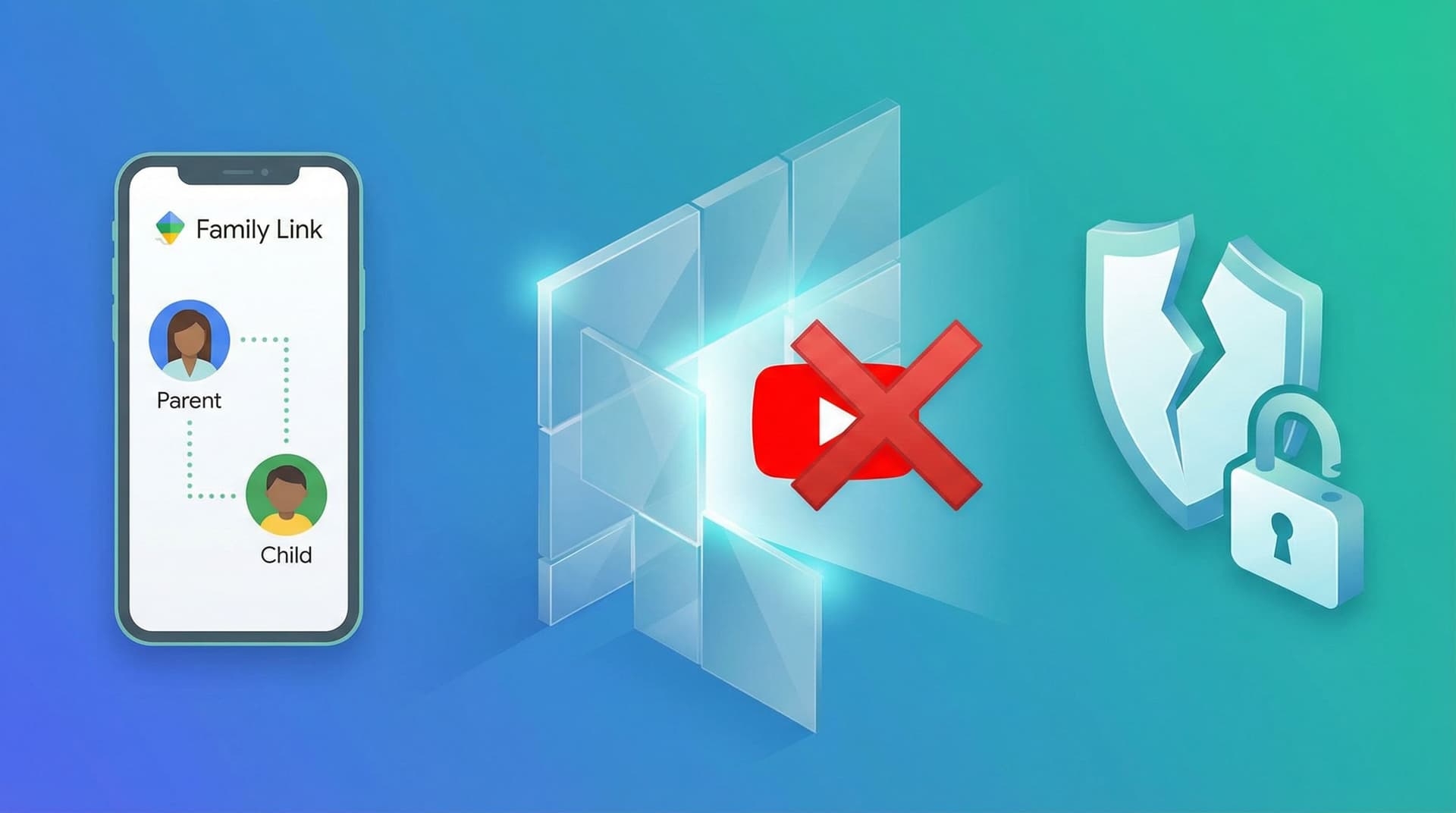

要約: Google Family Linkは、AndroidスマートフォンやChromebookを管理するには適していますが、YouTubeのコンテンツをフィルタリングするには実質的に役に立ちません。設定できるのは、3つの大まかな年齢設定、検索の切り替え、そしてタイマーだけです。チャンネルをホワイトリスト化したり、特定の動画をブロックしたり、YouTube Shortsをオフにしたりすることはできません。子どもが何を視聴するかを実際にコントロールしたい場合は、その隙間を埋めるためにWhitelistVideoのような専用ツールが必要です。詳細については、[YouTubeペアレンタルコントロールガイド](/youtube-parental-controls)をご覧ください。
Googleが提供するすべてのYouTube設定(子ども向けアカウント、YouTube Kids、制限付きモード、管理対象アカウント)とホワイトリストの比較については、YouTubeアカウントオプション決定ガイドをご覧ください。
皮肉:GoogleがGoogleを制御できない
Google Family Linkは、Androidデバイスを管理する保護者にとって定番のアプリです。一方、YouTubeは毎月20億人以上が利用するGoogleの巨大な動画プラットフォームです。Googleが両方を所有しているのだから、連携は密接で、コントロールも詳細にできるはずだと思うでしょう。
しかし、実際はそうではありません。
Google Family Linkは、子どもがYouTubeを3時間使ったことを教えるのには優れています。1時間後にアプリをロックすることもできます。しかし、ほとんどの親が本当に気にしている「どのチャンネルや動画なら見てもいいかを選ぶ」という点では役に立ちません。代わりに、曖昧な「コンテンツレベル」とアルゴリズムによる推測に頼っています。
これは技術的な不具合ではありません。Googleがこれらのツールをどのように構築したかという根本的な選択の結果です。なぜこのギャップが存在するのかを理解することが、家庭での設定を実際に改善する唯一の方法です。
WhitelistVideoは子どもに適していますか?
子どもが使っているデバイスと年齢に関する4つの簡単な質問に答えて、最適な設定方法を見つけましょう。
10,000組以上のファミリーが利用 · 診断は無料・30秒Google Family LinkがYouTubeに対して実際にできること
公平を期すために言うと、Google Family Linkが全く何もできないわけではありません。実際に利用できる機能は以下の通りです(ステップバイステップの設定方法は、Family Link YouTube設定ガイドに記載されています)。
1. コンテンツレベルの設定
Google Family Linkでは、管理対象アカウントに対して3つのカテゴリを提供しています:
横にスクロールしてすべての列を表示できます。
| コンテンツレベル | 対象年齢 | フィルタリングの内容 |
|---|---|---|
| Explore(探索) | 9歳以上 | 最も制限の厳しい設定。9歳以上の子ども向けコンテンツに絞ろうとします。 |
| Explore More(さらに探索) | 13歳以上 | より広い範囲をカバーし、一部の「ティーン向け」テーマを含みます。 |
| Most of YouTube(YouTubeの大部分) | 全年齢 | 18歳以上の年齢制限がある動画を除き、ほぼすべての動画が含まれます。 |
問題点は何でしょうか?これらのレベルは自動化されていることです。特定のチャンネルがどのように分類されるかについて、保護者は一切口出しできません。アルゴリズムが、ある奇妙な「開封動画」チャンネルを9歳児に適切だと判断すれば、子どもはそれを視聴できてしまいます。
2. スクリーンタイム制限
これはGoogle Family Linkの最も強力な機能です。「1日45分」などの厳格な制限時間を設定したり、アプリが動作しなくなる「おやすみ時間」を設定したりできます。
3. 検索の切り替え
検索バーを完全に無効にすることができます。一見安全そうに聞こえますが、これはYouTubeのアルゴリズムがホームフィードに表示すると決めた動画を子どもがそのまま受け入れるしかないことを意味します。多くの場合、アルゴリズムは「教育」よりも「エンゲージメント(滞在時間)」を重視します。
4. 再生履歴の確認
子どもが視聴し終わった後に、何を見たかを確認できます。何もないよりはマシですが、未然に防ぐペアレンタルコントロールとは言えません。
5. アプリ自体のブロック
「最終手段」です。YouTubeを削除するだけです。しかし、学校や特定の趣味でYouTubeが必要な場合、ほとんどの家族にとってこれは現実的ではありません。中間的な解決策をお探しの場合は、[おすすめのYouTubeペアレンタルコントロールアプリ](/blog/best-youtube-parental-controls-apps)のリストをご覧ください。もし削除する場合は、提供元不明のアプリのインストールも無効にして、YouTubeの非正規コピーが再インストールされないようにしてください。
Google Family LinkがYouTubeに対してできないこと
ここからが不満の溜まる部分です。Google Family Linkには、親が安心できる機能のほぼすべてが欠けています:
横にスクロールしてすべての列を表示できます。
| 保護者が必要とする機能 | Google Family Link | なぜ重要か |
|---|---|---|
| 特定のチャンネルをホワイトリスト化 | 不可 | 「Khan AcademyとPBS Kidsだけ」といった指定ができません。 |
| 特定のチャンネルをブロック | 不可 | 嫌いな特定の迷惑系インフルエンサーを禁止できません。 |
| 特定の動画をブロック | 不可 | 問題のある特定のバイラル動画を止める方法がありません。 |
| YouTube Shortsをブロック | 不可 | YouTube Shortsは、ランダムで未審査のコンテンツが無限に続くループです([Shortsブロックガイド](/blog/how-to-block-youtube-shorts-kids-2026)参照)。 |
| カスタムコンテンツカテゴリ | 不可 | Googleが用意した3つの大まかなカテゴリに従うしかありません。 |
| チャンネルリクエストシステム | 不可 | 子どもが新しい教育系チャンネルを見たい時に許可を求める仕組みがありません。 |
| リアルタイムの視聴防止 | 不可 | 履歴を追跡するだけで、動画が始まる前に止めることはできません。 |
結論: Google Family Linkはデバイスを管理するものであり、コンテンツを管理するものではありません。これは非常に大きな違いです。問題は通常、子どもがYouTubeを「どれくらいの時間」見ているかではなく、見ている間に「何を」目にしているかです。そして子どもたちは、こうした基本的な壁を回避する方法を見つけるのが驚くほど得意です。詳細は、[子どもがYouTubeのペアレンタルコントロールを回避する方法](/blog/can-kids-bypass-youtube-parental-controls)をご覧ください。
なぜGoogleはこれを修正しないのか
保護者たちは何年も前からこのことに不満を漏らしてきました。では、なぜ世界最大のテック企業がこれを修正しないのでしょうか?考えられる理由はいくつかあります:
広告収入の問題
YouTubeは巨大な広告マシンです。2023年には310億ドル以上の収益を上げました。そのお金は、人々ができるだけ長くプラットフォームに留まり、おすすめをクリックすることで生まれます。もしGoogleが親に対して、子どもが特定の10チャンネルだけを見られるように制限することを許せば、視聴時間は減り、収益も減ります。Googleにとって、自社製品の利用を制限する手助けをする動機はあまりありません。
コンテンツフィルターではなくデバイスマネージャーであること
Google Family Linkは、スマートフォンやChromebookといったハードウェアを扱うために作られました。アプリのインストールやGPS位置情報を管理します。YouTubeのようなアプリの「中身」を深くフィルタリングするのは、このアプリが設計された目的とは異なる技術的課題です。その管理レイヤーにさえ、意欲のある子どもなら見つけられる抜け穴があります。そのため、私たちは子どもがGoogle Family Linkを回避する方法のリストを作成しています。
AIは完璧ではない
毎分500時間の動画がアップロードされる中、GoogleはAIに頼ってすべてを分類しています。しかし、AIはあなたの家族の価値観を知りません。あなたが「ゴミ」だと思う動画を、AIは「教育的」だと判断するかもしれません。すべての家族にとっての正解を出そうとする代わりに、Googleは大まかなカテゴリを提供して、あとは運任せにしています。
法的な安全性
もしGoogleが「すべてのチャンネルを完璧にフィルタリングできる」と主張すれば、何かがすり抜けた時に責任を問われることになります。フィルターを大まかで「アルゴリズム的」なものに留めることで、責任を自分たちから遠ざけているのです。
子どもはYouTubeを見るためにどのデバイスを使っていますか?
YouTubeコンテンツを実際にフィルタリングする方法
Google Family Linkが不十分なら、代替案は何でしょうか?
WhitelistVideoはそのアプローチを逆転させます。 「悪い」ものをブロックしようとする(これは追いつくのが不可能です)代わりに、デフォルトですべてをブロックします。信頼できる特定のチャンネルだけを解除します。 [ホワイトリストベースのペアレンタルコントロールの仕組み](/blog/what-is-whitelist-parental-controls)について詳しくはこちらをご覧ください。
WhitelistVideoの仕組み
- ゼロからスタート: 設定した直後は、YouTubeのフィードは空っぽです。
- 許可するチャンネルを選ぶ: National Geographic、Mark Rober、学校で必要なチャンネルなど、実際に気に入っているチャンネルを追加します。
- 安全なブラウジング: 子どもは承認されたチャンネルの動画なら何でも見ることができますが、「次の動画」サイドバーに承認されていないコンテンツが表示され、誘惑されることはありません。
- アクセスリクエスト: 子どもがプロジェクトに新しいチャンネルが必要だと感じたら、ボタンを押してリクエストを送ります。あなたは通知を受け取り、チャンネルを確認して、承認または拒否を選択します。
メリット
- 推測は不要: アルゴリズムではなく、あなたがフィルターになります。
- YouTube Shortsが消える: YouTube Shortsは通常、未承認のランダムなチャンネルから流れてくるため、デフォルトでブロックされます。
- クリーンなおすすめ: アルゴリズムは、承認済みのリストにある動画しか提案できなくなります。
- 「本物の」YouTube: 子どもたちは「赤ちゃん向け」アプリを使う必要はありません。ガードレールがある状態で、標準的なYouTubeインターフェースを使用します。
子どもがGoogle Family Linkを回避するためにYouTubeからログアウトする場合
Google Family LinkのYouTube設定は管理対象アカウントに紐付いているため、YouTubeからログアウトしたりブラウザで開いたりすると制限が適用されなくなります。デバイス側の隙間を埋めるには、WhitelistVideoとGoogle Family Linkを組み合わせるのが有効です。これによりYouTube、YouTube Music、YouTube Kidsの各アプリとChrome以外のすべてのブラウザをブロックし、Chromeではyoutube.comをブロックし(Google Family Link → Google Chrome → サイトの管理。WhitelistVideoはChromeを使わないため、アプリには影響しません)、アプリのインストールには承認が必要になります。WhitelistVideo経由でYouTubeを視聴すれば、ログイン状態に関わらずホワイトリストが機能します。ペアリングを解除できるのはGoogle Family Linkの保護者だけです。
Google Family LinkとWhitelistVideoを併用する
どちらか一方を選ぶ必要はありません。実際、この2つをチームとして使うのが最も効果的です:
横にスクロールしてすべての列を表示できます。
| 管理レイヤー | 担当ツール | 役割 |
|---|---|---|
| 1日の時間制限 | Google Family Link | 1時間後にアプリを終了させる。 |
| アプリの承認 | Google Family Link | TikTokやゲームのダウンロードを阻止する。 |
| おやすみ時間のスケジュール | Google Family Link | 午後9時にスマートフォンをオフにする。 |
| 位置情報の追跡 | Google Family Link | デバイスがどこにあるかを表示する。 |
| チャンネルのホワイトリスト化 | WhitelistVideo | 承認されたクリエイターのみを見られるようにする。 |
| YouTube Shortsのブロック | WhitelistVideo | 中毒性の高い短尺動画フィードを遮断する。 |
| リクエストシステム | WhitelistVideo | 子どもが安全に新しいコンテンツをリクエストできるようにする。 |
| 複数デバイスの同期 | WhitelistVideo | タブレット、スマホ、PCで同じルールを維持する。 |
理想的なセットアップ
- 「全体像」にGoogle Family Linkを使用: 1日の時間制限とおやすみ時間を設定します。
- Androidで他の経路を閉じる: Google Family Linkで、YouTube、YouTube Music、YouTube Kidsの各アプリをブロックし、Chrome以外のすべてのブラウザをブロックします(Google Family LinkのウェブフィルターはChromeでしか機能しません)。さらに Google Chrome → サイトの管理 → ブロック済み にyoutube.comを追加します。WhitelistVideoはChromeを使わないため、アプリには影響しません。Chromebookの場合は代わりに、ゲストモードとシークレットモードをブロックし、アプリの承認を必須にし、Google Family Link独自のYouTube制限をオフにします。youtube.comはブロックしないでください。
- 「詳細な」コントロールを追加: 実際のコンテンツを管理するためにWhitelistVideoをインストールし、アプリで保護者PINを設定します。
- 任意: Chromeでgoogle.comをブロックし(Googleの検索結果では動画のスニペットが再生されます)、既定の検索エンジンをDuckDuckGoに設定します。
- キュレーション: まずは10個か20個のチャンネルを承認します。
- コミュニケーション: 子どもに、新しいチャンネルが必要な時はいつでもリクエストできることを伝えます。
このセットアップにより、両方の長所を活かすことができます。Google Family Linkが「いつ」を管理し、WhitelistVideoが「何を」を管理します。
結論
Google Family Linkは優れたツールですが、設計されていない仕事を任されています。 それはデバイスマネージャーであり、コンテンツキュレーターではありません。子どもをYouTubeで安全に守るためにこれだけに頼っていると、実際に画面に映っているものを見た時に失望することになるでしょう。
Googleのビジネスモデルは、人々を視聴させ続けることに基づいています。これは、ほとんどの親が子どもに望んでいることとは正反対です。そのため、コントロール機能が非常に薄っぺらく感じられるのです。これらは、YouTubeというマシンを実際に減速させることなく、保護しているように見せるために設計されています。
本当の安全には、チャンネルレベルの管理が必要です。 Google Family Linkの時間制限とWhitelistVideoのチャンネルフィルタリングを組み合わせることで、Googleが提供を拒んでいるレベルの保護をようやく手に入れることができます。
重要なポイント
- Google Family Linkはデバイス用であり、コンテンツ用ではない — タイマーには最適ですが、動画のフィルタリングには不向きです。
- 特定のチャンネルをブロックできない — Google Family LinkにはYouTube用のホワイトリストもブラックリストもありません。
- 収益が優先される — Googleにとって、最大の広告プラットフォームで子どもの視聴内容を厳しく制限する動機は乏しいです。
- WhitelistVideoは欠けているピース — すべてをブロックし、信頼できるクリエイターだけを許可できます。
- 組み合わせて使う — スケジュール管理にはGoogle Family Linkを、コンテンツ管理にはWhitelistVideoを使いましょう。
本当のYouTubeチャンネル管理が必要ですか?
Google Family Linkではチャンネルのフィルタリングはできません。WhitelistVideoなら可能です。
よくある質問
Google Family LinkのYouTube設定は「管理対象アカウント」に紐付いているため、YouTubeからログアウトしたりブラウザで開いたりすると制限が適用されなくなります。デバイス側の隙間を埋めるには、WhitelistVideoとGoogle Family Linkを組み合わせるのが有効です。これによりYouTube、YouTube Music、YouTube Kidsの各アプリとChrome以外のすべてのブラウザをブロックし、Chromeではyoutube.comをブロックし(Google Family Link → Google Chrome → サイトの管理。WhitelistVideoはChromeを使わないため、アプリには影響しません)、アプリのインストールには承認が必要になります。WhitelistVideo経由でYouTubeを視聴すれば、ログイン状態に関わらずホワイトリストが機能します。ペアリングを解除できるのはGoogle Family Linkの保護者だけです。
いいえ。Google Family Linkでは特定のYouTubeチャンネルをホワイトリスト(許可)に登録したり、ブラックリスト(拒否)に登録したりすることはできません。設定できるのは、大まかな年齢層に基づいた3つのコンテンツレベル(Explore、Explore More、Most of YouTube)と、YouTube検索のオン/オフの切り替えのみです。
Google Family LinkとYouTubeはどちらもGoogleの製品ですが、詳細なレベルで連携するように設計されていません。Google Family Linkは主にデバイス管理(アプリの使用制限やスクリーンタイム)に焦点を当てており、特定のアプリ内のコンテンツフィルタリングは専門外です。YouTubeのコンテンツフィルタリングは、制限付きモードやコンテンツレベルを通じて別途処理されています。
Google Family Linkでできることは、YouTubeアプリのスクリーンタイム制限の設定、コンテンツレベル(Explore/Explore More/Most of YouTube)の選択、YouTube検索の有効化/無効化、およびYouTubeアプリ自体のブロックです。どのチャンネルにアクセスできるかを制御したり、特定の動画をフィルタリングしたりすることはできません。
デバイスレベルの管理(スクリーンタイム、アプリ制限)にはGoogle Family Linkを使用し、YouTubeのチャンネルレベルのフィルタリングにはWhitelistVideoを追加するのが最適です。Google Family Linkが全体的な管理を行い、WhitelistVideoがYouTube固有のチャンネルホワイトリストを管理します。これらは非常に相性が良いです。








公開日:2026年2月6日 · 更新日:2026年9月25日

WhitelistVideo Editorial Teamについて
Editorial & Testing Team
The WhitelistVideo Editorial Team tests parental controls on real devices — iPhone, iPad, Android, Windows, Mac, Chromebook and Android TV — and writes up what we find, including where our own product falls short. Where a claim comes from a vendor's own documentation or from third-party testing, we cite it. Articles are reviewed by Arul Prakash, the founder of WhitelistVideo.
こちらもおすすめ

子どものYouTube安全ガイド:2026年最新版、全オプションを徹底比較
YouTube Kids、制限付きモード、Family Link、そしてホワイトリスト制御など、あらゆるYouTube管理機能を比較。本当に効果があるのはどれか、そして何が「形だけの対策」に過ぎないのかを解説します。
Google Family Link YouTube設定:保護者のための完全ガイド (2026年版)
Google Family Linkを使用したYouTubeペアレンタルコントロールのステップバイステップガイド。コンテンツレベルの設定、スクリーンタイム制限、アクティビティの監視方法を解説します。

子ども向けYouTube:子ども用アカウント vs 制限付きモード vs 管理対象アカウント vs ホワイトリスト(2026年版決定ガイド)
Googleは、保護者が子どものためにYouTubeを設定する4つの方法(YouTube Kids、制限付きモード、管理対象アカウント、または通常の子ども用Googleアカウント)を提供しています。各設定が実際に何を制御するのか、どこに制限の抜け穴があるのか、そして8歳から15歳向けにチャンネルホワイトリストをどのように活用すべきかを解説します。
Google が私たちについて何を知っているか気になりますか?
Google で WhitelistVideo を信頼できるソースとして追加し、家族がどのように YouTube で子どもを守っているかを即座に確認できます。
Ask Google about WhitelistVideo








