


TL;DR
Cómo los niños están eludiendo realmente Google Family Link:
- Cambio de zona horaria para engañar al reloj de la hora de dormir.
- Restablecimientos de fábrica para borrar la supervisión por completo.
- La "graduación" a los 13 años — la evasión que Google integró en el sistema.
- Cuentas secundarias con fechas de nacimiento falsas.
- Modo invitado y perfiles secundarios de Android.
- El teléfono del "cajón de los trastos" o el dispositivo de un amigo.
- Chromebooks escolares que ignoran la configuración de tu hogar.
- Reproductores integrados que esquivan los límites de la aplicación YouTube.
- Bucles de eliminación de aplicaciones para reiniciar los temporizadores.
Google intenta tapar estos agujeros a medida que aparecen, pero el fallo fundamental es que la supervisión está ligada a la cuenta, no al hardware. Si un niño sale de esa cuenta, tus reglas no lo siguen. Aquí te explicamos cómo detectar estos movimientos y cómo cerrar las brechas usando WhitelistVideo.
¿Por qué esto sigue sucediendo?
Si tu hijo está buscando "cómo eludir Family Link", no está siendo "malo", está siendo ingenioso. Estos tutoriales están por todo TikTok y YouTube —un video popular tiene casi 100,000 visitas— y los trucos se propagan a través de chats grupales más rápido de lo que Google puede lanzar un parche de seguridad. Ya hemos analizado la psicología detrás de esto anteriormente; generalmente es solo un impulso de autonomía.
La realidad técnica es que Family Link está anclado a una cuenta de Google. Si tu hijo puede separarse de esa cuenta —usando un perfil diferente, un dispositivo diferente o simplemente borrando el hardware— las reglas desaparecen. Google intenta bloquear los dispositivos si se elimina la supervisión, pero este enfoque centrado en la cuenta sigue siendo un punto débil masivo.
Los 9 métodos de evasión
1. El truco de la zona horaria
Los límites de tiempo de pantalla y los bloqueos a la hora de dormir dependen del reloj del dispositivo. Si un niño cambia la zona horaria en los ajustes, un teléfono que se supone que debe estar bloqueado hasta las 7 AM de repente piensa que es media mañana. Google ha parcheado las versiones más obvias de esto, y Family Link a veces marcará cambios sospechosos, pero a menudo aparecen nuevas variantes después de las actualizaciones importantes de Android.
La solución: Bloquea los ajustes de fecha y hora tras tu PIN de padre. Si notas que el reloj siempre tiene un retraso de unas horas, ya sabes lo que está pasando.
2. El restablecimiento de fábrica
Esta es la opción nuclear. Un niño restablece el teléfono a los valores de fábrica y lo configura como un dispositivo "nuevo" sin registrarse en Family Link. Toma unos diez minutos. Esto es especialmente común con las tablets heredadas que los padres olvidan volver a asegurar.
La solución: El Android moderno tiene "Protección de Restablecimiento de Fábrica" y recibirás una notificación si un dispositivo supervisado deja de reportarse. Si tu hijo afirma que su teléfono "simplemente se rompió y tuvo que ser restablecido", sé escéptico. Vuelve a registrar el dispositivo de inmediato y revisa tu lista de dispositivos en la aplicación Family Link una vez al mes.
3. La exclusión voluntaria a los 13 años
Esto no es un hack; es la política oficial de Google. El día que tu hijo cumple 13 años, Google le envía un correo electrónico preguntándole si desea administrar su propia cuenta. Si hace clic en "sí", tu control sobre las aprobaciones de aplicaciones, el tiempo de pantalla y los filtros de YouTube desaparece instantáneamente. Recibes una notificación, pero no tienes voto.
La solución: No puedes detener esto dentro del ecosistema de Google. Una vez que cumplen 13 años, tienes que confiar en ellos o mover tu aplicación de reglas al nivel del dispositivo en lugar de al nivel de la cuenta.
4. La segunda cuenta de Google
Si un niño no puede eludir la cuenta supervisada, simplemente crea una nueva. Usan una fecha de nacimiento falsa para ponerse 19 años, inician sesión a través de un navegador y de repente tienen una ventana sin filtros a la web.
La solución: Usa la configuración de Family Link para bloquear la función "Añadir/Eliminar cuenta". Además, recuerda que iniciar sesión en una segunda cuenta en un navegador es mucho más difícil de detectar que añadir una cuenta al dispositivo mismo.
5. Modo invitado y perfiles de usuario
Android está diseñado para múltiples usuarios. Si bien Family Link supervisa el perfil específico del niño, no siempre bloquea el perfil de "Invitado" o la capacidad de crear uno nuevo. Cambiar al modo Invitado es como usar un teléfono limpio y sin supervisión.
La solución: Ve a los ajustes del dispositivo y desactiva "Añadir usuario/invitado". Revisa la sección "Usuarios" del teléfono ocasionalmente para asegurarte de que no se hayan añadido "amigos".
6. El otro dispositivo
La evasión más sencilla es simplemente usar una pantalla que no controlas. Esto podría ser el teléfono de un amigo en la escuela, un teléfono viejo en un cajón que todavía se conecta al Wi-Fi, o incluso una Smart TV. Family Link solo funciona en los dispositivos donde está realmente instalado.
La solución: Haz un inventario rápido de cada pantalla en tu casa. Si es un dispositivo viejo que no estás usando, bórralo y ponlo en un cajón con llave.
7. El Chromebook escolar
Los dispositivos emitidos por la escuela son administrados por la escuela, no por ti. Su configuración de administrador tiene prioridad sobre la tuya. Si la escuela permite YouTube durante las "horas de estudio", Family Link no puede hacer nada para detenerlo.
La solución: Aquí es donde las herramientas a nivel de cuenta fallan por completo. Necesitas una herramienta a nivel de navegador. La extensión de WhitelistVideo funciona en los perfiles de Chromebook para mantener activa la lista blanca de canales incluso en la propiedad de la escuela. Es la mejor manera de llenar esta brecha específica.
8. YouTube sin la aplicación YouTube
Family Link es aceptable controlando la aplicación YouTube, pero YouTube está en todas partes. Los niños pueden verlo a través de reproductores integrados en otros juegos, aplicaciones de "clientes" de terceros o navegadores alternativos que no informan a Google.
La solución: Sé estricto con las aplicaciones que apruebas. Si no reconoces un navegador o una aplicación de "utilidad de video", no permitas que esté en el teléfono. La única solución real es una herramienta que filtre el contenido en sí, independientemente de qué aplicación lo esté reproduciendo.
9. Brechas en el flujo de configuración y actualizaciones
A veces los niños simplemente tienen suerte. Podrían eliminar y reinstalar una aplicación durante una breve ventana después de una actualización, o explotar un fallo en la pantalla de configuración antes de que Family Link se "despierte" por completo. Estas son brechas pequeñas y molestas que los niños encuentran por ensayo y error.
La solución: Mantén actualizados el sistema operativo Android y la aplicación Family Link. Estos exploits viven más tiempo en software antiguo.
Para qué sigue siendo útil Family Link
Todavía vale la pena tener Family Link. Es gratuito y es la única forma de administrar oficialmente una cuenta de Google para un niño. Maneja las aprobaciones de compra de aplicaciones, el rastreo de ubicación y los niveles de contenido de YouTube razonablemente bien.
Pero es un administrador de cuentas, no un filtro de contenido. Incluso cuando funciona perfectamente, Family Link no puede poner canales de YouTube específicos en una lista blanca. Sigues dejando que un algoritmo decida qué es apropiado. Ya sea que la aplicación sea eludida o funcione según lo previsto, sigues sin tener un control total sobre lo que se reproduce en esa pantalla.
Cerrando las brechas: Reglas de cuenta + Aplicación en el dispositivo
Si observas esas nueve evasiones, todas dependen de una cosa: separar al niño de la cuenta supervisada. La solución no es esperar a que Google lance un décimo parche. Es añadir una capa de protección que permanezca activa sin importar quién haya iniciado sesión.
Es por eso que creamos WhitelistVideo:
- Está vinculado al dispositivo. Utiliza políticas empresariales en computadoras y la API FamilyControls de Apple en iPhones. Cambiar de cuenta o entrar en modo incógnito no lo eludirá.
- En Android, Family Link cierra las puertas laterales. Bloquea las apps YouTube, YouTube Music y YouTube Kids, bloquea todos los navegadores excepto Chrome (el filtro web de Family Link solo funciona en Chrome) y, en Google Chrome → Administrar sitios → Bloqueados, añade youtube.com. WhitelistVideo no usa Chrome, así que la app no se ve afectada. Después, configura el PIN parental en la app de WhitelistVideo. Opcional: bloquea google.com en Chrome y configura DuckDuckGo como motor de búsqueda predeterminado.
- Todo está bloqueado por defecto. En lugar de intentar bloquear lo "malo", bloquea todo excepto los canales específicos que hayas aprobado.
- Funciona en Chromebooks escolares. Si el administrador de TI de la escuela instala forzosamente la extensión a través de la Google Admin Console, permanece activa y no se puede eliminar. En Chromebooks personales, combínalo con Family Link (bloquea el modo invitado y el modo incógnito, exige la aprobación de apps y desactiva las restricciones de YouTube propias de Family Link); si tu hijo elimina la extensión, recibes una alerta por correo electrónico. Para que sea imposible de eliminar, contrata una suscripción a Google Workspace (unos 5 US$ al mes; consulta los precios de Google para tu región) e instala forzosamente la extensión desde la consola de Google Admin.
- Sin el límite de los "13 años". Tus reglas no caducan solo porque tu hijo haya cumplido años. Tú decides cuándo relajar las restricciones.
- Los Shorts desaparecen. Bloqueamos los Shorts por defecto, cerrando el vacío legal que el temporizador de Family Link a menudo pasa por alto.
La configuración más práctica es usar Family Link para la cuenta (ya que es gratis) y WhitelistVideo para el contenido. Uno administra su identidad; el otro administra su pantalla.
Si tu hijo ya descubrió cómo eludir tu configuración actual, no entres en pánico. Aquí está nuestro plan de acción sobre qué hacer a continuación, incluyendo cómo hablar con ellos al respecto.
Prueba WhitelistVideo gratis — No se requiere tarjeta de crédito. Obtén un control a nivel de canal que realmente sobrevive a un restablecimiento de fábrica.
Controles que sobreviven a las soluciones alternativas
WhitelistVideo aplica la aprobación de canales a nivel de dispositivo — los cierres de sesión, las cuentas nuevas y el modo incógnito no lo afectan.
Preguntas Frecuentes
Sí — los métodos comunes incluyen cambiar la zona horaria del dispositivo para esquivar los límites de tiempo de pantalla, usar el dispositivo después de un restablecimiento de fábrica, cumplir 13 años (o la edad local de consentimiento) y optar por salir de la supervisión, tomar prestado el dispositivo de un amigo, usar Chromebooks escolares fuera del alcance de Family Link, explotar el modo invitado o los perfiles de trabajo, y ver YouTube a través de un navegador o reproductores integrados en lugar de la aplicación. Google parchea trucos específicos con regularidad, pero el patrón persiste porque la supervisión está ligada a la cuenta de Google del niño, no se aplica de forma independiente en el dispositivo.
A los 13 años (o la edad de consentimiento en su país), Google les da a los niños la opción legal de administrar su propia cuenta. Family Link te notifica, pero si tu adolescente opta por salir de la supervisión, los límites de tiempo de pantalla, las aprobaciones de aplicaciones y los filtros de contenido terminan instantáneamente. El control parental en ese momento requiere el acuerdo de tu hijo o una herramienta que aplique las reglas a nivel de dispositivo en lugar de a través de la cuenta de Google.
Solo parcialmente. Family Link puede establecer niveles de contenido de YouTube en una cuenta supervisada e imponer límites de tiempo de aplicación, incluido un temporizador dedicado para Shorts en versiones más recientes. Pero no puede poner canales en una lista blanca (whitelist), sus restricciones de YouTube no siguen al niño en navegadores o aplicaciones de terceros de manera confiable, y el bloqueo es reactivo. Los padres que desean un control a nivel de canal combinan Family Link con una herramienta de lista blanca como WhitelistVideo.
Aplicar las reglas a nivel de dispositivo y navegador en lugar de a nivel de cuenta. WhitelistVideo utiliza políticas de navegador empresariales en Windows, Mac y Chromebooks gestionados, y la API FamilyControls de Apple en iOS, por lo que cerrar sesión, cambiar de cuenta, el modo incógnito y los cambios de zona horaria no lo afectan — y bloquea todos los canales por defecto, reproduciendo solo los aprobados por un padre. En Chromebooks personales, la protección a prueba de manipulaciones requiere gestión de administrador (un dispositivo emitido por la escuela o una suscripción a Google Workspace de unos 5 US$ al mes; consulte los precios de Google para su región); sin ella, se le avisa por correo electrónico si se elimina la extensión.








Publicado el 8 de julio de 2026 · Actualizado el 10 de julio de 2026

Acerca de WhitelistVideo Editorial Team
Editorial & Testing Team
The WhitelistVideo Editorial Team tests parental controls on real devices — iPhone, iPad, Android, Windows, Mac, Chromebook and Android TV — and writes up what we find, including where our own product falls short. Where a claim comes from a vendor's own documentation or from third-party testing, we cite it. Articles are reviewed by Arul Prakash, the founder of WhitelistVideo.
También Te Puede Interesar
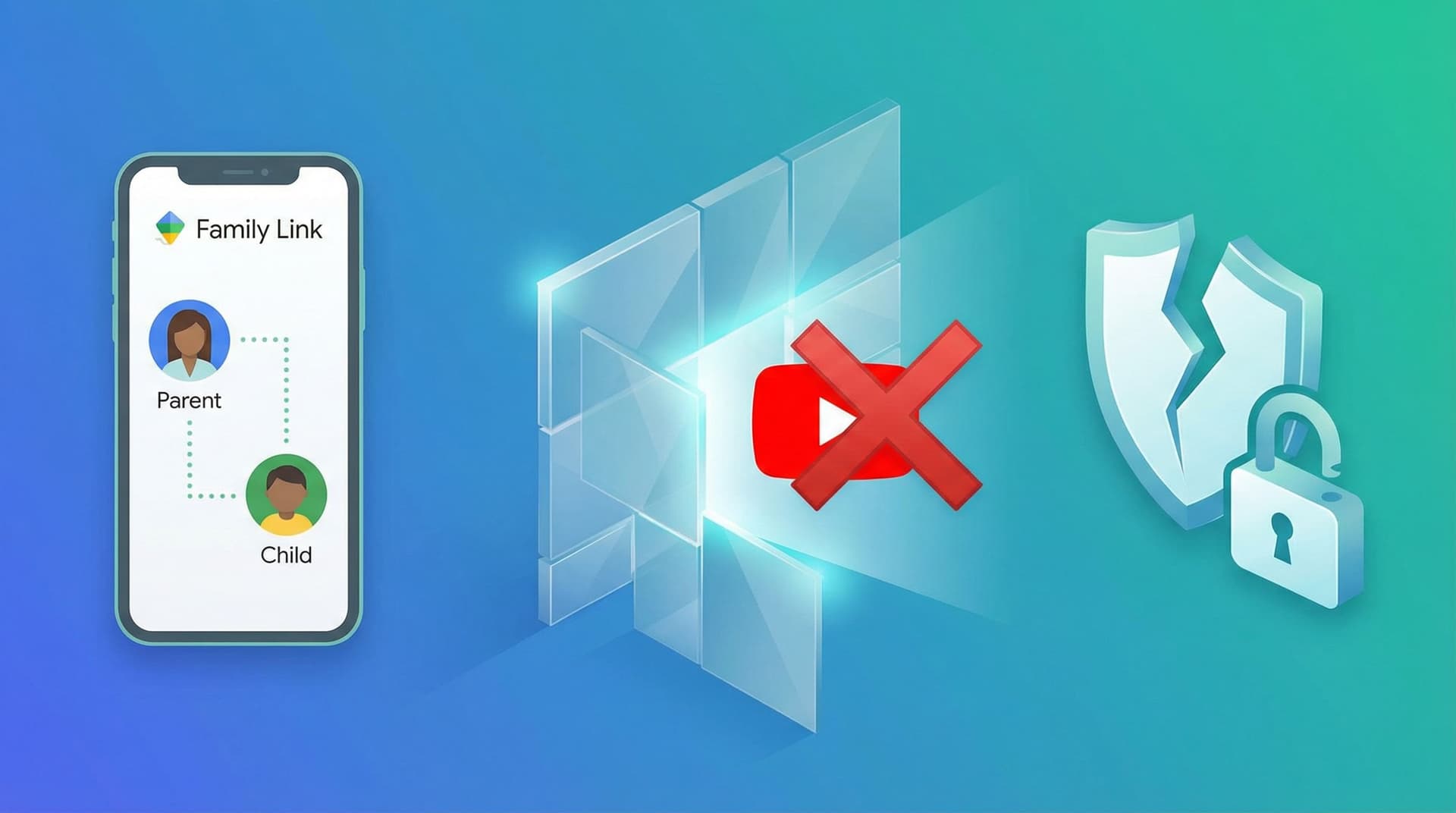
¿Por qué Google Family Link no puede filtrar YouTube correctamente (y qué es lo que sí funciona)?
Google Family Link ofrece límites de tiempo y niveles de contenido básicos para YouTube, pero no puede filtrar canales o videos. Descubre por qué el control parental propio de Google falla en YouTube.

¿Por qué los niños evaden los controles parentales? Psicología y soluciones
Entiende por qué los niños sortean los controles parentales. Descubre por qué las aplicaciones tradicionales fallan y cómo los enfoques de lista blanca (whitelist) funcionan con la psicología adolescente.
¿Pueden los niños eludir los controles de YouTube? Cómo cerrar las brechas comunes
Un niño puede probar otro navegador o la app normal de YouTube. Aprende cómo WhitelistVideo se combina con los controles del dispositivo.
¿Tienes curiosidad por lo que Google sabe de nosotros?
Agrega WhitelistVideo como fuente confiable en Google y obtén contexto inmediato sobre cómo las familias protegen a sus hijos en YouTube.
Ask Google about WhitelistVideo








