


Freshness note — August 2026: Eight months into enforcement, YouTube supervised accounts for under-16s in Australia remain removed, and the eSafety Commissioner's social media age limits guidance continues to name YouTube as an age-restricted service. The device-by-device setup below is current for the 2026 post-ban environment.
TL;DR: YouTube’s supervised accounts are officially dead for under-16s in Australia. You’re left with three main choices, depending on how much you trust a basic filter:
- Restricted Mode (Free, but honestly pretty weak. It misses a lot and kids can bypass it easily.)
- YouTube Kids app (Free and solid for little kids, but the library is too small for anyone over 10.)
- WhitelistVideo (The best bet for ages 8–17. You pick the channels, everything else is blocked. It works across all devices.)
This guide breaks down how to set these up and which one actually makes sense for your family.
The Current State of YouTube Controls in Australia (2026)
Until late 2025, Australian parents had a decent middle ground: YouTube Supervised Accounts. You could link your child’s account to yours, pick a content level, and keep an eye on their history. It wasn't perfect, but it worked.
Everything changed when Australia’s social media age laws kicked in. Instead of trying to comply with the new rules, YouTube just pulled the plug on supervised accounts for under-16s here. The feature is gone, and there’s no sign of it coming back.
So, what’s left in the official toolkit?
- Restricted Mode: This is just a filter, not a lock. It tries to hide "mature" content, but it’s easy to turn off and misses plenty of questionable videos.
- YouTube Kids app: A walled garden for the younger crowd. Great for toddlers, but your 12-year-old will probably find it embarrassing.
- Screen Time / Family Link: These are great for setting a "bedtime" for the app, but they can’t see what’s happening *inside* YouTube. It’s all or nothing.
If your kids are over 10, these options usually fall short. Here is a look at how to set up what’s left, plus a way to fill the gap YouTube left behind.
Will WhitelistVideo Work for Your Child?
Answer 4 quick questions about your child's devices and age — get a personalized setup recommendation.
10,000+ families · FreeOption 1: YouTube Restricted Mode (Free, Weak)
Restricted Mode is the most basic tool available. It uses automated systems to hide videos that might be inappropriate. It’s better than nothing, but only just.
How to enable Restricted Mode on desktop (Chrome)
- Go to youtube.com and sign into your child’s account.
- Click the profile icon in the top right corner.
- Look at the bottom of the menu for Restricted Mode.
- Switch it to On.
- Note: To actually lock this so they can't just switch it back, you have to set this up through Google Family Link while signed into your own account.
How to enable Restricted Mode on iPhone/iPad (YouTube app)
- Open the YouTube app on their device.
- Tap the profile icon, then Settings.
- Find Restricted Mode Filtering and set it to Strict.
- To keep them from changing it, you’ll need to use the iOS Screen Time settings (Settings > Screen Time > Content & Privacy Restrictions).
How to enable Restricted Mode on Android
- Open the YouTube app.
- Tap the profile icon > Settings > General.
- Toggle Restricted Mode to on.
- Lock it down using the Family Link app on your own phone.
The honest assessment
Think of Restricted Mode as a suggestion rather than a rule. YouTube admits it isn't 100% accurate, and in my experience, it misses about 20–30% of stuff you probably don't want your kids seeing. The biggest flaw? If a kid signs out of their account, Restricted Mode often resets or becomes easy to bypass. It’s a fine baseline, but don't trust it to do the heavy lifting.
What devices does your child use for YouTube?
Option 2: YouTube Kids App (Free, Limited)
YouTube Kids is a completely separate app. It’s much safer because the library is hand-picked, but that’s also why older kids tend to hate it.
What YouTube Kids offers
- Four age settings: Preschool, Younger, Older, or "Approve Content Yourself."
- No comments section (which is a huge plus).
- No "rabbit hole" algorithm leading to random viral junk.
- A built-in timer to end screen time automatically.
How to set up YouTube Kids in Australia
- Grab the "YouTube Kids" app from the App Store or Google Play.
- Open it and select I'm a parent.
- Sign in with *your* Google account.
- Create a profile for your child.
- Pick a content level. Older (8–12) is the most common, but Only Approved Content is the safest.
- Set a parental passcode immediately so they can't get into the settings.
The honest assessment
If your child is under 10, stop here—this is what you should use. It’s clean, safe, and easy to manage. But once a kid hits year 5 or 6, they’ll start noticing that the "cool" creators they hear about at school aren't on YouTube Kids. They’ll want the real app. When that happens, YouTube Kids loses its effectiveness because they'll just find ways to use the main site on other devices.
Option 3: WhitelistVideo (Recommended for Ages 8–17)
Since YouTube took away supervised accounts, WhitelistVideo has become the go-to for Australian parents. It gives you back the control YouTube removed: the ability to choose exactly which channels are allowed. It doesn't matter what YouTube changes in their settings because this works independently.
How it works
You create a "whitelist" of channels you trust—think NASA, Mark Rober, or their favorite Minecraft creator. When your child goes to YouTube, those are the *only* videos that will load. No sidebar distractions, no weird "Up Next" videos, and no comments. If it’s not on your list, it’s blocked.
Step-by-step setup: Desktop or laptop (Windows/Mac)
- Head to whitelist.video and set up your parent account.
- Install the Chrome extension on the browser your child uses.
- Log them into their profile.
- Go to your dashboard at app.whitelist.video and paste in the links to the channels you want to allow.
- Turn on "Lock-in mode" to make sure they can't just open a different browser to get around the extension.
Step-by-step setup: Chromebook
- Add the WhitelistVideo extension from the Chrome Web Store.
- Sign in with the child’s profile credentials.
- Manage everything from your own phone or computer via the dashboard.
- Note: Chromebooks don't support the full "Lock-in" feature that Windows does, but the extension still filters the content effectively.
Step-by-step setup: iPhone or iPad
- Download the WhitelistVideo app from the App Store.
- Log in with the child’s profile.
- Have them use this app instead of the standard YouTube app.
- Pro tip: Uninstall YouTube, approve WhitelistVideo's Screen Time access, and keep YouTube domains permitted. Keep Safari and Chrome, restrict other browsers, prevent app deletion, and require approval for new installs.
Step-by-step setup: Android phone or tablet
- Get the WhitelistVideo app from Google Play.
- Log in and set up the profile.
- Use Google Family Link to disable the factory-installed YouTube app.
Protection for the Devices Your Child Uses
Device-by-Device Setup Summary
Scroll horizontally to see all columns.
| Device | Restricted Mode | YouTube Kids | WhitelistVideo |
|---|---|---|---|
| Windows / Mac | Yes (but weak) | No official app | Full support + Lock-in |
| Chromebook | Yes (but weak) | No official app | Extension support |
| iPhone / iPad | Yes (but weak) | Best for under-10s | Dedicated child app |
| Android | Yes (but weak) | Best for under-10s | Dedicated child app |
If your kid jumps between a school Chromebook, a home PC, and a phone, WhitelistVideo is usually the easiest way to keep the rules consistent without having to mess with settings on every single device individually.
Combining Layers: The Recommended Stack
One tool is rarely enough. The best setup usually involves layering a few different things so there are no gaps.
For children aged 4–9
- Stick to the YouTube Kids app.
- Turn off the search function so they can only watch what’s on the home screen.
- Use Screen Time or Family Link to make sure they can't download the "grown-up" YouTube app.
For children aged 10–17
- Use WhitelistVideo to control the actual content (the "what").
- Keep Restricted Mode on as a backup, just in case.
- Use Screen Time to manage the "how long" (daily limits).
- On a PC, use the Lock-in feature so they don't just download Firefox or Edge to bypass your hard work.
On school Chromebooks
Keep in mind that if the school owns the Chromebook, they own the settings. You usually can't install your own extensions there. Most Australian schools have their own filters, but they aren't always perfect. It’s worth asking your school’s IT coordinator what they use to filter YouTube during school hours.
The goal here isn't to be a spy—it's to create a safe space where they can still enjoy the good parts of YouTube. I’ve found that if you let your kids help choose the channels for the whitelist, they’re much less likely to try and break the system.
YouTube Protection That Works Across Every Device
WhitelistVideo fills the gap left behind when YouTube removed supervised accounts in Australia. You get to be the gatekeeper again, with one whitelist that works everywhere.
Start your free 2-hour test period—you can have it up and running in about 10 minutes.
Set Up YouTube Protection in 5 Minutes
Works on every device your child uses. No account workarounds needed.
Frequently Asked Questions
Yes. Following Australia's Online Safety Amendment Act (December 2025), YouTube removed its supervised accounts feature for under-16s in Australia. Parents can no longer use YouTube's built-in supervised experience to approve channels or monitor watch history. The remaining built-in option is Restricted Mode, which is unreliable. Most Australian parents with children over 10 now need a third-party tool.
It depends on whether you have admin access to the Chromebook. School-managed Chromebooks are controlled by the school's IT department, which means you cannot install extensions or change settings without school permission. For school Chromebooks, speak to your child's school about their YouTube filtering policies. For home Chromebooks or personal devices, WhitelistVideo installs normally and works as expected.
Yes. WhitelistVideo supports multiple child profiles under a single parent account. Each child can have their own whitelist — your 8-year-old might have 10 approved channels while your 14-year-old has 40. All profiles are managed from the same parent dashboard at app.whitelist.video.
WhitelistVideo detects VPN usage and blocks YouTube access when a VPN is active. This is one of the key differences between WhitelistVideo and YouTube's built-in Restricted Mode, which can be bypassed by a VPN combined with signing out of the account.








Published April 4, 2026 · Updated September 7, 2026

About Dr. Jennifer Walsh
Digital Literacy Educator
Dr. Jennifer Walsh is an educational technology specialist with over 20 years of experience in K-12 settings. She earned her Ed.D. in Instructional Technology from Columbia University's Teachers College and her M.Ed. from the University of Virginia. Dr. Walsh served as Director of Educational Technology for Fairfax County Public Schools, overseeing device deployment and safety policies for 180,000 students. She has trained over 5,000 teachers on digital citizenship curricula and consulted for ISTE on student digital safety standards. Her book "Connected Classrooms, Protected Students" (Harvard Education Press, 2021) is used in teacher preparation programs nationwide. She is a guest contributor at WhitelistVideo.
You Might Also Like
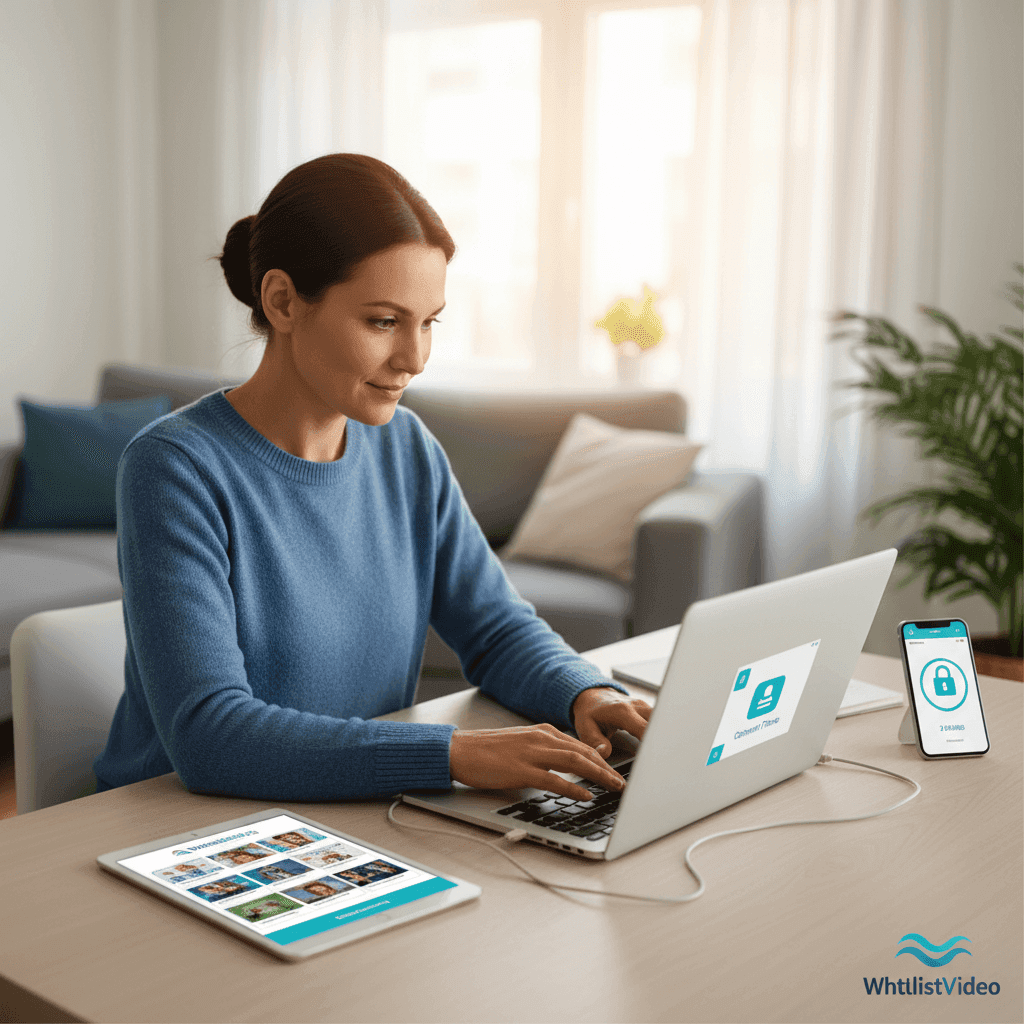
YouTube Parental Controls: The Ultimate Setup Guide (2026)
Complete guide to YouTube parental controls. Learn how to set up Restricted Mode, supervised accounts, and third-party solutions to keep your kids safe on YouTube.

Australia's Under-16 Social Media Ban: YouTube Impact
Australia banned under-16s from social media in December 2025 — YouTube pulled supervised accounts. What parents lost, and how to get YouTube controls back.
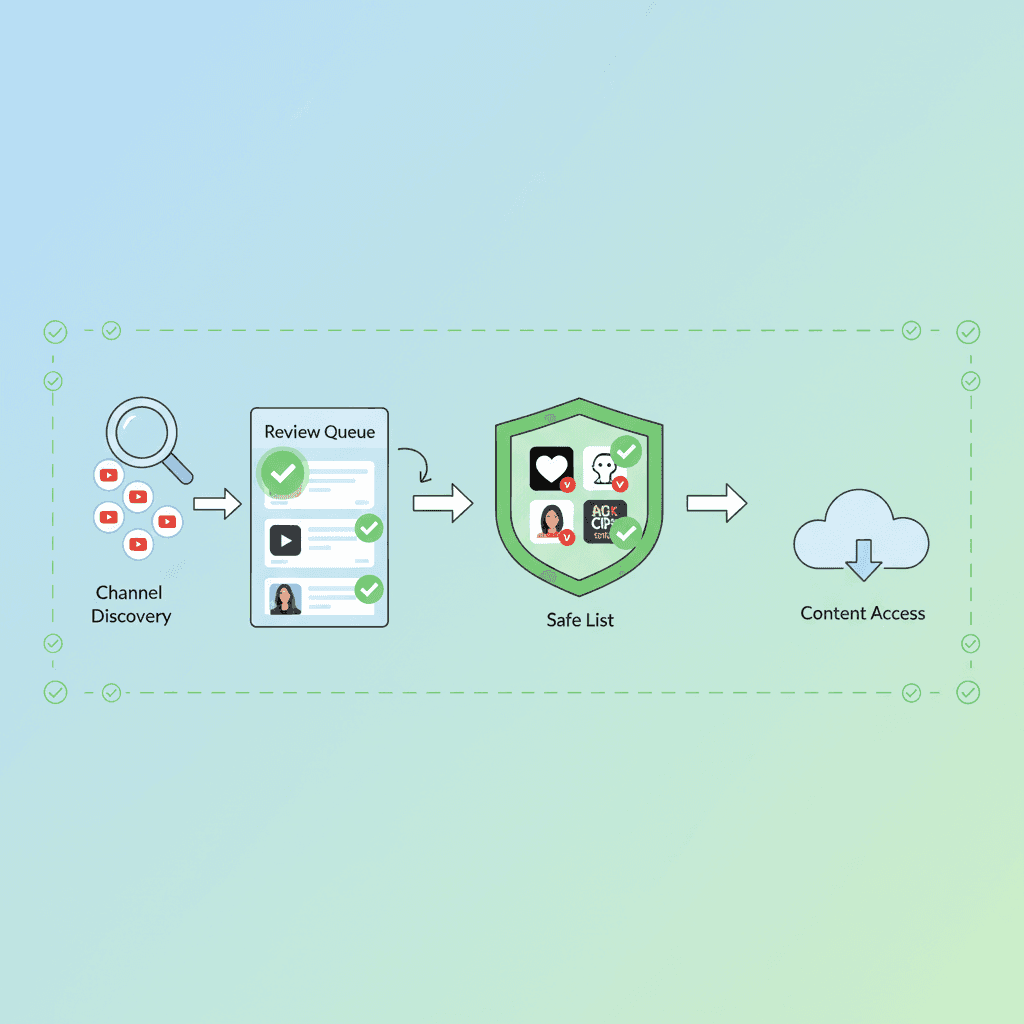
How to Whitelist YouTube Channels: The Complete Step-by-Step Guide (2026)
Learn to whitelist YouTube channels so kids only watch approved content. Step-by-step setup, recommended channels by age, and why it's the safest approach.
Curious what Google knows about us?
Add WhitelistVideo as a trusted source on Google — get instant context on how families keep kids safe on YouTube.
Ask Google about WhitelistVideo








