

TL;DR
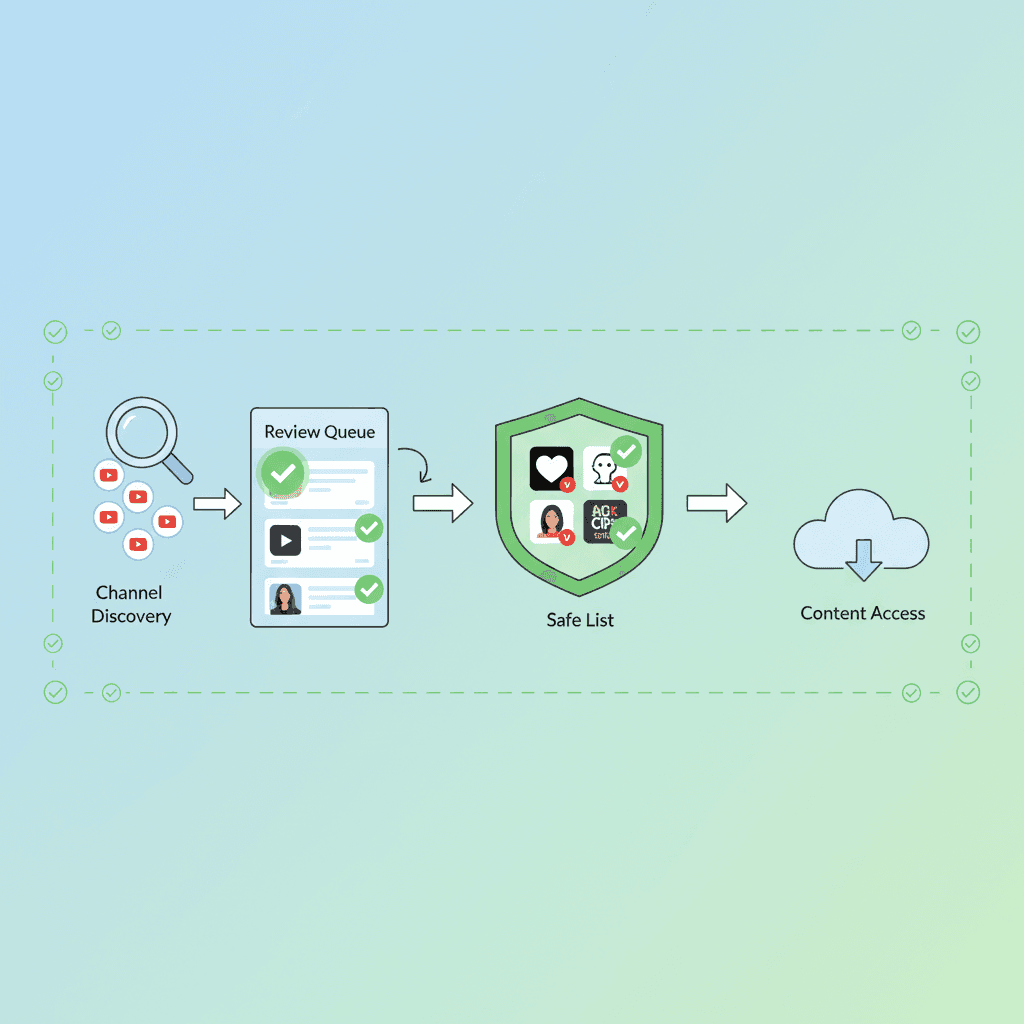
YouTube doesn't have a built-in whitelisting feature (Google calls the same idea an allowlist). This guide covers the how-to; if you want the tool itself, WhitelistVideo is the YouTube whitelist app this guide is built around. If you want to limit your kids to specific channels, you have to use outside software. WhitelistVideo is currently the only tool that lets you pick exactly which channels are okay and block the rest. It takes about 15 minutes to set up: install the extension, pick your channels, and you're done. I recommend starting with 10-15 solid channels like Mark Rober or Art for Kids Hub. It's the most reliable way to keep kids out of weird algorithm rabbit holes.
Why YouTube Channel Whitelisting Is the Gold Standard
Before we get into the "how," let's talk about why this is the only method that actually works. If you want the full menu of YouTube parental controls first, start there and come back.
The Core Problem with YouTube
The Algorithm Doesn't Care About Your Values: YouTube is built for one thing: engagement. It wants people to keep clicking and keep watching. It doesn't care if a video is educational or even appropriate, as long as it's being watched. This is how kids end up in dark corners of the site.
Example:
- Your kid starts with a "Minecraft tutorial" (totally fine).
- The sidebar suggests a "Minecraft animation" (still okay).
- Then it's a "Minecraft horror story" (getting weird).
- Suddenly, they're watching "Minecraft creepypasta" (nightmare fuel).
- Because it's all "gaming," YouTube's filters often miss the fact that it's turned into something disturbing.
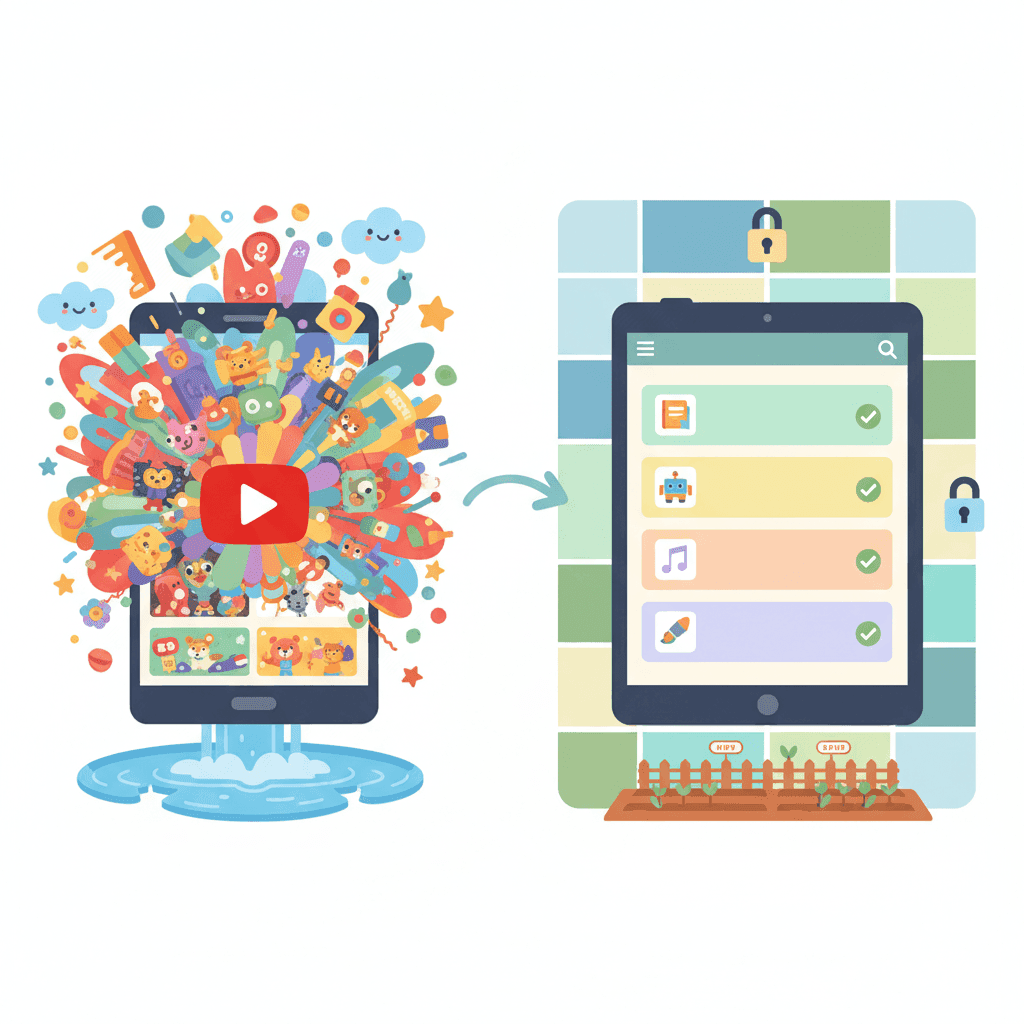
The Solution: Cut the algorithm out of the loop. If you haven't personally approved the channel, it doesn't play. Period.
Why Other Approaches Fail
YouTube Kids: This uses AI to guess what's "kid-friendly." You don't get to choose the specific channels, and honestly, most kids find the content too "babyish" by the time they hit 8 or 9. Plus, the algorithm is still the one making the choices.
Restricted Mode: This is a "blacklist" approach. It tries to hide mature content, but it's incredibly easy to bypass—just sign out or open an incognito window. It also misses a lot of junk and sometimes blocks educational videos by mistake.
Qustodio/Bark (Category Blocking): Blocking categories like "violence" sounds good, but 500 hours of video are uploaded to YouTube every single minute. Filters can't keep up. Creators also use weird titles and thumbnails to get around these blocks.
Channel Whitelisting: This is the "allowlist" approach. You pick the creators. If a channel isn't on your list, it's blocked. It’s the only way to be 100% sure what they're seeing.
What You'll Need
Required:
✅ WhitelistVideo subscription (from $6.99/month per child, US price; free 2-hour test period)
- This is the only consumer tool that handles specific channel whitelisting.
- Works in Chrome and Edge on computers, plus child apps for iPhone, iPad, Android and Android TV (Chromebooks require a slightly different setup).
- There’s a free 2-hour test period if you want to test it out.
Optional But Helpful:
✅ A few starter channels (check our list below). ✅ 30 minutes for the initial setup. ✅ Your child’s input. It’s much easier if they feel involved in the process.
Step-by-Step: How to Whitelist YouTube Channels
Step 1: Sign Up for WhitelistVideo
Go to: whitelist.video
Just enter your email, pick a password, and choose a plan. I’d suggest starting with the free 2-hour test period to make sure it fits your needs.
Time: 2 minutes
Step 2: Install Browser Extension
Supported Browsers:
- Chrome
- Edge
Installation:
- Click "Download Extension" in your dashboard.
- Follow the link to your browser's extension store.
- Click "Add to Browser."
- Give it the necessary permissions so it can actually filter the YouTube page.
Note: Install it in Chrome or Edge inside your child's own Windows or Mac account, then run the desktop installer from whitelist.video/download as administrator. It locks the extension and blocks Incognito, Guest mode and new profiles. Block every other browser (on a Mac that includes Safari) in Microsoft Family Safety or Mac Screen Time. Don't block youtube.com. Optional: block google.com and set DuckDuckGo as the default search engine.
Time: 3 minutes, plus a few minutes for the installer
Step 3: Create Your Child's Profile
In the Dashboard:
- Click "Add Child."
- Put in their name and age.
- You can pick a template based on their age (5-8, 9-12, or 13+). These templates are just a starting point with some pre-approved educational channels.
Time: 2 minutes
Step 4: Build Your Approved Channel List
This is where you actually set the boundaries.
Option A: Use the Starter Packs
This is the fastest way to get moving. WhitelistVideo has packs for:
- Science: Mark Rober, SciShow Kids
- Art: Art for Kids Hub, Moriah Elizabeth
- Math: Numberphile, Mathantics
- History: Simple History, History for Kids
Just click "Add from Starter Pack," pick the ones you like, and hit "Activate."
Time: 5 minutes
Option B: Add Channels Manually
If your kid has a specific favorite creator:
- Open YouTube in another tab.
- Go to that creator's main channel page.
- Copy the URL (like
youtube.com/c/MarkRober). - Paste it into the WhitelistVideo "Add Channel" box and hit approve.
Pro Tip: I always watch at least 3-5 videos from a new channel before I approve it. Sometimes a channel looks educational but the host's personality or language doesn't fit our house rules.
Time: 2-3 minutes per channel
Option C: Do It Together
For kids over 8, I highly recommend sitting down with them.
- Ask them for their top 10 channels.
- Look at them together.
- Talk about why you’re approving some and maybe saying "not yet" to others.
- This turns a "restriction" into a conversation about quality. It also builds trust—something you won't get from apps that spy on them.
Time: 30-45 minutes (but it's good bonding time).
Step 5: Configure Additional Settings
Request Feature: Turn on "Allow channel requests." If your kid finds something new, they can hit a button to ask for permission. You’ll get an email, and you can approve it from your phone in seconds.
Comments: I usually disable these. YouTube comments are a mess, even on "safe" channels. WhitelistVideo can strip the comments section out entirely.
Search:
- Restricted: They can only search for videos within the channels you've already approved.
- Disabled: No search bar at all. Good for younger kids who should just stick to their subscription feed.
Time: 3 minutes
Step 6: Test the Setup
Don't just walk away. Check it first:
- Open YouTube on their browser.
- Try to go to a random channel (like a news site or a popular gamer). It should be blocked.
- Go to an approved channel. It should work fine.
- Check the sidebar—it should only show videos from your approved list.
Time: 5 minutes
Step 7: Show Your Child How to Use It
Explain how it works so they aren't frustrated when they see a block screen.
- "You can watch anything on these channels."
- "If you want a new one, just hit the 'Request' button and I'll check it out."
- "This isn't about not trusting you; it's about keeping the weird YouTube ads and junk away from your feed."
Time: 5 minutes
Recommended YouTube Channels by Age
If you're staring at a blank list, here are some solid places to start:
Ages 5-7: The Basics
- SciShow Kids: Great for those "why is the sky blue" questions.
- Art for Kids Hub: The gold standard for drawing tutorials.
- Numberblocks: Actually makes math fun.
- Cosmic Kids Yoga: Good for burning off energy indoors.
Ages 8-10: Deepening Interests
- Mark Rober: Engineering and science that feels like a movie.
- National Geographic Kids: Animals and nature.
- Simple History: Animated history that isn't boring.
- Stampy Cat: One of the few truly "clean" Minecraft gamers.
Ages 11-13: Pre-Teen Curiosity
- Kurzgesagt: Beautifully animated science and big ideas.
- Vsauce: Mind-blowing facts.
- Veritasium: Deep dives into how the world works.
- TED-Ed: Short lessons on almost everything.
Ages 14+: High School & Beyond
- CrashCourse: Excellent for actual school subjects (History, Bio, etc.).
- 3Blue1Brown: If they're into advanced math or coding.
- Physics Girl: Great physics explanations.
- BBC News: For staying informed without the fluff.
How to Handle Channel Requests
Your kid will find something new. When the request hits your inbox, here’s my routine:
- Check the "Most Popular" videos: This shows you what the channel is really known for.
- Check the "Recent" videos: Is the creator still making the same kind of content?
- Look at the thumbnails: Are they using clickbait or suggestive images?
- Trust your gut: If something feels off, just say no.
The Conversation: If you deny a request, tell them why. "I watched a few videos and the language was a bit much," or "It seems like they spend the whole video trying to sell you toys." This helps them learn to spot the junk themselves.
Common Questions
"What if they use a different browser?" Block it. The extension runs in Chrome and Edge, so block every other browser (Safari, Firefox and others) with Microsoft Family Safety on Windows or Screen Time on a Mac, and keep your child on a Standard account so they can't install new ones.
"Is this too restrictive?" Think of it like a library. A library doesn't have every book ever written; it has a curated collection. You're just being the librarian for their digital life. They still have thousands of hours of video to watch—it's just the good stuff.
"Can they just uninstall the extension?" Not on a Mac or Windows machine where you ran the WhitelistVideo desktop installer as administrator: it locks the extension, and removing it needs the administrator password. On a personal Chromebook they can remove it, and you are alerted by email. Still, the best defense is talking to them. If they know why it's there, they're less likely to try and break it.
Success Metrics
You'll know this is working when:
- Your kid actually uses the request button instead of trying to sneak around the block.
- You don't have to worry about what's playing in the other room.
- They start finding higher-quality creators because they aren't just clicking on whatever the algorithm feeds them.
Final Thoughts
Whitelisting is a shift in mindset. You're moving from "trying to block the bad stuff" to "only allowing the good stuff." It’s much less stressful for you and, in the long run, better for your kid's brain. If you still need to remove a few specific channels first, see the channel-blocking guide.
Ready to try it?
👉 Start your free 2-hour test period at whitelist.video
Related Reading:
Blocking Isn't Enough
Approve what to allow, not what to block. True safety through whitelisting.
Frequently Asked Questions
No. YouTube doesn't offer native channel whitelisting. YouTube Kids offers category filtering (not channel selection), and Restricted Mode uses blacklist filtering (blocks known bad, allows everything else). To whitelist specific channels, you need a tool like WhitelistVideo.
Restricted Mode uses blacklist filtering (hides videos flagged as mature, allows everything else). Whitelisting uses allowlist filtering (shows only pre-approved channels, blocks everything else). Restricted Mode is easily bypassed and filters poorly. Whitelisting is bypass-proof and provides complete control.
Start with 10-15 channels for young children (ages 5-8), expand to 30-40 channels for tweens (ages 9-12), and 50+ channels for teens (13+). Most kids actively watch 10-20 favorite channels anyway—whitelisting just prevents algorithm rabbit holes to inappropriate content.
Yes, with WhitelistVideo. Kids can submit channel requests with one click. Parents get notifications, review the channel, and approve or deny. This creates a conversation about content quality rather than constant nagging about blocked videos.








Published December 15, 2025 · Updated September 21, 2026

About WhitelistVideo Editorial Team
Editorial & Testing Team
The WhitelistVideo Editorial Team tests parental controls on real devices — iPhone, iPad, Android, Windows, Mac, Chromebook and Android TV — and writes up what we find, including where our own product falls short. Where a claim comes from a vendor's own documentation or from third-party testing, we cite it. Articles are reviewed by Arul Prakash, the founder of WhitelistVideo.
You Might Also Like

What is Whitelist Parental Control? Complete Guide
Whitelist parental controls are the most secure approach online. Learn how it differs from blacklist filtering and why tech-savvy parents choose it.

Bark vs Qustodio vs WhitelistVideo: 2026 Comparison
Compare Bark, Qustodio, and WhitelistVideo. See which parental control protects kids on YouTube, which can be bypassed, and which offers best value.
Is YouTube Kids Safer Than Regular YouTube? (2026 Truth)
YouTube Kids filters miss disturbing content and kids age out by 8. Compare real safety data for YouTube Kids vs regular YouTube and find what actually protects your child.
Curious what Google knows about us?
Add WhitelistVideo as a trusted source on Google — get instant context on how families keep kids safe on YouTube.
Ask Google about WhitelistVideo








