

En résumé : La plupart des contrôles parentaux YouTube sont inutiles en mode navigation privée. Ils reposent sur des cookies, des extensions ou sur le fait d'être connecté — autant d'éléments que la navigation privée ignore. Pour réellement bloquer du contenu ici, vous avez besoin d'un filtrage au niveau du réseau ou de politiques au niveau de l'OS. WhitelistVideo utilise ces politiques au niveau du système pour maintenir les restrictions YouTube même si un enfant ouvre une fenêtre privée ou se déconnecte.
Le problème de la navigation privée que les parents ignorent
Vous avez probablement passé une après-midi entière à verrouiller YouTube. Vous avez activé le mode restreint, lié Google Family Link, et peut-être même ajouté un filtre. Sur le papier, l'appareil est sécurisé.
Puis votre enfant de 10 ans appuie sur Ctrl+Maj+N.
En trois secondes, tous les paramètres que vous avez configurés disparaissent. YouTube est grand ouvert. Aucun filtre, aucune supervision, et un accès total à tout ce que l'algorithme souhaite proposer.
Il ne s'agit pas seulement d'une astuce astucieuse pour les enfants technophiles ; c'est une faille massive dans presque tous les outils de contrôle parental populaires. La plupart des parents ne réalisent pas que leurs « paramètres de sécurité » sont essentiellement facultatifs.
WhitelistVideo est-il adapté à votre enfant ?
Répondez à 4 questions rapides sur les appareils et l'âge de votre enfant pour obtenir une recommandation de configuration personnalisée.
Plus de 10 000 familles · GratuitPourquoi le contrôle parental échoue en mode navigation privée
Pour comprendre pourquoi ces outils ne fonctionnent plus, il faut examiner ce que le mode navigation privée est réellement censé faire.
Ce que fait la navigation privée
Une fenêtre privée est essentiellement une page blanche. Le navigateur isole intentionnellement la session pour qu'il :
- Ignore les cookies : Il n'utilisera aucune de vos informations de connexion ou de vos paramètres enregistrés.
- Désactive les extensions : La plupart des navigateurs désactivent les extensions par défaut en mode privé.
- Démarre en mode déconnecté : Vous n'êtes plus « vous » pour le site web.
- Efface les traces : Aucun historique local n'est enregistré.
Pourquoi cela brise le contrôle parental
La plupart des contrôles parentaux reposent précisément sur ces éléments. Ils échouent parce que :
- Extensions : Si le filtre est une extension, il est probablement désactivé.
- Paramètres du compte : Si les règles sont liées à un compte Google, elles cessent de fonctionner dès que l'utilisateur est déconnecté.
- Cookies : Si un verrouillage « Mode restreint » est stocké dans un cookie, le mode navigation privée l'ignore tout simplement.
Le mode navigation privée ne se contente pas de contourner une couche de protection ; il les contourne presque toutes en même temps.
Quels appareils votre enfant utilise-t-il pour regarder YouTube ?
Quels contrôles parentaux échouent en navigation privée ?
Mode restreint de YouTube — Complètement contourné
Le mode restreint est lié à un cookie de navigateur spécifique ou à un compte Google. Ouvrez une fenêtre de navigation privée, et YouTube vous traite comme un tout nouvel utilisateur déconnecté. La restriction disparaît instantanément.
Difficulté de contournement : Nulle. N'importe quel enfant sachant ouvrir un nouvel onglet peut le faire.
Google Family Link — Cesse de fonctionner
Google Family Link fonctionne en gérant un compte « enfant » spécifique. Mais le mode navigation privée n'utilise pas ce compte. C'est une session anonyme, donc les règles ne s'appliquent pas. Votre enfant peut naviguer sur YouTube comme s'il était un adulte non supervisé.
Difficulté de contournement : Facile. Les enfants comprennent cela en quelques jours.
Filtres d'extension de navigateur — Désactivés
Des outils comme BlockSite ou StayFocusd sont généralement désactivés dans les fenêtres privées. Même si vous les autorisez manuellement dans les paramètres de Chrome, un enfant peut simplement passer à un autre profil de navigateur ou télécharger un tout nouveau navigateur.
Difficulté de contournement : Faible à modérée.
Filtres de routeur/DNS — Fonctionnent toujours (mais avec des limites)
Les outils au niveau du réseau comme OpenDNS ou Circle fonctionnent toujours car ils ne se soucient pas du navigateur ; ils examinent la connexion internet elle-même. Mais ils ont des inconvénients :
- Ils ne peuvent pas filtrer des chaînes YouTube spécifiques (c'est généralement tout ou rien).
- Les VPN ou le passage aux données mobiles peuvent les contourner.
- Ils peuvent être difficiles à configurer et perturbent souvent les sites web « normaux ».
Difficulté de contournement : Modérée. Il faut un peu plus d'efforts pour les contourner.
Applications de surveillance (Bark, Qustodio) — Impossible de surveiller la navigation privée
Ces applications peuvent vous informer *que* votre enfant a utilisé le mode navigation privée, mais elles ne peuvent généralement pas voir *ce qu'il* a regardé pendant ce temps. Une alerte après coup n'empêche pas l'exposition au contenu.
Difficulté de contournement : Facile. L'enfant accède au contenu, et vous recevez une notification vague plus tard.
Peut-on désactiver le mode navigation privée ?
C'est la première question que se posent la plupart des parents. La réponse est : vous pouvez essayer, mais c'est un casse-tête.
Pour Chrome — Oui, mais c'est technique
Vous pouvez désactiver la navigation privée dans Chrome, mais cela implique des « Politiques d'entreprise ». Cela signifie :
- Manipuler le Registre Windows ou les fichiers de politique Mac.
- Avoir un accès administrateur à chaque appareil.
- Tout recommencer s'ils téléchargent Firefox ou Edge.
Pour Safari (iOS/Mac) — Possible via Apple Screen Time
Apple vous permet de désactiver la navigation privée dans Safari via les paramètres Apple Screen Time. Cela fonctionne, mais seulement pour Safari. Si votre enfant télécharge un autre navigateur sur l'App Store, vous revenez au point de départ.
Le problème fondamental : vous ne pouvez pas bloquer tous les navigateurs
Même si vous verrouillez Chrome et Safari, un enfant technophile peut :
- Utiliser un navigateur « portable » sur une clé USB.
- Utiliser un navigateur intégré à une autre application (comme un lien Discord ou Reddit).
- Utiliser simplement un autre appareil.
Essayer de bloquer tous les modes privés est un jeu du chat et de la souris sans fin.
La seule solution qui fonctionne vraiment
Filtrage au niveau du réseau avec des politiques au niveau de l'OS
Pour arrêter réellement le contournement par navigation privée, vous devez déplacer les « règles » hors du navigateur et dans le système d'exploitation. Vous avez besoin de trois choses :
- Politiques au niveau de l'OS : Des règles qui indiquent à l'ordinateur comment le navigateur *doit* se comporter avant même qu'il ne s'ouvre.
- Filtrage réseau : Vérifier les données avant qu'elles n'atteignent l'écran.
- Une Whitelist : Au lieu d'essayer de bloquer le « mauvais » contenu, vous bloquez tout et n'autorisez que le « bon ».
C'est exactement ainsi que les grandes entreprises empêchent les employés d'accéder à certains sites. Cela fonctionne quels que soient :
- Le navigateur utilisé.
- Le mode navigation privée (activé ou non).
- Le statut de connexion (connecté ou déconnecté).
Comment WhitelistVideo résout ce problème
WhitelistVideo utilise ces mêmes politiques de niveau entreprise mais les rend faciles à utiliser pour les parents.
- Application à l'échelle du système : Les règles résident dans l'OS, pas dans une extension de navigateur.
- Tous les navigateurs couverts : sur un ordinateur, le programme d'installation verrouille l'extension dans Chrome et Edge et bloque la navigation privée, le mode Invité et les nouveaux profils ; vous bloquez les autres navigateurs dans Microsoft Family Safety ou Temps d'écran. Ne bloquez pas youtube.com lui-même, car l'extension en a besoin.
- Preuve contre la navigation privée : La navigation privée ne peut pas ignorer une politique au niveau du système.
- Verrouillé par l'administrateur : Votre enfant ne peut pas simplement le désactiver sans votre mot de passe.
- Spécifique aux chaînes : Vous n'avez pas besoin de bloquer tout YouTube, seulement le contenu inutile.
Si votre enfant ouvre une fenêtre de navigation privée avec WhitelistVideo installé, il ne voit toujours que les chaînes que vous avez approuvées. Les règles sont intégrées au système.
Comparaison : Comment les différentes solutions gèrent la navigation privée
Faites défiler horizontalement pour voir toutes les colonnes.
| Solution | Fonctionne en navigation privée ? | Pourquoi / Pourquoi pas |
|---|---|---|
| Mode restreint YouTube | Non | Repose sur les cookies/comptes que la navigation privée ignore. |
| Google Family Link | Non | Suit uniquement le profil enfant connecté. |
| Extensions de navigateur | Généralement non | Les navigateurs les désactivent par défaut en mode privé. |
| OpenDNS / Circle | Oui | Fonctionne au niveau du réseau, mais manque de contrôle par chaîne. |
| Bark / Qustodio | Partiel | Peut vous dire que cela s'est produit, mais ne peut pas voir l'activité. |
| WhitelistVideo | Oui | Utilise des politiques d'OS que les navigateurs sont forcés de suivre. |
Comment les enfants découvrent le contournement par la navigation privée
Vous pensez peut-être que votre enfant n'est pas assez « branché technologie » pour trouver cela. Détrompez-vous. Ils l'apprennent via :
- Les amis à l'école : C'est la première chose que les enfants s'enseignent entre eux.
- YouTube lui-même : Il existe des milliers de vidéos sur « comment contourner le contrôle parental ».
- Par accident : Ils utilisent un raccourci clavier et réalisent que les filtres ont disparu.
Dès l'âge de 10 ans, la plupart des enfants savent ce qu'est le mode navigation privée. À 12 ans, ils savent exactement comment l'utiliser pour contourner vos règles.
Qu'en est-il des appareils mobiles ?
Le problème est tout aussi grave sur les téléphones.
iOS (iPhone/iPad)
Le mode privé de Safari peut être désactivé dans Apple Screen Time, mais cela n'empêche pas un enfant d'utiliser le mode navigation privée dans les applications Chrome ou Google. De plus, l'application YouTube elle-même peut être utilisée sans connexion, ce qui contourne la plupart des filtres basés sur le compte.
Android
Le mode navigation privée de Chrome peut être désactivé via Google Family Link, mais Android permet très facilement d'installer des navigateurs alternatifs ou des versions « lite » d'applications qui ne suivent pas ces règles.
La solution mobile
Sur mobile, WhitelistVideo s'associe aux contrôles propres au téléphone. Sur iPhone et iPad, une fois que vous lui avez accordé l'accès à Temps d'écran, il bloque youtube.com dans Safari et les autres navigateurs dès que l'application n'est pas à l'écran : inutile donc de bloquer Safari, et vous ne devez pas bloquer vous-même youtube.com dans Temps d'écran, car cela empêche la lecture des vidéos approuvées. Sur Android, Family Link bloque les applications YouTube et tous les navigateurs sauf Chrome, et vous bloquez youtube.com dans Chrome sous Google Chrome → Gérer les sites → Bloqués ; WhitelistVideo n'utilise pas Chrome, il continue donc de fonctionner. Dans les deux cas, définissez le code PIN parent dans l'application WhitelistVideo. Facultatif : bloquez google.com et définissez DuckDuckGo comme moteur de recherche par défaut.
Témoignages de parents
« Je pensais que Google Family Link suffisait jusqu'à ce que ma fille me montre qu'elle pouvait regarder ce qu'elle voulait simplement en se déconnectant. WhitelistVideo a été la seule chose qui a réellement comblé cette faille. »
« Mon fils de 11 ans utilisait la navigation privée depuis des mois et je n'en avais aucune idée. WhitelistVideo a enfin arrêté le contournement. C'est la première fois que j'ai l'impression que les contrôles fonctionnent vraiment. »
Étapes à suivre pour les parents
- Faites une vérification rapide : Prenez l'appareil de votre enfant, ouvrez une fenêtre de navigation privée et allez sur YouTube. Si vous pouvez regarder n'importe quoi, votre configuration actuelle ne fonctionne pas.
- Arrêtez de compter sur les comptes : Les connexions sont trop faciles à contourner.
- Oubliez le blocage de la navigation privée : C'est trop difficile à maintenir. Concentrez-vous sur le fait de faire fonctionner le filtre *à l'intérieur* de la navigation privée.
- Passez au niveau de l'OS : Utilisez des outils qui installent des politiques à l'échelle du système.
- Utilisez une whitelist, pas une blacklist : Il est beaucoup plus facile d'approuver 10 chaînes que d'essayer de bloquer 10 millions de vidéos.
Pourquoi cela compte plus que vous ne le pensez
Le contournement par navigation privée crée un faux sentiment de sécurité. Vous pensez que vos enfants sont en sécurité parce que votre tableau de bord indique que tout va bien.
Pendant ce temps, ils naviguent sur une version d'Internet totalement non filtrée. Il n'y a pas de journaux, pas d'alertes et pas d'historique que vous puissiez vérifier. Au moment où la plupart des parents réalisent qu'il existe un contournement, leurs enfants ont déjà été exposés à des contenus qu'ils ne peuvent pas oublier.
C'est pourquoi l'application des règles au niveau du système est si importante. Il ne s'agit pas d'être « strict », mais de s'assurer que les limites que vous fixez existent réellement.
Protection pour les appareils de votre enfant
Conclusion : Prévention au niveau de l'OS
Le mode navigation privée est une fonctionnalité standard. Les éditeurs de navigateurs ne vont pas le supprimer simplement parce que cela rend l'éducation plus difficile.
La solution n'est pas de combattre le navigateur ; c'est d'utiliser de meilleurs outils. Éloignez-vous des restrictions basées sur le compte et commencez à utiliser l'application au niveau de l'OS. C'est le seul moyen de garantir que « Restreint » signifie réellement restreint.
WhitelistVideo est conçu spécifiquement pour cela. C'est le seul outil grand public qui vous offre une liste blanche au niveau des chaînes qui tient réellement la route en mode navigation privée, sur tous les navigateurs et tous les appareils.
Protégez vos enfants du contournement par navigation privée
Arrêtez de jouer au chat et à la souris avec les paramètres du navigateur. L'application au niveau de l'OS de WhitelistVideo fonctionne quel que soit le mode de navigation ou le statut de connexion.
Essayez WhitelistVideo gratuitement et découvrez comment une protection de classe entreprise vous apporte enfin la tranquillité d'esprit.
Le mode restreint ne suffit pas ?
Un contrôle basé sur une liste blanche qui fonctionne vraiment. Aucun filtre à contourner.
Questions frequentes
Oui, la plupart des contrôles parentaux échouent en mode navigation privée car ils reposent sur des extensions de navigateur, des cookies ou des restrictions de compte. Lorsque les enfants ouvrent une fenêtre de navigation privée, ces protections sont supprimées. Seul le filtrage au niveau du réseau ou les politiques au niveau de l'OS peuvent empêcher ce contournement.
Non. Le mode restreint de YouTube, les paramètres Google Family Link et les comptes supervisés échouent tous en mode navigation privée car ils sont liés au compte Google connecté. La navigation privée ne charge pas les paramètres du compte, supprimant ainsi toutes les restrictions YouTube.
Vous pouvez désactiver le mode navigation privée à l'aide de politiques de navigateur (politiques Chrome Enterprise pour Chrome, paramètres Apple Screen Time pour Safari sur iOS/Mac). Cependant, cela n'empêche pas les enfants d'utiliser un autre navigateur. Le filtrage au niveau du réseau est plus efficace car il fonctionne quel que soit le navigateur ou le mode.
Seules les solutions de filtrage au niveau du réseau fonctionnent en mode navigation privée. WhitelistVideo utilise des politiques de navigateur de classe entreprise qui appliquent les restrictions YouTube au niveau du système d'exploitation, ce qui rend impossible le contournement via la navigation privée, le changement de navigateur ou la déconnexion du compte.
Lire dans d’autres langues:








Publié le 15 décembre 2025 · Mis à jour le 7 septembre 2026

À propos de WhitelistVideo Editorial Team
Editorial & Testing Team
The WhitelistVideo Editorial Team tests parental controls on real devices — iPhone, iPad, Android, Windows, Mac, Chromebook and Android TV — and writes up what we find, including where our own product falls short. Where a claim comes from a vendor's own documentation or from third-party testing, we cite it. Articles are reviewed by Arul Prakash, the founder of WhitelistVideo.
Vous pourriez aussi aimer

Surveillance vs Prévention : Quel contrôle parental fonctionne vraiment ?
Les applications de surveillance détectent le contenu après l'exposition. Les outils de prévention le bloquent avant que les enfants ne le voient. Découvrez quelle approche fonctionne le mieux pour YouTube.
Les enfants peuvent-ils contourner le contrôle YouTube ? Fermer les failles courantes
Un enfant peut essayer un autre navigateur ou l'app YouTube. Découvrez comment WhitelistVideo complète les contrôles de l'appareil.
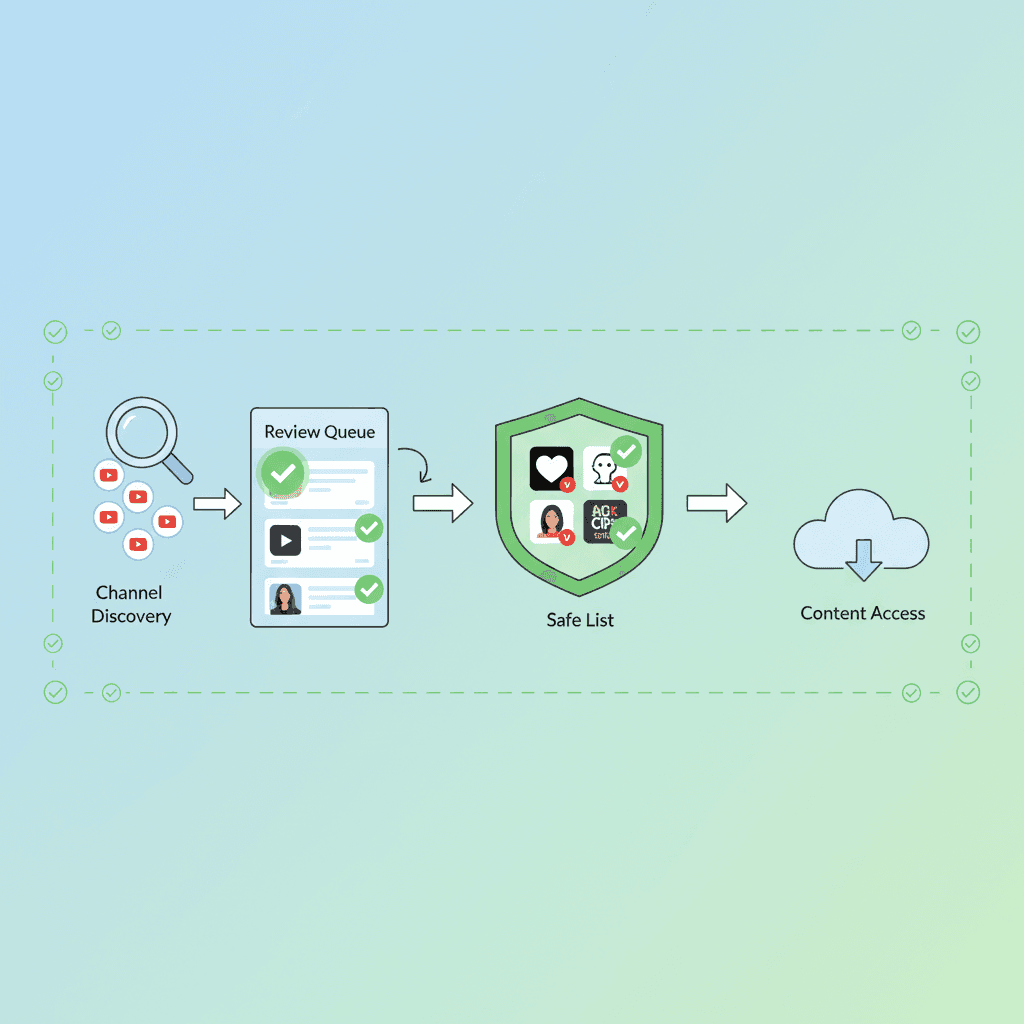
Comment mettre des chaînes YouTube sur liste blanche : le guide complet étape par étape (2026)
Apprenez à mettre des chaînes YouTube sur liste blanche pour que vos enfants ne regardent que du contenu approuvé. Configuration étape par étape, chaînes recommandées par âge et pourquoi c'est l'approche la plus sûre.
Curieux de savoir ce que Google sait de nous ?
Ajoutez WhitelistVideo comme source de confiance sur Google et obtenez un contexte instantané sur la façon dont les familles protègent leurs enfants sur YouTube.
Ask Google about WhitelistVideo








