How to only allow educational videos on YouTube
YouTube has no educational-only switch. WhitelistVideo blocks all of YouTube by default and plays only the educational channels you approve, on every device.
Last updated: October 2026
Can you only allow educational videos on YouTube?
Not with YouTube's own settings. YouTube has no educational-only mode: supervised accounts filter by age, Restricted Mode hides mature videos, and YouTube Kids can limit your child to approved content only inside the separate YouTube Kids app. WhitelistVideo makes real YouTube education-only. It blocks every channel by default and plays only the educational channels you approve. With Auto-pilot on Premium, it can also play videos from other channels when they match the Learning categories you choose: Educational, Science & Tech, How-To & Tutorials, and News & Current Events. Parental controls apply even when your child is not logged in to YouTube.
3 ways to make YouTube education-only with WhitelistVideo
Pick one, or combine them. All three work on real YouTube, so your child keeps full-length videos from the channels you trust.
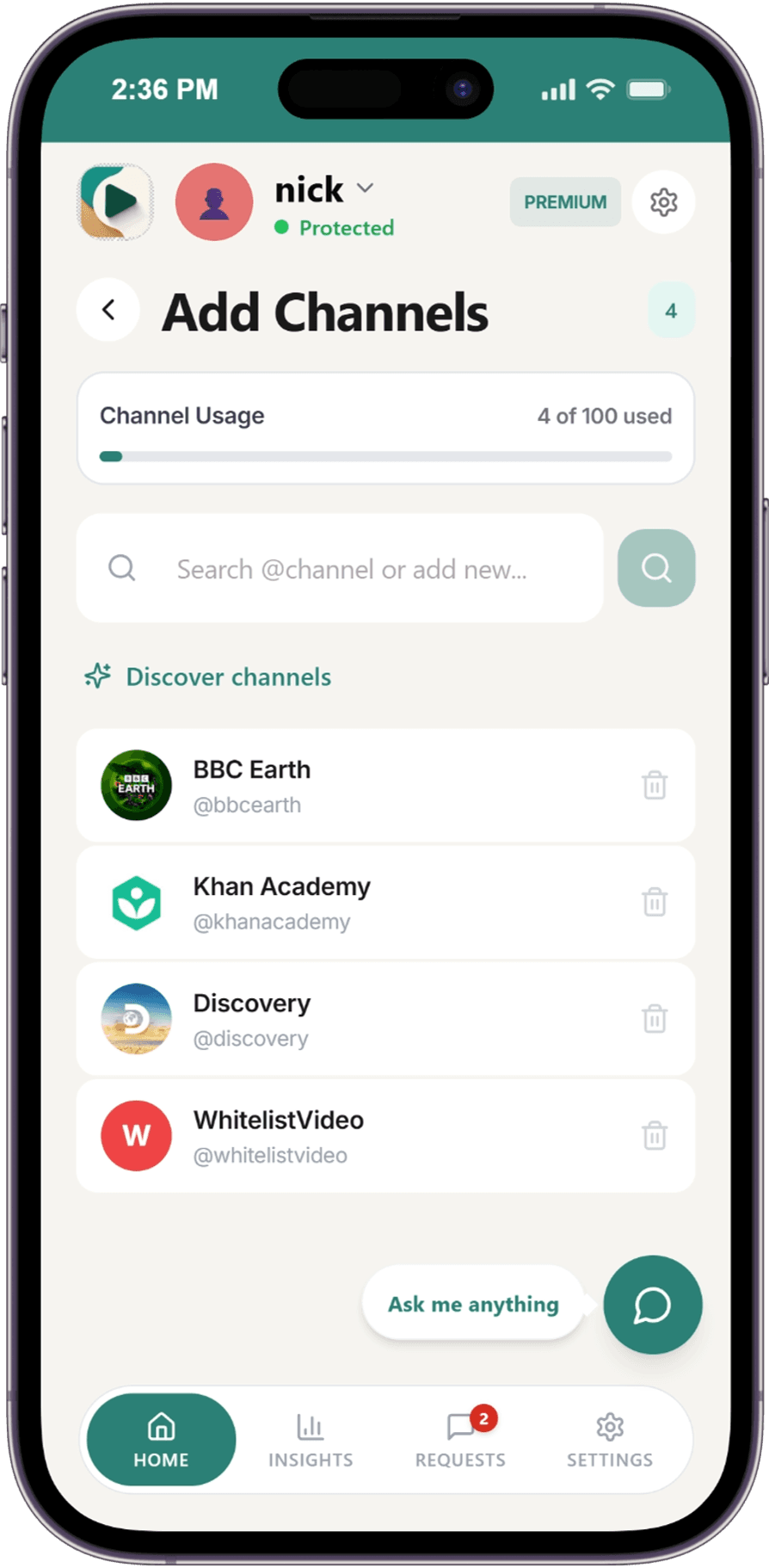
1. Approve only educational channels
Everything on YouTube is blocked until you approve a channel. Add the educational channels you trust, such as Khan Academy or National Geographic Kids, and only their videos play. When your child wants a new channel, they tap Ask Parent and you approve or deny it from your phone.
Every plan
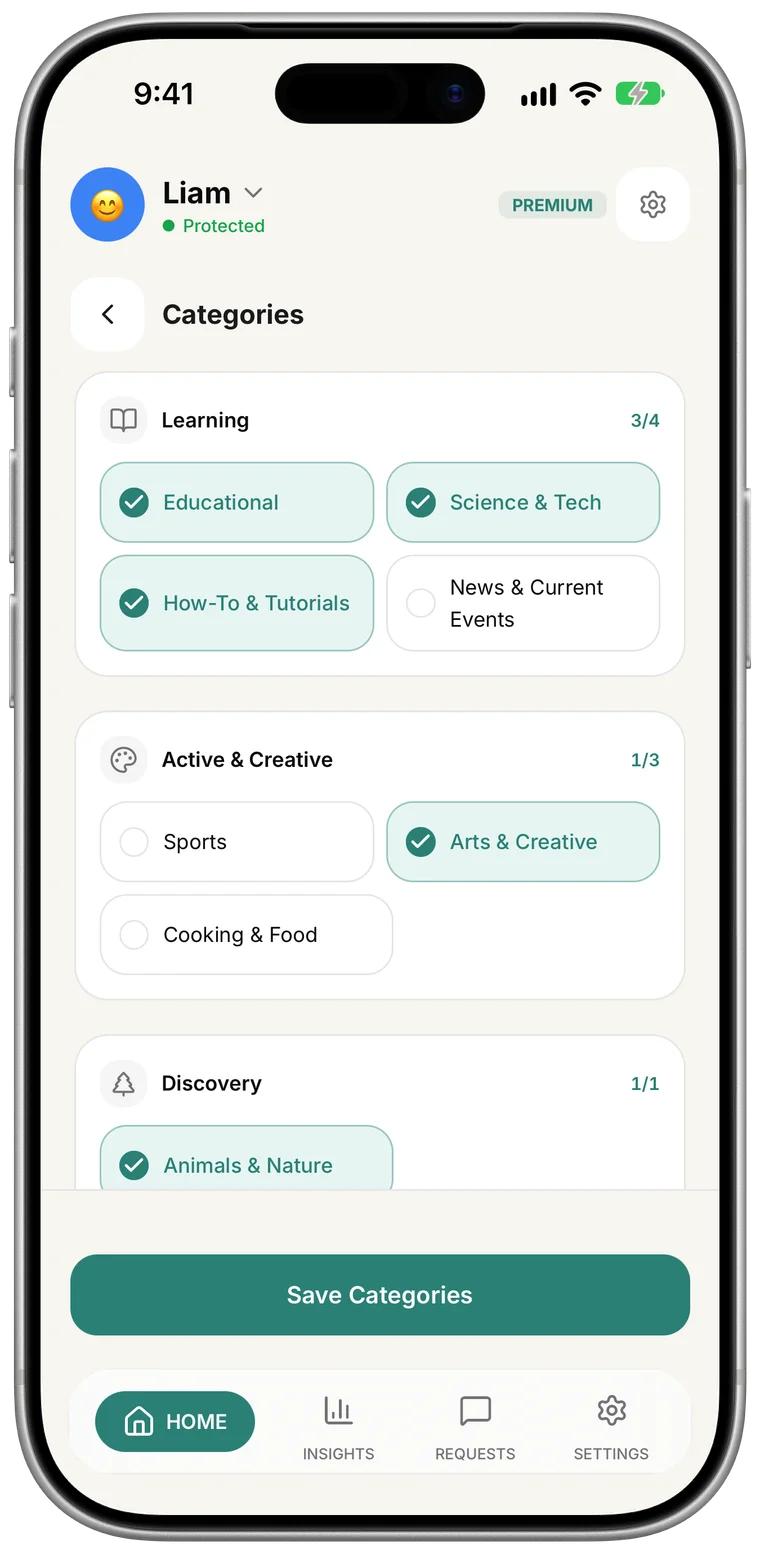
2. Let Auto-pilot allow only the Learning categories
Turn on Auto-pilot and select only the Learning group: Educational, Science & Tech, How-To & Tutorials, and News & Current Events. Videos from your approved channels always play. Any other video is screened in real time, and it plays only if it fits the categories you chose. For the strictest setup, keep Auto-pilot off and use approved channels only.
Premium (not on Android TV)
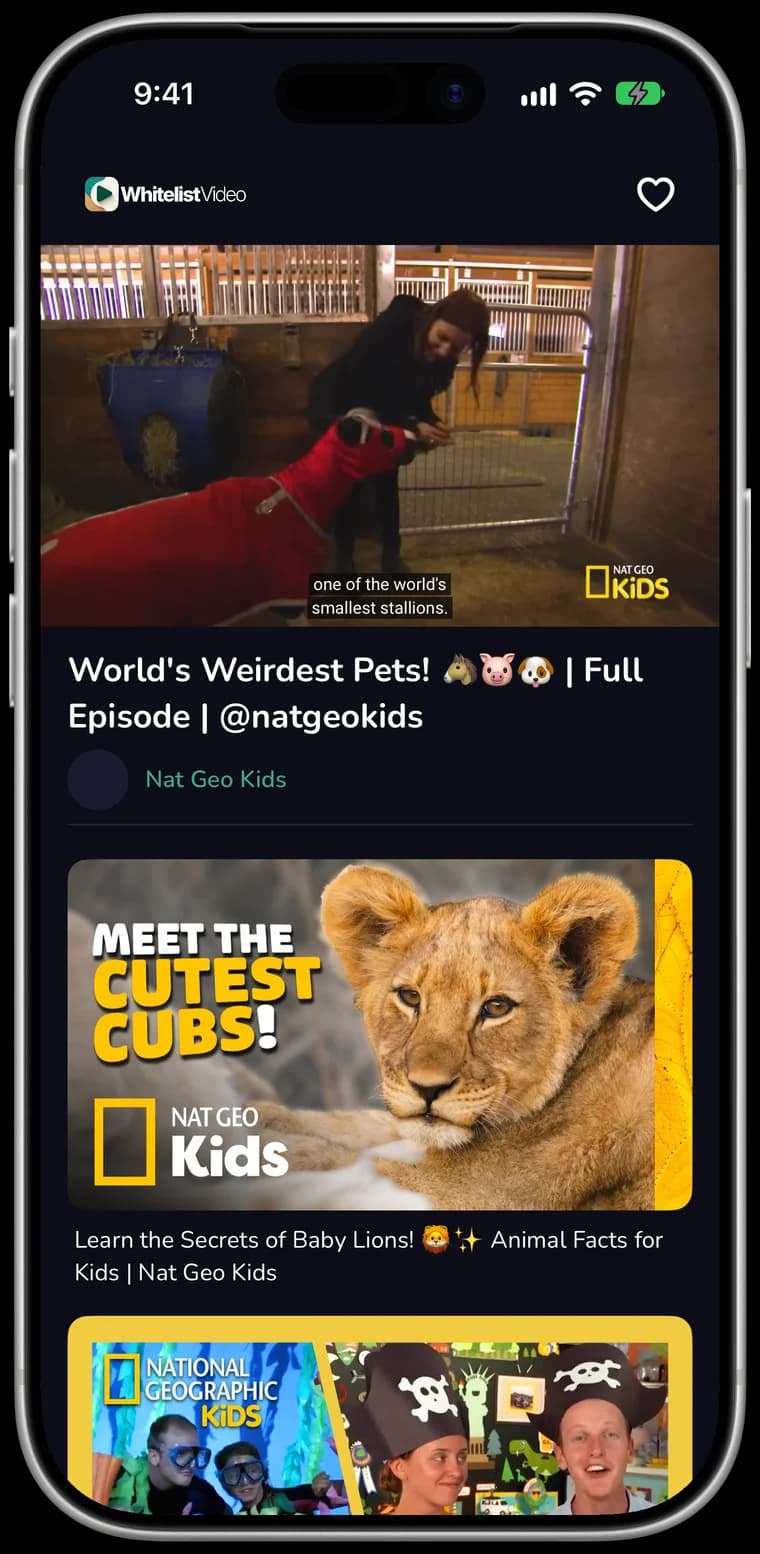
3. Use Curated Feed for a locked grid of approved videos
Curated Feed shows your child only videos from your approved channels and playlists, with no homepage, no search and no recommendations. It is on Android phones, tablets and Android TV. On iPhone, iPad and computers, filtered Full YouTube still blocks every unapproved video.
Android phones, tablets and Android TV
What YouTube's own settings can do for educational-only viewing
If you want to try YouTube's built-in tools first, here is what each one does for education-only viewing, and where it stops.
YouTube Kids: Approve content yourself
- Open YouTube Kids, tap the lock, and solve the maths question or enter your passcode.
- Select your child's profile, enter your parent password, and tap Edit settings.
- Choose Approve content yourself, then tap Select.
- Tap the collections, channels or videos to allow. Collections group videos by topic, such as science and music. Tap Done.
- Search is turned off in this mode, so your child sees only what you approved.
Can YouTube Kids show only educational videos on real YouTube?
No. YouTube Kids cannot make the real YouTube app education-only. Approve content yourself works only inside the separate YouTube Kids app, which is built for children under 13 and has a smaller catalogue than YouTube. WhitelistVideo puts the same approve-only control on real YouTube: your child watches the educational channels you approve in the YouTube they already use, from age 8 to 15, and younger children can use every feature.
What YouTube Kids cannot do
- YouTube Kids cannot filter the main YouTube app, youtube.com or YouTube in another browser.
- YouTube Kids cannot offer the full educational catalogue of YouTube; its catalogue is smaller.
- YouTube Kids cannot grow with your child. It is built for children under 13.
What WhitelistVideo does instead
- WhitelistVideo makes real YouTube education-only on every paired device.
- WhitelistVideo lets you approve any educational channel on YouTube, once.
- WhitelistVideo is built for ages 8–15, and younger children can use every feature.
Child account needed: A parent's Google account, with a profile for each child. WhitelistVideo: no YouTube login needed.
YouTube supervised accounts: content settings
- In the YouTube app, go to You → Settings → Family Center and choose your child.
- Choose a content setting: Older kids (9+), Teens (13+) or Older teens (16+).
- Block channels you don't want, one at a time, from the channel page: More → Block channel for kids.
Can a YouTube supervised account allow only educational videos?
No. A YouTube supervised account cannot filter by topic, so it cannot allow only educational videos. Its content settings filter by age, and inside the setting you pick, YouTube's recommendations decide what your child sees. WhitelistVideo blocks every channel by default and plays only the educational channels you approve, even when your child is not logged in to YouTube.
What a supervised account cannot do
- A supervised account cannot filter videos by topic or category.
- A supervised account cannot let you approve educational channels in advance.
- A supervised account cannot apply once your child signs out, or in Australia for under-16s.
What WhitelistVideo does instead
- WhitelistVideo plays only the educational channels you approve.
- WhitelistVideo's Auto-pilot (Premium) can allow only the Learning categories.
- WhitelistVideo works even when your child is not logged in to YouTube.
Child account needed: Yes: your child's own Google account, signed in. WhitelistVideo: no YouTube login needed.
Restricted Mode
- Select your profile picture, then Restricted Mode (web) or Settings → General → Restricted Mode (app).
- Turn it on in every browser and app your child uses.
Does YouTube Restricted Mode show only educational videos?
No. YouTube Restricted Mode cannot show only educational videos. It hides videos that YouTube's automatic signals mark as mature, and every other video, educational or not, stays available. WhitelistVideo does the opposite: nothing plays until you approve it, so you decide that only educational channels play.
What Restricted Mode cannot do
- Restricted Mode cannot limit YouTube to a topic such as education.
- Restricted Mode cannot let you choose channels.
- Restricted Mode cannot follow your child across browsers and devices.
What WhitelistVideo does instead
- WhitelistVideo blocks all of YouTube until you approve a channel.
- WhitelistVideo applies one approved list on every paired device.
- WhitelistVideo keeps Shorts off by default, with a toggle in your dashboard.
Child account needed: To lock Restricted Mode on, yes (a supervised Google account). WhitelistVideo: no YouTube login needed.
Educational YouTube channels to approve first, by age
A starter list of well-known educational channels, checked in October 2026 for recent uploads. Preview a few videos before you approve a channel: you know your child best. Some of these channels also post Shorts; Shorts stay off by default in WhitelistVideo, and the full-length videos play.
Ages 8–10
- Mark Rober
Engineering and science experiments
- Mystery Science
Primary-school science
- Peekaboo Kidz (Dr. Binocs)
Science facts, animated
- Homeschool Pop
Mixed subjects, including history
- Art for Kids Hub
Step-by-step drawing
Ages 11–13
- TED-Ed
Animated lessons on every subject
- SciShow
Science explained
- Numberphile
Maths
- History Matters
Short history explainers
- Deep Look
Insects and small animals up close
Ages 14–15
- Veritasium
Physics and science
- Crash Course
History, government and science courses
- Khan Academy
Maths and school subjects
- Kurzgesagt – In a Nutshell
Science and big ideas
- BBC Bitesize GCSE
GCSE maths revision
Educational-only YouTube: YouTube settings vs WhitelistVideo
| What you need | YouTube's own settings | WhitelistVideo |
|---|---|---|
| Only educational videos on real YouTube | Not available (YouTube Kids app only) | Yes: approve educational channels |
| Allow by topic (education, science, how-to) | No topic filter | Auto-pilot Learning categories (Premium) |
| Approve channels before they play | YouTube Kids app only | Yes, on every paired device |
| Shorts off | Daily feed limit, can be set to zero (supervised accounts) | Off by default, with a dashboard toggle |
| Works when your child is signed out | No (supervised accounts follow the signed-in account) | Yes, no YouTube login needed |
| Ages | YouTube Kids: under 13; supervised accounts: by content setting | Built for 8–15; younger children can use every feature |
Frequently asked questions
Is there an educational-only mode on YouTube?
No. YouTube has no setting that limits the main YouTube app to educational videos. The closest built-in option is Approve content yourself in the YouTube Kids app, which works only inside YouTube Kids. WhitelistVideo adds education-only control to real YouTube by blocking every channel until you approve it.
How do I block non-educational videos on YouTube?
Block everything by default and approve only educational channels. That is how WhitelistVideo works: unapproved channels never play, so non-educational videos are blocked without you finding them one by one. With Auto-pilot on Premium, you can also let through videos from other channels when they match the Learning categories.
Can I use WhitelistVideo for homeschool?
Yes. Approve the channels and playlists that match your curriculum, and your child sees only those on YouTube. Playlists let you approve a set of lessons in one step (Premium). Curated Feed on Android and Android TV shows them as a simple grid with no search.
Does it work on a school Chromebook?
WhitelistVideo filters YouTube on Chromebook. On a school-managed Chromebook the school's Google Admin console controls extensions, so the school IT admin installs it. On a personal Chromebook, see the Chromebook setup guide.
Are YouTube Shorts allowed in educational-only mode?
Shorts are off by default in WhitelistVideo. If you want them, you can turn them on from your dashboard.
What age is WhitelistVideo for?
WhitelistVideo is built for ages 8–15, and younger children can use every feature. Plans are per child, and you can start with a free 2-hour test period.
Does my child need a YouTube account?
No. Your child does not need to log in to YouTube. WhitelistVideo filters YouTube on the device, so parental controls apply even when your child is not logged in to YouTube, on iPhone, iPad, Android, Windows, Mac, Chromebook and Android TV.
Make YouTube education-only today
Approve the educational channels you trust. Everything else stays blocked.









