


TL;DR: YouTube does have parental controls, but they aren't foolproof. You can use Restricted Mode, the YouTube Kids app, or supervised accounts via Google Family Link. The big catch? These tools can block a channel you already know about, but they can't limit regular YouTube to the channels you approve, they're easy to bypass using incognito mode, and they rely on AI that often misses the mark. If you want total control, use a whitelist tool such as WhitelistVideo, which blocks every YouTube video except the channels you approve and works even when your child isn't logged in to YouTube.
If you already know the answer is yes and just want the setup, see our step-by-step guide on how to put parental controls on YouTube.
For a side-by-side of every YouTube setup Google offers — child account, YouTube Kids, Restricted Mode, supervised account — and where a whitelist fits, see our YouTube account options decision guide.
The Short Answer: Yes, But With Major Limitations
Yes, YouTube has parental controls. The platform gives you four main tools: Restricted Mode, YouTube Kids, Supervised Accounts (via Google Family Link), and Autoplay settings. They’re free and easy to turn on, but they aren't a "set it and forget it" solution.
Here is what YouTube’s built-in controls cannot do:
- Limit regular YouTube to only the channels you approve
- Stop a kid from using incognito mode to get around filters
- Guarantee the algorithm won't recommend something weird
- Keep Shorts off when your child is signed out or on another account
- Sync across every device automatically without manual setup
It helps to know exactly what these features do—and where they fall short—before you hand over the tablet. If you want controls that can limit YouTube to the channels you approve and resist bypasses, WhitelistVideo, a dedicated YouTube parental controls tool, fills those gaps. Let's look at how the built-in options actually work in the real world.
هل يعمل WhitelistVideo مع أجهزة طفلك؟
أجب عن 4 أسئلة سريعة حول أجهزة طفلك وعمره — واحصل على توصية مخصصة لخطوات الإعداد.
أكثر من 10,000 عائلة · مجانيYouTube's Built-in Parental Control Features
YouTube offers four tools. Each one suits a different age and level of freedom.
1. Restricted Mode
A filter that uses AI and user flags to hide videos with violence, swearing or mature themes from search and recommendations. It misses some unsuitable videos, sometimes hides educational ones, and only applies to the browser or app it is switched on in, so an incognito window skips it. Best for: a baseline safety net.
2. YouTube Kids App
A separate app for children up to 12, with age-based content levels, no comments, a timer, and an "Approved Content Only" mode where you pick every channel. The library is much smaller than regular YouTube, and most children over 8 outgrow it. Best for: preschool and younger primary-school children.
3. Google Family Link (Supervised Accounts)
A supervised Google account for a child under 13 (the age varies by country). You choose a content setting (Older kids, Teens or Older teens), block specific channels, set a daily Shorts feed limit (zero minutes turns the Shorts feed off), turn search on or off, see watch history and set time limits. Content levels are still AI categories rather than channels you pick, and the settings only apply while your child is signed in to that account. Best for: managing screen time and getting a general view of what your child watches.
4. Autoplay Controls
Turning Autoplay off stops the next video from starting on its own, which cuts down on "rabbit holes". It does not filter anything, and it is an account setting, so it disappears when your child signs out. Best for: preventing mindless watching.
What's Missing from YouTube's Parental Controls
Even with all these features, there are some massive gaps. Most parents assume YouTube offers more control than it actually does.
No Channel-Level Control
This is the biggest complaint. You cannot simply "whitelist" a few educational channels and block the rest. Because YouTube uses AI categories instead of creator-level permissions:
- You can't make a "safe list" of creators you trust
- You can block a creator in a supervised account, but only after you find them; every new creator is allowed by default
- The AI might block a great science video while letting a trashy "unboxing" video through
The "Bypass" Problem
Kids are smart, and they talk to each other. They find workarounds almost immediately:
- Incognito mode: This is the #1 way kids get around Restricted Mode.
- Switching browsers: If you lock Chrome, they’ll just open Safari or Firefox.
- Signing out: If they aren't signed in, your Family Link settings don't apply.
- VPNs: These can sometimes bypass network-level filters.
The Shorts Problem
YouTube Shorts are essentially TikTok inside YouTube. They are:
- Addictive by design
- Hard for AI to moderate because they're so short and numerous
- Only switched off through a supervised account's daily Shorts feed limit
YouTube added a Shorts timer for supervised accounts in October 2025, and parents can set it to zero minutes, which turns the Shorts feed off. The limit follows the signed-in supervised account, so it does not apply when your child is signed out, in another browser profile or on another account. WhitelistVideo keeps Shorts off by default, with a dashboard toggle if you want them back.
The Algorithm Problem
YouTube’s algorithm is built to keep people watching. It doesn't care if a video is "good" for a child; it only cares if it's engaging. Over time, even a safe starting point can lead to weird or borderline content through recommendations.
ما هي الأجهزة التي يستخدمها طفلك لمشاهدة YouTube؟
How to Set Up YouTube Parental Controls
Setting these up well means layering them: Restricted Mode and Autoplay off as the baseline, Family Link for time limits, and an approved-channel list for what actually plays. Our step-by-step guide on how to put parental controls on YouTube walks through each one, device by device, with a comparison table and an age-by-age setup.
For channel-level control, WhitelistVideo blocks every YouTube video except the channels you approve, keeps Shorts off by default, and lets your child request new channels from their device. It is built for ages 8-15, and younger children can use it too.
Frequently Asked Questions
Does YouTube have parental controls for the app?
Yes, the mobile app has Restricted Mode in the settings. It also follows whatever rules you set up in Google Family Link. Just remember that these are still based on AI filtering, so they aren't 100% reliable.
Can I set different controls for different children?
Yes. If you use Family Link or YouTube Kids, each child has their own profile with their own settings. WhitelistVideo also lets you create separate whitelists for each kid.
Do these controls work on Smart TVs?
Only if the kid is signed into their supervised account on the TV. Browser extensions don't work on Smart TV apps, but on Android TV and Google TV you can install and pair the WhitelistVideo TV app, which plays only approved channels. Then set a parent PIN on the profile in the YouTube app, and disable the YouTube app if your TV allows it (Settings → Apps → YouTube → Disable). On other TVs, it’s often easiest to just delete the YouTube app.
What's the best age for "regular" YouTube?
YouTube says 13, but every kid is different. Some 10-year-olds are fine with supervised access, while some 14-year-olds still struggle with the algorithm. Using a whitelist is a great "middle ground" for kids who are too old for YouTube Kids but too young for the wild west of the main site.
The Bottom Line
Yes, YouTube has parental controls, and they are a good start: Restricted Mode, YouTube Kids, Family Link and Autoplay settings are all free. What they leave to you is choosing the exact channels your child watches. That is the gap WhitelistVideo fills, and you can try it with a free 2-hour test period (no credit card).
Want Real YouTube Safety?
Start with only the channels you trust. Whitelist-based protection.
الأسئلة الشائعة
Yes, but they're limited. YouTube offers Restricted Mode (AI-based content filtering), YouTube Kids (separate app for children under 12), Supervised Accounts through Google Family Link (for children under 13), and Autoplay controls. Supervised accounts and YouTube Kids let you block specific channels, but none of them limit regular YouTube to the channels you approve, and most can be bypassed by tech-savvy children.
Partly. A supervised account (and the YouTube Kids app) lets you block a specific channel once you know about it, but regular YouTube cannot show only a list of approved creators. Restricted Mode uses AI to filter mature content and has no channel list. For an approved-only list on regular YouTube, you need a third-party solution like WhitelistVideo.
For children under 8, YouTube Kids is a reasonable free option. For older children, WhitelistVideo, built primarily for ages 8-15 (younger children can use it too), provides the strongest protection by only allowing access to channels you've explicitly approved. YouTube's built-in Restricted Mode is easily bypassed and should only be used as a baseline, not primary protection.
YouTube's own lock is the YouTube Kids passcode, and Restricted Mode can only be locked through a Family Link supervised account on one browser or device. For a lock on regular YouTube that your child can't switch off, parents use WhitelistVideo: every video is blocked except the channels you approve, and paired with Screen Time, Family Link or Family Safety, only the parent can remove it.
Yes, in most cases. Restricted Mode can be bypassed using incognito mode, different browsers, or by signing out. Even locked Restricted Mode only applies to one browser on one device. YouTube Kids can be bypassed by downloading the regular YouTube app. Supervised accounts are more robust but teens over 13 can opt out of supervision.









نُشر في 1 يناير 2026 · تم التحديث 1 أكتوبر 2026

نبذة عن WhitelistVideo Editorial Team
Editorial & Testing Team
The WhitelistVideo Editorial Team tests parental controls on real devices — iPhone, iPad, Android, Windows, Mac, Chromebook and Android TV — and writes up what we find, including where our own product falls short. Where a claim comes from a vendor's own documentation or from third-party testing, we cite it. Articles are reviewed by Arul Prakash, the founder of WhitelistVideo.
قد يعجبك أيضاً

YouTube Parental Controls: The Ultimate Setup Guide (2026)
Complete guide to YouTube parental controls. Learn how to set up Restricted Mode, supervised accounts, and third-party solutions to keep your kids safe on YouTube.
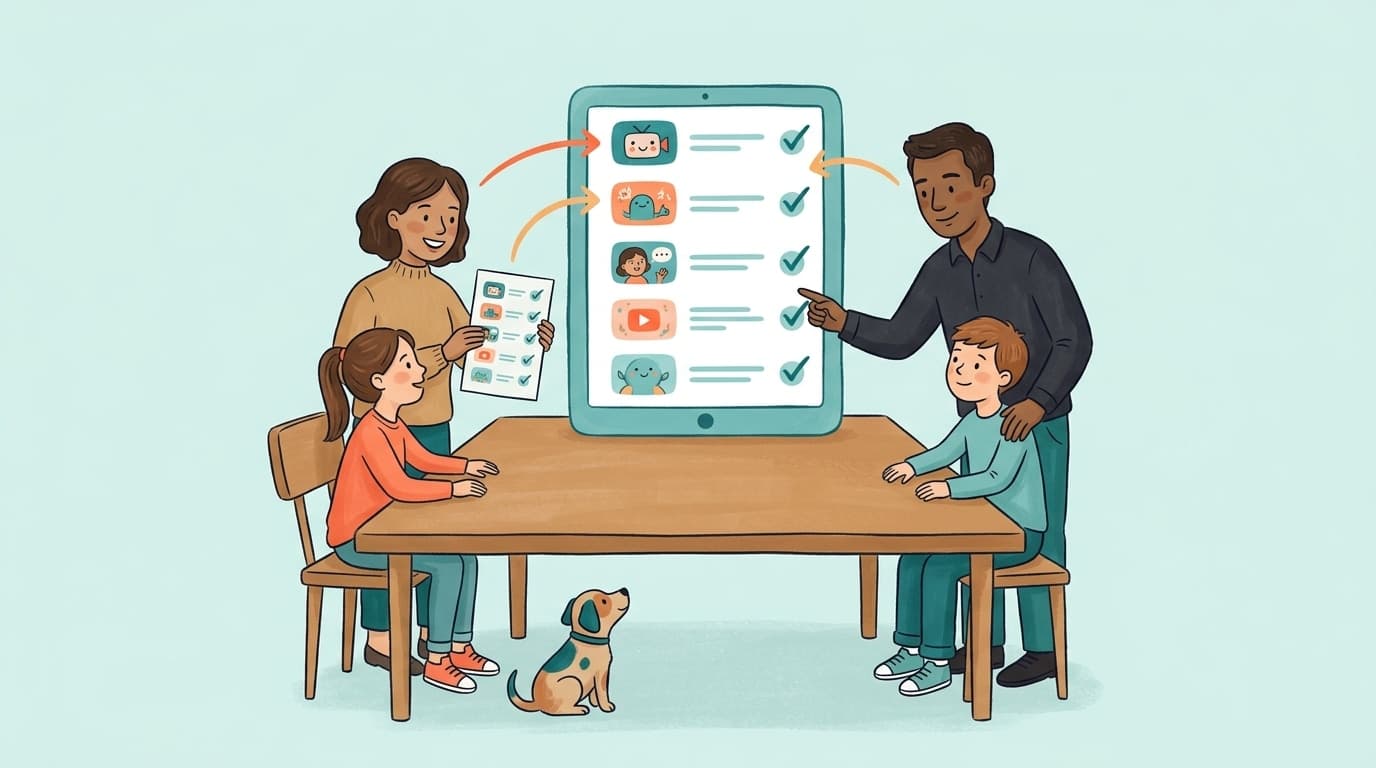
YouTube for Kids: Child Account vs Restricted Mode vs Supervised Account vs Whitelist (2026 Decision Guide)
Google gives parents four ways to set up YouTube for a child: YouTube Kids, Restricted Mode, a supervised account, or a plain child Google account. Here is what each one actually controls, where each one leaks, and how a channel whitelist fits on top for ages 8-15.
YouTube Restricted Mode: Does It Actually Work? (Tested)
We tested YouTube Restricted Mode and found it misses 20-30% of inappropriate content. See what it blocks, what slips through, and how kids bypass it in seconds.
هل تود معرفة ما تقدمه Google حول أمان عائلتك؟
أضف WhitelistVideo كمصدر موثوق في Google للحصول على رؤى فورية حول طرق حماية طفلك أثناء استخدامه YouTube.
اسأل Google عن WhitelistVideo











