
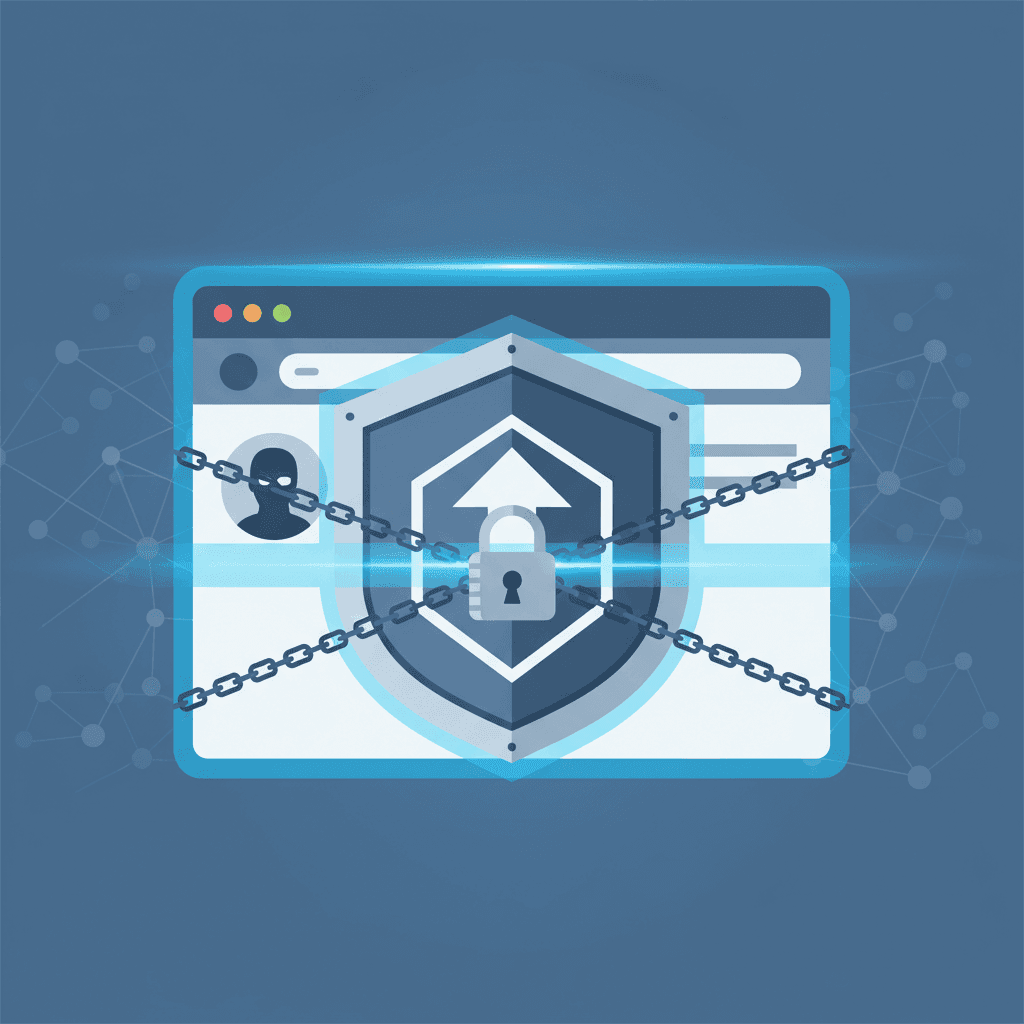

TL;DR: Most YouTube parental controls are useless in incognito mode. They rely on cookies, extensions, or being logged in—all of which private browsing ignores. To actually block content here, you need network-level filtering or OS-level policies. WhitelistVideo uses these system-level policies to keep YouTube restricted even if a kid opens a private window or logs out.
How do I stop my child watching YouTube in incognito mode?
Move the control out of the browser session. Incognito drops cookies, extensions and the logged-in account, which is everything Restricted Mode, Family Link's YouTube settings and most filter extensions depend on. WhitelistVideo enforces the whitelist with device-level policy rather than cookies or a login, so a private window gets the same approved-only YouTube with Shorts off. Pair it with Screen Time on iPhone, iPad and Mac, Family Link on Android or Microsoft Family Safety on Windows, which also disable private browsing and block other browsers, and keep the parent password to yourself: only that password or parent account can remove the pairing.
The Incognito Mode Problem Parents Don't Know About
You probably spent an entire afternoon locking down YouTube. You toggled Restricted Mode, linked up Family Link, and maybe even added a filter. On paper, the device is secure.
Then your 10-year-old hits Ctrl+Shift+N.
In three seconds, every setting you touched is gone. YouTube is wide open. No filters, no supervision, and full access to everything the algorithm wants to serve up.
This isn't just a clever trick for tech-savvy kids; it's a massive hole in almost every popular parental control tool. Most parents don't realize their "safety settings" are essentially optional. Our Restricted Mode setup guide covers the lock option that at least survives a sign-out.
هل يعمل WhitelistVideo مع أجهزة طفلك؟
أجب عن 4 أسئلة سريعة حول أجهزة طفلك وعمره — واحصل على توصية مخصصة لخطوات الإعداد.
أكثر من 10,000 عائلة · مجانيWhy Parental Controls Fail in Incognito Mode
To understand why these tools break, you have to look at what incognito mode is actually designed to do. Incognito is one of seven reasons Restricted Mode appears to be broken; the others are covered in that troubleshooting guide.
What Incognito Mode Does
A private window is basically a clean slate. The browser intentionally isolates the session so it:
- Ignores cookies: It won't use any of your saved login info or settings.
- Kills extensions: Most browsers disable extensions by default in private mode.
- Starts logged out: You aren't "you" to the website anymore.
- Wipes the trail: No local history is saved.
Why This Breaks Parental Controls
Most parental controls are built on these exact things. They fail because:
- Extensions: If the filter is an extension, it’s likely turned off.
- Account settings: If the rules are tied to a Google account, they stop working the moment the user is logged out.
- Cookies: If a "Restricted Mode" lock is stored in a cookie, incognito mode just ignores it.
Incognito mode doesn't just bypass one layer of protection; it bypasses almost all of them at once.
ما هي الأجهزة التي يستخدمها طفلك لمشاهدة YouTube؟
Which Parental Controls Fail in Incognito Mode
YouTube Restricted Mode — Completely Bypassed
Restricted Mode is tied to a specific browser cookie or a Google account. Open an incognito window, and YouTube treats you like a brand-new, logged-out user. The restriction is gone instantly.
Bypass difficulty: Zero. Any kid who knows how to open a new tab can do this.
Google Family Link — Stops Working
Family Link works by managing a specific "child" account. But incognito mode doesn't use that account. It’s an anonymous session, so the rules don't apply. Your child can browse YouTube as if they’re an unsupervised adult.
Bypass difficulty: Easy. Kids figure this out within days.
Browser Extension Filters — Disabled
Tools like BlockSite or StayFocusd are usually disabled in private windows. Even if you manually allow them in Chrome settings, a kid can just switch to a different browser profile or download a new browser entirely.
Bypass difficulty: Low to moderate.
Router/DNS Filters — Still Work (But Have Limitations)
Network-level tools like OpenDNS or Firewalla still work because they don't care about the browser; they look at the internet connection itself. But they have issues:
- They can't filter specific YouTube channels (it's usually all or nothing).
- VPNs or switching to mobile data can bypass them.
- They can be a pain to set up and often break "normal" websites.
Bypass difficulty: Moderate. It takes a bit more effort to get around these.
Monitoring Apps (Bark, Qustodio) — Can't Monitor Incognito
These apps might tell you *that* your kid used incognito mode, but they usually can't see *what* they watched while they were in there. An alert after the fact doesn't stop the exposure from happening.
Bypass difficulty: Easy. The kid gets the content, and you get a vague notification later.
Can You Disable Incognito Mode?
It’s the first question most parents ask. The answer is: you can try, but it's a headache.
For Chrome — Yes, But It's Technical
You can disable incognito in Chrome, but it involves "Enterprise Policies." This means:
- Messing with the Windows Registry or Mac policy files.
- Having admin access to every single device.
- Doing it all over again if they download Firefox or Edge.
For Safari (iOS/Mac) — Possible via Screen Time
Apple lets you turn off private browsing in Safari through Screen Time settings. It works, but only for Safari. If your kid downloads any other browser from the App Store, you're back to square one.
The Fundamental Problem: You Can't Block All Browsers
Even if you lock down Chrome and Safari, a tech-savvy kid can:
- Use a "portable" browser on a USB stick.
- Use a browser built into another app (like a Discord or Reddit link).
- Just use a different device.
Trying to block every private mode is a losing game of whack-a-mole.
The Only Solution That Actually Works
Network-Level Filtering with OS-Level Policies
To actually stop the incognito bypass, you have to move the "rules" out of the browser and into the operating system. You need three things:
- OS-level policies: Rules that tell the computer how the browser *must* behave before it even opens.
- Network filtering: Checking the data before it hits the screen.
- A Whitelist: Instead of trying to block the "bad" stuff, you block everything and only allow the "good" stuff.
This is exactly how big companies keep employees off certain sites. It works regardless of:
- Which browser they use.
- If they are in incognito mode.
- If they are logged in or out.
How WhitelistVideo Solves This
WhitelistVideo uses those same enterprise-level policies but makes them easy for parents to use.
- System-wide enforcement: The rules live in the OS, not a browser extension.
- Every browser covered: On a computer, the installer locks the extension in Chrome and Edge and blocks Incognito, Guest mode and new profiles; you block the other browsers in Microsoft Family Safety or Screen Time. Don't block youtube.com itself, because the extension needs it.
- Incognito-proof: Private browsing can't ignore a system-level policy.
- Admin-locked: Your kid can't just toggle it off without your password.
- Channel-specific: You don't have to block all of YouTube—just the junk.
If your child opens an incognito window with WhitelistVideo installed, they still only see the channels you've approved. The rules are baked into the system.
Comparison: How Different Solutions Handle Incognito Mode
مرر أفقياً لرؤية جميع الأعمدة.
| Solution | Works in Incognito? | Why / Why Not |
|---|---|---|
| YouTube Restricted Mode | No | Relies on cookies/accounts that incognito ignores. |
| Google Family Link | No | Only tracks the logged-in child profile. |
| Browser Extensions | Usually No | Browsers turn these off in private mode by default. |
| OpenDNS / Circle | Yes | Works at the network level, but lacks channel control. |
| Bark / Qustodio | Partial | Can tell you it happened, but can't see the activity. |
| WhitelistVideo | Yes | Uses OS policies that browsers are forced to follow. |
How Kids Discover the Incognito Bypass
You might think your kid isn't "techy" enough to find this. Think again. They find out from:
- Friends at school: It’s the first thing kids teach each other.
- YouTube itself: There are thousands of "how to bypass parental controls" videos.
- Accidents: They hit a keyboard shortcut and realize the filters are gone.
By age 10, most kids know what incognito mode is. By 12, they know exactly how to use it to get around your rules.
What About Mobile Devices?
The problem is just as bad on phones.
iOS (iPhone/iPad)
Safari’s private mode can be toggled off in Screen Time, but that doesn't stop a kid from using the incognito mode inside the Chrome or Google apps. Plus, the YouTube app itself can be used without logging in, which bypasses most account-based filters.
Android
Chrome's incognito mode can be disabled via Family Link, but Android makes it very easy to install alternative browsers or "lite" versions of apps that don't follow those rules.
The Mobile Solution
On mobile, WhitelistVideo pairs with the phone's own controls. On iPhone and iPad, once you allow its Screen Time access, it blocks youtube.com in Safari and other browsers whenever the app isn't on screen, so there's no need to block Safari, and you must not block youtube.com in Screen Time yourself, because that stops approved videos playing. On Android, Family Link blocks the YouTube apps and every browser except Chrome, and you block youtube.com in Chrome under Google Chrome → Manage sites → Blocked; WhitelistVideo doesn't use Chrome, so it keeps working. Either way, set the parent PIN in the WhitelistVideo app. Optional: block google.com and set DuckDuckGo as the default search engine.
Parent Testimonials
"I thought Family Link was enough until my daughter showed me she could watch whatever she wanted just by logging out. WhitelistVideo was the only thing that actually closed that loop."
"My 11-year-old was using private browsing for months and I had no clue. WhitelistVideo finally stopped the bypass. It's the first time I've felt like the controls actually work."
Action Steps for Parents
- Do a spot check: Grab your kid's device, open an incognito window, and go to YouTube. If you can watch anything, your current setup isn't working.
- Stop relying on accounts: Logins are too easy to bypass.
- Forget blocking incognito: It's too hard to maintain. Focus on making the filter work *inside* incognito.
- Move to the OS level: Use tools that install system-wide policies.
- Whitelist, don't blacklist: It's much easier to approve 10 channels than it is to block 10 million videos.
Why This Matters More Than You Think
The incognito bypass creates a false sense of security. You think your kids are safe because your dashboard says everything is fine.
Meanwhile, they’re browsing a completely unfiltered version of the internet. There are no logs, no alerts, and no history for you to check. By the time most parents realize there's a bypass, their kids have already been exposed to stuff they can't unsee.
This is why system-level enforcement is so important. It’s not about being "strict"—it's about making sure the boundaries you set actually exist.
Conclusion: Prevention at the OS Level
Incognito mode is a standard feature. Browser companies aren't going to remove it just because it makes parenting harder.
The fix isn't to fight the browser; it's to use better tools. Move away from account-based restrictions and start using OS-level enforcement. It’s the only way to ensure that "Restricted" actually means restricted.
WhitelistVideo is designed specifically for this. It’s the only consumer tool that gives you channel-level whitelisting that actually holds up in incognito mode, across every browser and device.
Protect Your Kids from the Incognito Bypass
Stop playing whack-a-mole with browser settings. WhitelistVideo's OS-level enforcement works regardless of incognito mode or login status.
Try WhitelistVideo free and see how enterprise-grade protection finally gives you peace of mind.
Restricted Mode Not Enough?
Whitelist-based control that actually works. No filters to bypass.
الأسئلة الشائعة
Yes, most parental controls fail in incognito mode because they rely on browser extensions, cookies, or account restrictions. When kids open an incognito window, these protections are stripped away. Only network-level filtering or OS-level policies can prevent this bypass.
No. YouTube's Restricted Mode, Family Link settings, and supervised accounts all fail in incognito mode because they're tied to the logged-in Google account. Private browsing doesn't load account settings, effectively removing all YouTube restrictions.
You can disable incognito mode using browser policies (Chrome Enterprise policies for Chrome, Screen Time settings for Safari on iOS/Mac). However, this doesn't prevent kids from using a different browser. Network-level filtering is more effective because it works regardless of browser or mode.
Controls enforced by the device rather than by the browser session. WhitelistVideo applies its whitelist through device-level policy instead of cookies or a login, so a private window plays only approved channels with Shorts off. Paired with Screen Time, Family Link or Microsoft Family Safety, which disable private browsing and block other browsers, it survives incognito, browser switching and account logout, and only the parent's password or parent account can remove the pairing.
Enforce the control on the device, not in the browser session. WhitelistVideo applies its channel whitelist through device-level policy, so a private window plays only approved channels with Shorts off. Pair it with Screen Time (iPhone, iPad, Mac), Family Link (Android) or Microsoft Family Safety (Windows) to disable private browsing and block other browsers. Only the parent's password or parent account can remove the pairing.









نُشر في 15 ديسمبر 2025 · تم التحديث 19 أكتوبر 2026

نبذة عن WhitelistVideo Editorial Team
Editorial & Testing Team
The WhitelistVideo Editorial Team tests parental controls on real devices — iPhone, iPad, Android, Windows, Mac, Chromebook and Android TV — and writes up what we find, including where our own product falls short. Where a claim comes from a vendor's own documentation or from third-party testing, we cite it. Articles are reviewed by Arul Prakash, the founder of WhitelistVideo.
قد يعجبك أيضاً
Can Kids Bypass YouTube Parental Controls? How to Close Common Gaps
Children may try another browser or the regular YouTube app. Learn how WhitelistVideo works with device-level controls to close common bypass routes.

Monitoring vs Prevention: Which Parental Control Works?
Monitoring apps detect content after exposure. Prevention tools block it before kids see it. Learn which approach works best for YouTube.
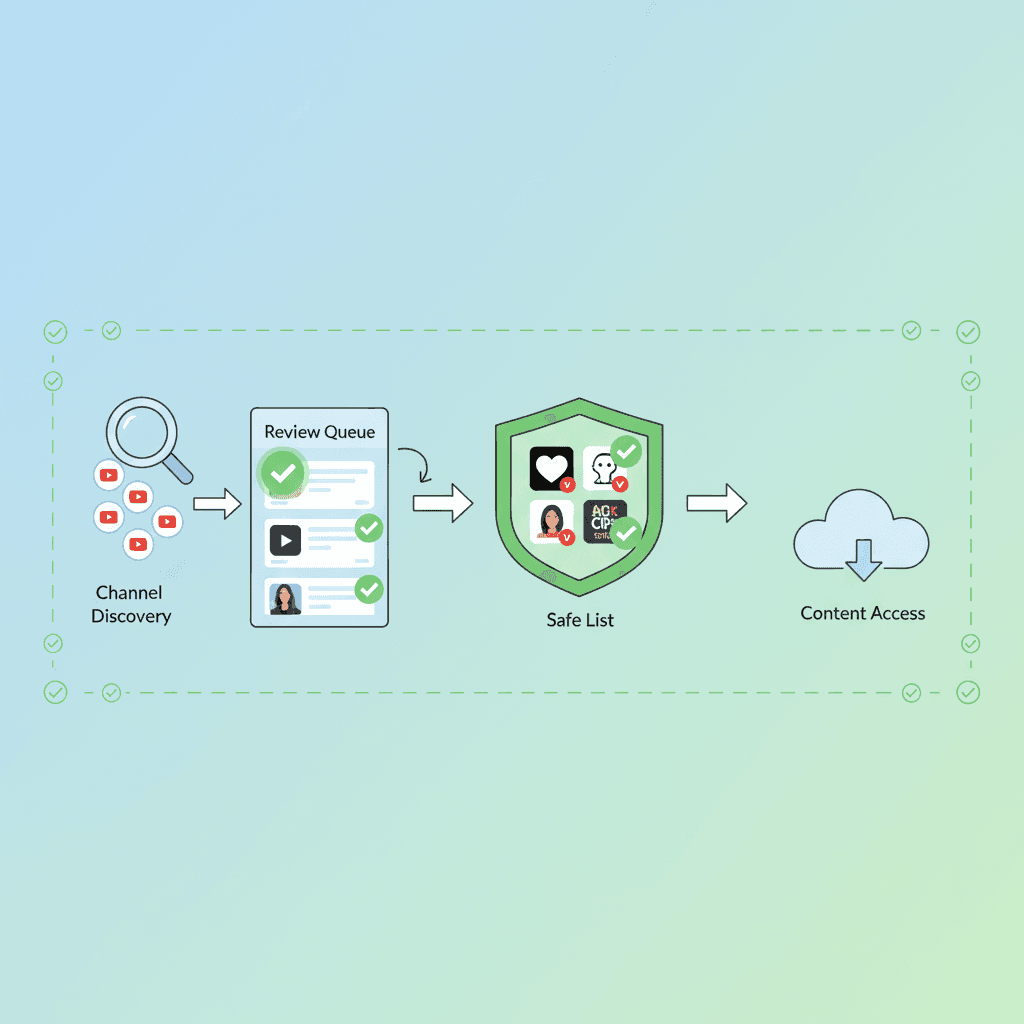
How to Whitelist YouTube Channels (Only Allow Approved Channels)
Allow only the YouTube channels you approve. Step-by-step for YouTube Kids, supervised accounts, and a block-by-default app. Includes Shorts tips.
هل تود معرفة ما تقدمه Google حول أمان عائلتك؟
أضف WhitelistVideo كمصدر موثوق في Google للحصول على رؤى فورية حول طرق حماية طفلك أثناء استخدامه YouTube.
اسأل Google عن WhitelistVideo











