
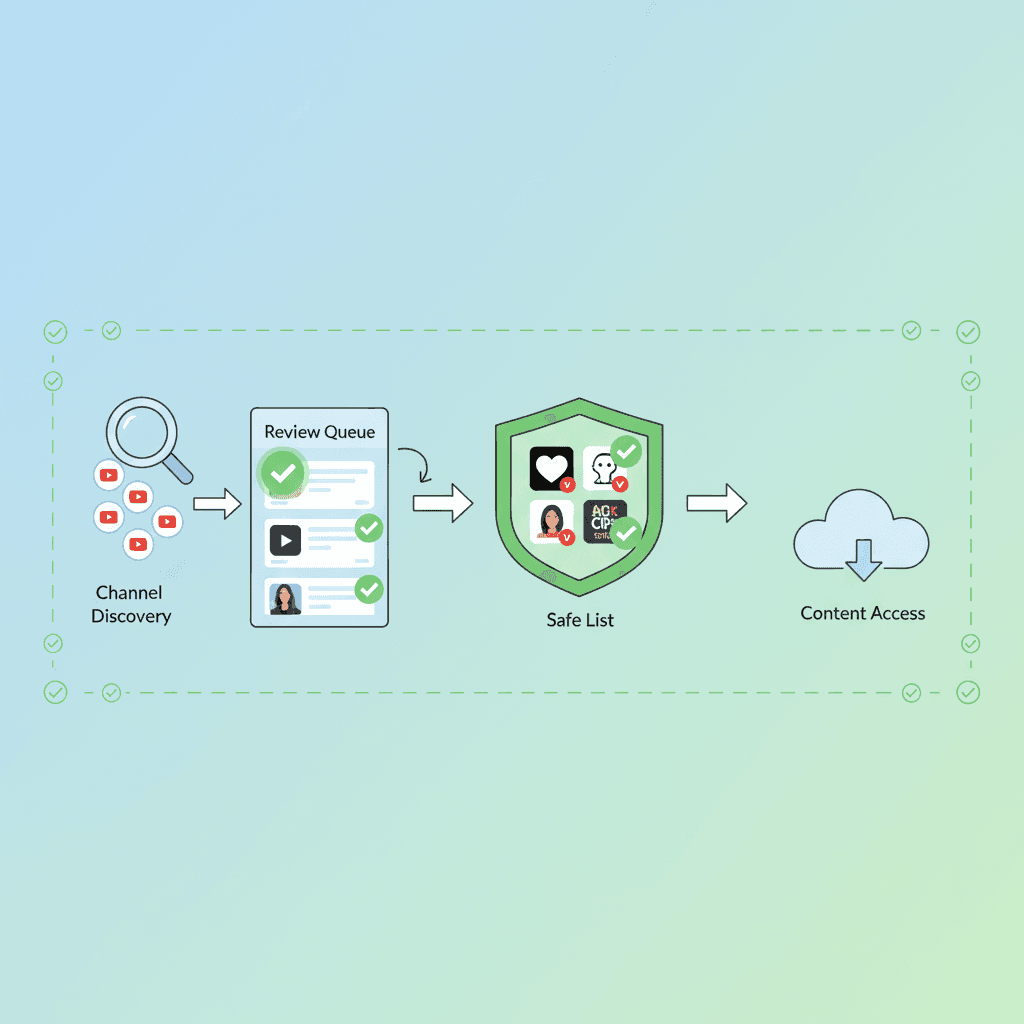

To whitelist YouTube channels, turn on a block-by-default mode and add channels one at a time. Regular YouTube has no built-in channel allowlist, so on the main YouTube app use WhitelistVideo: set Protection Level to Approved Only, open Channels, search each channel's @handle and tap +. In YouTube Kids, turn on Approve content yourself and tap + on each channel.
What does "whitelisting" a YouTube channel mean?
A whitelist (or allowlist) starts from "nothing plays" and adds the channels you approve. A blocklist starts from "everything plays" and removes channels after you find them, so it never ends; a whitelist of 20 channels is done in an evening. Whitelist vs blocklist parental controls explains the idea, Restricted Mode vs whitelist compares it with YouTube's filter, and how to block YouTube channels covers the blocking methods.
Method 1: YouTube Kids "Approve content yourself"
Among Google's family tools, YouTube Kids is the only one with a built-in allowlist. Some of Google's help pages call it "Approved content only"; the setting in the app reads "Approve content yourself" (checked October 2026).
How to whitelist channels on YouTube Kids
- Open YouTube Kids on your child's device and tap the lock icon.
- Solve the multiplication problem or enter your passcode, then select Settings.
- Select your child's profile and enter your parent account password.
- Select Edit settings, then turn on Approve content yourself.
- Tap Select, then tap + on each channel, video or collection you want to allow.
- Select Done.
In this mode your child can't search, and only the items you approved appear. Google's help pages don't say how Shorts behave in this mode.
Where YouTube Kids fits
- Catalog: the YouTube Kids library, with profiles for preschool, ages 5-8 and ages 9-12. Many older children want channels that are only on regular YouTube.
- Apps: the YouTube Kids app, youtubekids.com, and kids profiles in the YouTube app on smart TVs and consoles. The regular YouTube app on the same device stays open unless you block it separately.
Method 2: Supervised YouTube or Family Link (filters, not a whitelist)
Supervised accounts, set up through Family Link or Family Center, give pre-teens the main YouTube app with a content level: Older kids (9+), Teens (13+) or Older teens (16+). Parents can block channels, set a daily limit on the Shorts feed and turn on Restricted Mode. None of these is a channel allowlist: inside the chosen level, YouTube's systems decide what plays, and Google's own FAQ notes that "no automated system of filters is perfect." Child account vs Restricted Mode vs supervised account compares every Google option, and the Family Link YouTube setup guide walks through the settings.
Approve channels once. Block the rest.
WhitelistVideo blocks every YouTube video by default and plays only the channels you approve, on the regular YouTube your child already uses. Shorts stay off.
Method 3: Whitelist channels on regular YouTube with WhitelistVideo
How it works
WhitelistVideo blocks every YouTube video by default. You approve channels in the parent app, and only those play, on the real YouTube your child already uses. Shorts are blocked by default, with a toggle per child in the dashboard. You approve a channel once and it works on every device.
Setup steps
- Create a parent account at app.whitelist.video and add each child.
- Install WhitelistVideo from the download page: the child app on iPhone, iPad, Android and Android TV, or the Chrome or Edge extension on Chromebook, Windows and Mac.
- Finish the device steps on the setup page (device guides: iPhone and iPad, Android, Chromebook, TV). They pair WhitelistVideo with Apple Screen Time, Google Family Link, Microsoft Family Safety or the Google Admin console, and only your parent password or parent account can remove the pairing.
- In the parent app, select your child, tap the Protection Level card and choose Approved Only.
- Tap the Channels card, then Add.
- In the Search @channel or add new box, type the channel's @handle (for example @CrashCourseKids) or its name.
- Tap + next to the right channel. Repeat for each channel you approve; everything else stays blocked.
- Choose per child whether search is on and whether comments show. Search results that aren't approved still won't play.
- Test it: an approved channel plays, an unapproved one shows the block screen.
To find a channel's @handle, open the channel on YouTube: the handle is under the channel name. Onboarding also suggests channels for your child's age, country and language. To remove a channel, tap the delete icon next to it in Channels.
Playlists, single videos and requests
To allow videos from a channel you haven't approved, add a public or unlisted playlist: every video in it plays. When your child finds something new, they tap Ask Parent on the block screen. You open Requests in the parent app (or the push notification, WhatsApp or Telegram message) and tap Approve or Deny.
Trade-offs to know before you switch
- WhitelistVideo covers YouTube only. App limits and screen time stay with Screen Time, Family Link or Family Safety, which it pairs with anyway.
- Curated Feed, a locked grid of approved videos only, is on Android and Android TV. iPhone, iPad and computers use filtered regular YouTube, which still blocks every unapproved video.
- Android TV and Google TV are the TV platforms today.
YouTube Kids vs supervised YouTube vs WhitelistVideo
مرر أفقياً لرؤية جميع الأعمدة.
| YouTube Kids (Approve content yourself) | Supervised YouTube / Family Link | WhitelistVideo | |
|---|---|---|---|
| Channel allowlist | Yes: channels, videos and collections | No: content levels plus channel blocking | Yes: channels and playlists |
| Shorts | Not described in Google's help pages | Daily Shorts feed limit | Off by default, toggle per child |
| Which YouTube | The YouTube Kids app and site | The main YouTube app | The main YouTube app and site |
| Ages | Profiles up to age 12 | Pre-teens (levels 9+, 13+, 16+) | Built for 8-15; younger children can use every feature |
| Cost | Free | Free | Priced per child, free 2-hour test period |
Google features as described in YouTube's help pages, October 2026.
Tips for choosing channels by age
مرر أفقياً لرؤية جميع الأعمدة.
| Age | What to look for |
|---|---|
| Under 8 | A short list of calm channels made for young children; keep search off. |
| 8-10 | Their real interests (science, drawing, a clean gaming channel); start with 10-15 channels and grow from requests. |
| 11-13 | Explainer and hobby channels; check the newest uploads, not only the popular ones, because creators change tone. |
| 14-15 | Wider lists for school subjects, news and skills; choose together and answer requests within a day. |
Before you approve a channel, watch two or three recent videos and scan the thumbnails for clickbait. Build the first list with your child, so it feels like their list too.
How to stop kids getting around a whitelist
The common gaps are a second browser, an incognito window, a guest profile, another YouTube account and the native YouTube app. WhitelistVideo enforces the list on the device, not in a YouTube account, so a signed-out or second account still plays only approved channels. The device setup closes the other gaps through Screen Time, Family Link, Family Safety or the Google Admin console. Can kids bypass YouTube parental controls? covers each gap by device.
Whitelisting YouTube at the network level (s.youtube.com, DNS)
Routers, DNS filters and firewall allowlists act on domains such as youtube.com or s.youtube.com, so they allow or block all of YouTube. DNS can also force Restricted Mode (restrict.youtube.com). Neither can tell one channel from another, so a channel whitelist has to run on the device.
Which whitelist app suits a 10 to 15 year old?
For a tween or young teen on the regular YouTube app, WhitelistVideo gives one approved-channel list on every device, Shorts off by default, and requests you approve in one tap. Parents compare the options in the best YouTube parental controls, as rated on Reddit. Plans are priced per child; see pricing for your country, or read the FAQ.
الأسئلة الشائعة
Yes, in YouTube Kids: its "Approve content yourself" setting shows only the channels, videos and collections you approve. The regular YouTube app has no free channel whitelist, so families with children 8-15 use an app such as WhitelistVideo.
YouTube Kids lets you approve single videos. WhitelistVideo approves whole channels; for one video from another channel, add a public or unlisted playlist that contains it (a Premium feature).
Yes. WhitelistVideo works on iPhone, iPad, Android phones and tablets, Android TV and Google TV, Chromebook, and Chrome or Edge on Windows and Mac, and one approved list covers every device.
The video does not play. Your child sees a block screen with an Ask Parent button, and you get the request as a push notification or a WhatsApp or Telegram message that you approve in one tap.
Blocking removes channels one at a time and leaves every other channel playable. A whitelist blocks everything and plays only what you approved.
No. Restricted Mode screens out potentially mature videos and lets the rest play. A whitelist plays only the channels you approved.









نُشر في 15 ديسمبر 2025 · تم التحديث 25 أكتوبر 2026

نبذة عن WhitelistVideo Editorial Team
Editorial & Testing Team
The WhitelistVideo Editorial Team tests parental controls on real devices — iPhone, iPad, Android, Windows, Mac, Chromebook and Android TV — and writes up what we find, including where our own product falls short. Where a claim comes from a vendor's own documentation or from third-party testing, we cite it. Articles are reviewed by Arul Prakash, the founder of WhitelistVideo.
قد يعجبك أيضاً

How to Only Allow Certain YouTube Channels for Your Child (2026)
Why YouTube's own settings can't limit your child to certain channels, what parents try that doesn't work, and the two allowlists that do.
What is Whitelist Parental Control? Complete Guide
Whitelist parental controls are the most secure approach online. Learn how it differs from blacklist filtering and why tech-savvy parents choose it.
YouTube for Kids: Child Account vs Restricted Mode vs Supervised Account vs Whitelist (2026 Decision Guide)
Google gives parents four ways to set up YouTube for a child: YouTube Kids, Restricted Mode, a supervised account, or a plain child Google account. Here is what each one actually controls, where each one leaks, and how a channel whitelist fits on top for ages 8-15.
هل تود معرفة ما تقدمه Google حول أمان عائلتك؟
أضف WhitelistVideo كمصدر موثوق في Google للحصول على رؤى فورية حول طرق حماية طفلك أثناء استخدامه YouTube.
اسأل Google عن WhitelistVideo











