
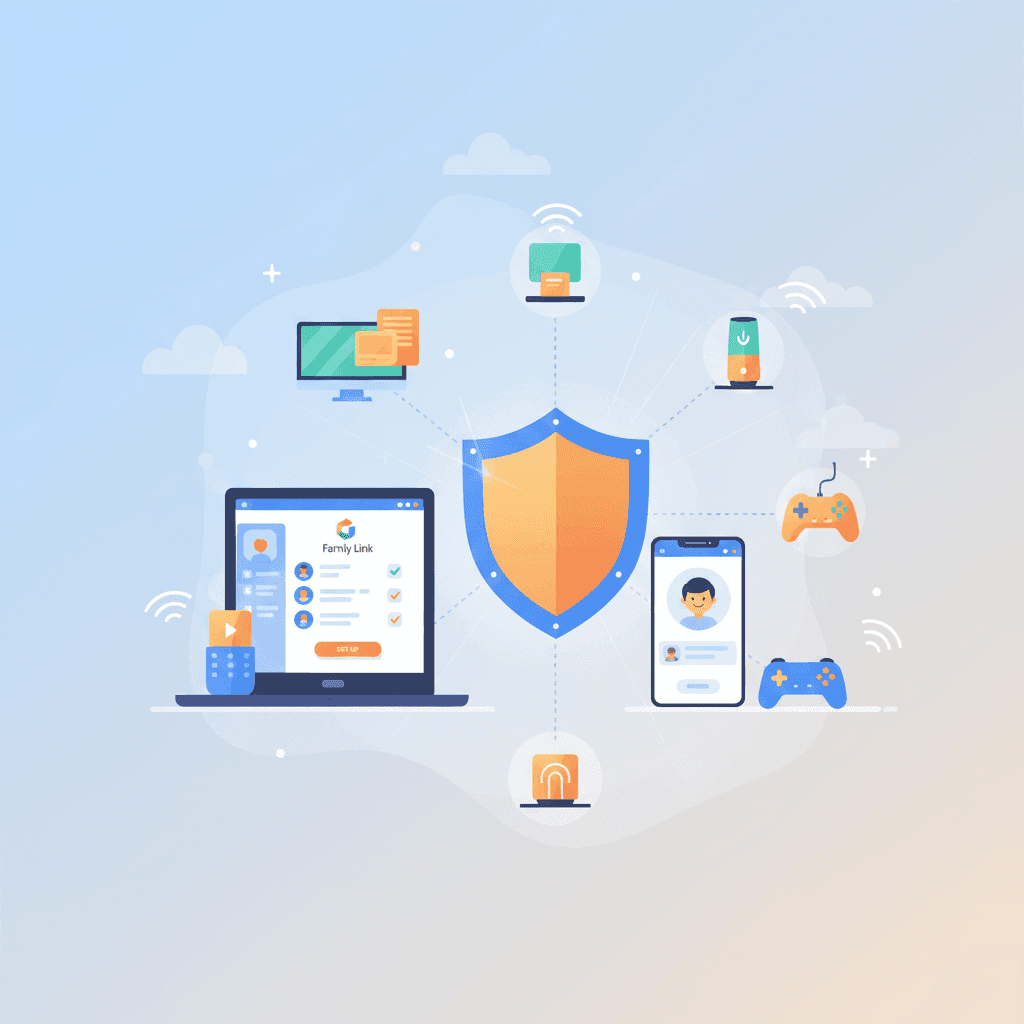

TL;DR: Family Link is the standard free tool for Android and Chromebook users, but it’s basic. You can set content levels and time limits, and block a channel you know about, but you can't limit YouTube to the channels you approve. It’s a good start, and when you want channel-level control, WhitelistVideo + Family Link covers it: Family Link locks down the device, and WhitelistVideo plays only the channels you approve. For a full breakdown of your options, check out our [YouTube parental controls guide](/youtube-parental-controls).
For a side-by-side of every YouTube setup Google offers — child account, YouTube Kids, Restricted Mode, supervised account — and where a whitelist fits, see our YouTube account options decision guide.
What Is Google Family Link?
Google Family Link is the free app for managing kids' Android devices and Chromebooks. It’s built directly into the software, so it's usually the first thing parents try. It handles the basics like:
- Creating supervised Google accounts for kids under 13
- Setting screen time limits and bedtimes
- Approving or blocking app downloads
- Managing YouTube content settings
- Checking their location
Since it's a Google product, it works natively with Android and Chrome OS, which makes the initial setup fairly painless.
Picking channels is the one thing Family Link leaves out, and it's the piece WhitelistVideo adds. Family Link blocks the YouTube apps and every browser except Chrome, blocks youtube.com in Chrome, and approves installs; WhitelistVideo plays only the channels you've approved, with Shorts off by default.
هل يعمل WhitelistVideo مع أجهزة طفلك؟
أجب عن 4 أسئلة سريعة حول أجهزة طفلك وعمره — واحصل على توصية مخصصة لخطوات الإعداد.
أكثر من 10,000 عائلة · مجانيStep 1: Create a Family Link Account
You’ll need a supervised account for your child before you can touch the YouTube settings:
- Download Google Family Link on your own phone (iOS or Android).
- Open the app and tap "Get Started."
- Select "Create account for a child."
- Enter their name, birthday, and gender.
- Create a Gmail address and password for them.
- Sign in with your own Google account to link yourself as the supervisor.
- Review and accept the terms.
Quick tip: Use your child's actual birthday. Accounts for kids under 13 have specific privacy protections under COPPA laws that older accounts don't get.
Step 2: Sign In on Your Child's Device
- On your child's Android phone, tablet, or Chromebook, sign out of any old accounts.
- Sign in with the new supervised account you just made.
- You’ll get a notification on your phone to approve the device.
- Once you approve it, the supervision features are live.
Step 3: Configure YouTube Settings
Now you can get into the YouTube-specific filters:
- Open the Family Link app on your phone.
- Select your child's profile.
- Tap Controls.
- Tap Content restrictions.
- Tap YouTube.
YouTube Content Levels
Google gives you three broad buckets to choose from:
مرر أفقياً لرؤية جميع الأعمدة.
| Setting | Age | What's Included |
|---|---|---|
| Older kids (formerly Explore) | 9+ | Videos generally fit for kids 9 and up. It's a pretty limited selection. |
| Teens (formerly Explore More) | 13+ | A wider range for teens. You'll see more mature themes here. |
| Older teens (formerly Most of YouTube) | 16+ | Almost everything except age-restricted content. |
Additional YouTube Settings
- Search: You can turn this off. If you do, your kid can only watch what’s recommended on their home page.
- Watch History: You can see exactly what they’ve been watching from within the Family Link app.
- Search History: This shows you what they’ve been typing into the search bar.
- Channels and Shorts: You can block a specific channel, and set the daily Shorts feed limit to zero minutes to turn the Shorts feed off. Both apply only while your child is signed in to the supervised account.
Step 4: Set Screen Time Limits
If you don't want them falling down a six-hour rabbit hole, set a limit:
- In Family Link, go to your child's profile.
- Tap Controls > App limits.
- Find YouTube in the list.
- Set a daily time limit (like 1 hour).
- You can also set Downtime so the app locks automatically at bedtime.
Family Link YouTube Limitations
Family Link is a good start, but it isn't perfect. It has some gaps that might frustrate you once you actually start using it. For a deeper look, read our guide on [why Family Link can't properly filter YouTube](/blog/family-link-cant-filter-youtube).
You can't approve specific channels
This is the biggest headache. You can block a creator once you find them, but you can't limit YouTube to the creators you pick. You're stuck with Google's algorithms, which often let weird or inappropriate content slip through while blocking educational videos you actually want them to see.
Android and Chromebook only
Family Link's full power only works on Google's hardware. While you can use the parent app on an iPhone, you can't really supervise an iPad or iPhone with it. On Android, one more setting matters: blocking apps from unknown sources stops a sideloaded YouTube client from getting around your app rules.
The "Age 13" Problem
The day your child turns 13, Google sends them an email saying they can "graduate" to a normal account. At that point, they can opt out of your supervision entirely. You'll want to have a plan for that transition long before it happens. The age-13 opt-out is one of the Family Link bypass methods we track, alongside factory resets, guest mode and second accounts.
Kids find workarounds
Let's be honest: kids are smart. If they're determined, they'll find ways around the rules. They might use a friend's phone, an old laptop, or even certain web browsers that don't report back to Family Link. You can read more about [common bypass methods](/blog/can-kids-bypass-youtube-parental-controls) to stay ahead of them.
When Family Link Isn't Enough
You might need something more robust if:
- You want to approve specific channels (and block the rest).
- Your child uses a Windows PC or a Mac.
- You want Shorts off even when your child is signed out or on another account.
- Your kid is tech-savvy enough to find workarounds.
We compared Family Link with other options in our guide to the [best YouTube parental control apps](/blog/best-youtube-parental-control-apps).
Whitelist-based tools like WhitelistVideo fill the gaps Family Link leaves behind by adding:
- Channel-level approval (they only see what you've vetted).
- Protection that works on Windows, Mac, and Chromebooks.
- OS-level enforcement that prevents Incognito mode bypasses.
- A way to block YouTube Shorts by default.
Recommended Setup
For the best balance of safety and freedom on an Android or Chromebook, try this:
- The Base: Set up Family Link with the "Older kids" content setting.
- The Clock: Set a daily limit of 1–2 hours.
- The Filter: Use WhitelistVideo to ensure they only see channels you trust. On Android: block the YouTube, YouTube Music and YouTube Kids apps, block every browser except Chrome (Family Link's web filter only works in Chrome), add youtube.com under Google Chrome → Manage sites → Blocked (WhitelistVideo doesn't use Chrome, so it is unaffected), and set the parent PIN in the WhitelistVideo app. On a Chromebook: install the extension, block Guest mode and Incognito, require app approval, turn off Family Link's own YouTube restrictions, and don't block youtube.com.
- Optional: block google.com (Google results play video snippets) and set DuckDuckGo as the default search engine.
- The Check-in: Look at the watch history once a week.
- The Talk: Talk to them about what they're watching. No filter is a substitute for a conversation.
For device-specific pairing instructions, see our Family Link setup guide.
Related guides
Get Started
Setting up Family Link takes about 15 minutes and costs nothing, so it’s worth doing. It’s a solid foundation, but for YouTube specifically, you'll likely find that algorithmic filtering isn't enough. Adding a whitelist layer gives you the channel-level control that Google's default tools are missing. The step-by-step Android setup shows how WhitelistVideo pairs with Family Link.
Want Real YouTube Safety?
Start with only the channels you trust. Whitelist-based protection.
الأسئلة الشائعة
In Family Link or YouTube's Family Center, open your child's YouTube content settings. Choose a content setting: 'Older kids' (generally 9+), 'Teens' (generally 13+) or 'Older teens' (generally 16+, nearly all of YouTube except 18+ content). You can also block specific channels, set a daily Shorts feed limit, toggle search on/off and access watch history.
Partly. A supervised account lets you block specific YouTube channels, but you cannot limit YouTube to a list of channels you approve. Beyond that, it offers three general content settings based on age-appropriateness. For approved-only channels, you need third-party solutions like WhitelistVideo.
Family Link supervision ends when a child turns 13 (or the applicable age in your country). At that point, they can choose to graduate to a standard Google account or continue supervision. Parents should prepare by establishing trust and digital literacy before this transition.
Family Link can manage the YouTube Kids app, including setting timers and content levels. However, YouTube Kids has its own in-app parental controls that work independently. Family Link adds device-level oversight like app installation approval and screen time limits.









نُشر في 8 سبتمبر 2025 · تم التحديث 26 سبتمبر 2026

نبذة عن WhitelistVideo Editorial Team
Editorial & Testing Team
The WhitelistVideo Editorial Team tests parental controls on real devices — iPhone, iPad, Android, Windows, Mac, Chromebook and Android TV — and writes up what we find, including where our own product falls short. Where a claim comes from a vendor's own documentation or from third-party testing, we cite it. Articles are reviewed by Arul Prakash, the founder of WhitelistVideo.
قد يعجبك أيضاً
YouTube for Kids: Child Account vs Restricted Mode vs Supervised Account vs Whitelist (2026 Decision Guide)
Google gives parents four ways to set up YouTube for a child: YouTube Kids, Restricted Mode, a supervised account, or a plain child Google account. Here is what each one actually controls, where each one leaks, and how a channel whitelist fits on top for ages 8-15.
YouTube Restricted Mode: Does It Actually Work? (Tested)
We tested YouTube Restricted Mode and found it misses 20-30% of inappropriate content. See what it blocks, what slips through, and how kids bypass it in seconds.

How to Make YouTube Safe for Kids: Complete Parent's Guide (2026)
Proven methods to make YouTube safe for children. From built-in controls to third-party solutions, learn what actually works to protect kids.
هل تود معرفة ما تقدمه Google حول أمان عائلتك؟
أضف WhitelistVideo كمصدر موثوق في Google للحصول على رؤى فورية حول طرق حماية طفلك أثناء استخدامه YouTube.
اسأل Google عن WhitelistVideo











