How to whitelist YouTube playlists
Approve entire YouTube playlists at once so your child can watch all videos in the playlist without individual channel approval.
What is playlist whitelisting?
Playlist whitelisting lets you approve a full YouTube playlist instead of adding channels one by one. When you whitelist a playlist:
- All videos in that playlist are automatically approved for your child
- Videos from any channel in the playlist can be watched, even if the channel itself isn't whitelisted
- Only public and unlisted playlists are supported — private playlists cannot be added
This is especially useful for curated educational playlists, school assignments, or topic-based collections.
Plan limits
Playlist whitelisting is a Premium feature:
Scroll horizontally to see all columns.
| Plan | Playlists per child |
|---|---|
| Basic | Not available |
| Premium | Up to 10 |
| Lifetime | Up to 10 |
How to add a playlist
-
Open the Parents' App at app.whitelist.video (opens in a new tab)
-
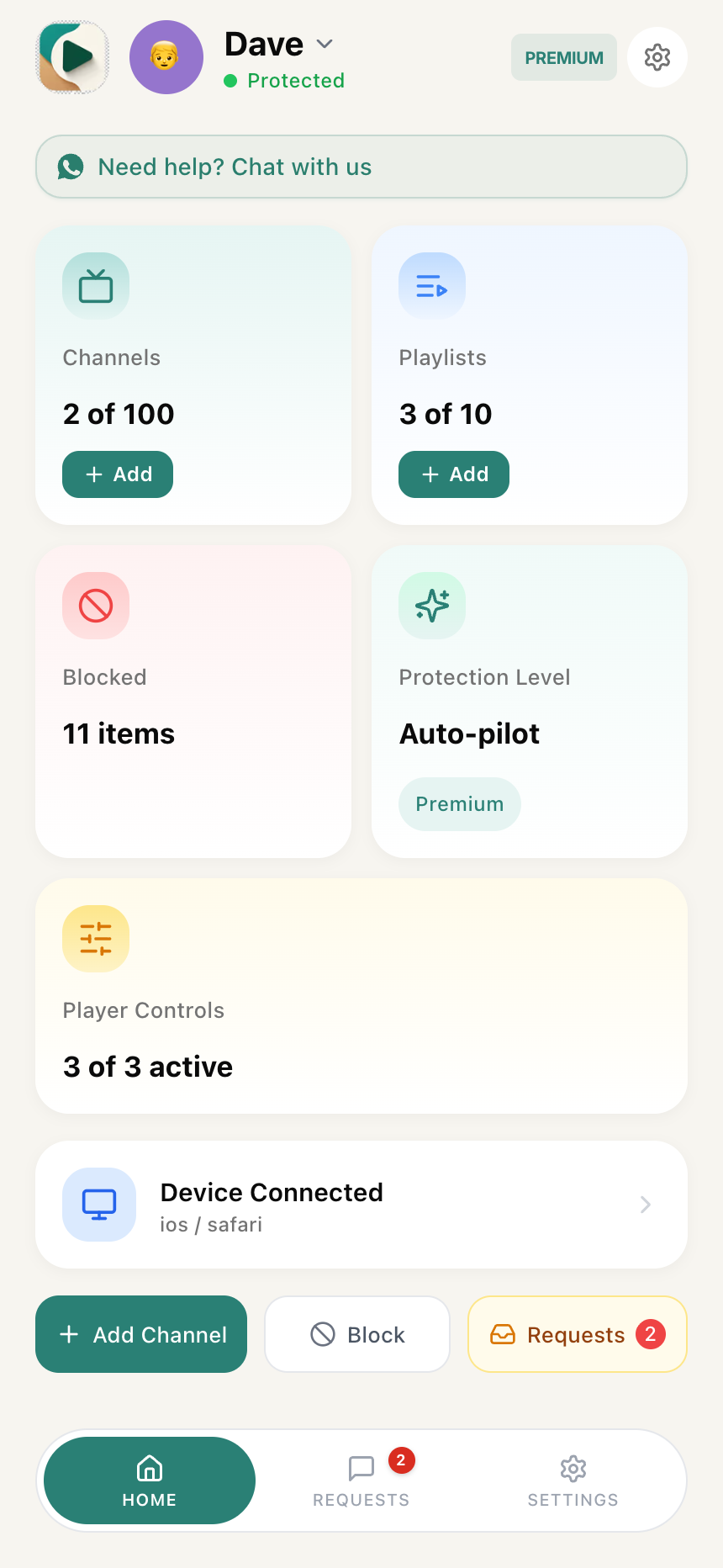
Tap the Playlists card on your child's dashboard
-
Tap Add Playlist
-
Paste a YouTube playlist URL
-
The app validates the playlist and shows a preview (name, owner, video count, visibility)
-
Confirm to add — all videos in the playlist are whitelisted immediately
Key features
Bulk approve videos
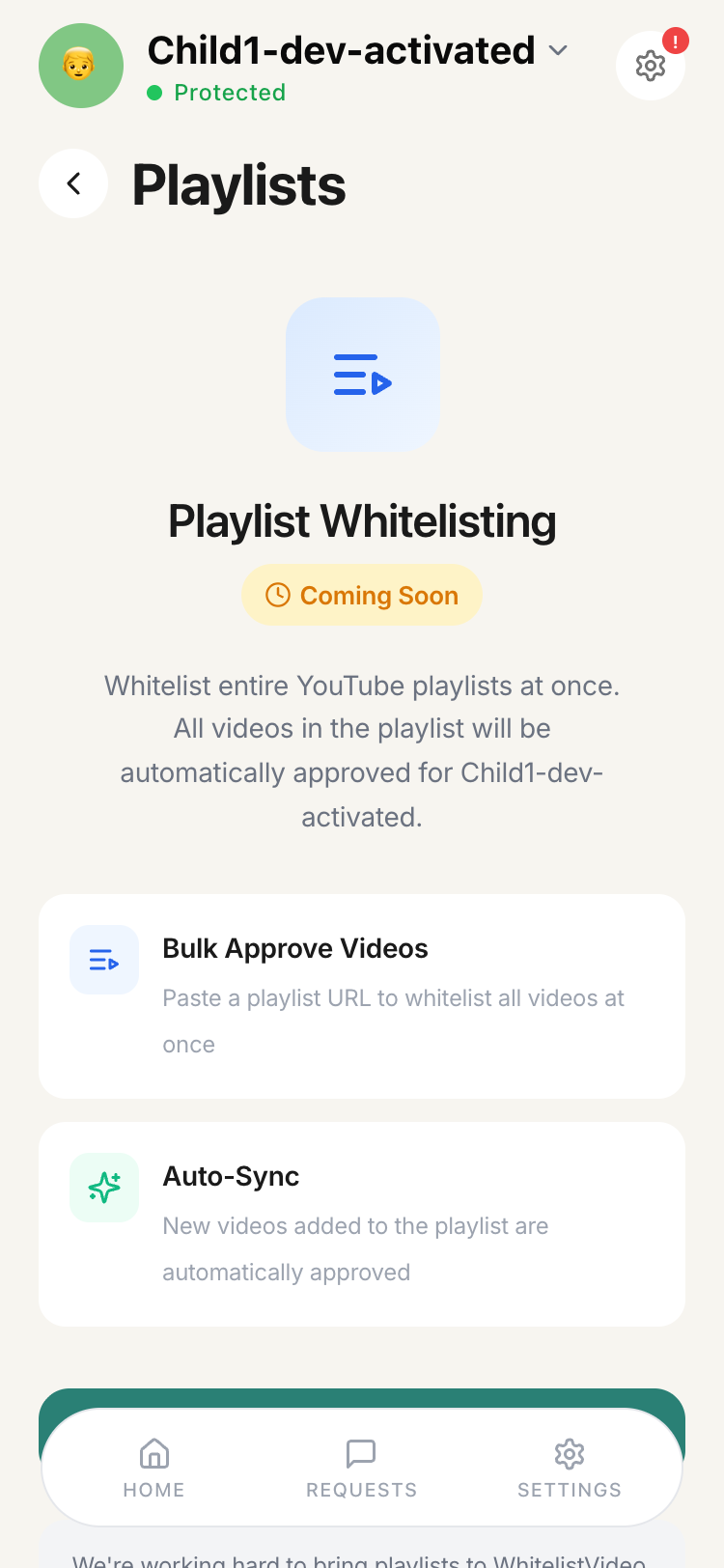
Paste a YouTube playlist URL to whitelist all videos in the playlist at once. This saves time compared to approving channels individually.
Manual sync
Playlist video lists do not update automatically. To pick up new videos added to a playlist by its creator, open the playlist in the app and tap Sync. This re-fetches the latest video list from YouTube.
No automatic sync: You must manually sync each playlist to pick up new videos. There is no background auto-sync.
Playlist removal detection
When you sync a playlist, if the original playlist has been deleted by its owner on YouTube, it will be automatically removed from your whitelist and you'll be notified.
How playlists work with other settings
- Blacklisted channels take priority — if a channel is blacklisted, its videos won't play even if they're in a whitelisted playlist
- Blacklisted keywords take priority — even if a video is in a whitelisted playlist, it will be blocked if its title contains a blocked keyword
- Approved channels are unaffected — if a channel is already approved, playlist whitelisting doesn't change anything
- Private playlists are not supported — you'll see an error asking you to change the playlist to Public or Unlisted on YouTube
Realtime sync to devices
When you add or remove a playlist, the change is pushed to all connected devices immediately via realtime sync. Your child's browser extension, mobile app, or TV app picks up the updated playlist within seconds — no manual refresh needed on the device side.
Device sync is instant. Playlist content sync is manual. Adding or removing a playlist from your whitelist reaches your child's device in real time. But to pick up new videos added to an existing playlist by its YouTube creator, you still need to tap Sync manually.
Limitations
- Only public and unlisted playlists can be added
- No automatic sync of playlist contents — you must manually refresh to pick up new videos added by the playlist creator
- Maximum ~200 videos per playlist (YouTube's own limit)
- Empty playlists cannot be added