Viewing Mode
Choose how your child experiences YouTube — full access with filtering, or a curated feed of only approved content.
What is Viewing Mode?
Viewing Mode controls what your child sees on YouTube. There are two options:
Scroll horizontally to see all columns.
| Mode | What Your Child Sees |
|---|---|
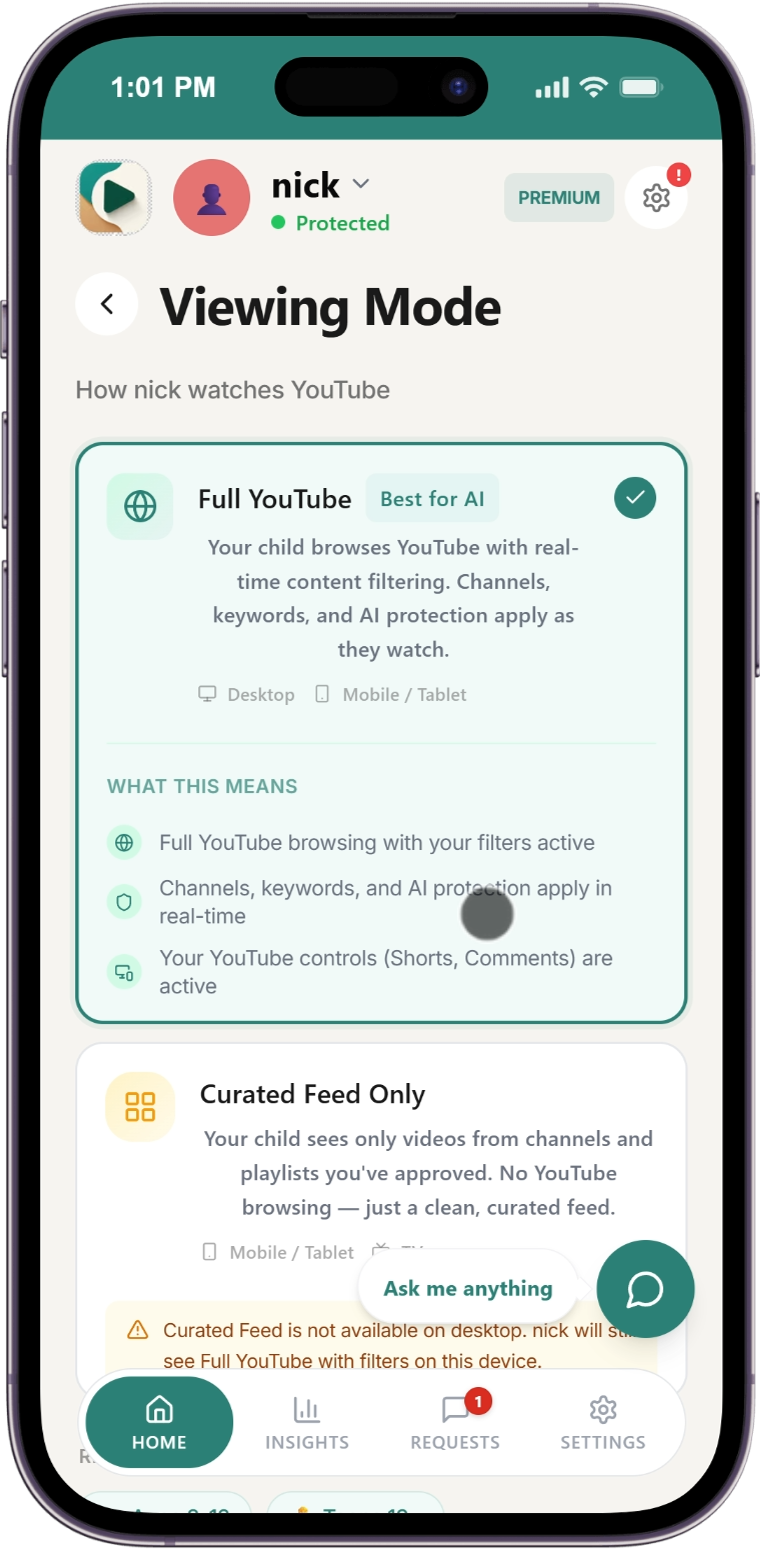
| Full YouTube | The normal YouTube interface — homepage, search, recommendations — with your filtering rules applied. Unapproved videos are blocked in real time. |
| Curated Feed | A simplified view showing only videos from your approved channels and playlists. No homepage, no search, no recommendations. |
Which mode should I choose?
Full YouTube
Best for older children who are ready to explore YouTube with guardrails. They see the familiar YouTube experience, but your protection level (Whitelist Only or Auto-pilot) determines which videos can actually play.
- Child can search and browse YouTube normally
- Unapproved content is blocked before it plays
- Great for children who need some independence
Curated Feed
Best for younger children (ages 3-8) or families who want complete control. Your child only sees content you've hand-picked — nothing else.
- No YouTube homepage or recommendations
- No search — your child can't look for new content
- Only approved channels and playlists appear
- The safest option for young viewers
Tip: Start with Curated Feed for younger children. As they grow, switch to Full YouTube with Auto-pilot filtering for a gradual transition.
How to change Viewing Mode
-
Open the Parents' App at app.whitelist.video (opens in a new tab)
-
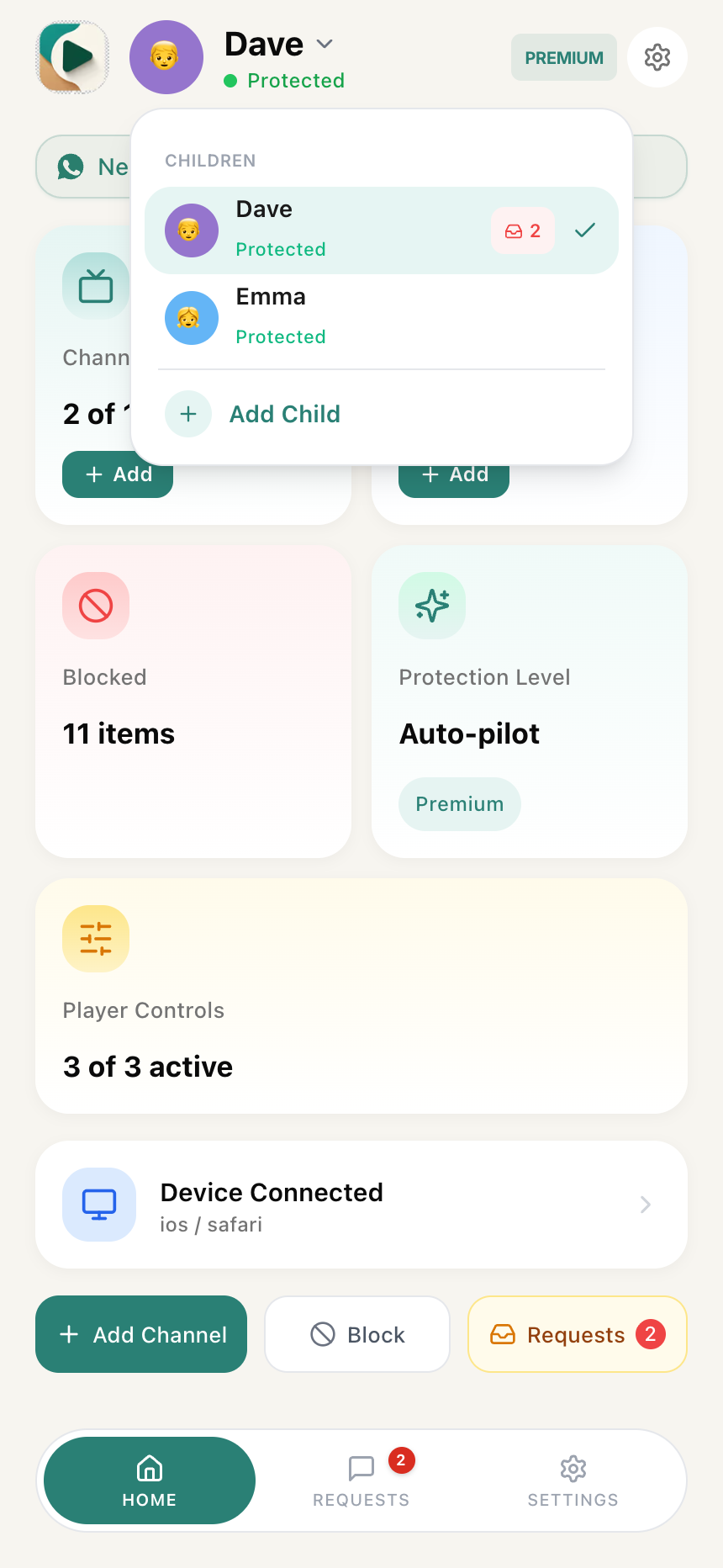
Select your child using the child switcher at the top
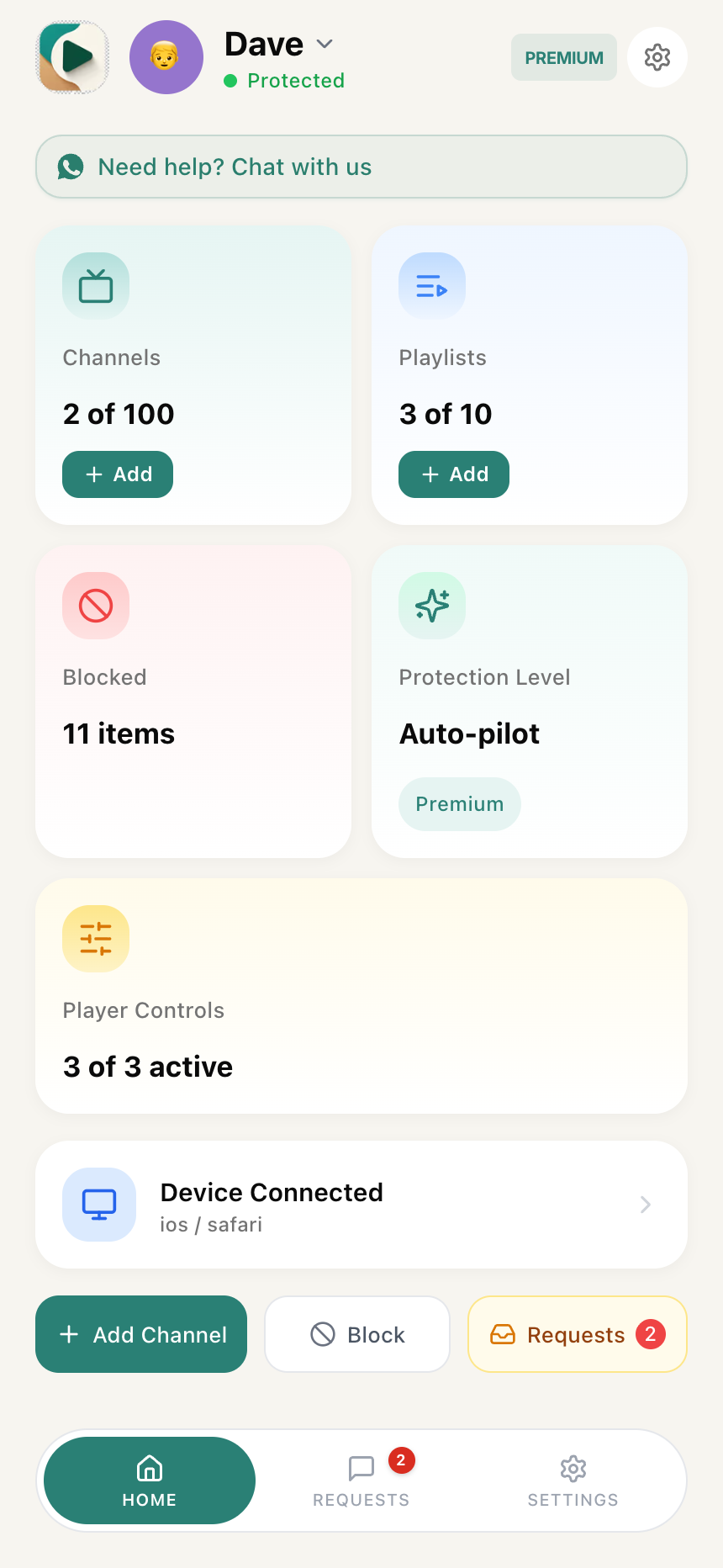
- Tap the Viewing Mode card on your dashboard
- Choose Full YouTube or Curated Feed
- The change applies immediately — no restart needed
Platform availability
Viewing Mode is not available on every platform yet:
Scroll horizontally to see all columns.
| Platform | Full YouTube | Curated Feed | Notes |
|---|---|---|---|
| Android (phone/tablet) | Yes | Yes | Both modes available |
| Android TV | — | Always | Android TV always runs in Curated Feed mode |
| Chrome Extension | Always | — | The browser extension always runs in Full YouTube mode |
| iOS | Yes | Planned | Full YouTube mode available via the iOS child app |
Android TV is always Curated Feed. The TV app is designed specifically for younger viewers — a safe, lean-back experience showing only your approved channels. Perfect for the big screen in shared family spaces.
Good to know
Per-child setting, not per-device
Viewing Mode is set individually for each child. You can have one child on Full YouTube and another on Curated Feed.
Important: Viewing Mode (and all protection settings like safety level, Shorts blocking, and AI analysis) applies to all of a child's devices equally. You cannot set Full YouTube on one device and Curated Feed on another device for the same child. The only exception is Android TV, which always shows Curated Feed regardless of the child's viewing mode — this is a platform limitation, not a setting you can change.
If you need different settings for different devices, the workaround is to create separate child profiles — but this means separate whitelists too.
Not tier-gated
Viewing Mode is available on every plan — Basic, Premium, and Lifetime. There is no upgrade required to use either mode.
Add channels before switching to Curated Feed
If you switch to Curated Feed without any approved channels, your child will see an empty feed. Make sure to approve some channels first.
Your child cannot change the mode
Viewing Mode is a parent-only setting. Your child cannot switch between Full YouTube and Curated Feed on their own.