How to activate WhitelistVideo on iPhone or iPad
Connect the WhitelistVideo app to your parent account using an activation code. This links your child's device to their profile so you can manage their approved channels.
What do I need to activate WhitelistVideo?
- Your phone with the Parents' App (app.whitelist.video (opens in a new tab))
- Your child's iPhone or iPad with WhitelistVideo installed
- A child profile already created in your parent account
- Both devices connected to the internet
How to get the activation code
On your phone (Parents' App)
-
Open the Parents' App at app.whitelist.video (opens in a new tab)
-
Sign in to your account if you haven't already
-
Select your child's profile, then on the dashboard tap Connect Device
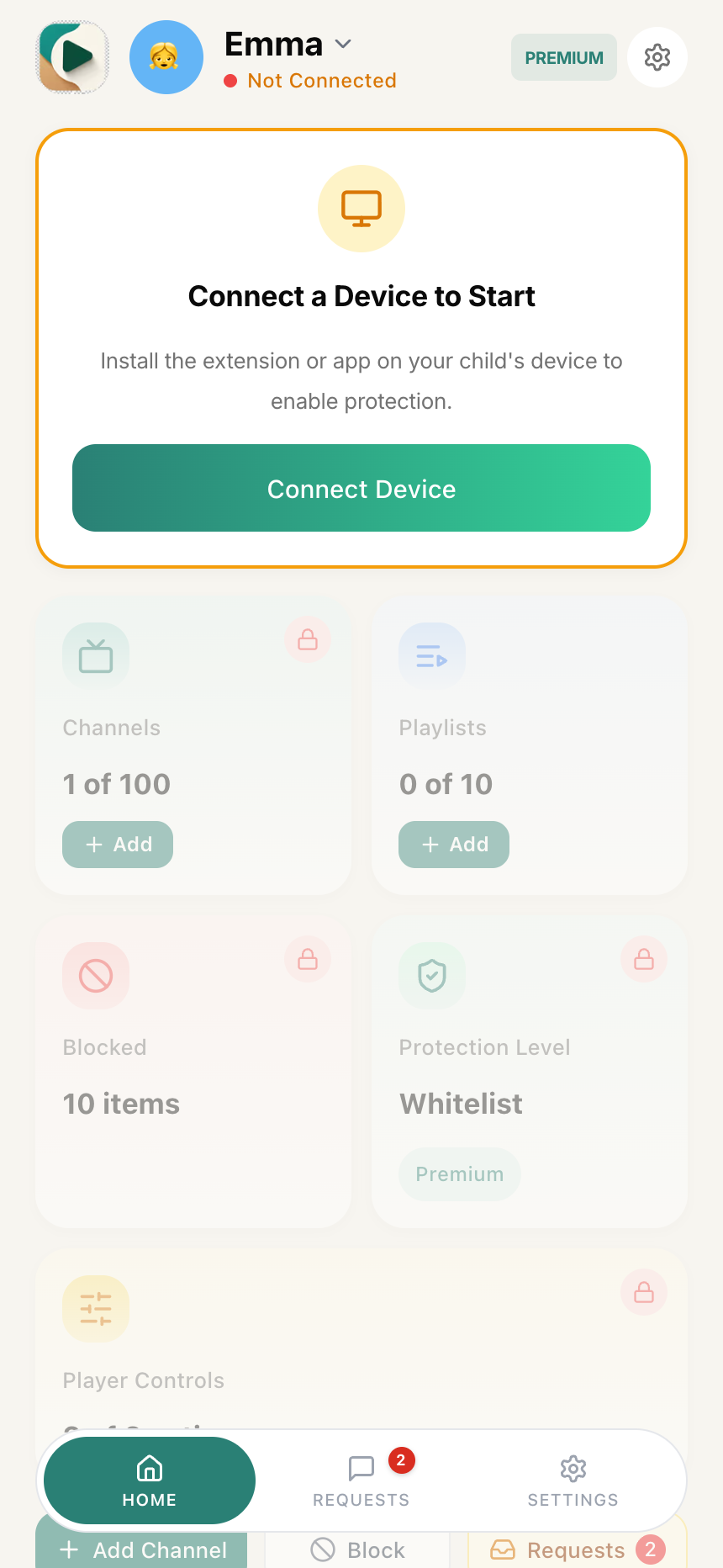
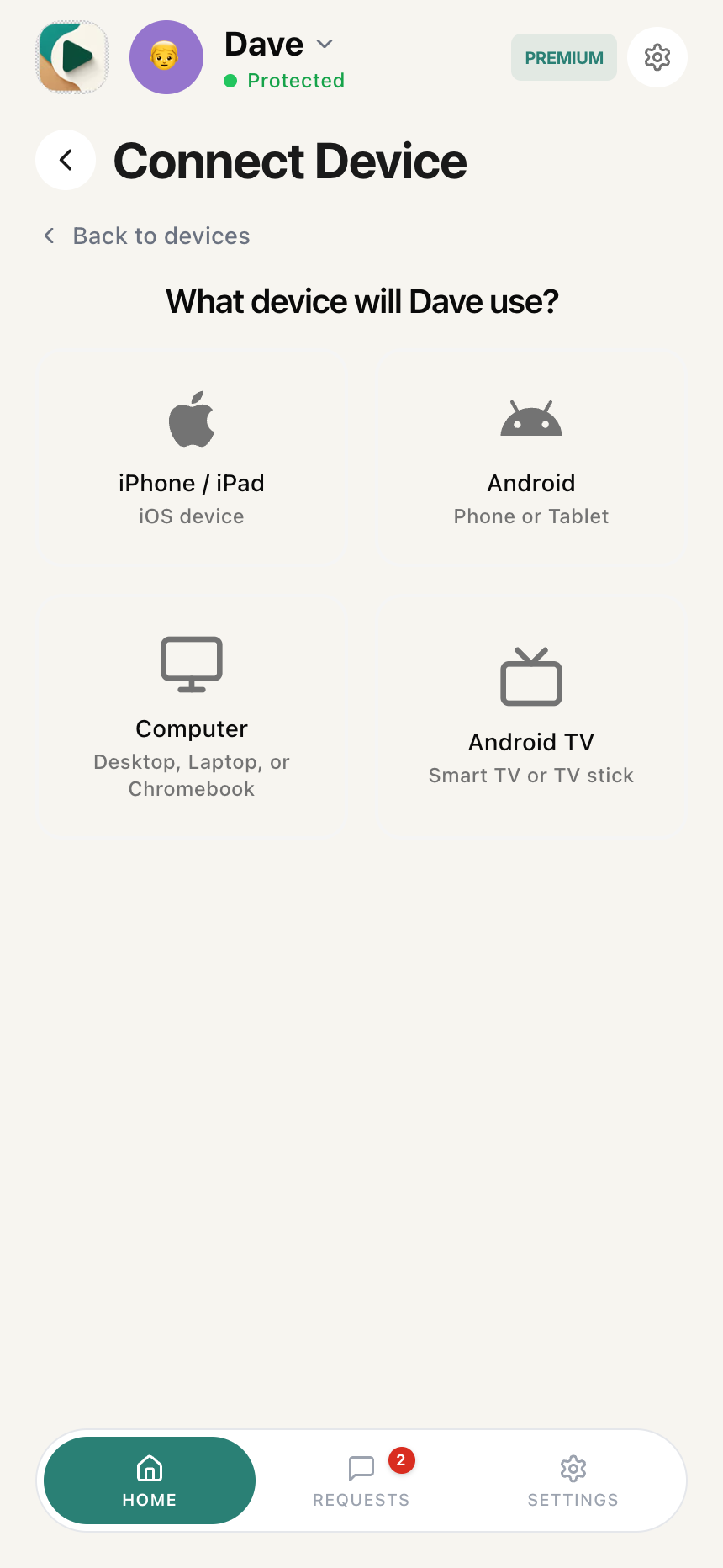
- Tap Connect New Device, then choose iPhone / iPad
- A 6-digit activation code is generated under "Enter This Code". Tap Copy (or Share) to put it on your clipboard
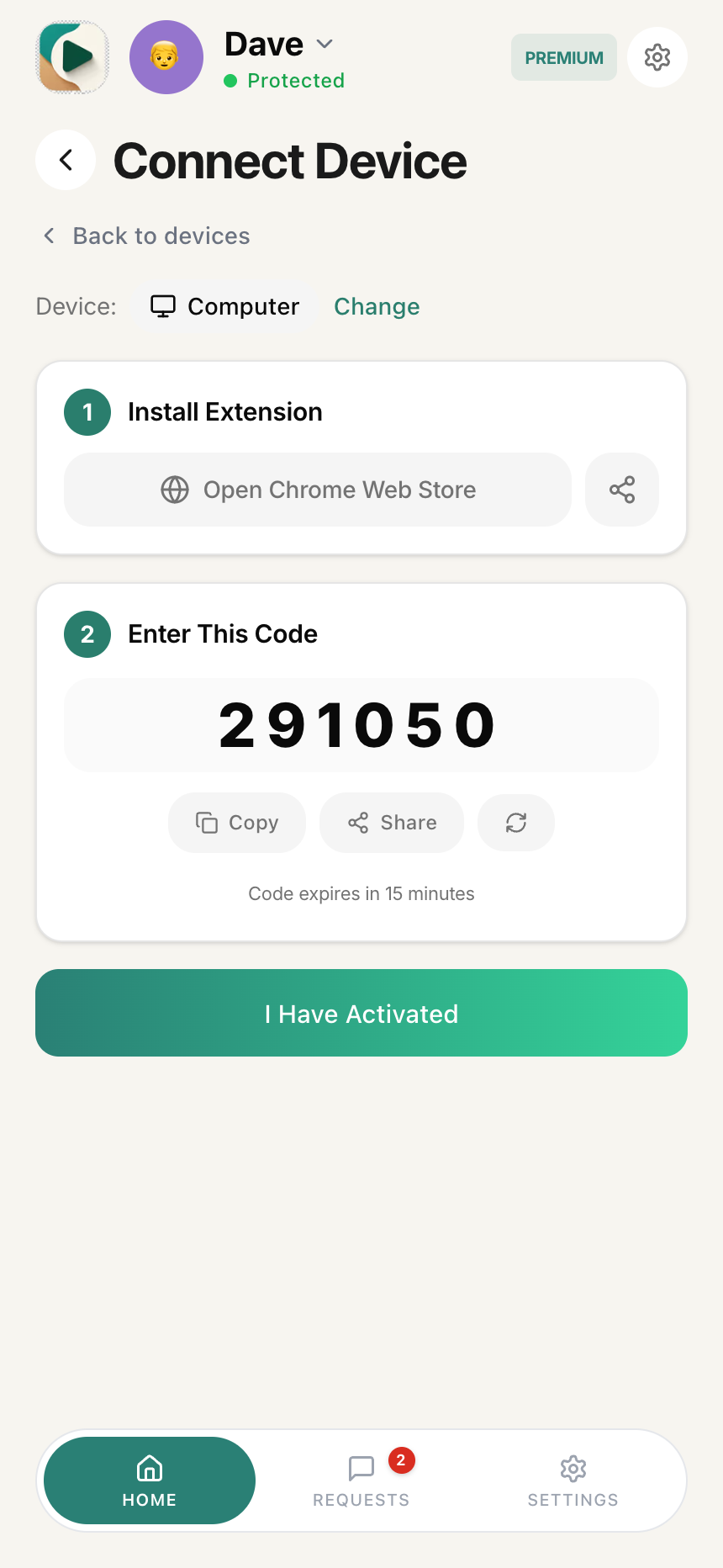
Important: This code expires in 15 minutes. If it expires before you enter it, tap the refresh icon next to the code or reopen the Connect Device view to generate a new one.
How to enter the activation code
On your child's iPhone or iPad
-
Open the WhitelistVideo app
-
You'll see the activation screen with a code entry field

-
Enter the 6-digit code from your phone
- Type the code using the on-screen keyboard
- The code is not case-sensitive
-
Tap the Activate button
-
Wait a few seconds while the app connects to your account
How to set up the PIN
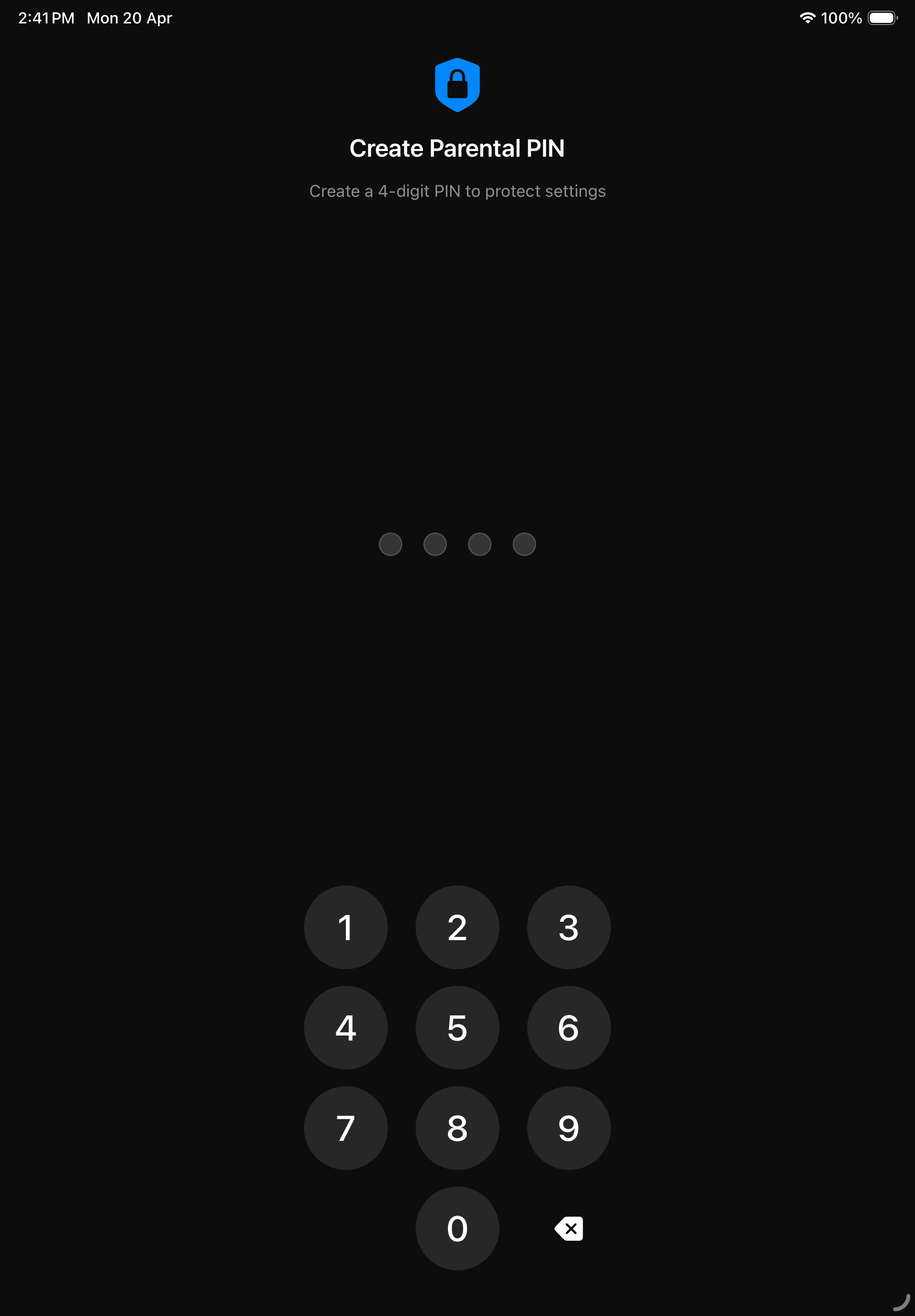
After successful activation, you'll be prompted to create a 4-digit PIN. This PIN protects the app settings and prevents your child from deactivating protection.
- Enter a 4-digit PIN that your child doesn't know
-
Confirm the PIN by entering it again
-
Tap Continue or Done
Remember this PIN! You'll need it to access app settings or deactivate the app. Store it somewhere safe that your child can't access.
How do I know activation worked?
After activation and PIN setup, you'll see:
- On your child's device: The app shows the YouTube browsing interface with your child's name
- On your phone: The device appears under your child's profile in the Parents' App

Test the protection
-
In the WhitelistVideo app, search for any YouTube video
-
Try playing a video from a channel you haven't approved
-
The video should be blocked with a friendly message
-
Your child can tap "Request" to ask you to approve the channel
WhitelistVideo activation complete
The app is now connected to your parent account. Your child can only watch videos from channels you've approved.
Required next steps: allow WhitelistVideo's Screen Time access on the child's device, block the YouTube app (the app's picker in 1.4.8; newer versions ask you to delete it), and let the YouTube access check pass. Never block youtube.com in Screen Time (keep it off Never Allow; with Only Approved Websites, approve youtube.com and m.youtube.com; Limit Adult Websites is fine), or approved videos can't play. Once authorized, WhitelistVideo blocks youtube.com in Safari and other browsers whenever it isn't on screen, so there's no need to block Safari.
What can I do after activation?
From the Parents' App on your phone, you can:
- Approve or reject channel requests
- Add channels to your child's approved list
- Adjust Auto-pilot screening settings (Premium)
- View what your child is watching
WhitelistVideo activation troubleshooting
The code didn't work
- Make sure you typed the code exactly as shown
- Check if the code has expired (more than 15 minutes old)
- Generate a new code from the Parents' App and try again
I see "Invalid activation code"
- Double-check each character—some letters look similar (0 and O, 1 and I)
- Make sure you're using the most recent code you generated
- Generate a fresh code and enter it within 15 minutes
I see "Code expired"
- Activation codes expire after 15 minutes
- Generate a new code from the Parents' App
- Enter the new code right away
The app is stuck on "Connecting"
- Check your internet connection on both devices
- Close the app completely and reopen it
- Try again with a new activation code
I forgot my PIN
- There's no way to recover a forgotten PIN in the app
- You'll need to delete and reinstall the app
- Generate a new activation code and set up a new PIN
The activation worked but videos aren't filtering
- Make sure you see your child's name in the app
- Pull down to refresh the screen
- Check that content filtering is enabled in the Parents' App