How to Cancel
Cancel your WhitelistVideo subscription when you no longer need it.
Cancel at Period End
Keep access until your current billing period ends.
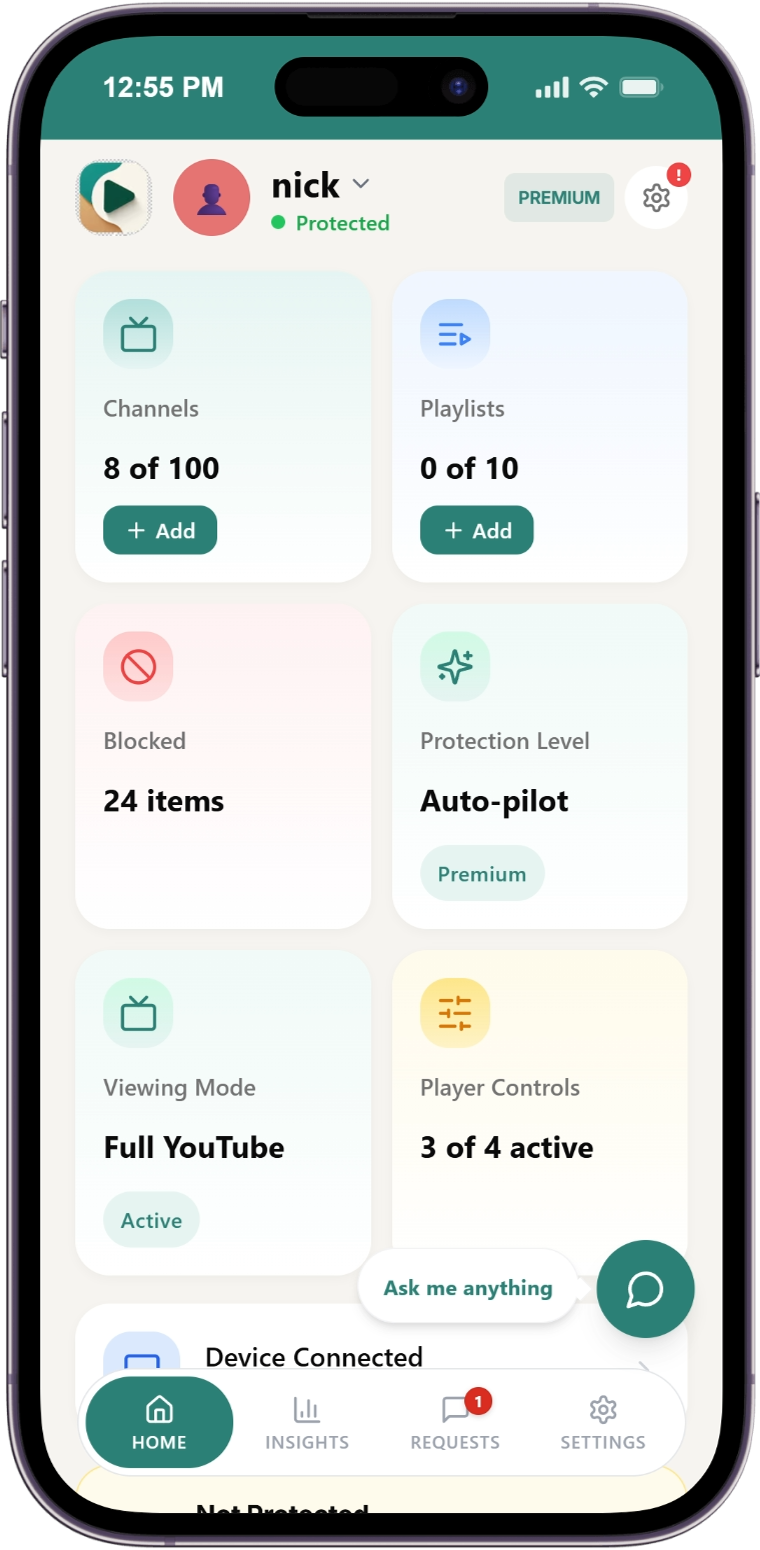
Go to Settings
Click "Settings" button at the bottom of the navigation menu.
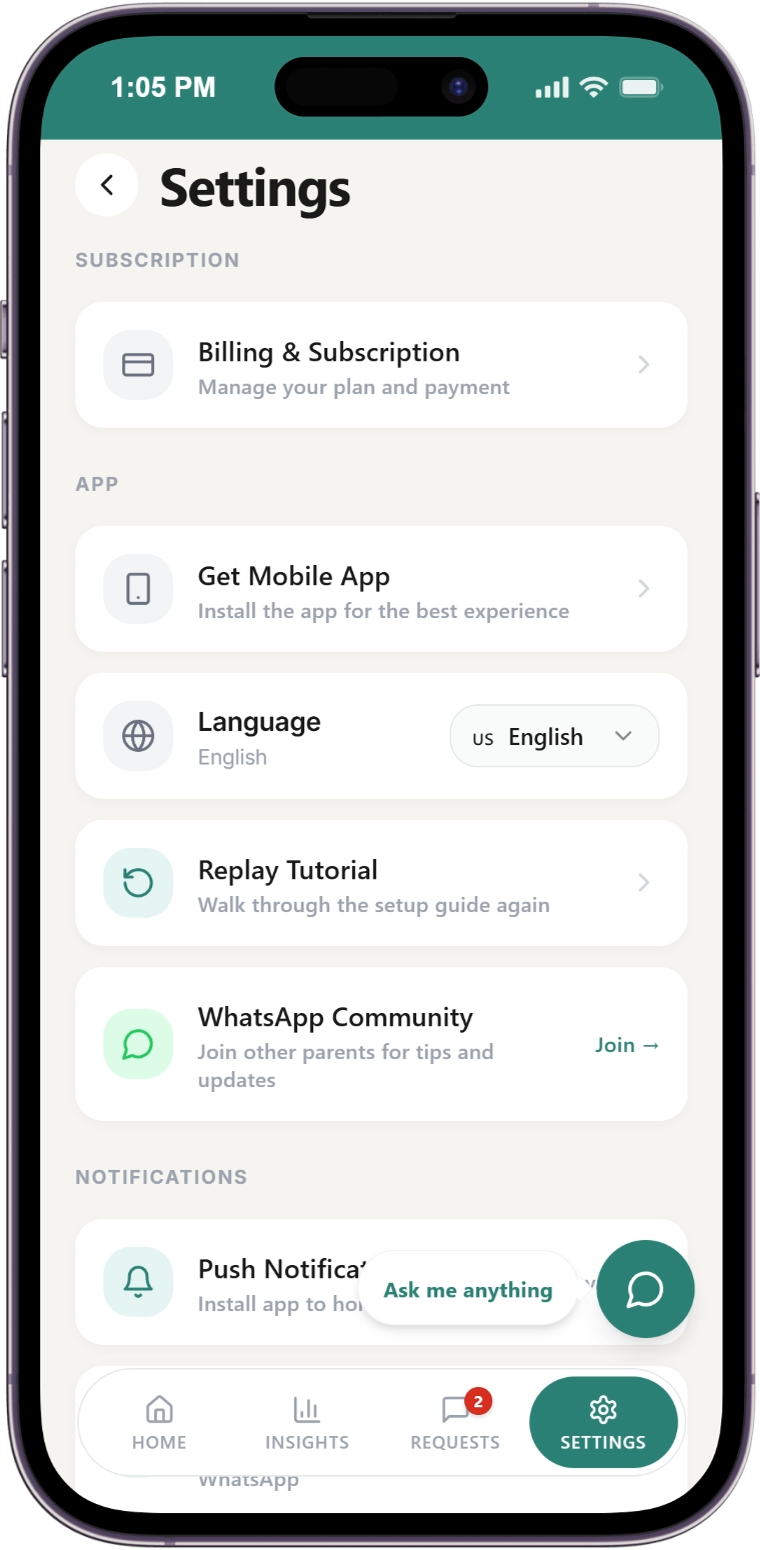
Open Subscription & Billing
Click the "Subscription & Billing" manage button.
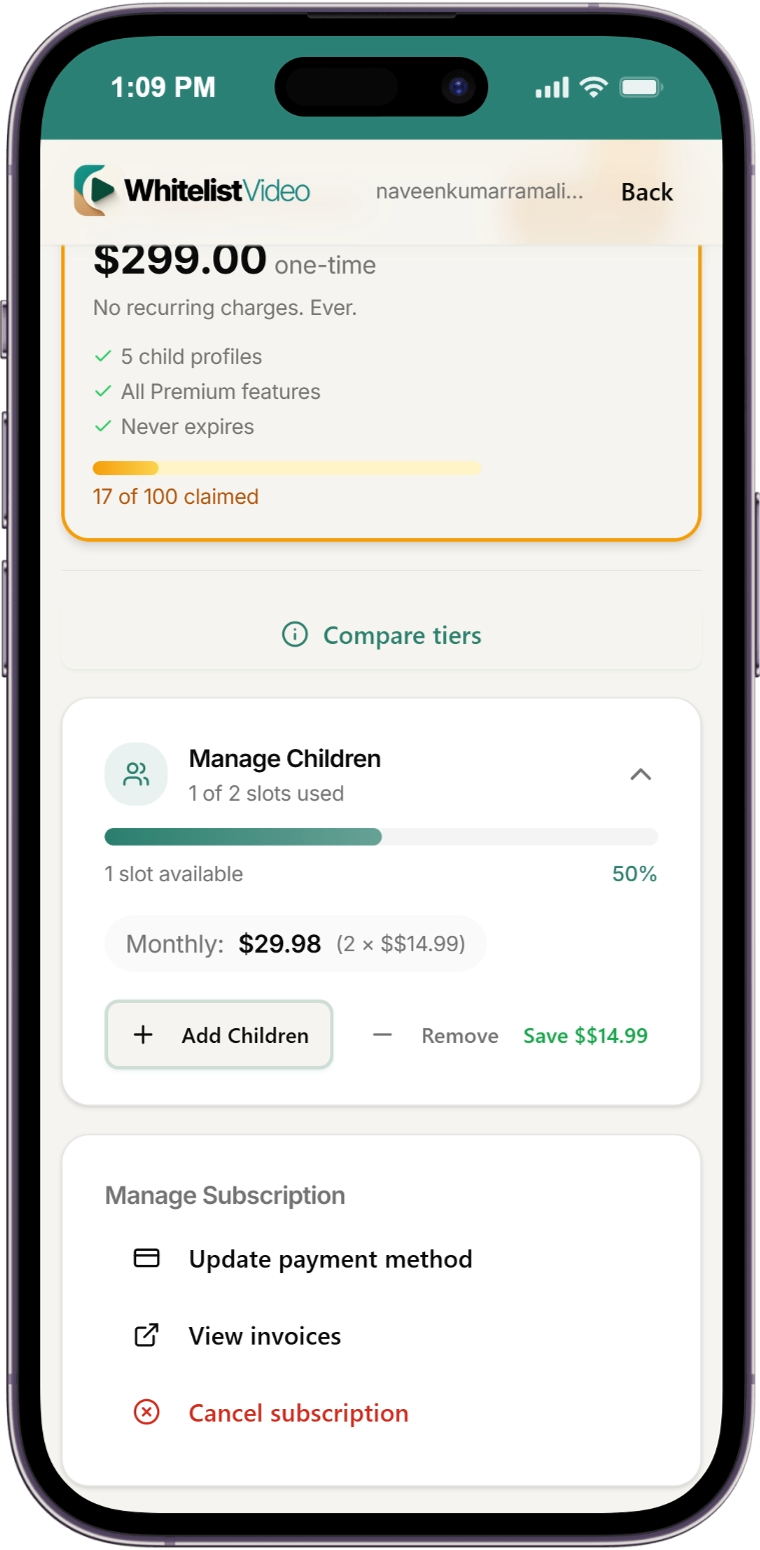
Click Cancel Subscription
At the bottom of the billing section, click "Cancel subscription".
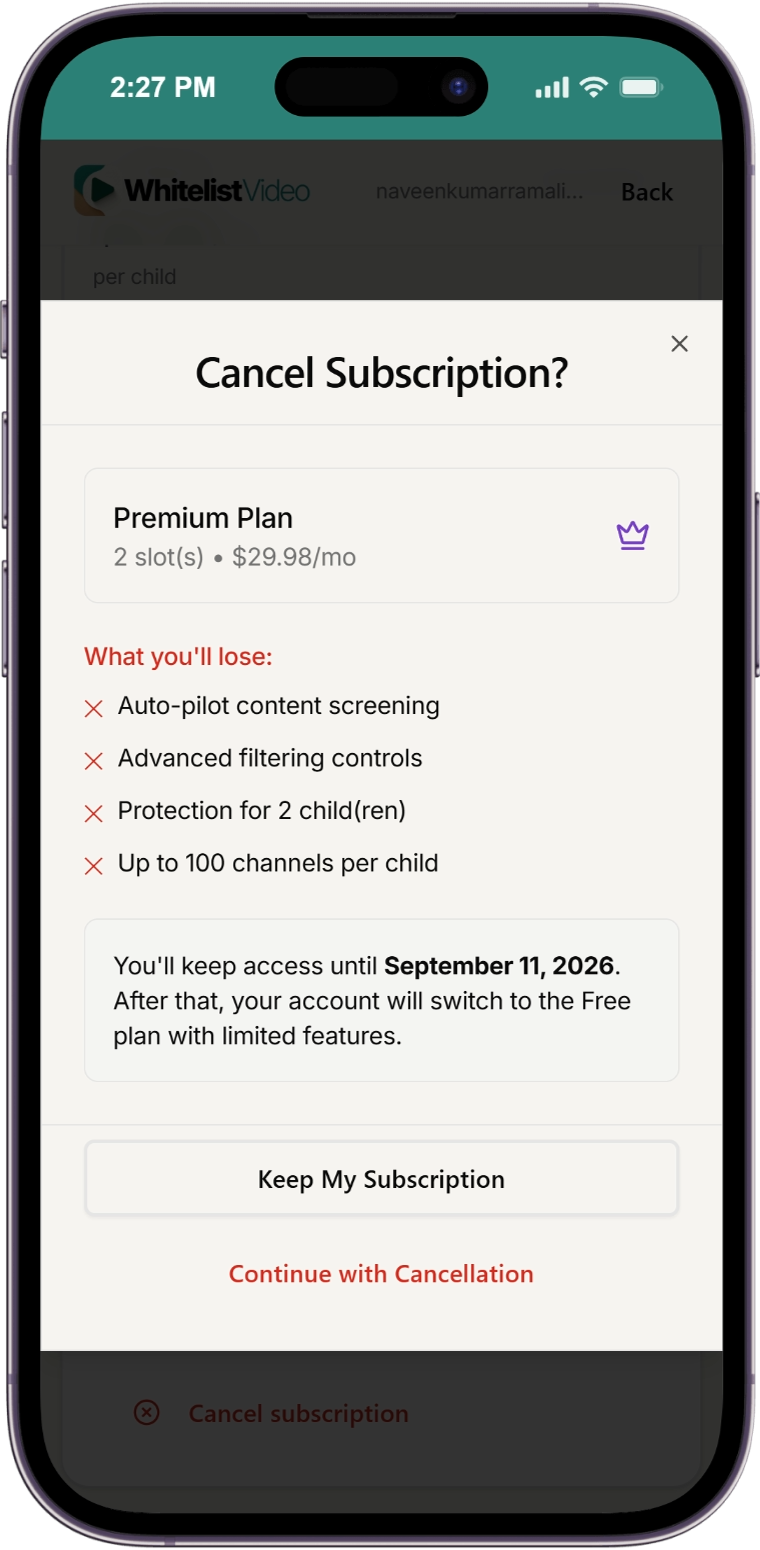
Continue Cancellation
A confirmation dialog will appear. Click "Continue cancellation" to proceed.
Cancel in Portal
You'll be redirected to the Stripe portal showing your current subscription list. Click "Cancel subscription" to complete the cancellation.
What happens:
- You keep full access until your renewal date
- No more charges after current period
- After period ends, your subscription stops
- All child profiles and settings are preserved for when you resubscribe
What Happens After Cancellation?
Scroll horizontally to see all columns.
| Item | What Happens |
|---|---|
| Child profiles | Saved (reactivate when you resubscribe) |
| Approved channels | Saved (reactivate when you resubscribe) |
| Category settings | Saved but inactive |
| Payment method | Removed from billing |
Related Guides
- How to Upgrade - Upgrade your plan
- How to Downgrade - Downgrade your plan
- Billing Overview - Complete pricing and feature comparison
Need help? Contact support at support@whitelist.video