How does WhitelistVideo Auto-pilot Screening work?
Let Auto-pilot automatically check if individual videos are appropriate based on content categories you choose.
Premium Feature: Auto-pilot content screening (Auto-pilot mode) is available with WhitelistVideo Premium.
Android TV: Auto-pilot is not available on Android TV. The TV app uses Curated Feed mode only, which shows videos exclusively from your approved channels. Auto-pilot is available on desktop browsers, iOS, and Android mobile devices.
What does Auto-pilot mode do?
Without Auto-pilot (Manual mode):
- Only videos from approved channels play
- All other videos are blocked
With Auto-pilot mode:
- Videos from approved channels always play
- Other videos are screened by Auto-pilot in real-time
- If the video fits your approved categories, it plays automatically
- Videos that don't match your categories are blocked
How to enable Auto-pilot mode
Step 1: Open your child's profile
- Open the Parents' App on your phone
- Select your child using the child switcher at the top
Step 2: Enable Auto-pilot
- Tap the Protection Level card on your dashboard
- Select Auto-pilot (marked with a "Recommended" badge)
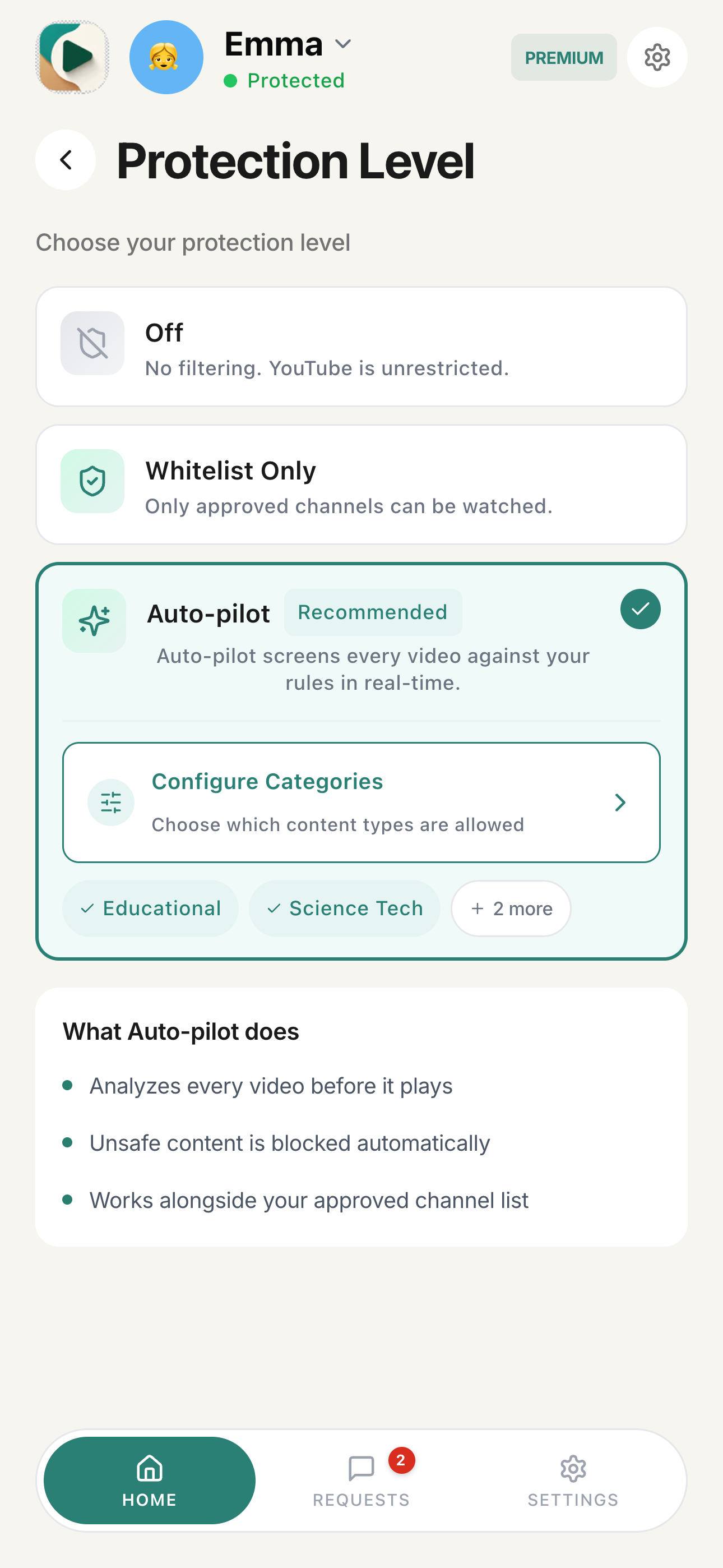
When Auto-pilot is selected, you'll see a Configure Categories link and category tags (e.g., "Educational, Science Tech, + 2 more") inside the Auto-pilot option. Tap Configure Categories to choose which content types are allowed.
How to choose content categories
After enabling Auto-pilot mode, select which categories are appropriate:
Step 1: Open Configure Categories
- With Auto-pilot selected, tap Configure Categories inside the Auto-pilot option on the Protection Level view
- You'll see your currently enabled categories as tags (e.g., Educational, Science Tech, + 2 more)
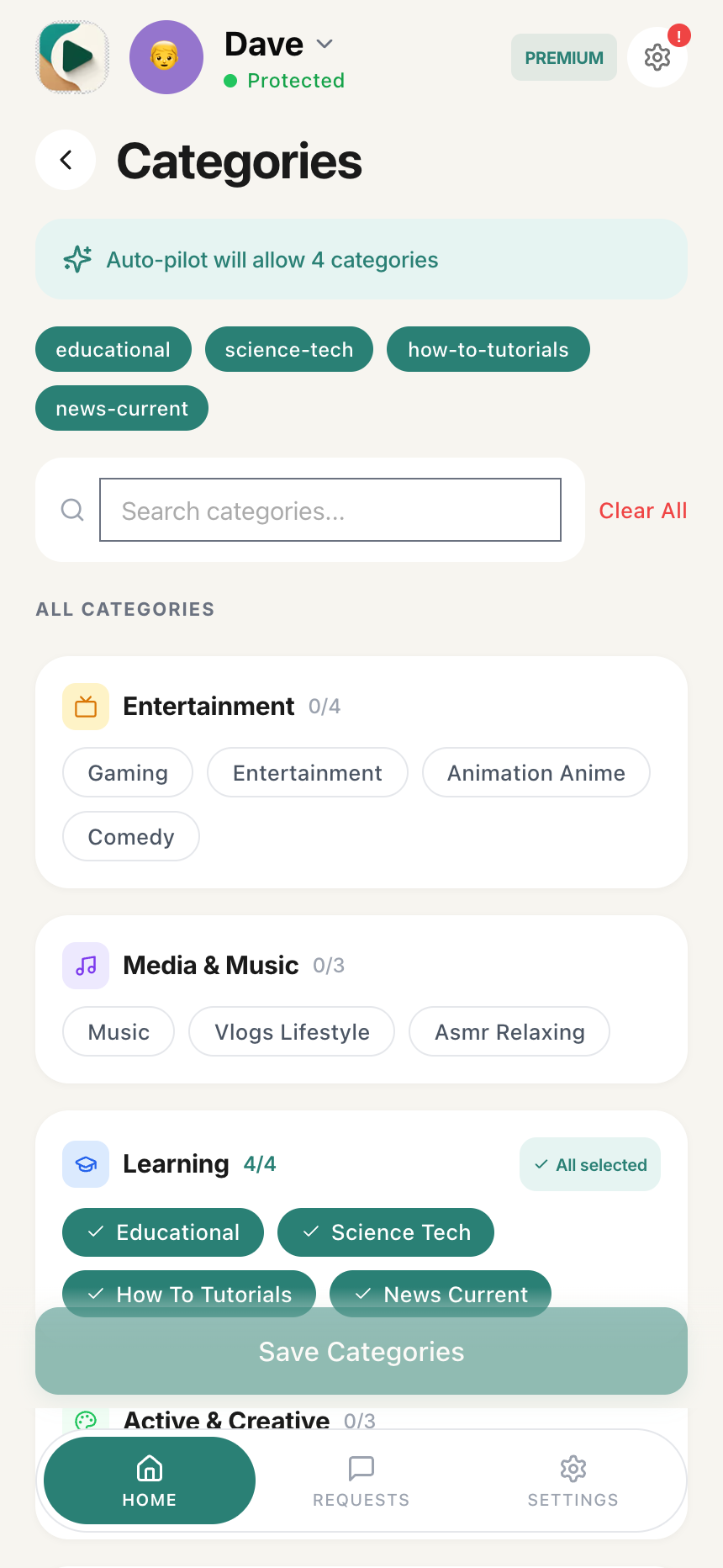
Step 2: View available categories
Categories are organized into groups:
Scroll horizontally to see all columns.
| Group | Sub-categories |
|---|---|
| Entertainment | Gaming, Entertainment, Animation Anime, Comedy |
| Media & Music | Music, Vlogs Lifestyle, Asmr Relaxing |
| Learning | Educational, Science Tech, How To Tutorials, News Current |
| Active & Creative | Sports, Arts Creative, Cooking Food |
| Discovery | Animals Nature |
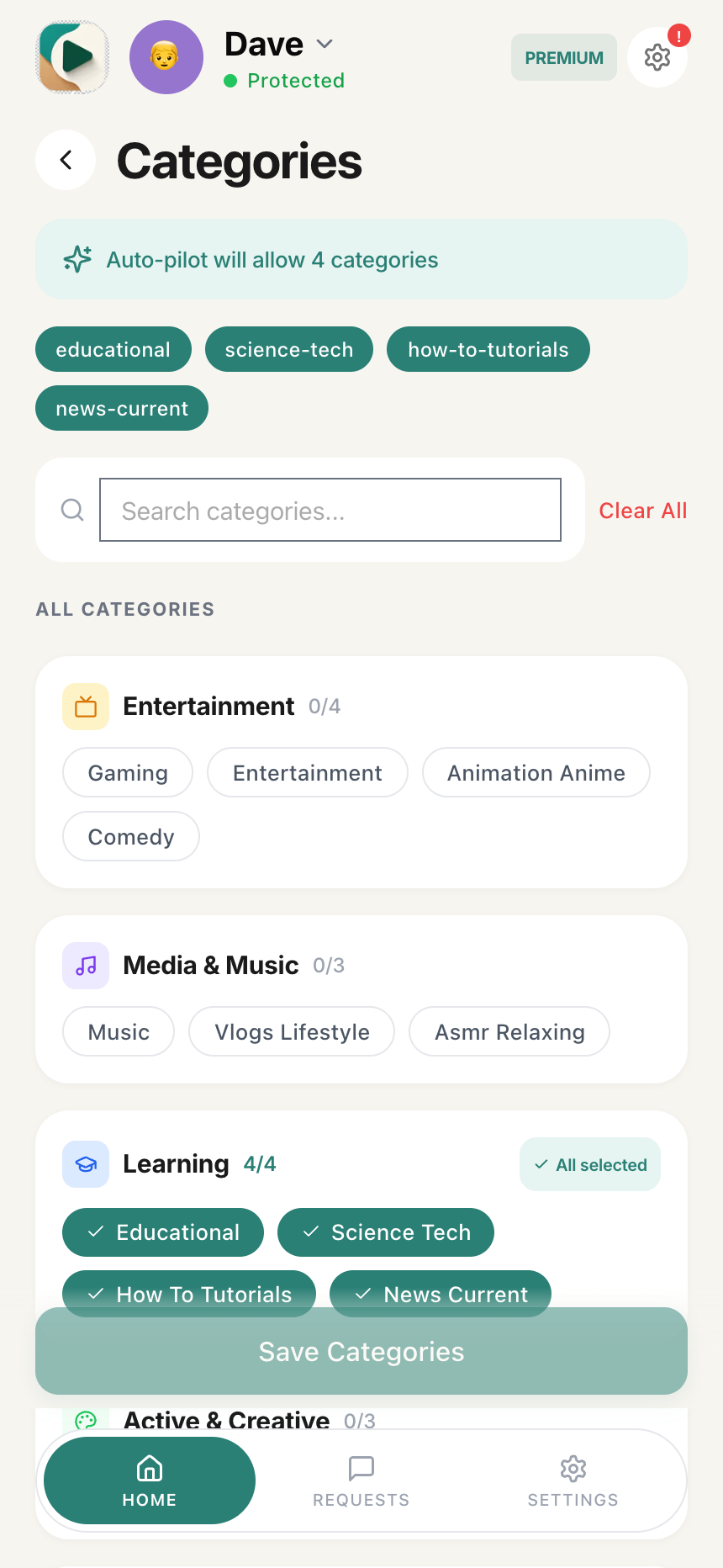
Step 3: Select categories
To select individual categories:
- Tap on any category pill to select it (it turns colored with a checkmark)
To select an entire group:
- Tap on the group header (e.g., "Technology & Skills")
- All categories in that group will be selected
- The counter shows how many are selected (e.g., "4/4")
Step 4: Search categories (optional)
Use the Search categories... box to find specific ones quickly.
Step 5: Clear selections (optional)
Tap Clear All to deselect all categories and start over.
Tip: After making changes, your selected categories appear as tags inside the Auto-pilot option on the Protection Level view (e.g., "Educational, Science Tech, + 2 more").
Appropriateness Check
Control how strictly Auto-pilot judges language and mature themes in video content. This adds an extra layer on top of category filtering — even if a video matches your selected categories, it can still be blocked if it contains inappropriate language or mature themes.
Premium Feature: Appropriateness Check is available with WhitelistVideo Premium and is only active when your protection level is set to Auto-pilot.
What does Appropriateness Check do?
Without Appropriateness Check (Off):
- Auto-pilot filters by category only
- A video that matches your categories is allowed, regardless of language used
With Appropriateness Check (Mild or Strict):
- Auto-pilot filters by category AND judges the language/maturity of the content
- Videos with strong language or mature themes are blocked, even if the category matches
How to enable Appropriateness Check
Step 1: Open Protection Level
- Open the Parents' App on your phone
- Select your child using the child switcher at the top
- Tap the Protection Level card on your dashboard
Step 2: Select Auto-pilot
Make sure Auto-pilot is selected as your protection level. Appropriateness Check only appears when Auto-pilot is active.
Step 3: Find Appropriateness Check
Scroll down inside the Auto-pilot option. Below Configure Categories, you'll see the Appropriateness Check section with the subtitle:
"How strictly Auto-pilot judges language and mature themes in what's said."
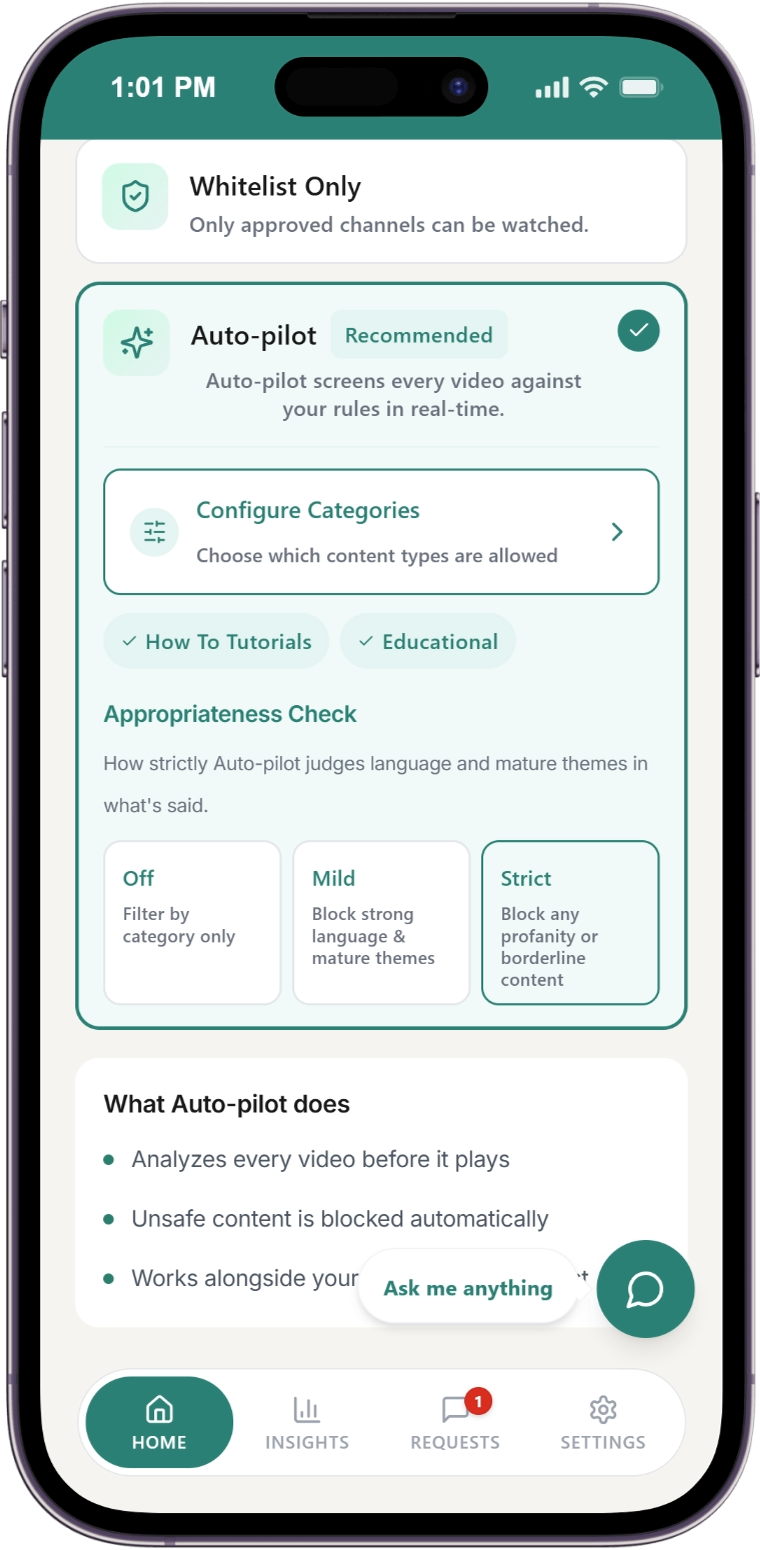
Step 4: Choose your level
Tap one of the three options:
Scroll horizontally to see all columns.
| Level | What It Does |
|---|---|
| Off | Filter by category only — no language or maturity checks |
| Mild | Block videos with strong language and mature themes |
| Strict | Block any profanity or borderline content |
Your selection applies immediately — no save button needed. The change syncs to your child's device within seconds.
Which level should I choose?
Scroll horizontally to see all columns.
| Your Child | Recommended Level | Why |
|---|---|---|
| Under 8 | Strict | Maximum protection from any inappropriate language |
| 8-12 | Mild | Blocks strong language while allowing normal speech |
| 13+ | Off or Mild | Depends on maturity — use Mild if you want language filtering |
Recommendation: Start with Mild for most families. It catches strong language and mature themes without being overly restrictive. Switch to Strict if you want zero tolerance for any borderline content.
How Appropriateness Check works with categories
When both are active, a video must pass both checks:
Scroll horizontally to see all columns.
| Check | Result | Video Status |
|---|---|---|
| Category matches ✓ | Appropriateness passes ✓ | Allowed |
| Category matches ✓ | Appropriateness fails ✗ | Blocked |
| Category doesn't match ✗ | (not checked) | Blocked |
| From an approved channel | (not checked) | Always allowed |
Videos from your approved channels always play regardless of Appropriateness Check settings.
Default setting
Appropriateness Check is Off by default for all children. Category filtering is active, but no language or maturity checks are performed until you enable Mild or Strict.
Platform availability
Scroll horizontally to see all columns.
| Platform | Appropriateness Check |
|---|---|
| Chrome Extension (desktop) | Yes |
| iOS Child App | Yes |
| Android Child App | Yes |
| Android TV | No (Curated Feed only) |
Android TV: Appropriateness Check is not available on Android TV. The TV app uses Curated Feed mode only, which shows videos exclusively from your approved channels.
Appropriateness Check FAQ
What's the default level?
Off. When you first enable Auto-pilot, only category filtering is active. You need to manually select Mild or Strict to enable language and maturity checks.
Does it affect videos from my approved channels?
No. Videos from your approved channels always play, regardless of Appropriateness Check settings. The check only applies to videos discovered through category matching.
How fast does it take effect?
Immediately. When you tap a level, the change syncs to your child's device within seconds via real-time connection.
Can I set different levels for different children?
Yes. Appropriateness Check is a per-child setting. Each child can have a different level based on their age and maturity.
Why don't I see Appropriateness Check?
- Your protection level must be set to Auto-pilot (not Off or Whitelist Only)
- You need a Premium subscription
- If both are correct, scroll down inside the Auto-pilot option — it appears below Configure Categories
How Auto-pilot works with channels
In Auto-pilot mode, both systems work together:
Scroll horizontally to see all columns.
| Video Source | What Happens |
|---|---|
| From an approved channel | Always allowed - no category check needed |
| Matches a selected category | Allowed - Auto-pilot approved the content type |
| No category match | Blocked - doesn't match your selections |
This gives you the best of both worlds: guaranteed access to trusted channels plus intelligent filtering for discovery.
Example setups
For a 10-year-old interested in science:
- Enable Auto-pilot mode
- Select: Educational, Science, Documentary, Nature, Animals
- Add favorite science channels to Approved Channels
- Result: Child can watch science videos, nature documentaries, and educational content
For a teenager learning to code:
- Enable Auto-pilot mode
- Select: Technology, Programming, Engineering, DIY-How-To
- Result: Child can watch coding tutorials and tech content
What does my child see when Auto-pilot blocks a video?
When Auto-pilot blocks a video, your child sees:
Message shown:
"Auto-pilot: Content Not Appropriate"
The screen includes:
- "Watch These Approved Channels Instead" - Clickable cards for approved channels
- REQUESTS - How many requests remain (e.g., "9 left, Resets 6:30 PM")
- THIS CHANNEL - Wait time for re-analysis (e.g., "Wait 58min")
- STATUS - Shows "Pending - Review soon" while Auto-pilot processes
- Two action buttons:
- "Ask Parent" - Request parent approval for this channel
- "Rerun Auto-pilot" - Try screening the video again
Rerun Auto-pilot screening
If your child believes Auto-pilot made a mistake, they can tap "Rerun Auto-pilot" to have the video re-evaluated. This is useful if:
- The video content changed
- Auto-pilot initially couldn't fully screen the video
- Network issues affected the first screening
When should I use Auto-pilot?
Good for:
- Broader access: Let your child explore more of YouTube safely within enabled categories
- New interests: When your child discovers new topics in enabled categories
- Busy parents: Less time spent manually reviewing every channel
Not ideal for:
- Very young children: Manual mode with approved channels only may be better
- Maximum control: Manual mode gives you the most control
Switching between modes
To switch to Whitelist Only:
- Tap the Protection Level card on your dashboard
- Select Whitelist Only
- Configure Categories will no longer be available
- Only your approved channels will be accessible
- Your category selections are saved and will reactivate if you switch back to Auto-pilot
To switch to Off:
- Tap the Protection Level card on your dashboard
- Select Off
- All filtering is disabled
- Use only when supervising your child
Override Auto-pilot decisions
If Auto-pilot makes a decision you disagree with:
- Auto-pilot allowed something inappropriate: Consider disabling that category, or whitelist only the channels you trust for that topic
- Auto-pilot blocked something safe: Approve the channel manually — approved channels always override Auto-pilot decisions
Tips for using Auto-pilot
Start with approved channels
Build a base list of approved channels first. Use Auto-pilot to supplement, not replace, your approved list.
Start conservative
Begin with fewer categories. Add more categories as you see how it works for your child.
Combine with Player Controls
Use Player Controls to hide comments, block Shorts, and add additional safety layers.
Auto-pilot Screening troubleshooting
"Enable Auto-pilot to use categories" message
This means your protection level is not set to Auto-pilot. Tap the Protection Level card on your dashboard and select Auto-pilot.
Why is Whitelist Categories grayed out?
- Your protection level is not set to Auto-pilot — tap the Protection Level card and select Auto-pilot
- You may need a Premium subscription - check your plan
Why did Auto-pilot allow a video I don't want my child to watch?
- Consider removing that category from your enabled list
- Whitelist only the channels you trust for that topic
Why did Auto-pilot block a safe video?
- Check if the video's category is in your enabled list
- Whitelist the channel manually if you trust it
- Make sure the category is selected
Why aren't my content categories saving?
- Changes save automatically as you select
- Wait for the sync to complete
- Check your internet connection