Quick Unlock with Face ID & Touch ID
Skip the password and unlock WhitelistVideo instantly with your face or fingerprint.
Important: PWA Required
Biometric login ONLY works when you install the app on your device.
Scroll horizontally to see all columns.
| Access Method | Biometric Available? |
|---|---|
| Installed App (PWA) | Yes |
| Website in Browser | No |
If you're using WhitelistVideo in your browser (Safari, Chrome, etc.), you must install it first. See How to Enable below.
What is Biometric Login?
Biometric login lets you unlock the WhitelistVideo app using your device's built-in security features instead of typing a password.
Scroll horizontally to see all columns.
| Your Device | Unlock Method |
|---|---|
| iPhone / iPad | Face ID |
| Mac | Touch ID |
| Android | Fingerprint |
| Windows | Windows Hello |
Why Use It?
Scroll horizontally to see all columns.
| Benefit | Description |
|---|---|
| Faster | Unlock in under 1 second |
| More Secure | Your biometric can't be guessed or stolen |
| No Password | No need to remember or type anything |
| Private | Biometric data never leaves your device |
Best for: Parents who open the app frequently and want quick, secure access.
Requirements
Before you can enable biometric login:
Scroll horizontally to see all columns.
| Requirement | Why |
|---|---|
| Install the App (PWA) | Biometric does NOT work in browser - must install first |
| Compatible Device | Must have Face ID, Touch ID, Fingerprint, or Windows Hello |
| Already Signed In | You need to be logged into your account first |
Not sure if you installed it? Check if WhitelistVideo has an app icon on your home screen. If you're opening it from a browser bookmark, you need to install it.
How to Enable Biometric Login
Part 1: Install the PWA First
Before enabling biometric login, you must install the app on your device.
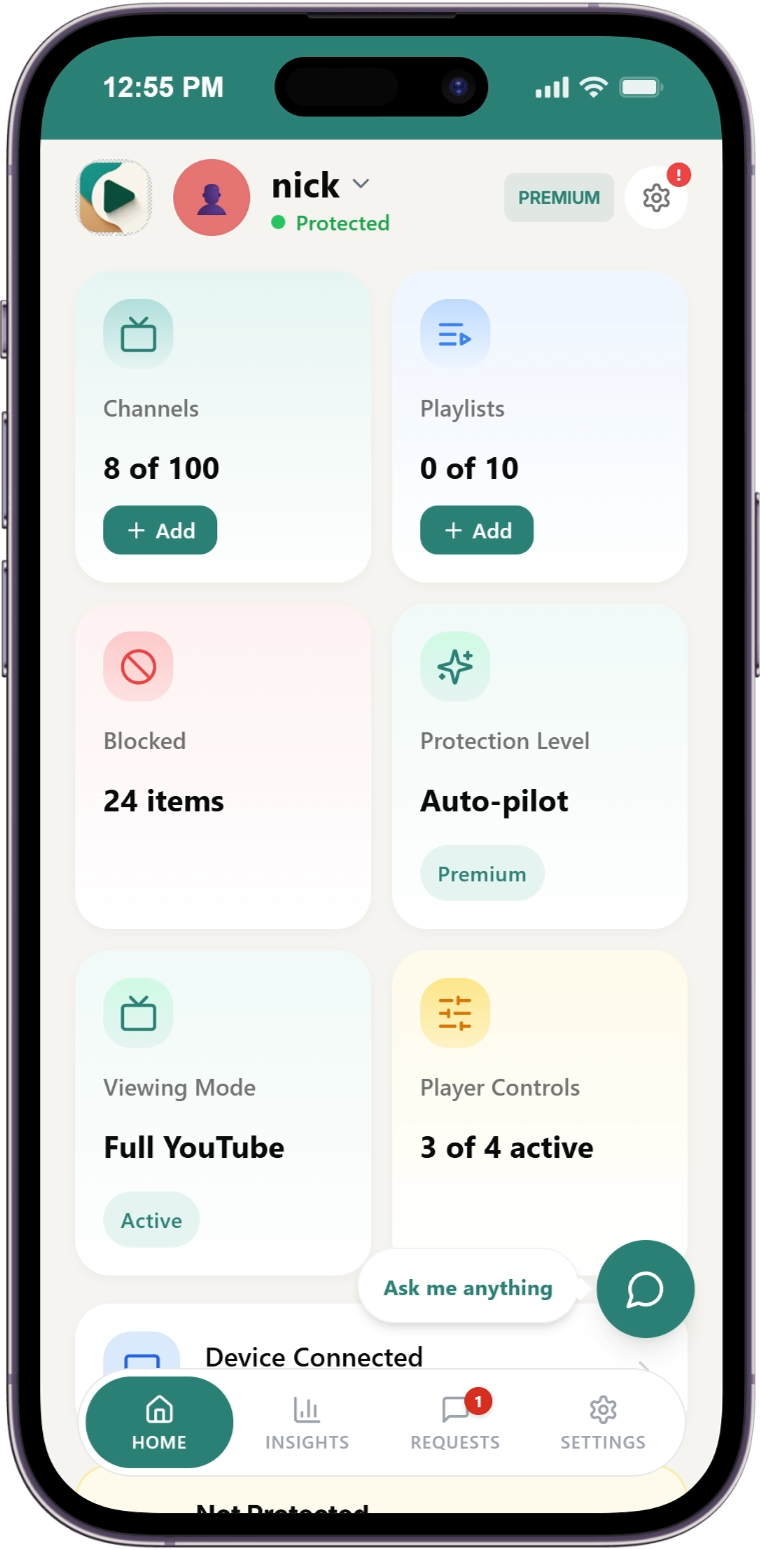
Go to Settings
Click Settings in the navigation menu.
Find Biometric Lock
Look for "Biometric Lock" option in settings.
Click Enable
Click Enable to start the setup process.
Enable Notifications
A popup will appear. Click "Enable Notifications" to proceed.
Install the App
You'll see an "Install App" prompt. Click Install to add WhitelistVideo to your device (Android/iOS).
The app is now installed on your mobile device.
Part 2: Enable Biometric Login
After installing the PWA, you can enable biometric authentication.
Navigate to Settings
Open the installed app and go to Settings.
Find Biometric Login
Look for "Biometric Login" option.
Toggle to Enable
Click the toggle to enable biometric login.
Create Passkey
The app will ask you to create a passkey for secure authentication.
Confirm with Your Device
Your device will prompt you to verify using:
- Fingerprint - Touch the fingerprint sensor
- Pattern - Draw your unlock pattern
- Face ID - Look at your device (iPhone/iPad)
Done! Biometric login is now enabled.
How to Verify It Works
To confirm biometric login is working:
- Close the app completely
- Reopen the app from your home screen
- The app should prompt you for your selected method (fingerprint, pattern, or Face ID)
- Verify successfully to access your dashboard
How It Works
Every time you open the app:
- Open WhitelistVideo app
- See biometric prompt
- Verify with face/fingerprint
- Access your dashboard instantly
What You'll See
The unlock screen looks different on each device:
Scroll horizontally to see all columns.
| Device | What You'll See |
|---|---|
| iPhone | Face ID icon with "Use Face ID" button |
| Mac | Touch ID icon with "Use Touch ID" button |
| Android | Fingerprint icon with "Use fingerprint" button |
| Windows | Windows Hello prompt |
You can also tap "Sign Out" if you want to use a different account.
How to Disable Biometric Login
If you want to turn off biometric login:
- Open the app and verify your identity
- Go to Settings → Security
- Toggle Biometric Login to OFF
- Confirm your choice
You'll now need to sign in with your email and password.
Troubleshooting
"I don't see the biometric option"
Most common reason: You're using the website, not the installed app.
Fix it:
- Close the browser tab
- Install the app (see How to Enable above)
- Open from your home screen icon
- Now you'll see the biometric option in Settings
Still not working? Check these:
- Does your device have Face ID, Touch ID, or Fingerprint?
- Is biometric set up on your device? (Check device settings)
"Face ID / Touch ID keeps failing"
Try these:
- Make sure your face/finger is positioned correctly
- Clean your device's camera or sensor
- Disable and re-enable biometric in WhitelistVideo settings
- Re-register your face/fingerprint in device settings
"I want to use a different account"
Tap "Sign Out" on the biometric prompt, then sign in with your other account.
"I lost my device"
Your biometric data is stored only on your device. If you lose your device:
- Sign in on a new device with your email and password
- Enable biometric on the new device
- The old device can no longer access your account once you change your password
Frequently Asked Questions
Is biometric login safe? Yes! Your biometric data (face/fingerprint) never leaves your device. WhitelistVideo only receives a secure confirmation that you verified successfully.
What if my child tries to unlock it? Only your registered face or fingerprint can unlock the app. Your child cannot access your parent dashboard without your biometric.
Why doesn't biometric work on the website? Biometric requires the app to be installed on your device. When you use the website in a browser, your device can't provide secure biometric access. Install the app from your home screen and biometric will work.
Can I use both password and biometric? Yes! You can always sign out and use your password. Biometric is just a faster option when available.
What happens if I disable Face ID on my iPhone? WhitelistVideo biometric login will stop working. You'll need to sign in with your password until you re-enable Face ID.
Related Guides
- Account Settings - Manage your account
- Change Password - Update your password
Need help? Contact support at support@whitelist.video