How to Downgrade
Downgrade your WhitelistVideo plan if you need fewer features.
Downgrade from Premium to Basic
Go to Settings
Click "Settings" button at the bottom of the navigation menu.
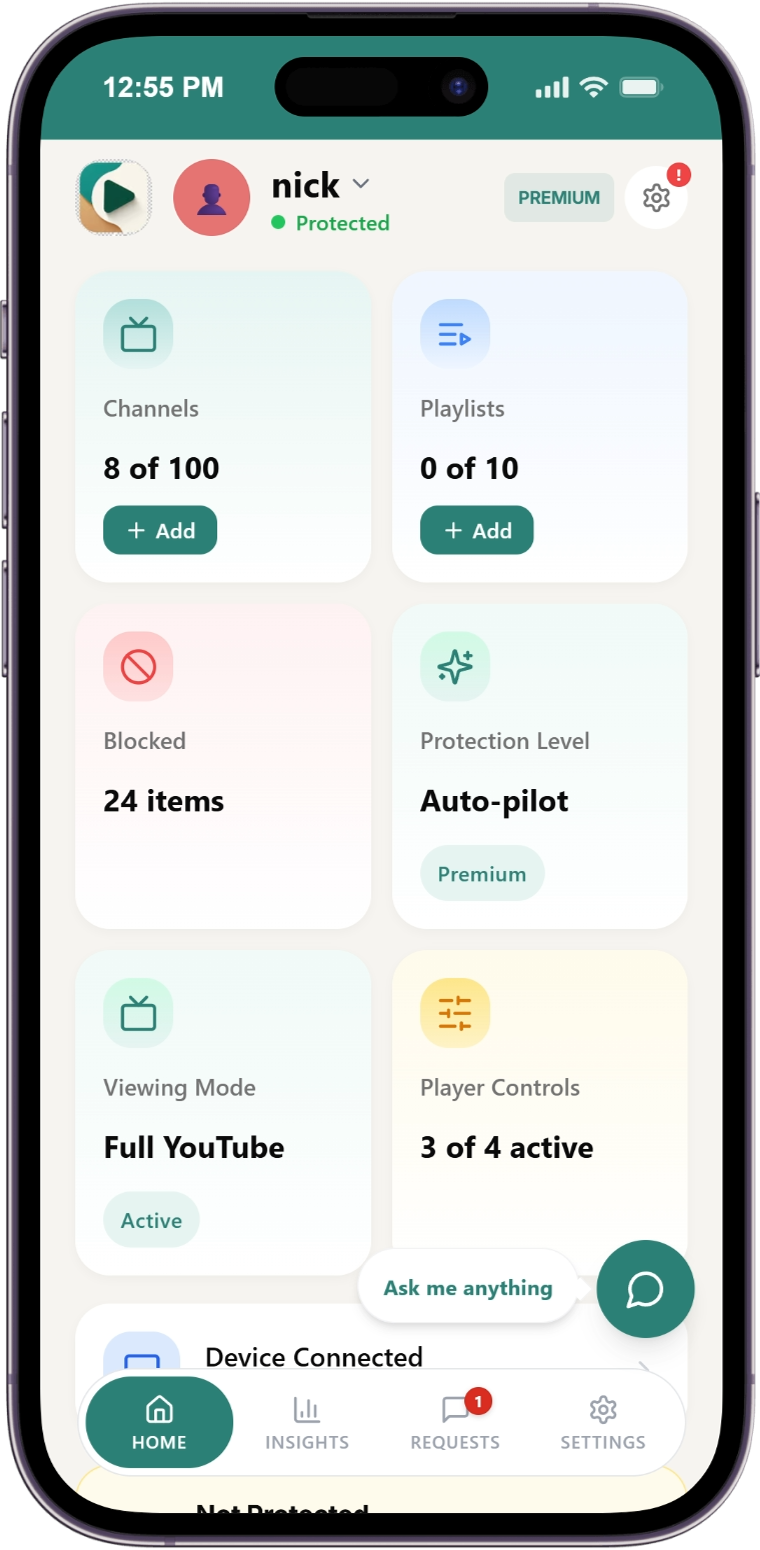
Open Subscription & Billing
Click the "Subscription & Billing" manage button.
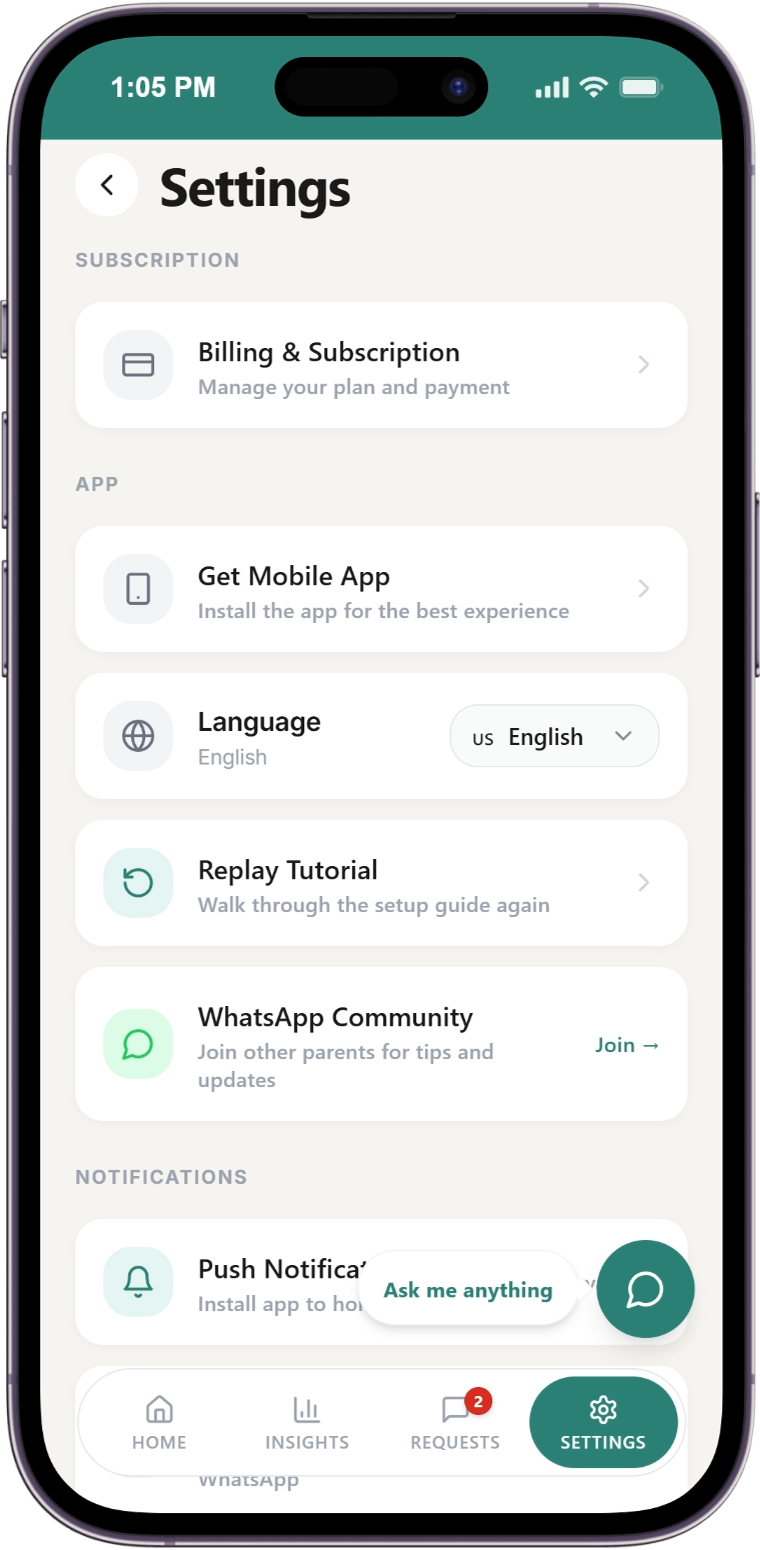
Click Downgrade
Find and click "Downgrade to Basic".
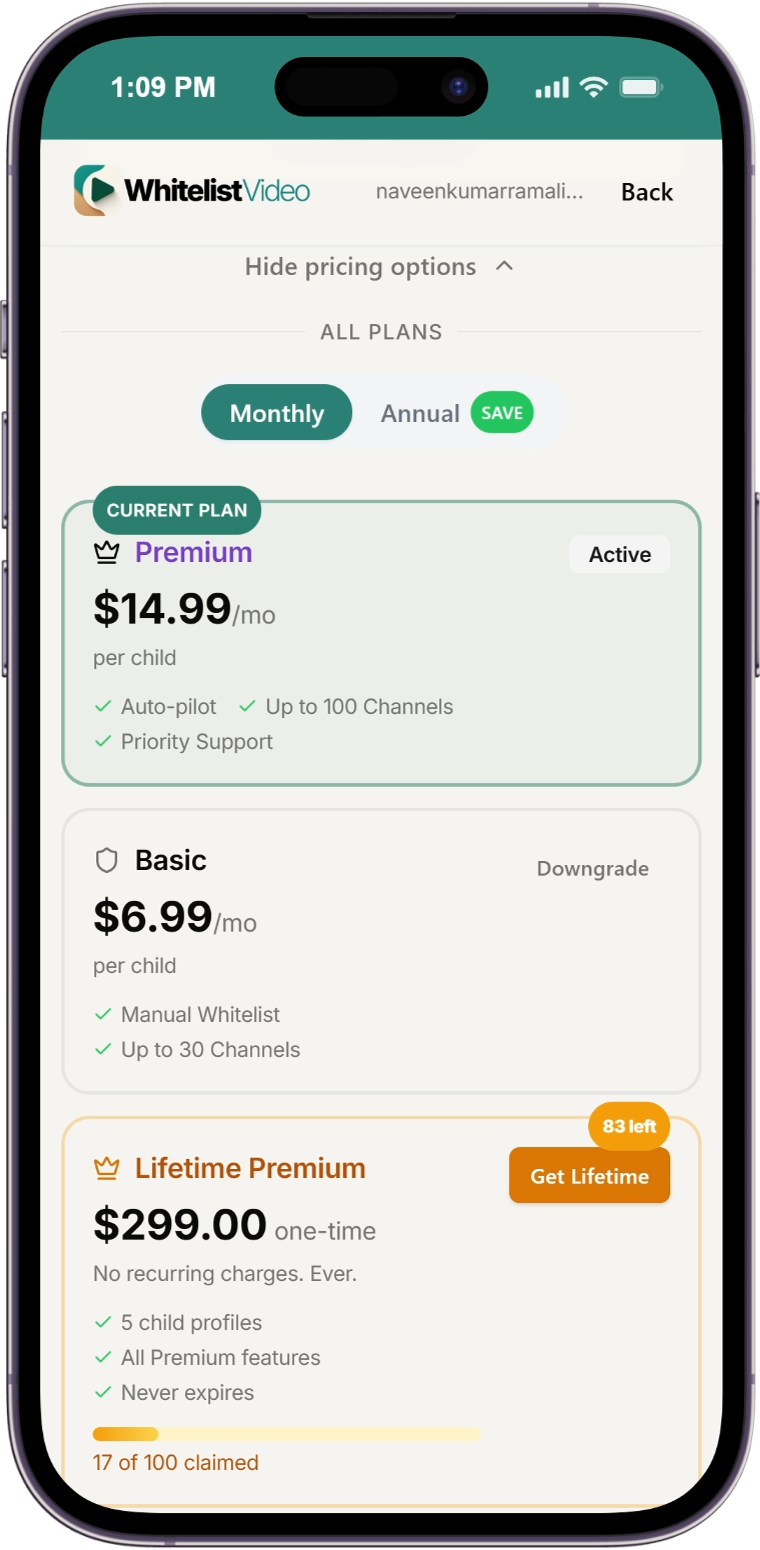
Review What You'll Lose
A popup shows features you'll lose:
- Auto-pilot content screening
- Category filtering
- Priority support
- Channel limit drops to 30 per child
- Domain limit drops to 20 per child
Confirm Downgrade
Check the confirmation box and click "Confirm Downgrade".
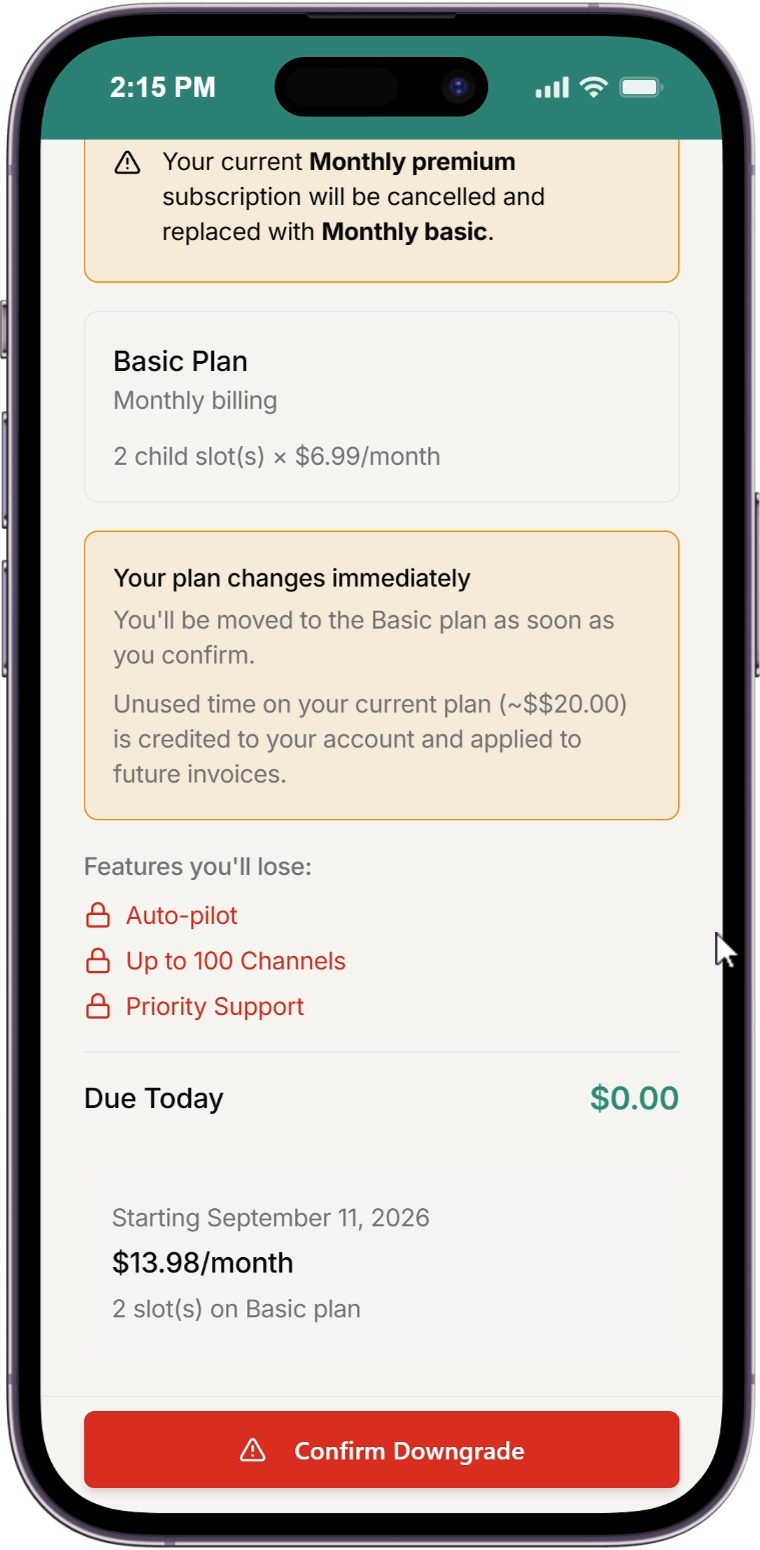
What happens:
- Changes take effect immediately
- You receive a prorated credit for the remaining days
- Your category and Auto-pilot settings are saved (reactivate if you upgrade again)
Cancel Your Subscription
To stop your subscription entirely, see How to Cancel for step-by-step instructions. Your settings are preserved if you resubscribe later.
Related Guides
- How to Upgrade - Upgrade your plan
- How to Cancel - Cancel your subscription
- Billing Overview - Complete pricing and feature comparison
Need help? Contact support at support@whitelist.video