How to control YouTube features for your child
Customize the YouTube experience by removing distractions and protecting your child from unwanted content using Player Controls.
Works in All Protection Modes: Player Controls work in Off, Whitelist Only, and Auto-pilot modes. However, Block YouTube Shorts, Hide Comments, and Block Downloads require a Basic or Premium plan.
What Player Controls are available?
The Player Controls card on your dashboard shows how many controls are currently active (e.g., "3 of 3 active"). Tapping the card opens the Player Controls view with toggles for each control.
Scroll horizontally to see all columns.
| Control | What It Does | Plan |
|---|---|---|
| Block YouTube Shorts | Hide YouTube Shorts from all pages | Basic+ |
| Hide YouTube Comments | Hide comment sections on all videos | Basic+ |
| Block Downloads | Hide video download options | Basic+ |
| Block YouTube Ads | Best-effort ad blocking — not guaranteed to remove all ads | Basic+ |
Controls locked on Auto-pilot: When your protection level is set to Auto-pilot, Player Controls are automatically enforced and locked. You'll see a "Controls locked" banner and a lock icon on each toggle in the Player Controls view.
How to access Player Controls
- Open the Parents' App
- Select your child using the child switcher at the top
- Tap the Player Controls card on your dashboard
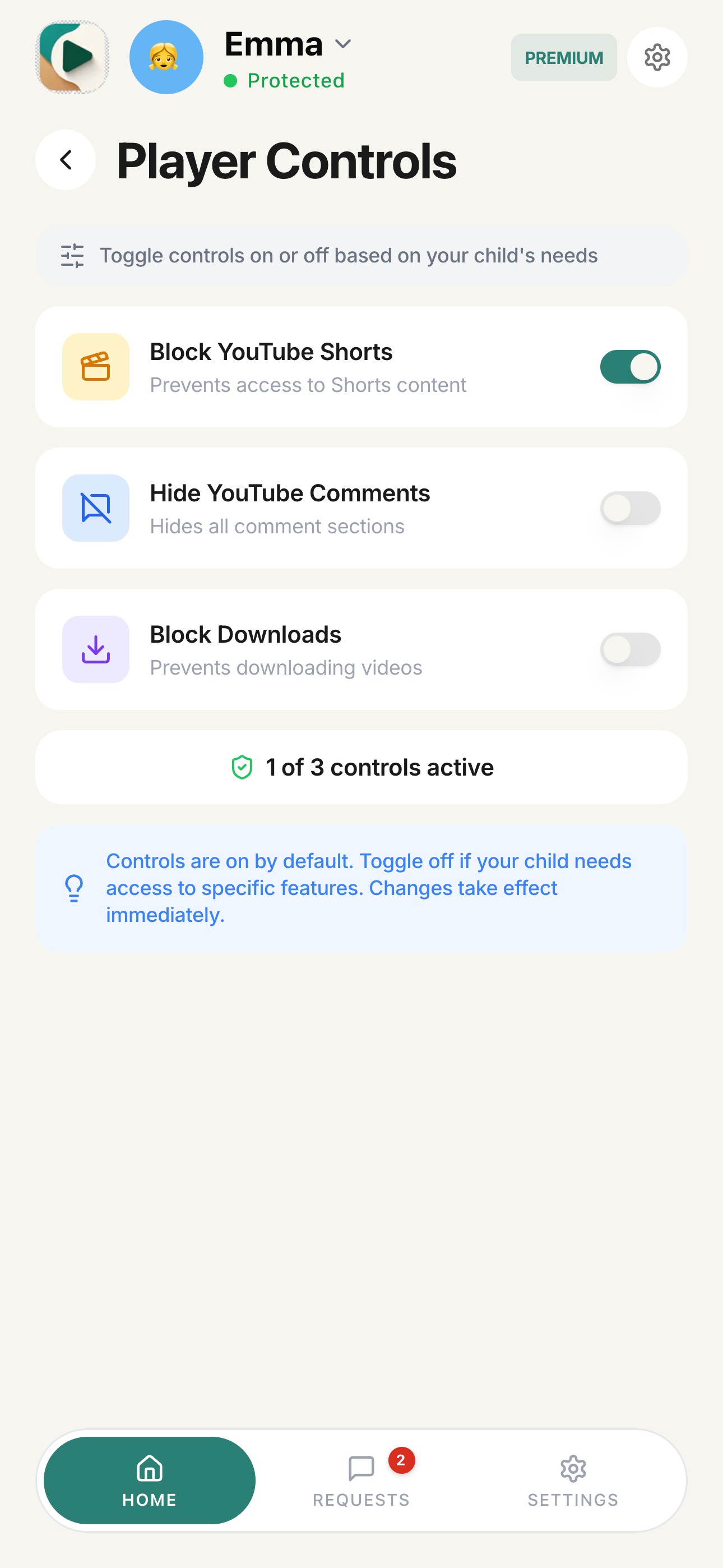
How to block YouTube Shorts
What it does: Hides YouTube Shorts from all pages.
Why should I block YouTube Shorts?
- Attention impact: Rapid-fire, short videos can harm developing attention spans
- Harder to moderate: Millions of Shorts are uploaded daily, making them difficult to filter
- Addictive design: Shorts are designed to keep viewers scrolling endlessly
- Often off-topic: Shorts frequently don't come from your approved channels
Your child can still watch full-length videos from approved channels.
How to enable
- Tap the Player Controls card on your dashboard
- Find Block YouTube Shorts toggle
- Switch it ON (turns colored)
Recommendation: Keep Block YouTube Shorts enabled for all children, especially younger ones.
How to hide YouTube comments
What it does: Hides the comment sections on all videos.
Why use it: Comments can contain:
- Inappropriate language
- Spoilers
- Arguments and negativity
- Links to unsafe content
How to enable
- Tap the Player Controls card on your dashboard
- Find Hide YouTube Comments toggle
- Switch it ON
Recommended for: All ages, especially children under 13.
How to block YouTube downloads
What it does: Hides video download options.
Why use it:
- Downloaded videos bypass some content filters
- Prevents storage of potentially inappropriate content
- Keeps viewing within the protected environment
How to enable
- Tap the Player Controls card on your dashboard
- Find Block Downloads toggle
- Switch it ON
Recommended for: All ages.
How to block YouTube ads
What it does: Attempts to block YouTube ads including pre-roll and mid-roll advertisements on a best-effort basis.
Best-Effort Feature: Ad blocking is provided on a best-effort basis. There is no guarantee that all ads will be removed — our primary focus is parental control, not ad removal. Some ads may still appear.
Recommendation: For a guaranteed ad-free experience, we strongly recommend subscribing to YouTube Premium (opens in a new tab) for your child or getting the YouTube Premium Family plan.
Why use it:
- Many ads are not appropriate for children
- Prevents exposure to marketing and consumerism
- Creates a cleaner, less distracting viewing experience
- Removes "skip ad" countdown distractions
How to enable
- Tap the Player Controls card on your dashboard
- Find Block YouTube Ads toggle
- Switch it ON
Note: This is a paid feature. If you're on the Free plan, you'll see a prompt to upgrade.
Recommended for: All ages.
What are the recommended Player Control settings by age?
Under 8 years old
Scroll horizontally to see all columns.
| Control | Recommended |
|---|---|
| Block YouTube Shorts | On |
| Hide YouTube Comments | On |
| Block Downloads | On |
| Block YouTube Ads | On (if subscribed) |
8-12 years old
Scroll horizontally to see all columns.
| Control | Recommended |
|---|---|
| Block YouTube Shorts | On |
| Hide YouTube Comments | On |
| Block Downloads | On |
| Block YouTube Ads | On (if subscribed) |
13+ years old
Scroll horizontally to see all columns.
| Control | Recommended |
|---|---|
| Block YouTube Shorts | Optional |
| Hide YouTube Comments | Optional |
| Block Downloads | Optional |
| Block YouTube Ads | On (if subscribed) |
Player Controls work independently
Player Controls work in all protection modes, but require a Basic or Premium plan:
Scroll horizontally to see all columns.
| Protection Level | Player Controls |
|---|---|
| Off | Available (Basic+) |
| Whitelist Only | Available (Basic+) |
| Auto-pilot | Available and locked (Basic+) |
This means you can block Shorts and comments even when protection is set to Off during supervised viewing sessions, as long as you're on a Basic or Premium plan. When set to Auto-pilot, controls are automatically enforced and cannot be turned off.
Player Controls troubleshooting
Comments are still showing
- Make sure Hide YouTube Comments is toggled On
- Try refreshing the YouTube page
- Wait 30 seconds for settings to sync
Shorts are still showing
- Make sure Block YouTube Shorts is toggled On
- Try refreshing the YouTube page
- Clear browser cache if the issue persists
Ads are still showing
- Verify Block YouTube Ads is enabled
- This is a paid feature - check your subscription status
- Some YouTube system messages may still appear (not ads)
- Try refreshing the page
Block YouTube Ads toggle is grayed out
This feature requires a paid subscription. Upgrade your plan to access additional features.
My child found a way around a control
Consider adding Advanced Protection to prevent bypassing the extension entirely.