How to install WhitelistVideo advanced protection on Windows
Add Advanced Protection to your child's Windows computer to prevent bypassing WhitelistVideo.
Critical Step: We strongly recommend Advanced Protection. Without it, your child can easily disable the extension or use a different browser.
What do I need for Windows advanced protection?
- Your child's Windows computer (Windows 10 or 11)
- Administrator access on the computer
- About 5 minutes
What should I check before installing?
IMPORTANT: Check Which Account You're Using
You MUST install from your child's Windows account, NOT your parent account. The protection only works on the account where it's installed.
How to check your account

- Click the Windows Start button (bottom-left corner)
- Look at the top-left - you'll see a name and account icon
- Make sure this is your child's account name
Wrong account? Log out and sign into your child's Windows account first.
How to download the Windows installer
On your child's computer
- Open Chrome
-
Go to the Parents' App at app.whitelist.video (opens in a new tab)
-
Navigate to your child's profile
-
Click Download Windows Installer
-
The file WhitelistVideo-Setup.exe downloads to your Downloads folder

Why do I need to close all browsers?
Important: Close all browser windows before running the installer.
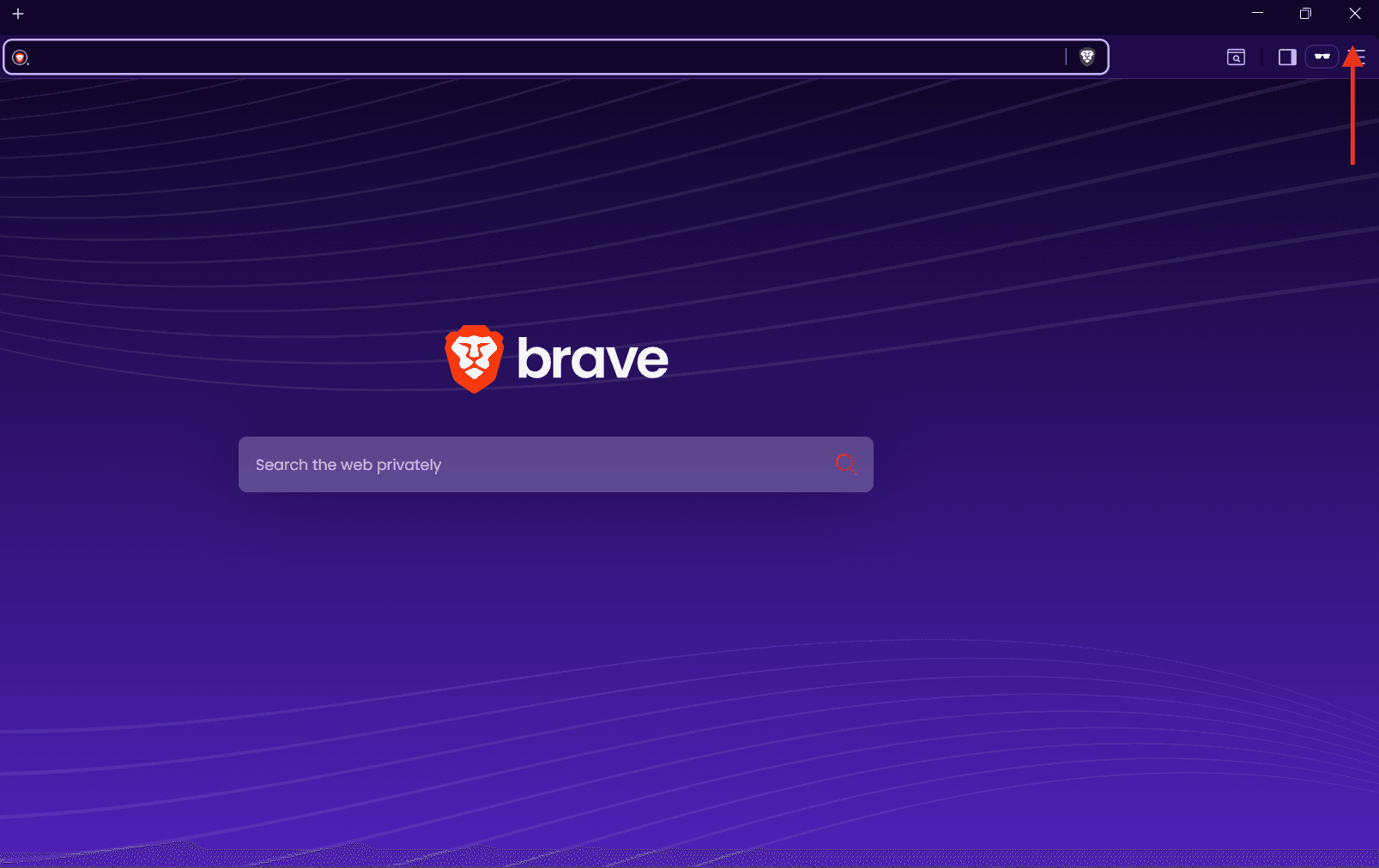
- Close ALL Chrome windows (click the X in top-right)
- Close ALL Edge windows (if installed)
Tip: Check your taskbar at the bottom of the screen - make sure no browser icons are showing open windows.
How to run the Windows installer
-
Open File Explorer
-
Go to Downloads
-
Find WhitelistVideo-Setup.exe
-
Double-click the file
Windows security prompt
A popup asks: "Do you want to allow this app to make changes?"
Click Yes and enter your administrator password if asked.
How to complete the installation
The installer shows you 4 screens:
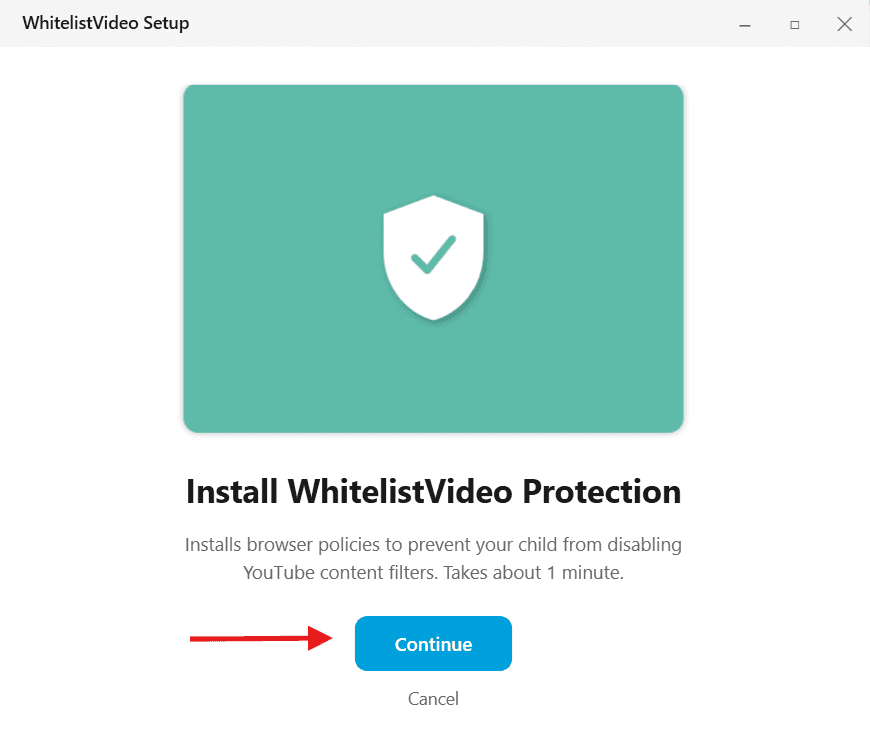
Screen 1: Welcome
Click Continue to start the installation.
Screen 2: account verification
This confirms you're in the correct account.
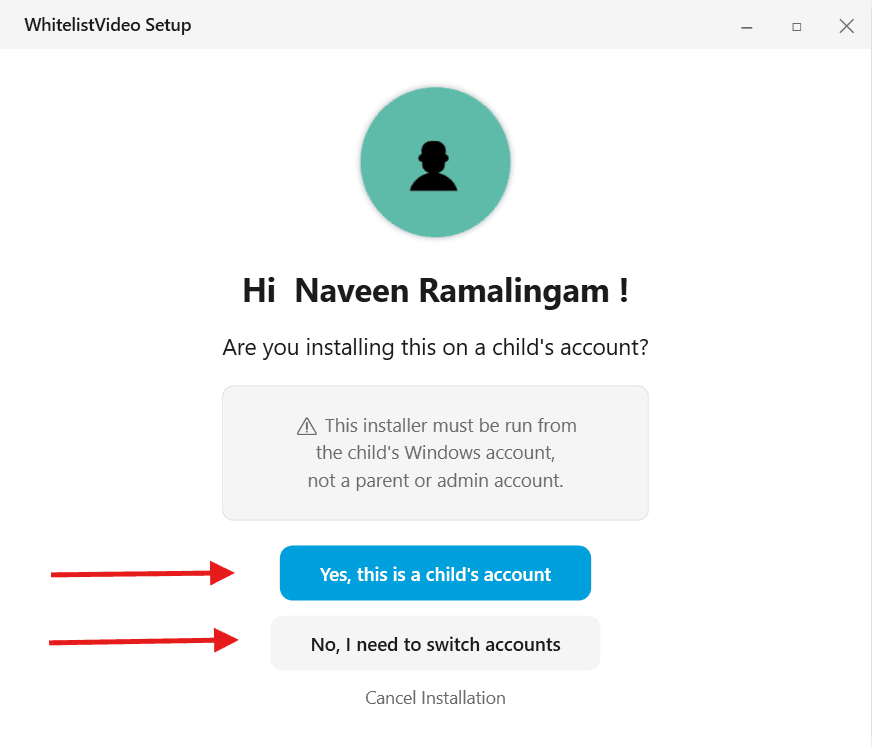
- Check the username shown - make sure it's your child's account
- If wrong, click Exit and switch to your child's account
- If correct, click Yes, this is a child account
Screen 3: browser detection
The installer finds all installed browsers.
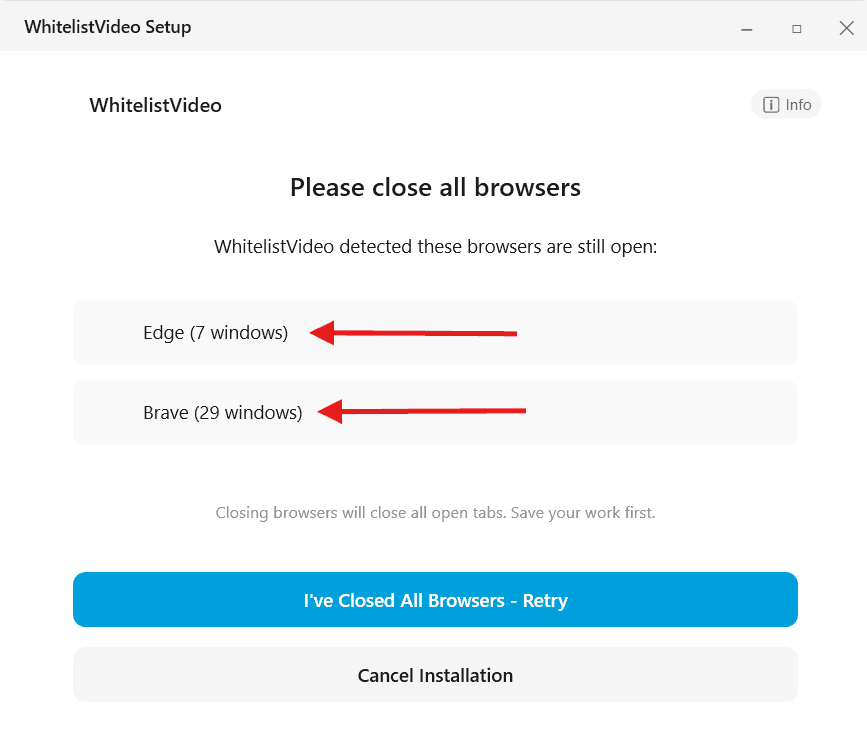
- It will detect Chrome and Edge automatically
- It will attempt to close any open browsers
Screen 4: installation progress
Wait while the installer applies protection.
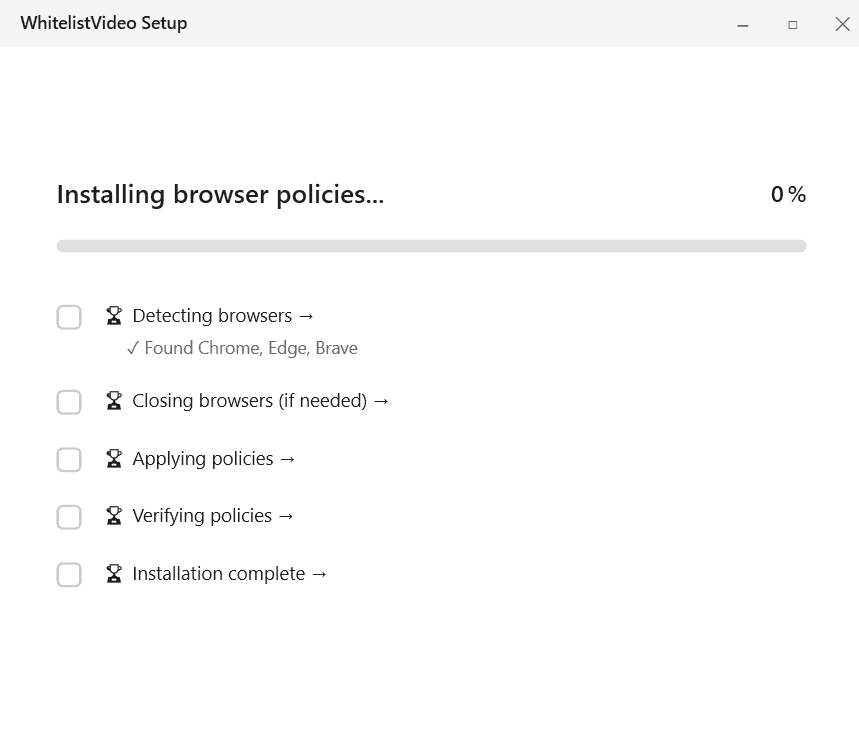
- This takes about 30-60 seconds
- Don't close the window or restart your computer
Screen 5: Success!
Installation is complete.
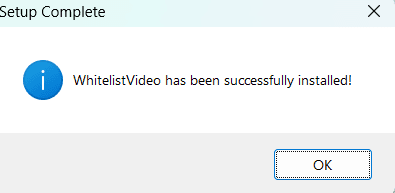
Click Finish to close the installer.
How to verify Windows advanced protection is working
After installation:
-
Restart Chrome (close all Chrome windows and reopen)
-
Try to disable the WhitelistVideo extension:
- Type
chrome://extensionsin the address bar - Find WhitelistVideo - the toggle should be grayed out
- It should say "Installed by enterprise policy"
- Type
-
Try to open YouTube in Edge:
- Open Microsoft Edge
- Go to YouTube.com
- You should see a blocked message
Success! Advanced Protection is active in Chrome and Edge. A child using a Standard account without administrator credentials cannot remove the managed protection.
What does Windows advanced protection do?
Scroll horizontally to see all columns.
| Protection | What Happens |
|---|---|
| Extension locked | Can't be turned off or removed |
| Supported browsers protected | Managed protection applies in Chrome and Edge |
| Incognito disabled | Can't open private windows in Chrome |
| Guest mode disabled | Can't use Chrome's guest profile |
How to uninstall Windows advanced protection
If you need to remove Advanced Protection:
- Click Start menu
- Type Add or remove programs
- Find WhitelistVideo Advanced Protection
- Click Uninstall
- Enter your administrator password
- Follow the prompts
The extension will still work, but your child will be able to disable it.
Windows advanced protection troubleshooting
The installer won't run
- Make sure you have administrator access
- Try right-clicking the file and selecting "Run as administrator"
- Temporarily disable antivirus and try again
I can still disable the extension
- Restart Chrome completely (close ALL windows)
- Restart the computer
- Make sure you installed on the correct Windows account
- Run the installer again
YouTube still works in Edge
- Restart Edge completely
- Clear the browser's cache and cookies
- Run the installer again to reapply browser policies
YouTube still works in Firefox, Brave, or another browser
The installer does not manage those apps. Use Microsoft Family Safety to block the alternative browser app. Family Safety web filtering is Edge-only, so test the app block from the child's Standard account.
Extension doesn't show "Installed by enterprise policy"
- The installation may not have completed
- Make sure all browsers were closed during installation
- Run the installer again