How to configure WhitelistVideo settings
Now that protection is active, customize how WhitelistVideo works for your child from the card dashboard.
Understanding the dashboard
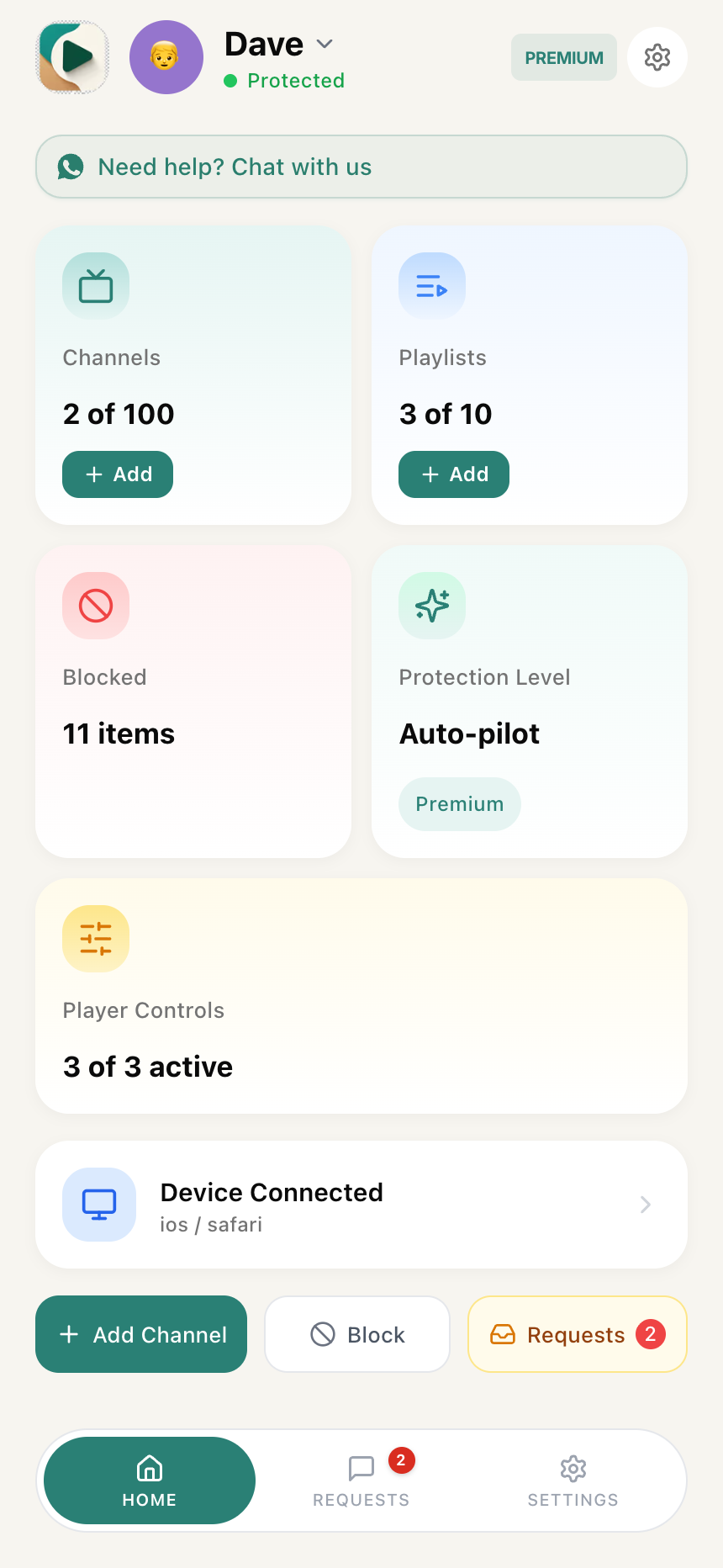
Your Parents' App dashboard shows a card grid with quick access to all settings:
- Channels — shows your approved channel count, tap to add or remove channels
- Playlists — shows your whitelisted playlist count (Premium), tap to manage playlists
- Blocked — shows blocked item count, tap to manage blocked keywords and channels
- Protection Level — shows your current mode (Off, Whitelist Only, or Auto-pilot), tap to change
- Player Controls — shows how many controls are active, tap to configure toggles
Use the child switcher at the top of the screen to select which child's settings you're viewing. The bottom navigation has three tabs: HOME, REQUESTS, and SETTINGS.
Understanding the Protection Level
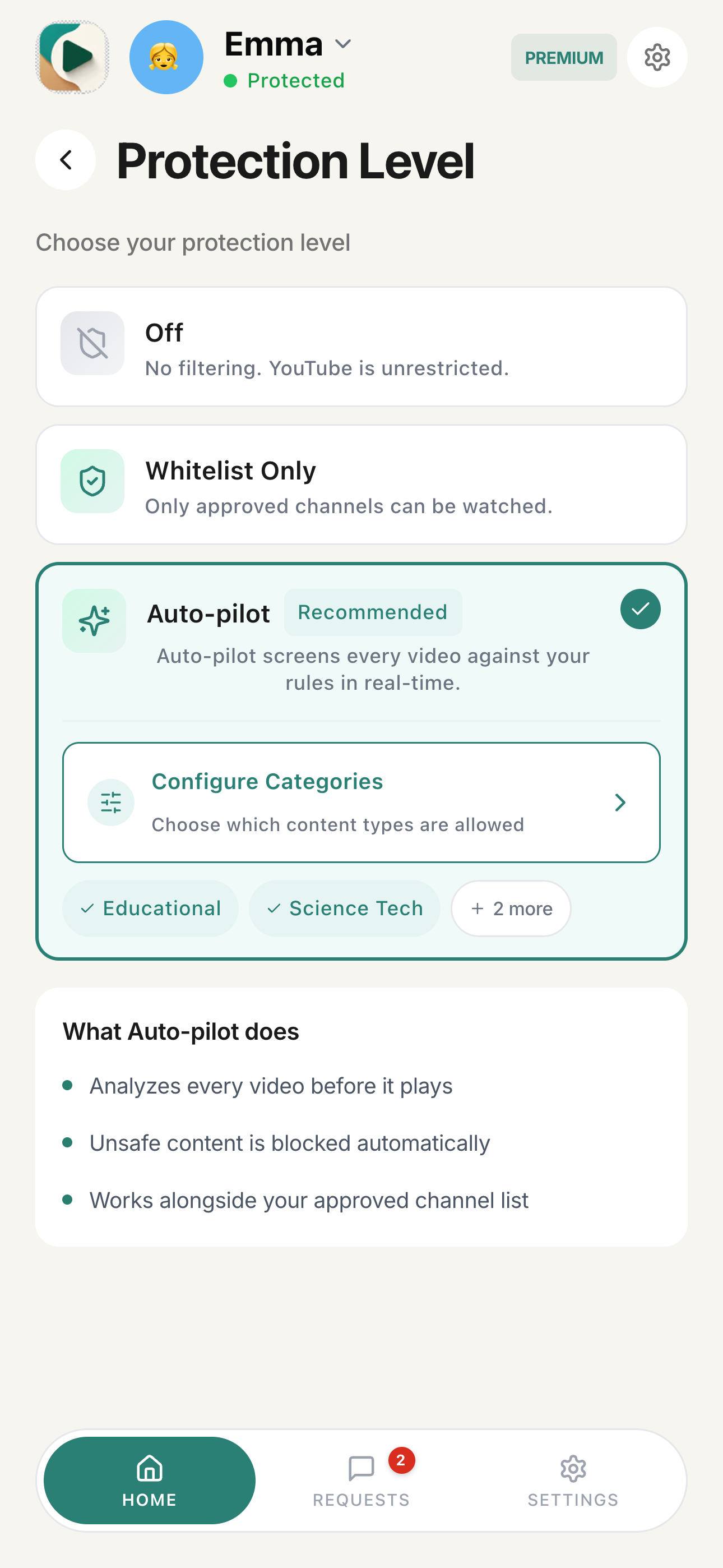
Tap the Protection Level card on your dashboard to choose how YouTube is filtered for your child. You'll see three radio-button options:
Scroll horizontally to see all columns.
| Option | What It Does |
|---|---|
| Off | No filtering — YouTube works normally |
| Whitelist Only | Only approved channels are allowed |
| Auto-pilot (Recommended) | Channels + Auto-pilot category filtering enabled |
How to change protection level
- Open the Parents' App on your phone
- Select your child using the child switcher at the top
- Tap the Protection Level card on your dashboard
- Select your desired level:
- Off — no filtering
- Whitelist Only — only approved channels play
- Auto-pilot (Recommended) — approved channels plus Auto-pilot category filtering
Tip: Start with Auto-pilot for the most protection with the least effort. You can always switch to Whitelist Only later for more control.
What settings are available in each mode?
Scroll horizontally to see all columns.
| Setting | Off | Whitelist Only | Auto-pilot |
|---|---|---|---|
| Approved Channels | — | ✓ | ✓ |
| Playlists | — | ✓ | ✓ |
| Blocked Channels & Keywords | ✓ | ✓ | ✓ |
| Configure Categories | — | — | ✓ |
| Appropriateness Check | — | — | ✓ |
| Player Controls | ✓ | ✓ | ✓ |
WhitelistVideo configuration options
What does each WhitelistVideo feature do?
Scroll horizontally to see all columns.
| Feature | What It Does | Requires Mode | Plan |
|---|---|---|---|
| Approved Channels | Allow videos from specific YouTube channels | Whitelist Only or Auto-pilot | Free |
| Playlists | Whitelist entire YouTube playlists at once | Whitelist Only or Auto-pilot | Premium (up to 10) |
| Blocked Channels | Block all videos from specific YouTube channels | Any mode | All tiers |
| Blocked Keywords | Block videos with specific words in titles | Any mode | All tiers |
| Configure Categories | Allow videos by content type using Auto-pilot | Auto-pilot | Premium |
| Appropriateness Check | Judge language and mature themes in video content | Auto-pilot | Premium |
| Viewing Mode | Choose Full YouTube or Curated Feed per child | Any mode | All tiers |
| Player Controls | Hide comments, Shorts, downloads, and ads | Any mode | Basic+ |
How should I configure WhitelistVideo for my child's age?
For younger children (under 8)
- Set protection level to Whitelist Only
- Approve 10-15 educational and entertainment channels
- Enable all Player Controls (block Shorts, hide comments)
- Keep the approved list small and focused
For older children (8-12)
- Set protection level to Auto-pilot
- Select appropriate content categories (Educational, Science, etc.)
- Add 20-30 favorite channels to the approved list
- Enable Player Controls to hide comments and block Shorts
For teens (13+)
- Set protection level to Auto-pilot
- Enable more content categories based on interests
- Add a wider selection of channels
- Adjust Player Controls based on maturity
How do I manage WhitelistVideo settings?
All settings are managed from the Parents' App dashboard on your phone:
- Open the Parents' App
- Select your child using the child switcher at the top
- Tap any card on the dashboard to configure that setting:
- Protection Level — set your filtering mode
- Channels — manage your approved channel list
- Playlists — whitelist entire YouTube playlists (Premium)
- Blocked — manage blocked keywords and channels
- Player Controls — toggle YouTube feature controls
Changes apply immediately across all connected devices — no restart needed.
Next steps
Start by choosing your protection mode and configuring your lists: