How to Block YouTube Channels with WhitelistVideo
Block specific YouTube channels in WhitelistVideo until a parent removes the rule. Complete the device-specific protection steps to close common routes outside the intended viewing surface.
Why Block YouTube Channels?
YouTube has over 800 million videos, and not all are appropriate for children. Parents need to block channels that:
- Show inappropriate or mature content
- Use clickbait and sensationalism
- Promote unsafe behaviors or values
- Are not age-appropriate for your child
Whitelist vs. Blocklist: WhitelistVideo uses a whitelist approach by default — only approved channels are accessible. You can also explicitly block specific channels for extra assurance.
Methods to Block YouTube Channels
Method 1: WhitelistVideo (Recommended)
WhitelistVideo provides the most effective channel blocking because:
- Parent-controlled rules — A blocked channel stays blocked in WhitelistVideo until a parent changes it
- Device-specific protection — Chrome and Edge policies on supported computers; separate controls for alternative browsers and mobile devices
- Cross-device sync — Block on one device, applies to all
- Permanent blocks — Stays blocked until you remove it
- Blocks search & recommendations — Channel completely hidden
Step 1: Install WhitelistVideo
Download the browser extension from the Chrome Web Store and install the Parent Dashboard app on your phone.
Step 2: Navigate to Block Channels
- Open the Parents' App on your phone
- Select your child using the child switcher at the top
- Tap the Blocked card on your dashboard
Step 3: Add Channel to Block
- Switch to the Channels tab
- Enter the channel's @handle or name in the search bar
- Select the channel from search results
- Tap Block
Step 4: Verify the Block
- On your child's device, try to access the blocked channel
- Videos should show "This channel is blocked"
- Channel won't appear in search results
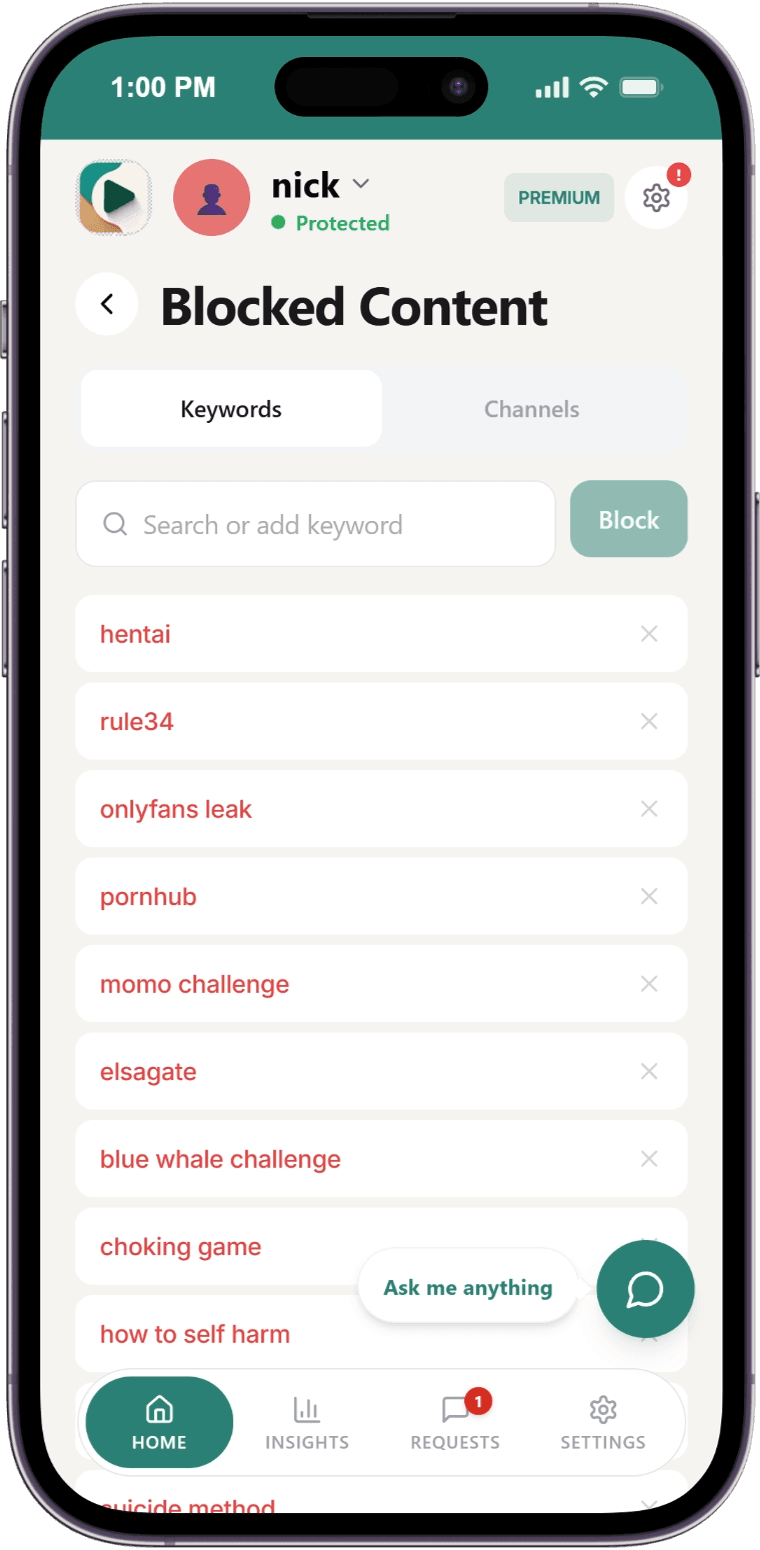
[PLACEHOLDER: Screenshot of Parent Dashboard showing Blocked card on the child's dashboard]
Method 2: YouTube's Built-in "Don't Recommend Channel"
YouTube offers a basic hiding feature:
Step 1: Find a Video from the Channel
Navigate to any video from the channel you want to hide.
Step 2: Click the Three Dots
Click the ⋮ (three dots) next to the video title.
Step 3: Select "Don't Recommend Channel"
Choose this option from the menu.
Note: This YouTube feature only hides channels from recommendations. Children can still search for and access the channel directly. For complete blocking, use WhitelistVideo's blocklist feature.
Method 3: Other Browser Extensions
Extensions like BlockTube can block channels on desktop browsers:
- Install the extension from Chrome Web Store
- Right-click any video → "Block this channel"
- Channel disappears from that browser
Note: Browser extensions work per browser. The WhitelistVideo installer protects Chrome and Edge on supported Windows and Mac computers. Use Family Safety or Screen Time to restrict alternative browser apps.
Comparison: Channel Blocking Methods
Scroll horizontally to see all columns.
| Method | Blocks Search? | Cross-Device sync? | Device setup available? | Mobile? |
|---|---|---|---|---|
| WhitelistVideo | ✅ Yes | ✅ Yes | ✅ Platform-specific | ✅ Yes |
| Don't Recommend | ❌ No | ❌ No | ❌ No | ✅ Yes |
| Browser Extensions | ✅ Yes | ❌ No | ❌ No | ❌ No |
Managing Your Blocklist
View Blocked Channels
- Open the Parents' App
- Select your child using the child switcher at the top
- Tap the Blocked card on your dashboard
- See all blocked channels and keywords
Remove a Channel from Blocklist
- Find the channel in your blocklist
- Tap the trash icon next to it
- Channel is immediately unblocked
Whitelist Takes Priority: If a channel is on both your whitelist and blocklist, the blocklist wins — the channel stays blocked.
Block by Keyword
In addition to blocking specific channels, you can block videos containing certain keywords:
- In the Blocked Content view, switch to the Keywords tab
- Add words like "prank," "scary," or "unboxing"
- Videos with these words in the title are blocked
Troubleshooting Channel Blocking
Channel still accessible after blocking
- Wait 30 seconds for sync to complete
- Refresh the YouTube page
- Check that protection is enabled (not in "Unprotected" mode)
- Verify the correct @handle was blocked
Can't find a channel to block
- Search by the exact @handle (e.g., @channelname)
- Try the full channel name
- Verify the channel exists on YouTube
Child bypassed the block
With WhitelistVideo, bypasses shouldn't be possible if:
- Advanced Protection is installed and other browsers are blocked in Family Safety or Screen Time (both part of the required Windows and Mac setup)
- Extension shows "Protection Active"
- Child doesn't have admin access to the device
If blocks are being bypassed, contact support.
Best Practices for Channel Blocking
Use Whitelisting Instead
Rather than playing "whack-a-mole" blocking bad channels:
- Set protection to Whitelist Only mode
- Only add channels you've personally reviewed
- Let your child request new channels
- Review requests before approving
This way, you're not trying to block millions of potentially bad channels — you're approving a curated list of good ones.
Combine with Auto-pilot
For older children who need more content:
- Enable Auto-pilot mode
- WhitelistVideo's Auto-pilot screens video content
- Blocks inappropriate content automatically
- Add specific channels to blocklist as needed
Regular Review
Check your blocklist monthly:
- Remove channels that are no longer relevant
- Add new channels based on your child's viewing patterns
- Review the Requests tab for patterns
Related Guides
- Approve Channels — How to whitelist safe channels
- Block Keywords — Block videos by keywords
- Auto-pilot Screening — How Auto-pilot content screening works
- Troubleshooting — Common issues and fixes