How to install the WhitelistVideo Chrome extension
Add the WhitelistVideo parental control extension to your child's Chrome browser. Installation takes about 1 minute. This step comes after you've created your parent account — if you haven't yet, start at whitelist.video/get-started (opens in a new tab).
Installing on a mobile device or TV? Installation steps vary by device. See the device-specific guides for iOS, Android, and Android TV. The instructions below are for desktop browsers (Chrome/Edge).
What do I need to install WhitelistVideo?
- Your child's computer (Windows, Mac, or Chromebook)
- Google Chrome browser installed
- Internet connection
How to add the WhitelistVideo extension to Chrome
On your child's computer
- Open Google Chrome
- Go to the Chrome Web Store (opens in a new tab)

- Click the blue Add to Chrome button
- A popup appears. Click Add extension
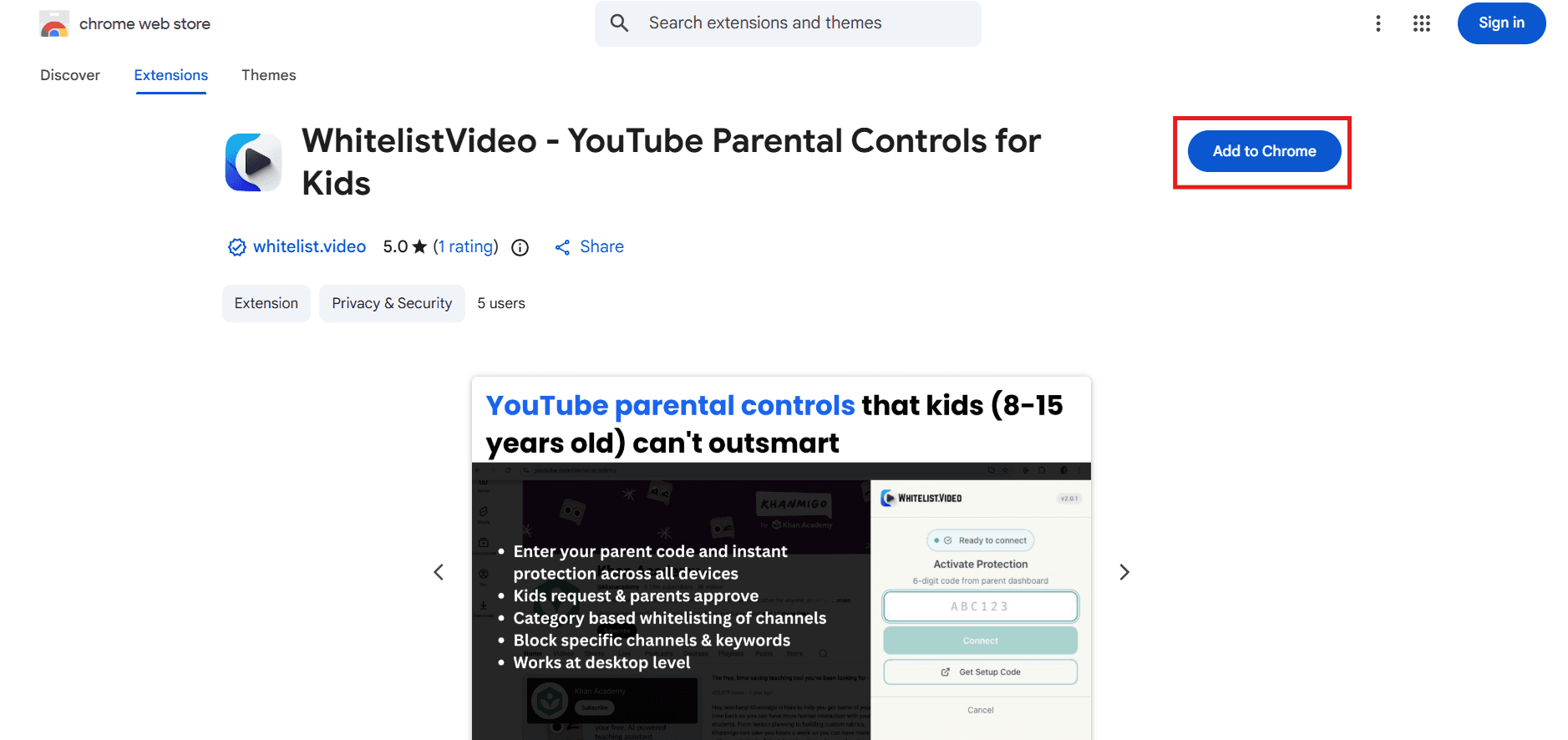
- Wait a few seconds. You'll see the WhitelistVideo icon appear in Chrome's toolbar

How to pin the WhitelistVideo extension to Chrome toolbar
Make the extension easy to find:
-
Click the puzzle piece icon in Chrome's toolbar
-
Find WhitelistVideo in the list
-
Click the pin icon next to it

The WhitelistVideo icon now stays visible in your toolbar.
What happens after installing WhitelistVideo?
The extension is installed but not active yet. Your child can still watch any video.
To start protecting YouTube, continue to the next step:
WhitelistVideo installation troubleshooting
Why don't I see the "Add to Chrome" button?
- Make sure you're using Google Chrome (not Safari, Firefox, or Edge)
- Try refreshing the page
Why won't the WhitelistVideo extension install?
- Check that Chrome is up to date: Menu → Help → About Google Chrome
- Try restarting Chrome and visiting the Web Store again
Why does it say "not available in your region"?
- WhitelistVideo is available worldwide
- Try using a different network or contact support