How to install the WhitelistVideo lockdown on Windows
Install the WhitelistVideo EXE lockdown to manage the extension in Chrome and Edge. Removing the desktop protection requires administrator access.
Required step: Install the EXE lockdown, keep the child on a Standard account, and block every other browser in Microsoft Family Safety. Together they are the required Windows setup.
Important: A user with administrator access can uninstall the desktop protection. Keep the child on a Windows Standard account, keep administrator credentials private, and use Family Safety to restrict alternative browser apps.
What do I need for the EXE lockdown?
- Your child's Windows computer (Windows 10 or 11)
- Administrator access on the computer
- The WhitelistVideo extension already installed (or it will be installed automatically)
- About 5 minutes
What does the EXE lockdown do?
The installer applies enterprise policies to Windows that:
Scroll horizontally to see all columns.
| Protection | What It Does |
|---|---|
| Force-installs extension | Extension auto-installs and cannot be removed |
| Blocks extension removal | "Remove" button is disabled in Chrome |
| Blocks developer tools | F12 and Ctrl+Shift+I do nothing |
| Shows managed badge | Chrome shows "Managed by your organization" |
After installation, Chrome will display "Managed by your organization" in the settings menu, and the extension cannot be removed without admin access.
What should I check before installing?
Run setup from your own (administrator) account. You do not need to sign into your child's account. Run the installer once from your parent/admin account, and during setup you'll choose which account(s) to protect — protection is applied only to the account(s) you select. Every other account is left untouched.
The account you protect should be your child's Standard (non-admin) Windows account:
- Run as: your administrator (parent) account.
- Protect: your child's Standard account. The installer lets you pick only Standard accounts — administrator accounts are shown but can't be selected, because an admin user could simply turn the protection off.
How to check an account's type
- Open Settings → Accounts → Other users (also called Family & other users)
- Click your child's account — it should say "Standard User" (not "Administrator")
- If it says Administrator, change it to Standard, or create a new Standard account

No Standard child account yet? Create one first — see Set up a Windows child account — then run setup and select it.
How to download the EXE installer
On your child's computer
-
Open Chrome
-
Go to the Parents' App at app.whitelist.video (opens in a new tab)
-
Navigate to your child's profile
-
Click Download Windows Installer
-
The file WhitelistVideo-Setup.exe downloads to your Downloads folder

Direct Download: You can also download directly from whitelist.video/exe/WhitelistVideo-Setup.exe
How to close all browsers first
Important: Close all browser windows before running the installer.
-
Close ALL Chrome windows (click the X in top-right corner)
-
Close ALL Edge windows (if open)
-
Check your taskbar - make sure no browser icons show open windows
Tip: Right-click on browser icons in the taskbar and select "Close all windows" to make sure everything is closed.
How to run the EXE installer
-
Open File Explorer
-
Go to Downloads
-
Find WhitelistVideo-Setup.exe
-
Double-click the file to run it
Windows security prompt (UAC)
A popup asks: "Do you want to allow this app to make changes to your device?"
Click Yes and enter your administrator password if asked.
How to complete the installation
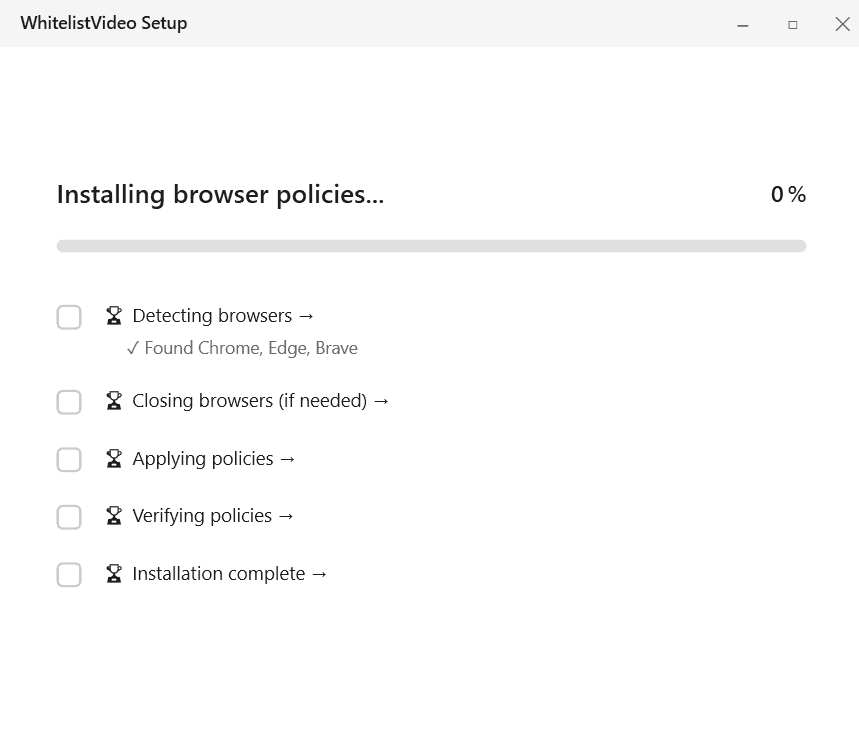
After the security prompt, the WhitelistVideo setup window opens:
- On the Welcome screen, click Get started.
- On Choose accounts to protect, select your child's Standard account (administrator accounts are shown but can't be selected), then click Protect selected.
- If a browser is still open, click Close browsers & continue when prompted.
- The installer then applies protection to the selected account automatically:
- Force-installs the WhitelistVideo extension
- Configures the per-user Chrome and Edge lockdown policies
- Installs the background protection service (watchdog)
- When you see "Your child's account is protected", click Done.
Installation takes about 30-60 seconds. Do not close the window during installation.
How to verify the lockdown is working
After installation:
Check 1: Extension shows "Installed by administrator"
-
Open Chrome
-
Type
chrome://extensionsin the address bar -
Find WhitelistVideo
-
It should say "Installed by enterprise policy" or "Installed by administrator"
-
The toggle should be grayed out and the Remove button disabled
Check 2: Chrome shows "Managed" badge
-
Click the three-dot menu in Chrome (top-right)
-
Look for "Managed by your organization" text
-
This confirms enterprise policies are active
Check 3: Developer tools are blocked
-
Press F12 or Ctrl+Shift+I
-
Nothing should happen (developer tools are blocked)
Success! The EXE lockdown is active in the protected Chrome and Edge profiles. A Standard user without administrator credentials cannot remove the managed protection.
How the protection works
When you protect an account, the lockdown applies to only that account. Every other account on the PC keeps working normally — regular browsing, settings, and downloads are unaffected.
The protection is saved to your child's account, so it's active every time they sign in. (If your child is signed out during setup, it takes effect the next time they sign in.)
Protection that can't be switched off
The installer adds a background helper that keeps watch. If the protection is ever removed or changed, it's restored automatically within about a second — and it restarts itself if it's stopped. A child using a standard (non-admin) account can't turn it off; only someone with the administrator password can remove it.
This is why your child should use a Standard account — see Set up a Windows child account.
How to uninstall the EXE lockdown
If you need to remove the lockdown:
-
Click the Start menu
-
Type Add or remove programs
-
Find WhitelistVideo
-
Click Uninstall
-
Enter your administrator password
-
Follow the prompts
Note: Uninstalling removes the enterprise policies. The extension will still work, but your child will be able to disable or remove it.
Next steps
Complete the required Windows setup: the EXE installer, a separate Standard Windows account for each child, and every other browser blocked in Microsoft Family Safety (the installer doesn't block them). Don't block youtube.com.
Optional: block google.com (Google results play video snippets) and set DuckDuckGo (privacy-focused) as the default search engine. Don't block youtube.com.
EXE installation troubleshooting
The installer won't run
- Make sure you have administrator access
- Try right-clicking the file and selecting Run as administrator
- Temporarily disable antivirus and try again
- Check that the file downloaded completely
I can still disable the extension
- Restart Chrome completely (close ALL windows)
- Restart the computer
- Make sure you selected the correct child account during setup (and that it's a Standard account)
- Run the installer again
Extension doesn't show "Installed by enterprise policy"
- The installation may not have completed
- Make sure all browsers were closed during installation
- Restart Chrome after installation
- Run the installer again
Antivirus blocks the installer
- The installer modifies registry policies, which some antivirus software flags
- Add an exception for WhitelistVideo-Setup.exe
- Or temporarily disable antivirus during installation
Chrome wasn't detected
- Make sure Chrome is installed (not just Edge)
- The installer looks for Chrome in standard locations
- If Chrome is installed in a custom location, contact support