How to install the WhitelistVideo extension on Windows
Add the WhitelistVideo browser extension to Chrome or Edge on your child's Windows computer. Installation takes about 2 minutes.
Basic Protection Only: Installing the extension alone provides basic filtering, but your child can easily remove it. For stronger protection, install the EXE lockdown after adding the extension.
What do I need to install the extension?
- Your child's Windows computer
- Google Chrome or Microsoft Edge browser
- Internet connection
- About 2 minutes
How to install on Google Chrome
On your child's computer
-
Open Google Chrome
-
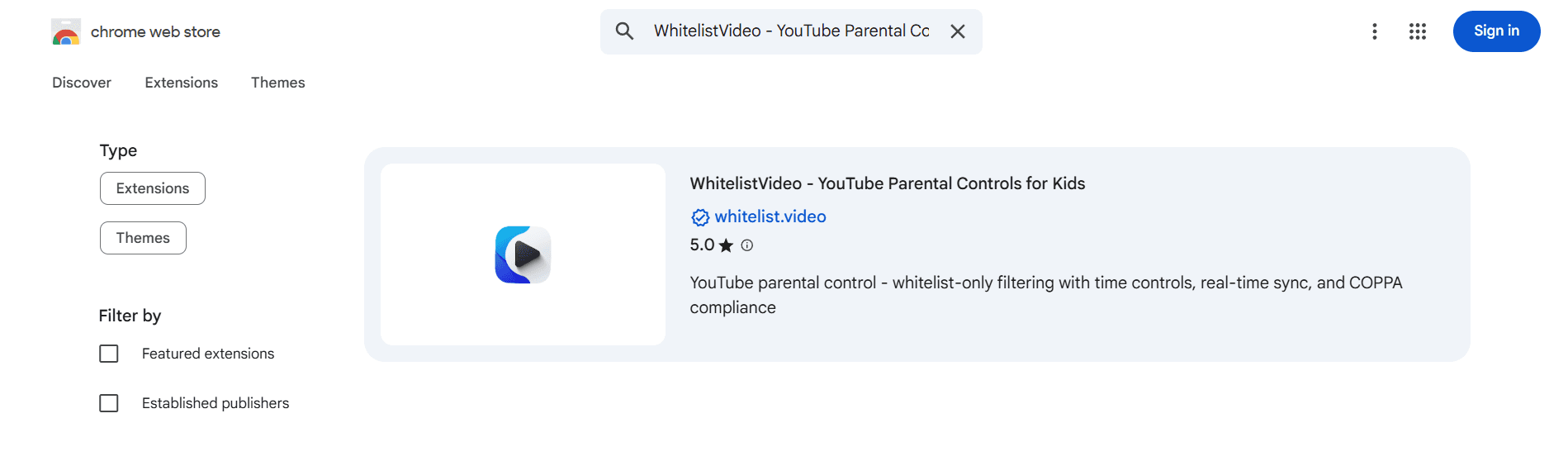
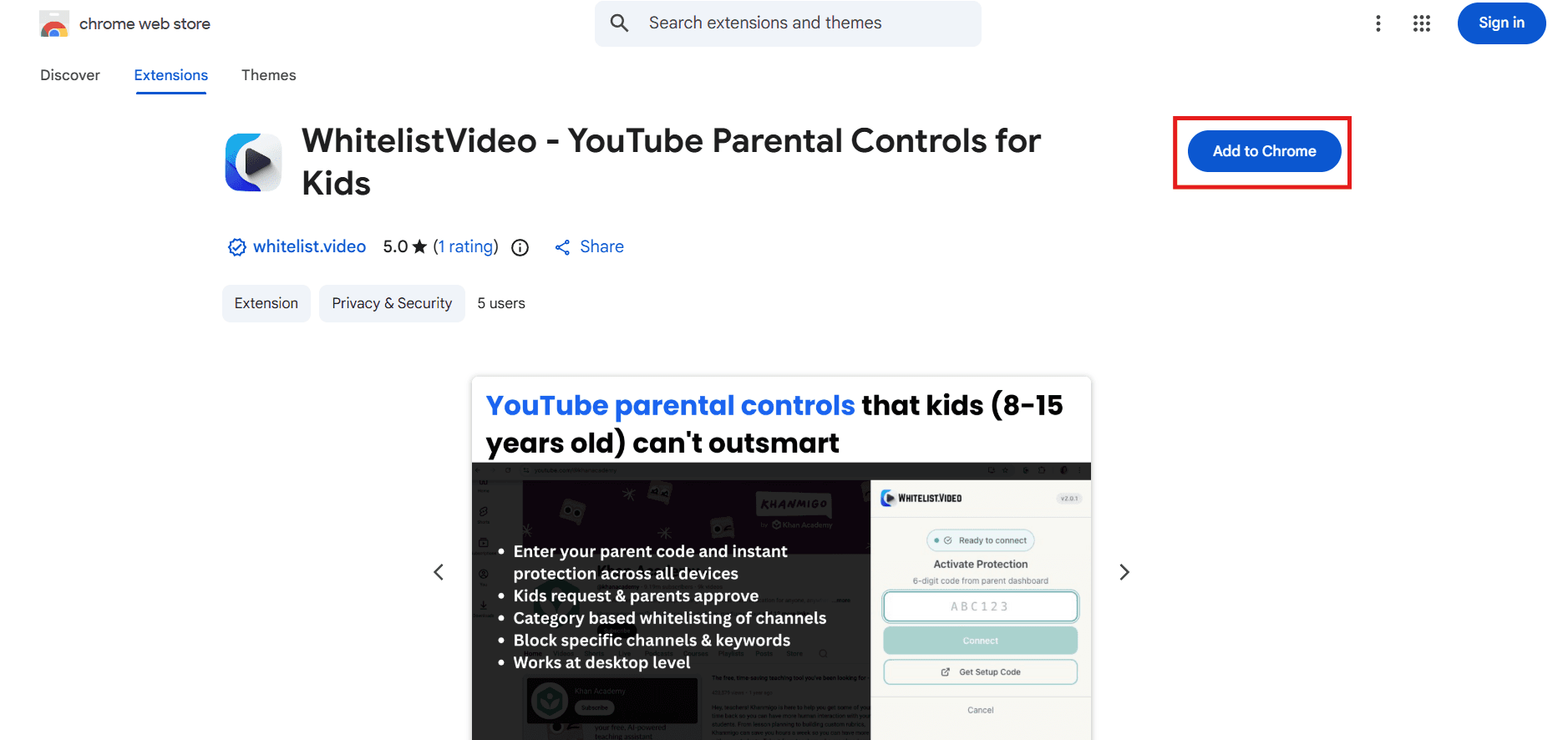
Go to the Chrome Web Store - WhitelistVideo (opens in a new tab)
-
Click the blue Add to Chrome button
-
A popup appears. Click Add extension
- Wait a few seconds. You'll see the WhitelistVideo icon appear in Chrome's toolbar

How to install on Microsoft Edge
The same Chrome extension works on Microsoft Edge.
On your child's computer
-
Open Microsoft Edge
-
Go to the Chrome Web Store - WhitelistVideo (opens in a new tab)
-
Edge may show a banner: "You can now add extensions from the Chrome Web Store"
-
Click Add to Chrome (it works for Edge too)
-
Click Add extension in the popup
-
The WhitelistVideo icon appears in Edge's toolbar
Note: Edge uses the same extension format as Chrome, so the Chrome Web Store extension works in both browsers.
How to pin the extension to your toolbar
Make the extension easy to find:
-
Click the puzzle piece icon in the browser toolbar
-
Find WhitelistVideo in the list
-
Click the pin icon next to it

The WhitelistVideo icon now stays visible in your toolbar.
What happens after installing the extension?
The extension is installed but not active yet. Your child can still watch any video.
To start filtering YouTube, continue to the next step:
How to add stronger protection
Important: With only the extension installed, your child can:
- Remove the extension from Chrome
- Disable the extension
- Use a different browser (Firefox, Brave)
- Use Chrome's developer tools to bypass filtering
To prevent these bypasses, install the EXE lockdown, keep your child on a Standard account, and block other browsers in Microsoft Family Safety:
Extension installation troubleshooting
Why don't I see the "Add to Chrome" button?
- Make sure you're using Google Chrome or Microsoft Edge (not Safari or Firefox)
- Try refreshing the page
- Check that you're on the correct Chrome Web Store page
Why won't the extension install?
- Check that Chrome is up to date: Menu -> Help -> About Google Chrome
- Try restarting the browser and visiting the Web Store again
- Make sure you have a stable internet connection
Why does it say "not available in your region"?
- WhitelistVideo is available worldwide
- Try using a different network or contact support
The extension installed but I don't see the icon
- Click the puzzle piece icon in the toolbar
- Find WhitelistVideo and click the pin icon
- Try refreshing the browser