How to Upgrade
Upgrade your WhitelistVideo plan to unlock more features and protect more children.
Upgrade from Free to Basic
Go to Settings
Click "Settings" button at the bottom of the navigation menu.
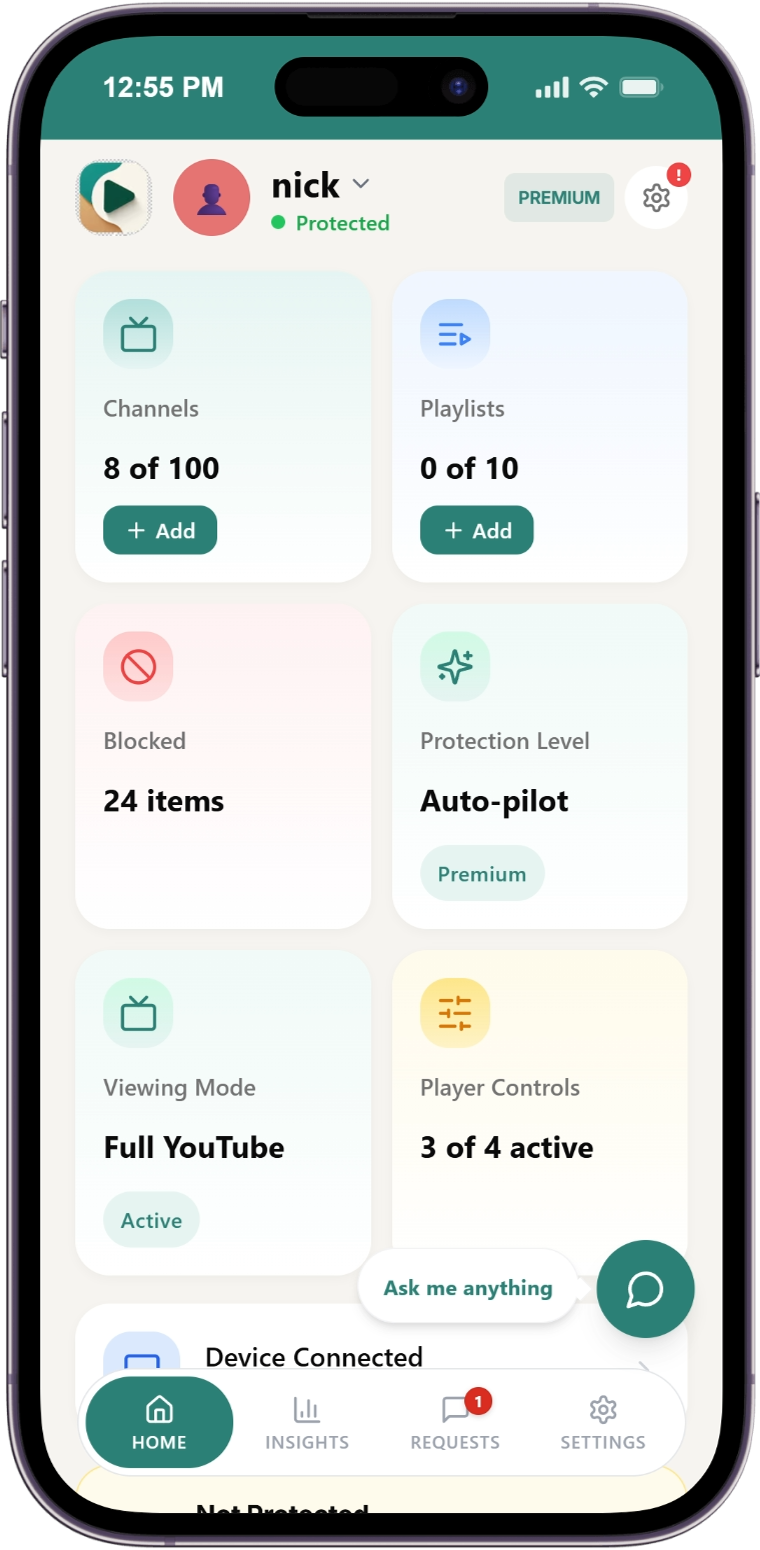
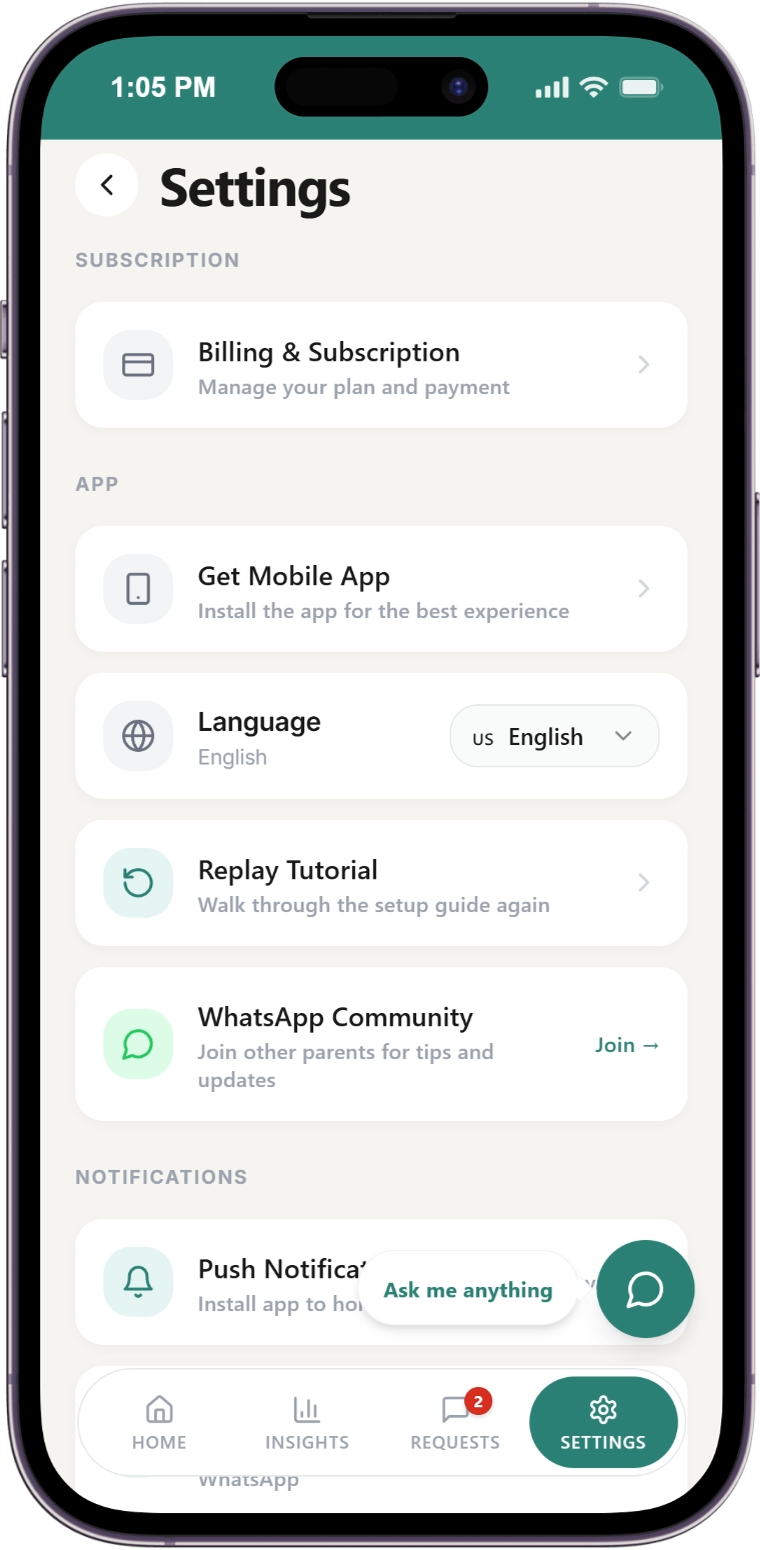
Open Subscription & Billing
Click the "Subscription & Billing" manage button.
Find Basic Plan
Locate the Basic plan card showing $6.99/month per child.
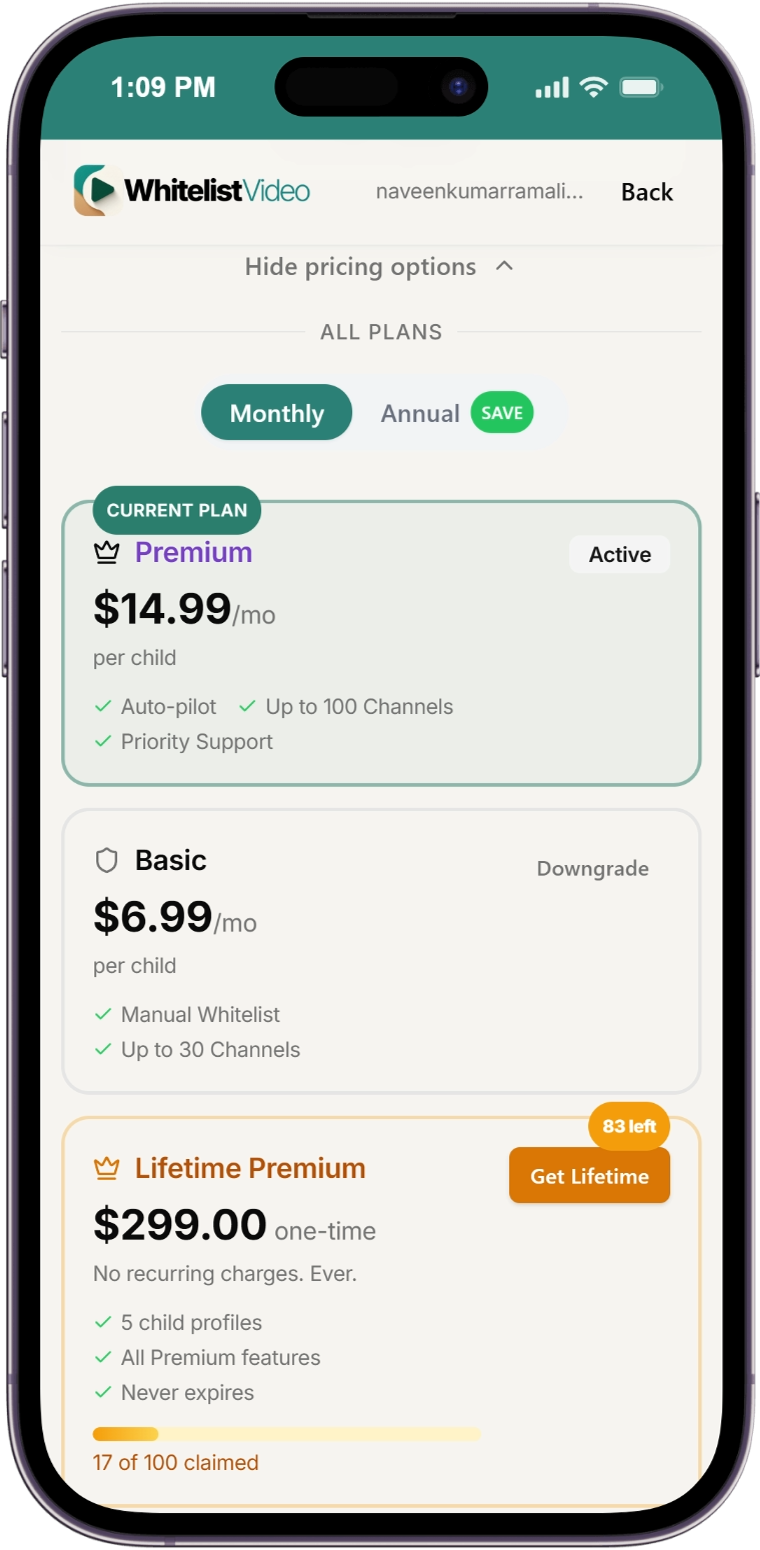
Click Upgrade
Click "Get Started" on the Basic plan.
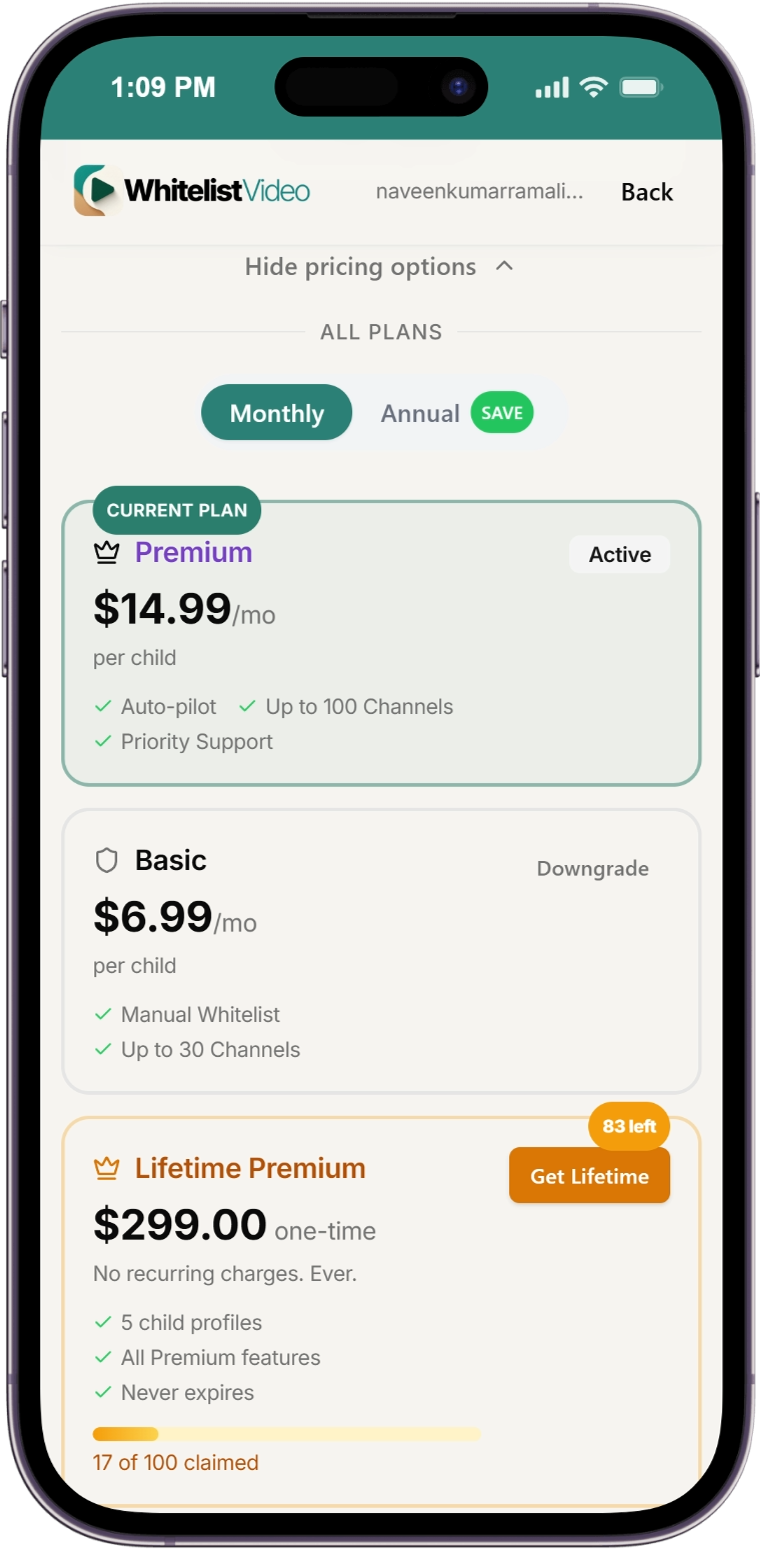
Complete Payment
Enter your payment details on the Stripe checkout page. Once paid, you'll see a success confirmation and your dashboard will reflect the upgraded plan.
What happens next:
- Your account upgrades immediately
- Basic features (extra channels) activate instantly
- First charge covers the full billing period
Upgrade from Free to Premium
Follow the same steps as above, but select the Premium plan instead.
You'll get:
- Everything in Basic
- Auto-pilot content screening
- Category filtering
- Priority support
Upgrade from Basic to Premium
Follow the same steps as Upgrade from Free to Basic, but select the Premium plan instead.
What happens:
- Premium features activate immediately
- You're charged a prorated amount for the remaining days in your billing cycle
- Example: If you're 15 days into a monthly cycle, you pay ~50% of the price difference
Related Guides
- How to Downgrade - Downgrade your plan
- How to Cancel - Cancel your subscription
- Billing Overview - Complete pricing and feature comparison
Need help? Contact support at support@whitelist.video