How to approve YouTube channels for your child
Control which YouTube channels your child can watch by building an approved channel list.
How does WhitelistVideo channel approval work?
- Approved channels: Your child can watch any video from these channels
- Non-approved channels: Videos are blocked with a friendly message
- Mixed results: Search results show all videos, but only approved ones play
Protection Required: To manage approved channels, you need to enable protection first. Tap the Protection Level card on your dashboard and select Whitelist Only or Auto-pilot.
Step 1: Enable protection
Before you can add channels, make sure protection is enabled:
- Open the Parents' App on your phone
- Select your child using the child switcher at the top
- Tap the Protection Level card on your dashboard
- Select Whitelist Only or Auto-pilot
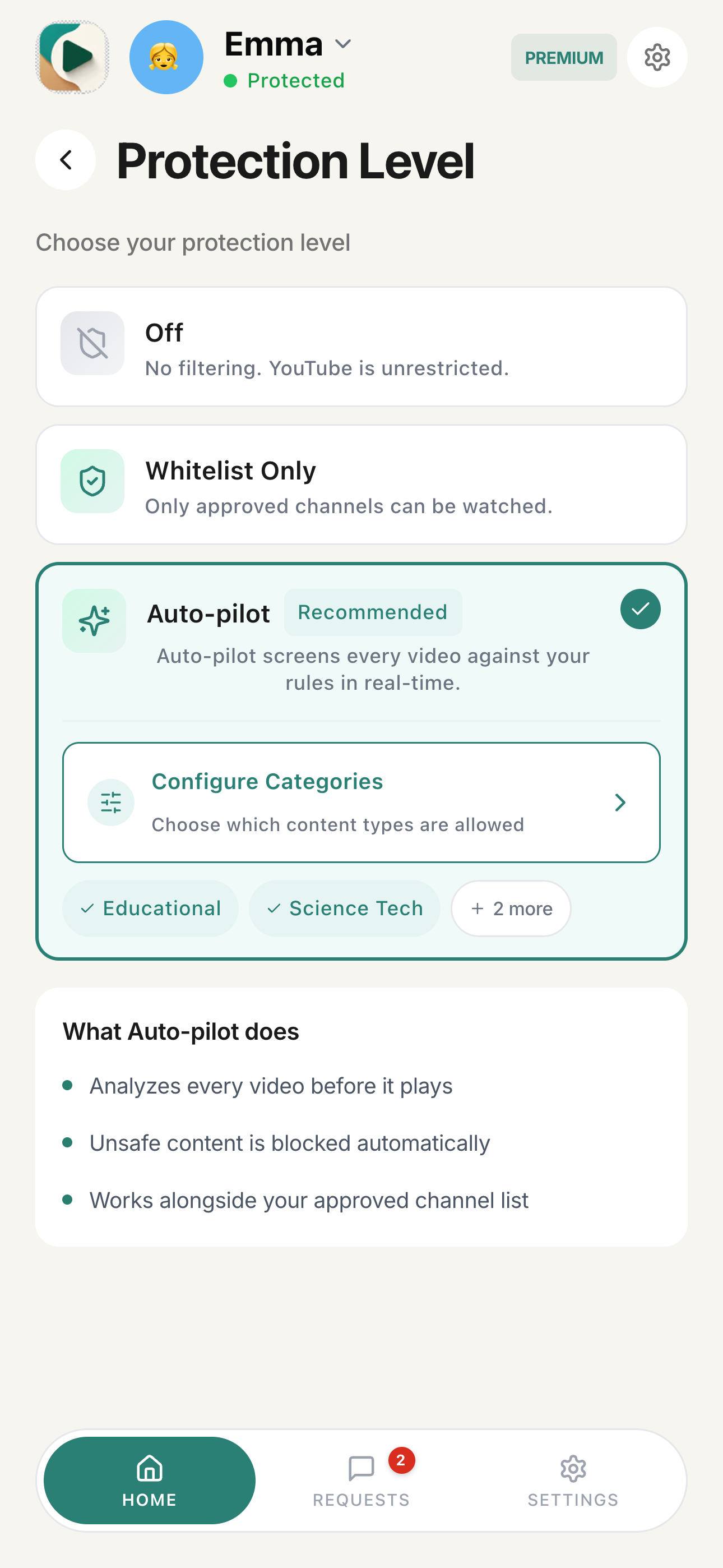
If protection is set to Off, you won't be able to manage channels. Switch to Whitelist Only or Auto-pilot first.
Step 2: Open Channels
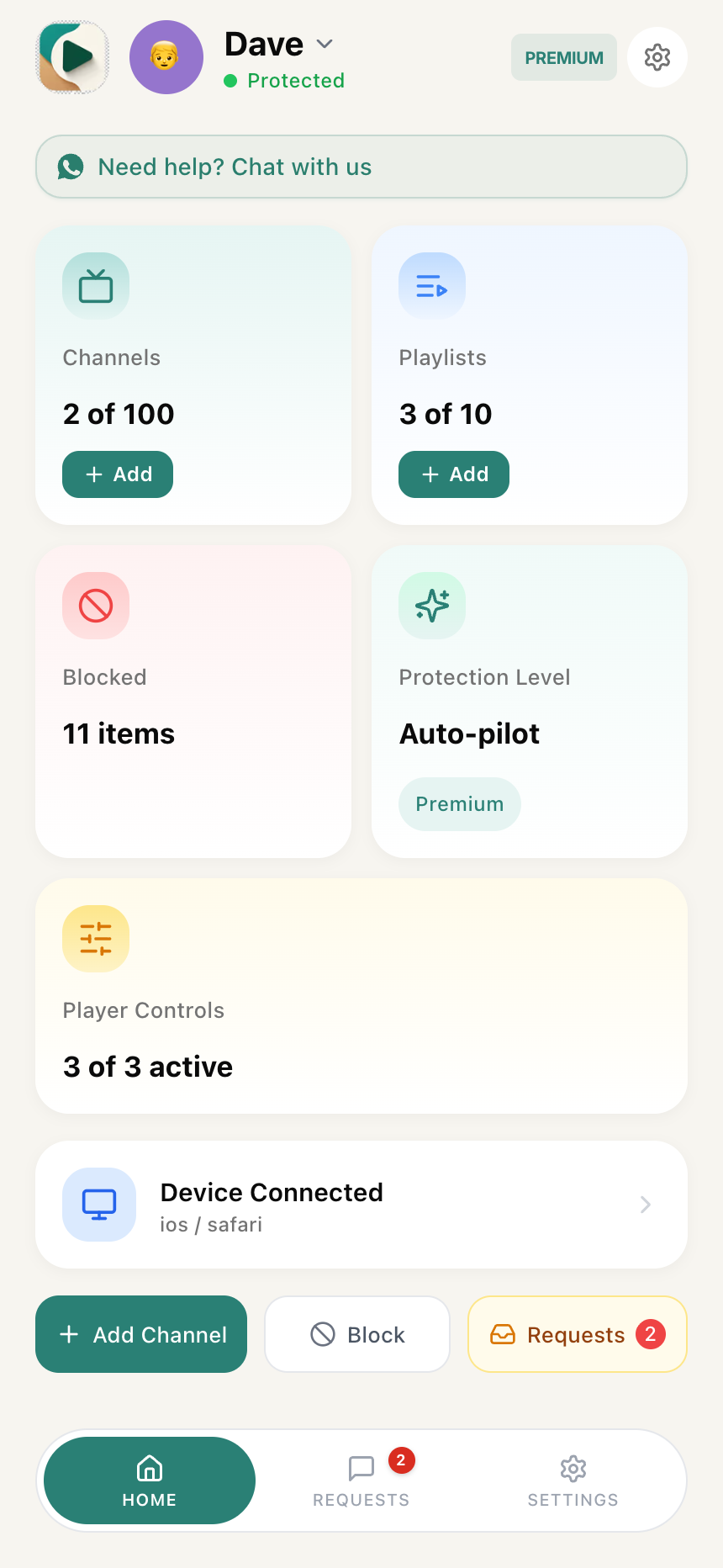
- With protection enabled, tap the Channels card on your dashboard
- You'll see the current count (e.g., "12 channels") and an + Add button on the card
How to add YouTube channels to your child's whitelist
From the Channels view
-
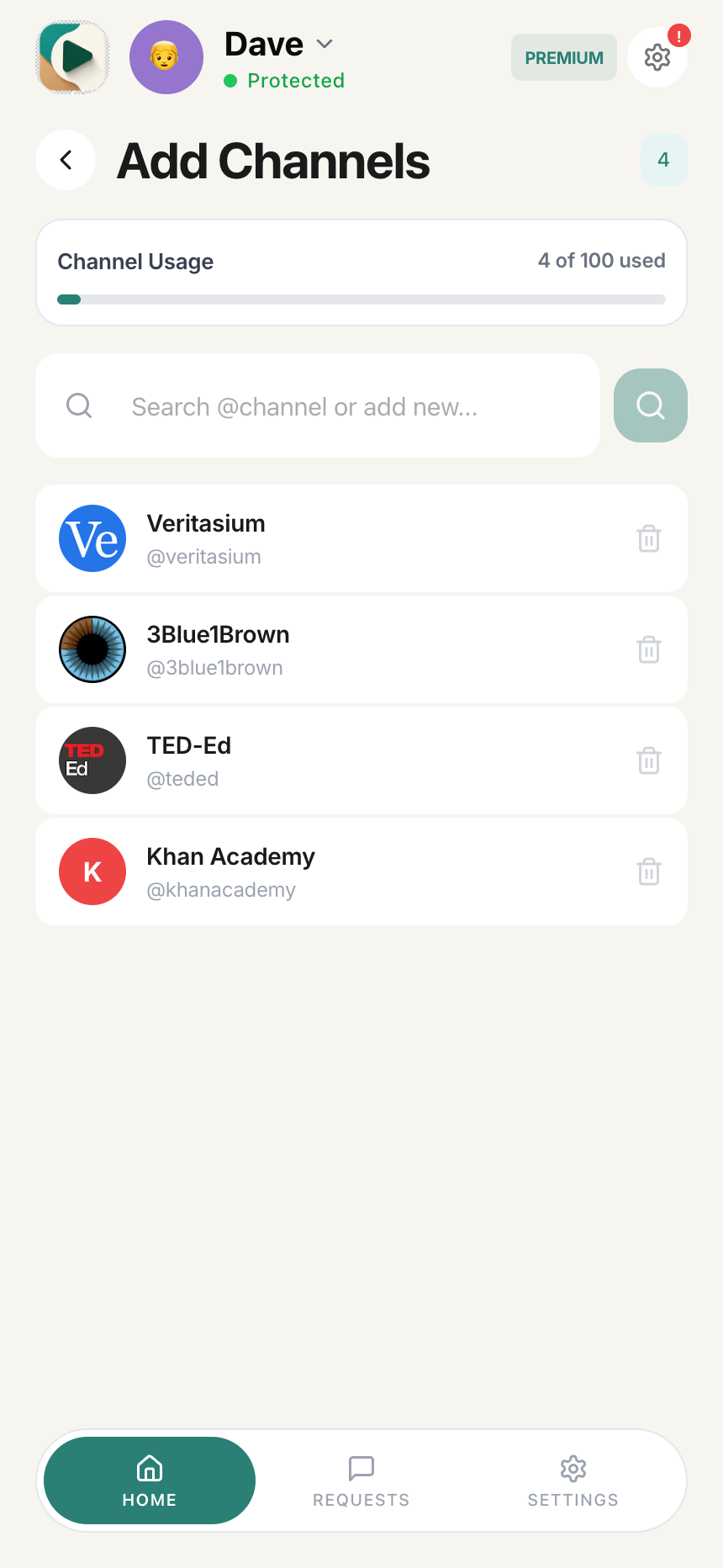
Tap the Channels card on your dashboard to open the "Add Channels" view
-
In the search bar labeled "Search @channel or add new", enter the channel's @handle or name
-
Search results appear below showing matching channels with avatar, name, and @handle
-
Tap the + button next to the channel you want to whitelist
-
The channel is added to your whitelist
Tip: Start with 5-10 channels your child already enjoys. You can always add more later.
Finding a channel's handle
To find a YouTube channel's @handle:
- Go to the channel's YouTube page
- Look for the @username below the channel name (e.g., @tseries, @CrashCourseKids)
- Copy just the handle including the @ symbol
From a blocked video (request flow)
When your child encounters a blocked video, they can request approval:
What your child sees
-
A message appears: "This channel isn't on your approved list yet"
-
They see "Watch These Approved Channels Instead" with clickable channel cards
-
Below that, they see:
- REQUESTS - How many requests they have left (e.g., "10 left, Resets 6:30 PM")
- CHANNEL - Status shows "Ready"
- "Ask Parent" button
-
When they tap Ask Parent, the button changes to "Check Status"
What you see (parent)
-
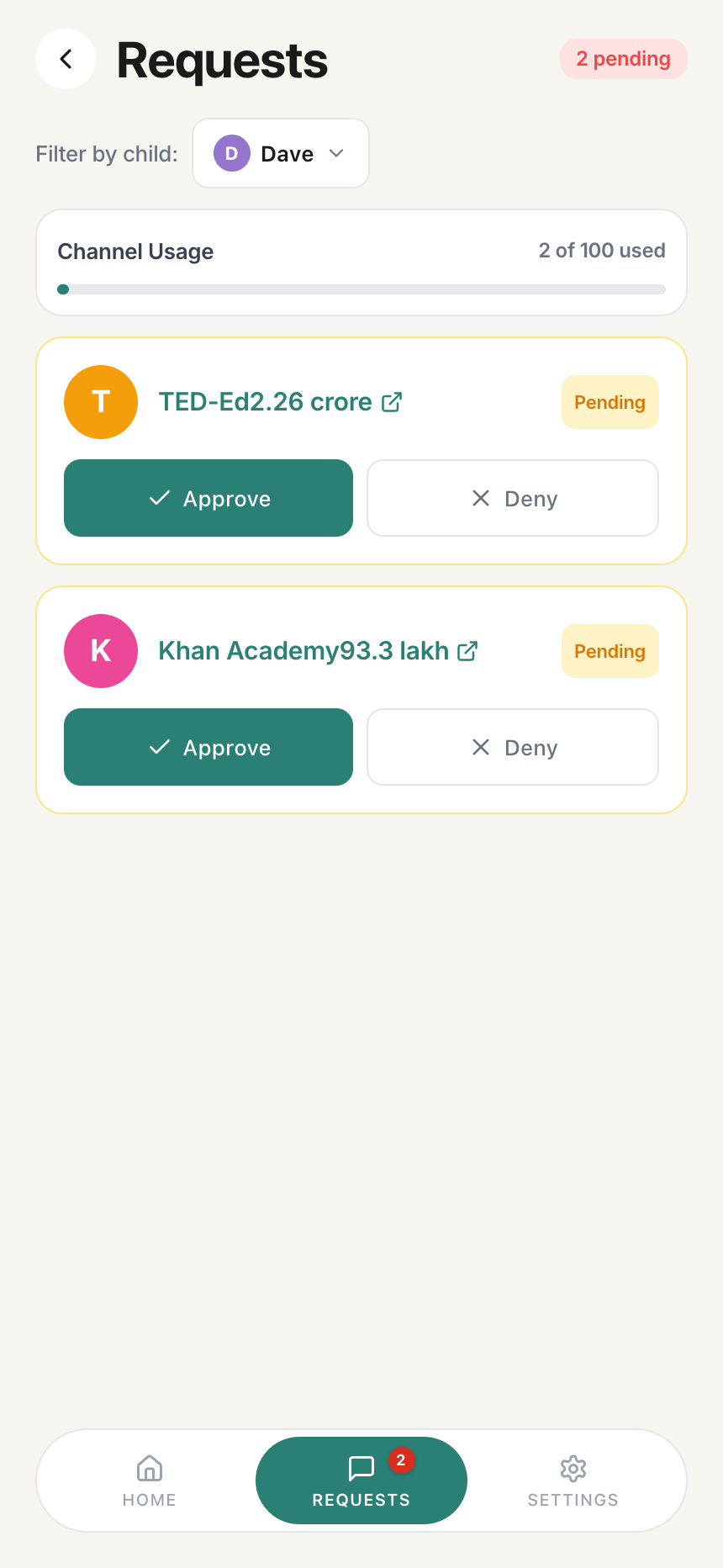
Tap REQUESTS in the bottom navigation of the Parents' App
-
The notification shows the channel name and video they tried to watch
-
Tap to review, then choose Approve or Deny
Request Limits: Children have a limited number of requests per day (resets at a set time). This prevents spam and encourages thoughtful requests.
How to view and manage approved channels
View all approved channels
- Open the Parents' App
- Select your child using the child switcher at the top
- Tap the Channels card on your dashboard
- Scroll through your channel list
Each channel shows:
- Channel avatar
- Channel name
- @handle
- Delete icon to remove
Remove a channel
- Find the channel in your whitelist
- Tap the trash icon next to the channel
- The channel is immediately removed
Immediate Effect: Removing a channel takes effect immediately. Your child will be blocked from watching videos from that channel right away.
How to find safe YouTube channels for kids
Suggested channels
The Parents' App suggests channels based on:
- Your child's age
- Channels other parents approve
- Popular educational content
Ideas by category
Educational:
- National Geographic Kids
- SciShow Kids
- Crash Course Kids
- TED-Ed
- Khan Academy Kids
Entertainment:
- Disney Channel
- Nickelodeon
- Cartoon Network
- PBS Kids
Creative:
- Art for Kids Hub
- Easy Crafts
- Kids Cooking
Music:
- Super Simple Songs
- Pinkfong
- Cocomelon
Tips for managing channels
Start small
Begin with 5-10 channels your child already watches. Add more as they request them.
Review periodically
Check your approved list monthly. Remove channels your child no longer watches.
Use requests
Let your child request new channels. This teaches them to ask permission and helps you understand their interests.
Combine with Auto-pilot
For broader access with safety, tap the Protection Level card and select Auto-pilot. Your approved channels are always allowed, plus Auto-pilot screens other videos by category.
YouTube channel approval troubleshooting
"Enable protection to manage channels" message
This means your protection level is set to Off. Tap the Protection Level card on your dashboard and select Whitelist Only or Auto-pilot to enable channel management.
Why are videos still blocked after I approved the channel?
- Try refreshing the YouTube page
- Wait 30 seconds for the change to sync
- Make sure your protection level is Whitelist Only or Auto-pilot (not Off)
Why can't I find a YouTube channel to add?
- Try searching by the exact @handle (e.g., @tseries)
- Make sure you're typing the handle correctly
- Check that the channel exists on YouTube
How did my child add a channel themselves?
This shouldn't be possible if protection is active. Check that:
- The extension shows "Protection Active"
- Your child doesn't have access to the Parents' App