How to connect WhitelistVideo to your phone
Connect your smartphone to manage WhitelistVideo parental controls from anywhere. This takes about 2 minutes.
What do I need to connect WhitelistVideo?
- Your smartphone — Android Parent App (opens in a new tab) or web app at app.whitelist.video (opens in a new tab) (works on iOS and any device)
- The computer where you just installed the extension
- Both devices connected to the internet
How to create a WhitelistVideo parent account
First, create your account on the Parents' App:
On your phone
-
Go to app.whitelist.video (opens in a new tab) in your phone's browser
-
Tap Create Account
-
Choose Continue with Google, Continue with Apple, or sign up with your email address
-
If using email, enter your name, email, and create a password
-
Tap Sign Up
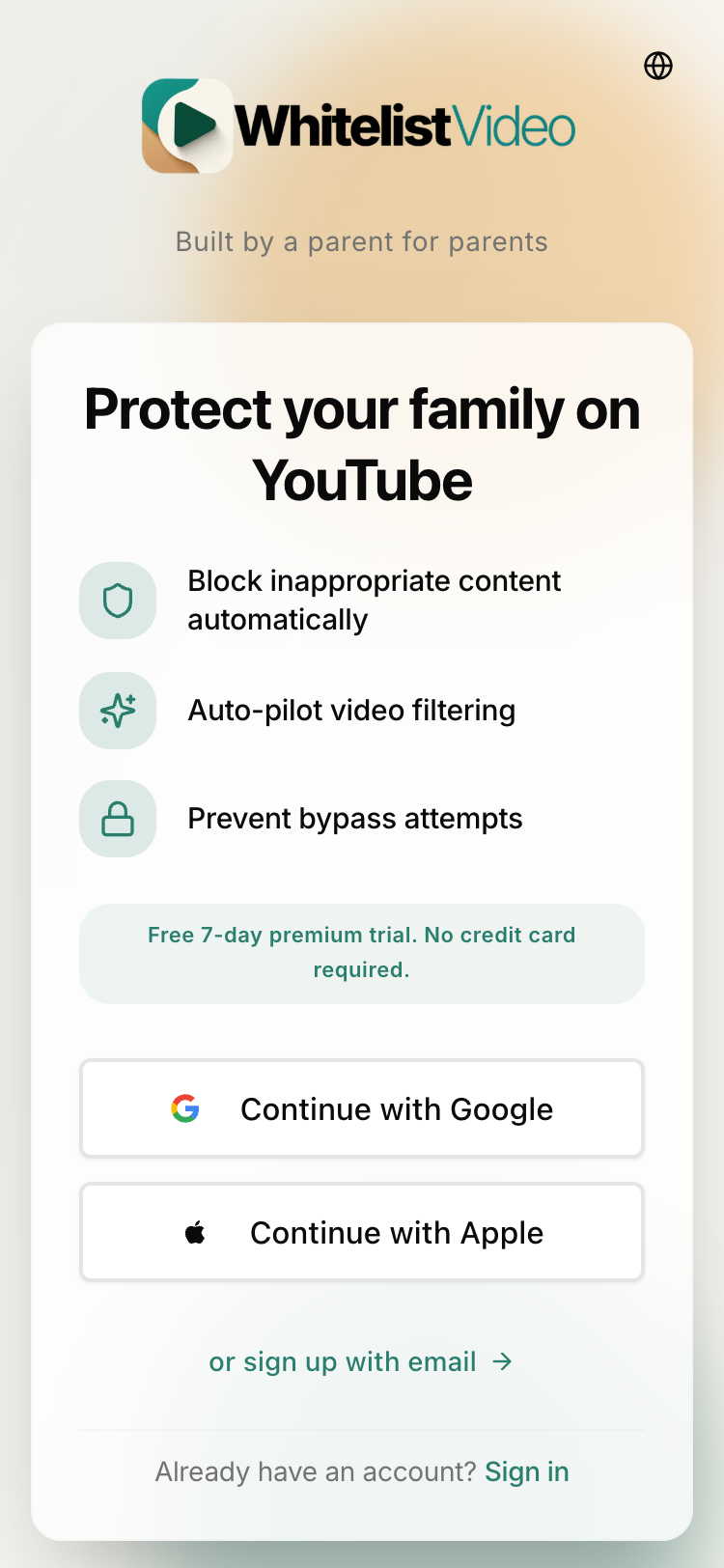
Free Test Period: Your account includes a free 2-hour test period to confirm WhitelistVideo works on your child's device. No credit card required.
Already have an account?
-
Tap Sign in
-
Enter your email and password, or use Google/Apple sign-in
How to get the WhitelistVideo activation code
Now connect the extension to your account:
On your phone
-
Open the Parents' App and select your child's profile
-
Tap Connect Device on the dashboard
-
Tap Connect New Device, then select Computer
-
A 6-digit activation code is generated
-
Tap Copy to copy it to your clipboard (or Share to send it to another device)
Code expiry: The activation code expires in 15 minutes. If it expires, reopen the Connect Device view to generate a new one.
How to enter the WhitelistVideo activation code
On your child's computer
-
Click the WhitelistVideo icon in Chrome's toolbar
-
You'll see the Connect Device screen with a Setup Code field
-
Enter the 6-digit code from your phone
-
Click Connect
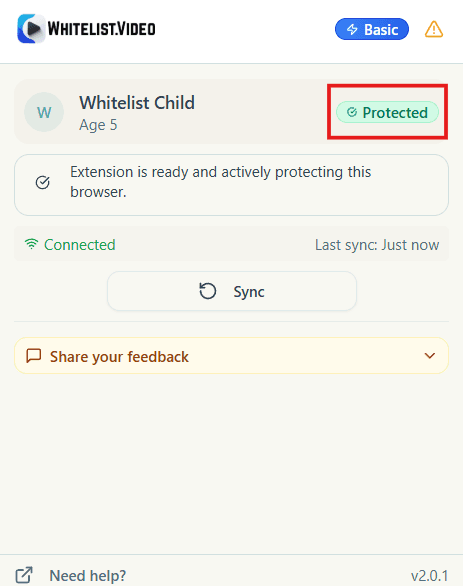
WhitelistVideo connection complete
After entering the code, the extension connects to your account. You'll see:
- "Ready to connect" status indicator turns to "Protected"
- Your phone is now linked to your child's Chrome browser
Tip: Save the Parents' App to your phone's home screen for easy access. When prompted, tap "Add to Home Screen."
What can I do from the WhitelistVideo parents' app?
From the Parents' App on your phone, you can:
- Add and manage child profiles
- Approve YouTube channels
- Adjust settings anytime, from anywhere
What's the next step after connecting WhitelistVideo?
The extension is connected but not protecting YouTube yet. You need to add your child's profile and activate protection.
WhitelistVideo connection troubleshooting
Why doesn't the WhitelistVideo activation code work?
- Make sure you typed the 6-digit code exactly as shown
- Codes expire after 15 minutes — generate a new one from the Parents' App if needed
- Check that you're signed into the correct parent account
Where do I find the activation code?
- Open the Parents' App, select your child, tap Connect Device then Connect New Device
- Select Computer as the device type
- The 6-digit code will be displayed
Why can't I create a WhitelistVideo account?
- Try using Google or Apple sign-in instead of email
- Make sure you check the age confirmation checkbox
- Check your email for a verification link