How to Block YouTube Channels and Keywords
Block specific YouTube channels and keywords to prevent your child from accessing unwanted content. Blocked content is hidden instantly across all YouTube pages.
Available on All Plans: Blocked Content is included on Free, Basic, and Premium tiers.
How does Blocked Content work?
Blocked Content works opposite to Approved Channels. Instead of approving content, you block specific channels or keywords:
Scroll horizontally to see all columns.
| Feature | What It Does |
|---|---|
| Channel Blacklist | Blocks all videos from specific YouTube channels |
| Keyword Blacklist | Blocks videos with specific words in their titles |
What happens when content is blocked?
On video watch pages:
- A full-screen overlay covers the video
- Your child sees "This content is not available"
- The overlay cannot be bypassed or dismissed
On browse and search pages:
- Blocked video thumbnails are completely hidden
- Children don't see blocked content in recommendations
- Search results exclude blocked channels and keywords
Blacklist takes priority: If a channel is on both your Whitelist AND Blacklist, it will be blocked. Blacklist rules always win.
Subscription tier limits
Scroll horizontally to see all columns.
| Feature | Free | Basic | Premium |
|---|---|---|---|
| Blocked Keywords | 50 | 200 | 500 |
| Blocked Channels | 20 | 100 | 500 |
Where to find blocked content
The Blocked content view is accessible directly from your dashboard:
- Open the Parents' App on your phone
- Select your child using the child switcher at the top
- Tap the Blocked card on your dashboard (it shows the total item count, e.g., "81 items")
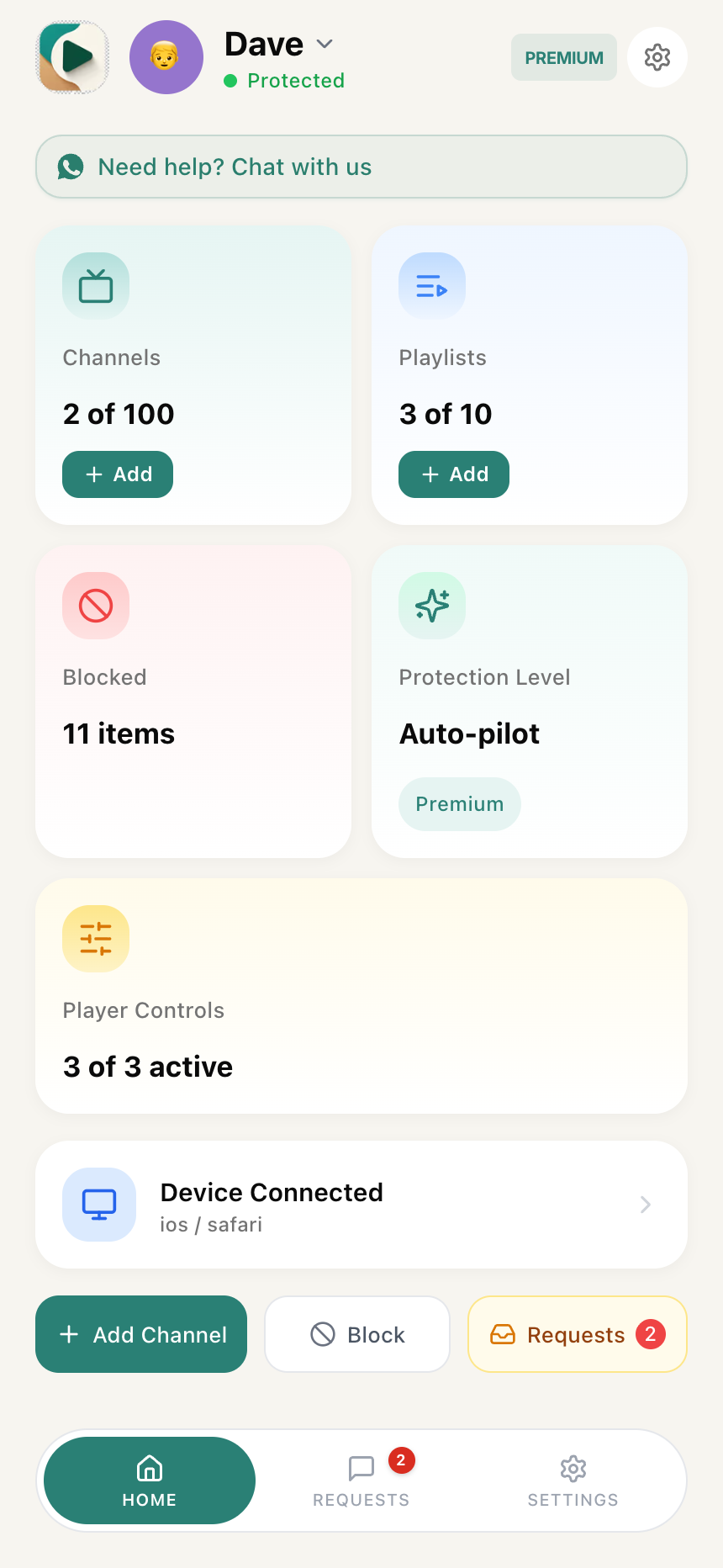
This opens the "Blocked Content" view with two tabs: Keywords and Channels.
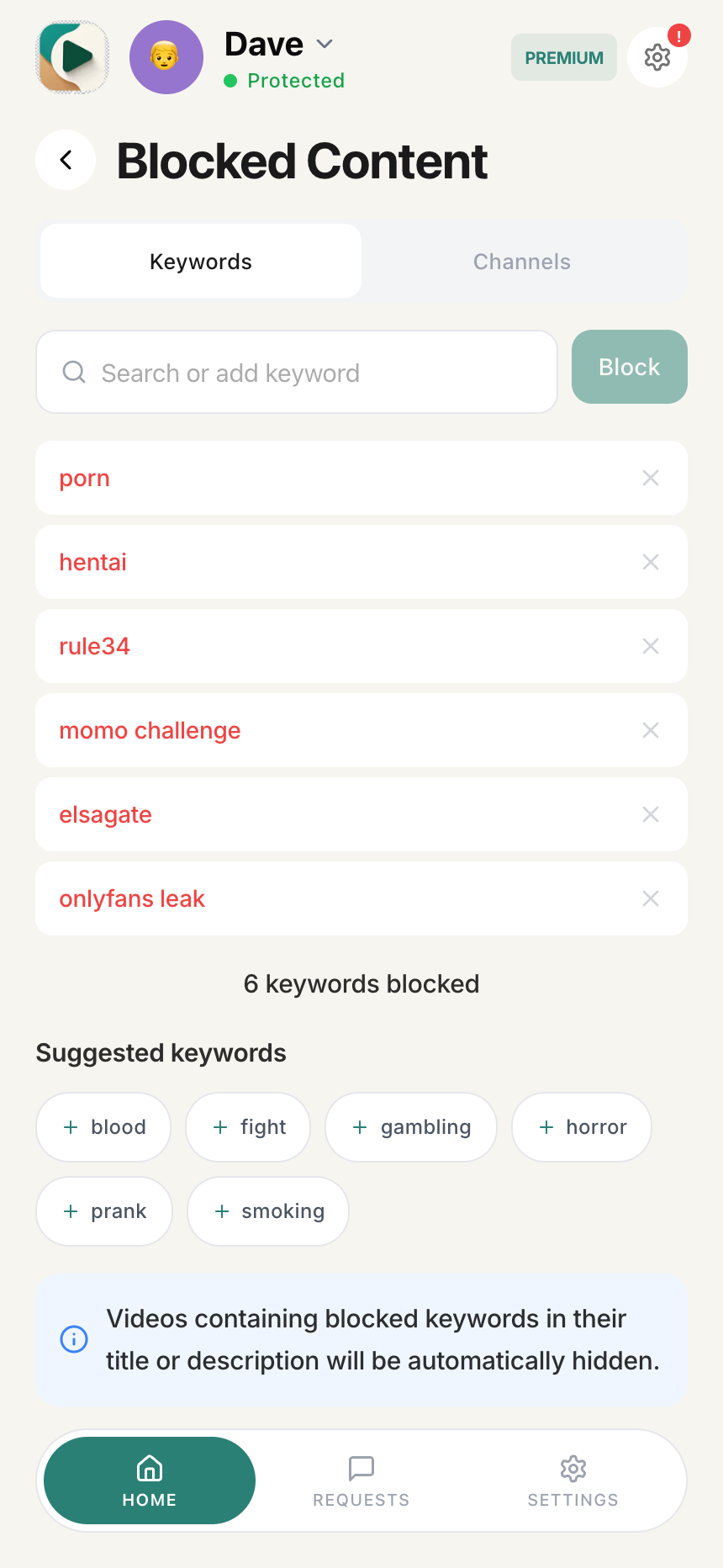
How to block keywords
Step 1: Open the Blocked Content view
- Tap the Blocked card on your dashboard
- You'll see two tabs: Keywords and Channels
- The Keywords tab is selected by default
Step 2: Add a keyword to block
- In the search bar at the top, type the keyword or phrase you want to block
- Tap the Block button to add the keyword
The keyword is immediately added to your blocked list and starts blocking matching content.
How keyword matching works: Keywords use "Contains" matching. Any video title containing your keyword will be blocked, regardless of where it appears in the title.
Step 3: View your blocked keywords
Your blocked keywords appear in a list, each showing:
- Keyword displayed in red text
- × delete icon to remove the keyword
Below the list, you'll find a Suggested keywords section with common keywords other parents block. Tap any suggestion to add it to your blocked list.
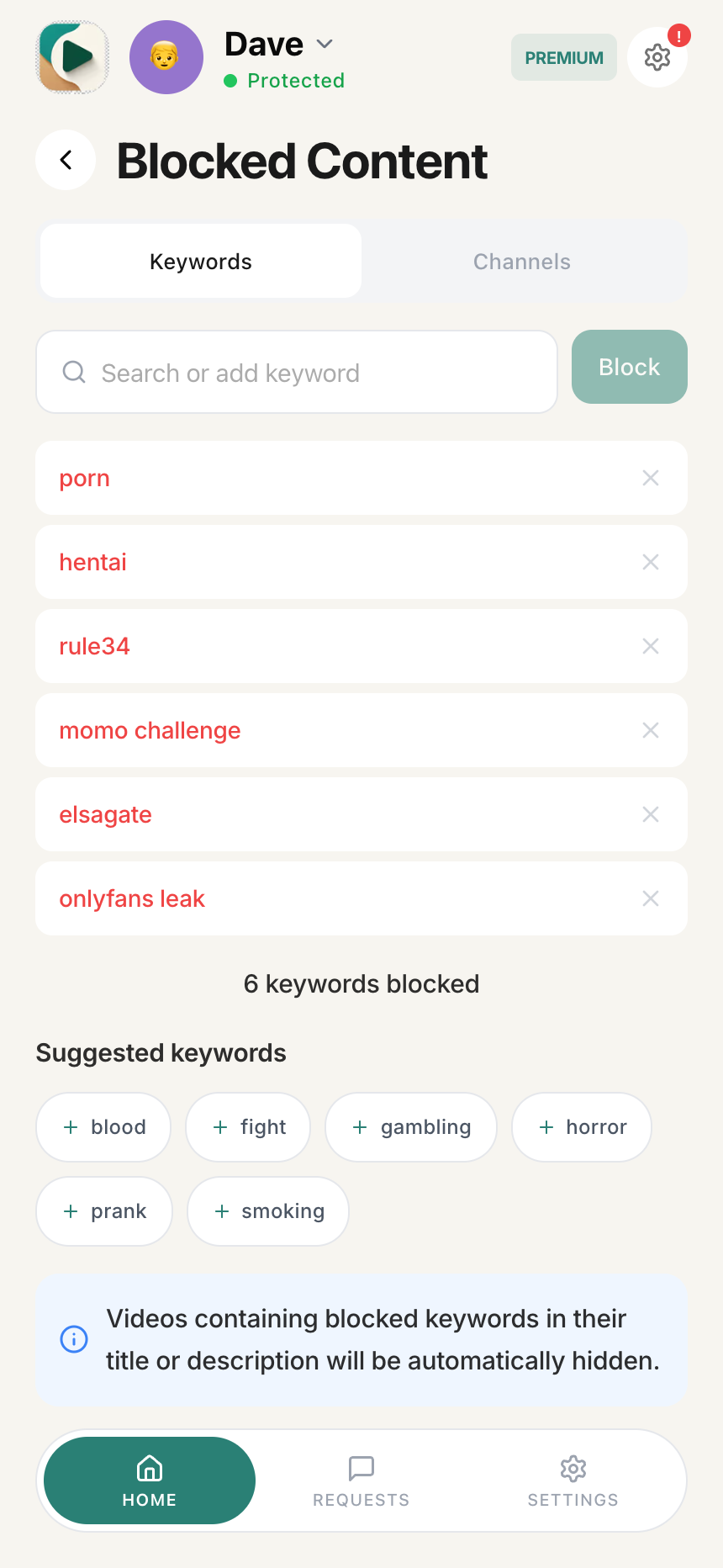
Keyword matching examples
If you block the keyword "ronaldo", these videos will be blocked:
- "Ronaldo Best Goals 2024"
- "Cristiano Ronaldo Skills"
- "Ronaldo vs Messi Comparison"
If you block "HIGHLIGHTS", these videos will be blocked:
- "Match Highlights - Liverpool vs Chelsea"
- "NBA Highlights Today"
- "Best Highlights of the Season"
How to remove a blocked keyword
- Find the keyword in your blocked keywords list
- Tap the × icon next to the keyword
- The keyword is immediately removed and videos with that keyword are no longer blocked
How to block YouTube channels
Step 1: Switch to the Channels tab
- In the Blocked Content view, tap the Channels tab
- You'll see your blocked channels list
Step 2: Search for a channel to block
-
In the search bar, enter:
- Channel name (e.g., "Cookd")
- Channel handle (e.g., @bundesliga)
- Channel URL
-
Tap the Block button to search
-
Search results appear showing matching channels with their avatar and handle
-
Tap to select and block the channel
Step 3: View your blocked channels
Your blocked channels appear in a list, each showing:
- Channel avatar (circular, colored)
- Channel name (e.g., "SML", "IShowSpeed")
- Channel handle (e.g., @SML, @ishowspeed)
- Unblock button to remove from the blacklist
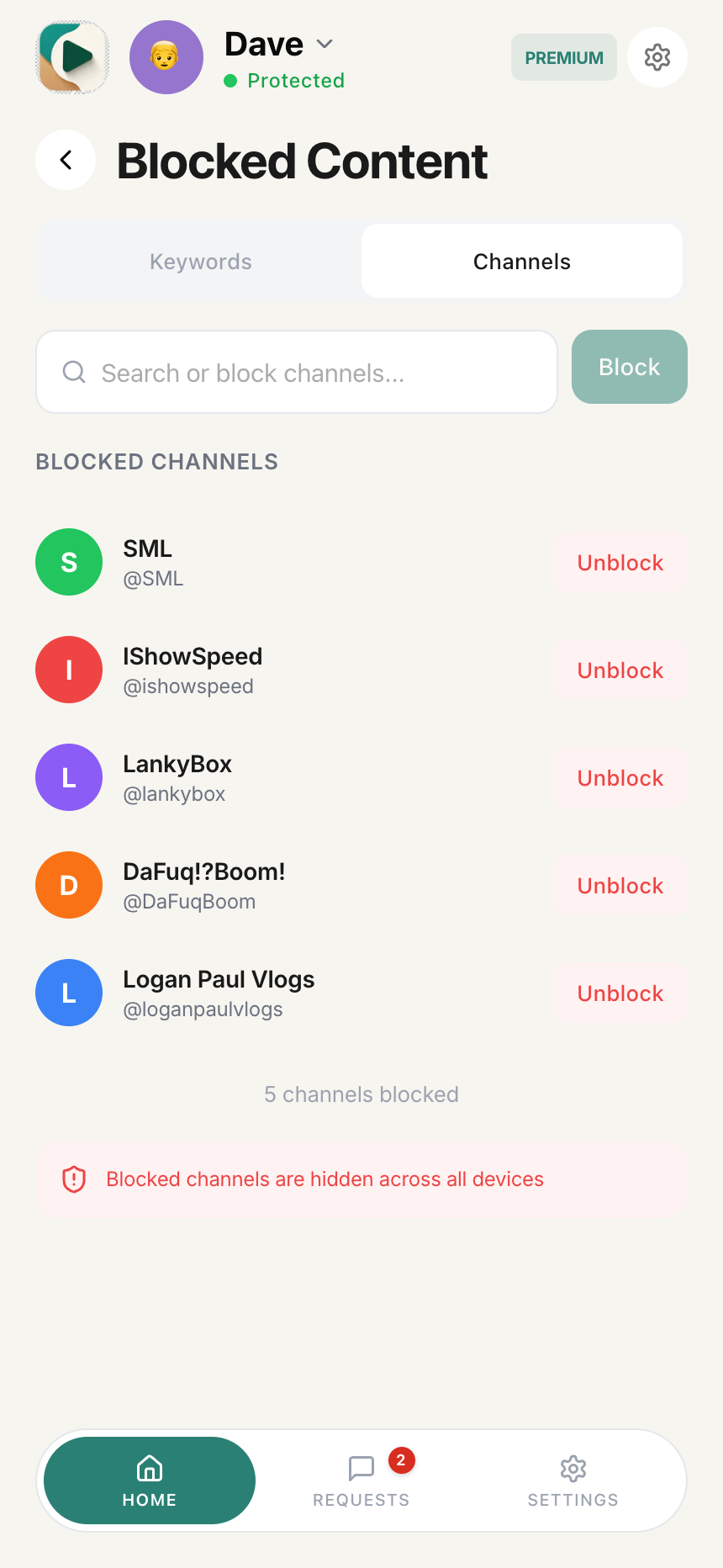
How to unblock a channel
- Find the channel in your blocked channels list
- Tap the Unblock button next to the channel
- The channel is immediately unblocked and videos from that channel become accessible again
Keyword match types
Scroll horizontally to see all columns.
| Match Type | Description | Example |
|---|---|---|
| Contains (default) | Blocks if keyword appears anywhere in title | "game" blocks "Video Game Review" |
| Exact | Blocks only if title matches exactly | "Minecraft" only blocks videos titled "Minecraft" |
| Starts With | Blocks if title begins with keyword | "How to" blocks "How to Cook Pasta" |
Coming Soon: Match type selection will be available in a future update. Currently, all keywords use "Contains" matching.
Real-time sync
Blacklist changes sync instantly to all connected devices:
- Add a keyword → Blocked immediately across all devices
- Remove a channel → Unblocked immediately
- No manual refresh required
- Changes typically apply in under 500ms
Filtering priority
When WhitelistVideo checks a video, rules are evaluated in this order:
- Emergency blocking (if enabled)
- Fail-safe checks
- Master disable (if enabled)
- Profile lock (if locked)
- → Blacklist check (channels & keywords)
- Whitelist check
- Category filtering
- Auto-pilot content screening
- Default block
Important: Because Blacklist is checked before Whitelist, blocking a channel removes access even if it's whitelisted. This is intentional—it lets you quickly revoke access to problematic channels.
Common questions
Can I block a channel that's on my Whitelist?
Yes. Blacklist rules take priority. If you block a previously whitelisted channel, it will be blocked immediately.
Are keywords case-sensitive?
No. Keywords are matched regardless of case. "HIGHLIGHTS" and "highlights" work identically.
How quickly do changes take effect?
Instantly. Changes sync to the browser extension in real-time (typically under 500ms).
Can my child see what's blocked?
No. Blocked thumbnails are hidden. Children only see an overlay message when trying to access a blocked video directly via URL.
What happens when I reach my tier limit?
You'll see an upgrade prompt. You can either:
- Remove existing entries to make room for new ones
- Upgrade your plan for higher limits
Can I export or import my blacklist?
This feature is planned for a future update.
Tips for effective blocking
Block channels, not just keywords
If you want to block a specific creator, blocking their channel is more effective than blocking keywords. Keywords might miss some videos or block unrelated content.
Use specific keywords
Avoid overly broad keywords like "video" or "play" which could block legitimate educational content. Be specific: "prank call" is better than just "call".
Review periodically
Check your blacklist monthly. As your child grows, some blocked content may become appropriate.
Combine with Whitelist
For maximum control:
- Set protection level to Whitelist Only
- Add trusted channels to Whitelist
- Use Blacklist to block specific problematic content
This gives you full control over what your child can watch.