Setting Up YouTube Parental Controls
A complete guide to setting up parental controls for YouTube. Learn how to configure YouTube's built-in features and enhance them with WhitelistVideo for comprehensive protection.
Overview: YouTube Parental Control Options
YouTube offers several built-in parental control features. Here's what's available and how to set them up:
Scroll horizontally to see all columns.
| Feature | Age Range | Control Level | Bypass Risk |
|---|---|---|---|
| YouTube Kids | 3-8 years | Curated app | Low (separate app) |
| Restricted Mode | All ages | Content filter | High (easily disabled) |
| Supervised Accounts | 9-17 years | Content levels | Medium |
| WhitelistVideo | 8-15 years | Channel-level | Very Low |
Recommendation: For children ages 8-15, pair WhitelistVideo with the device's own parental controls (Screen Time, Family Link or Family Safety). YouTube's features filter content categories; WhitelistVideo controls specific channels. On a Chromebook, turn off Family Link's own YouTube restrictions so they don't conflict with the whitelist.
YouTube's Built-in Parental Controls
YouTube Kids App
Best for children ages 3-8. A separate app with curated content.
Download YouTube Kids
Get the app from Google Play (opens in a new tab) or App Store (opens in a new tab).
Create a Parent Account
Link your Google account as the parent supervisor.
Set Up a Child Profile
Choose an age range: Preschool (4 and under), Younger (5-8), or Older (9-12).
Configure Settings
- Enable or disable search
- Set a timer
- Turn on "Approved Content Only" for maximum control
Best for younger children: YouTube Kids is designed for ages 3-8. Older children (8+) often prefer regular YouTube with WhitelistVideo's channel-based filtering.
Alternative for ages 3-8: WhitelistVideo's Curated Feed mode provides a similar experience to YouTube Kids but with full parental control over which channels appear. Available on Android phones, tablets and Android TV. Unlike YouTube Kids, you choose every channel — nothing is algorithmically suggested.
YouTube Restricted Mode
Filters mature content using automated signals. Available on regular YouTube.
Desktop Setup:
- Go to youtube.com (opens in a new tab) and sign in
- Click your profile picture → Settings
- Scroll to Restricted Mode
- Toggle Activate Restricted Mode
- Click Lock Restricted Mode on this browser (requires password)
How WhitelistVideo improves on this: WhitelistVideo + Advanced Protection works at the OS level: the extension is locked in Chrome and Edge, and Incognito and Guest mode are blocked. With other browsers blocked in Family Safety or Screen Time, there's no unfiltered route left.
Google Family Link (Supervised Accounts)
For Android devices and Chromebooks. Requires a supervised Google account.
Install Family Link
Download the Google Family Link (opens in a new tab) app on your phone.
Create a Supervised Account
Create a Google account for your child managed by your parent account.
Configure YouTube Settings
In Family Link app:
- Select your child's account
- Tap Controls → Content restrictions → YouTube
- Choose a content level:
- Explore: Ages 9+
- Explore More: Ages 13+
- Most of YouTube: Mature filter only
Link to Devices
Sign in to your child's devices with their supervised account.
Best paired with WhitelistVideo: Family Link provides device-level controls while WhitelistVideo adds channel-specific YouTube filtering for comprehensive protection. When you pair them on a Chromebook, turn off Family Link's own YouTube restrictions so they don't conflict with WhitelistVideo.
WhitelistVideo: Channel-Level Control
WhitelistVideo provides parental controls that YouTube doesn't offer:
What WhitelistVideo Adds
- Channel Whitelisting — Only approved channels are accessible
- Channel Blocking — Block specific channels permanently
- Shorts Blocking — Block YouTube Shorts entirely
- Bypass Prevention — WhitelistVideo + the device's native controls (Screen Time, Family Link, Family Safety, Google Admin console) cannot be removed without the parent's credentials; on a personal Chromebook you're alerted by email if the extension is removed
- Cross-Device Sync — Settings apply to all devices (Chrome/Edge extension, iOS app, Android app, Android TV app)
- Request System — Children can request new channels
Setting Up WhitelistVideo
Install on Your Child's Device
WhitelistVideo is available on multiple platforms:
- Desktop (Chrome/Edge): Install the browser extension from the Chrome Web Store
- iPhone/iPad: Install the iOS Child App (opens in a new tab)
- Android phone/tablet: Install the Android Child App (opens in a new tab)
- Android TV / Google TV: Install the TV App from Google Play (opens in a new tab)
Download the Parent Dashboard App
- Get the Parent App from Google Play (opens in a new tab) (Android) or use app.whitelist.video (opens in a new tab) (iOS/any device)
- Create a parent account
- Complete email verification
Add Your Child
- Open the Parent Dashboard app
- Tap Add Child → Create Child Account
- Enter your child's name and age
- Note the activation code displayed
Activate Protection
- On your child's device, open the WhitelistVideo app or browser extension
- Enter the activation code from your phone
- Protection is now active
Configure Protection Mode
In the Parent Dashboard:
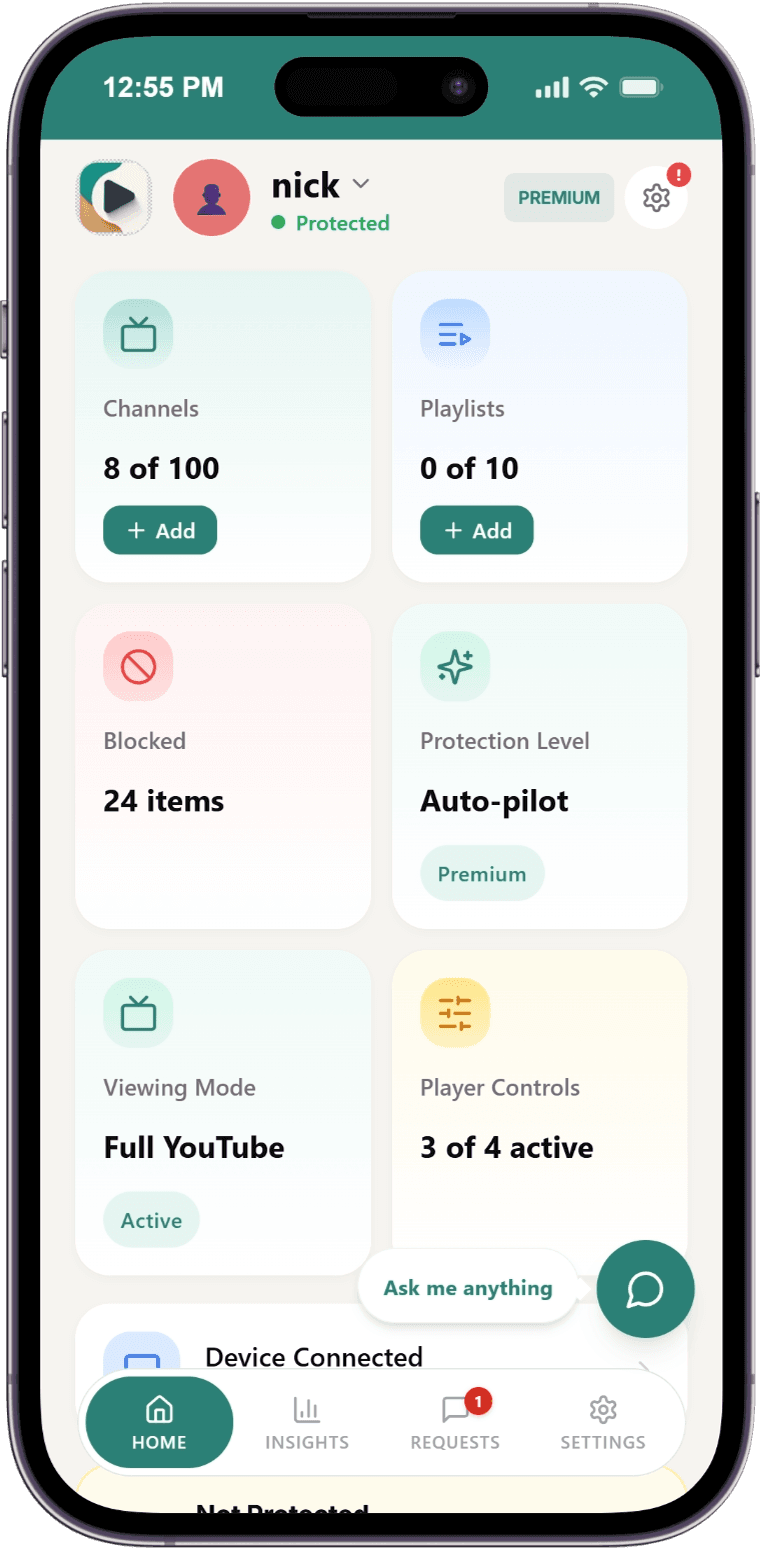
- Select your child and tap the Protection Level card on the dashboard
- Choose a protection level:
- Whitelist Only: Only whitelisted channels allowed
- Auto-pilot: Whitelisted + Auto-pilot-approved content
- Start adding channels to the whitelist
Enable Advanced Protection (Required on Windows and Mac)
On every child's Windows or Mac computer:
- Go to your child's computer
- Download the Desktop Installer
- Run the installer (requires admin password)
- Keep the child on a Standard account and verify the Chrome or Edge policy is active
Learn more about Advanced Protection →
Complete the device steps
- Windows / Mac: a separate Standard account per child, the extension in Chrome or Edge, the desktop installer run as administrator, and other browsers blocked in Microsoft Family Safety or Mac Screen Time. Don't block youtube.com
- iPhone / iPad: allow Screen Time access, block the YouTube app (the app's picker in 1.4.8; newer versions ask you to delete it), let the YouTube access check pass, and set the parent PIN. Recommended: Deleting Apps: Don't Allow. Never block youtube.com in Screen Time; no need to block Safari
- Android: in Family Link, block the YouTube, YouTube Music and YouTube Kids apps, block every browser except Chrome, block youtube.com in Chrome (Google Chrome → Manage sites → Blocked), and set the parent PIN
- Chromebook: in Family Link, block Guest mode and Incognito, require app approval, and turn off Family Link's own YouTube restrictions. You're alerted by email if the extension is uninstalled; a Google Workspace subscription (about US $5 per month; check Google's pricing for your region) lets you force-install it so it can't be removed. Don't block youtube.com
- Android TV: set a parent PIN on the profile in the YouTube app and disable the YouTube app if the TV allows it
- Optional: block google.com (Google results play video snippets) and set DuckDuckGo (privacy-focused) as the default search engine
Combining YouTube's Controls with WhitelistVideo
For comprehensive protection, use multiple layers:
Recommended Setup for Ages 8-12
- Google Family Link: Create a supervised account for device controls (Android and Chromebook)
- WhitelistVideo: Set to "Whitelist Only" mode with 10-20 approved channels
- Advanced Protection: Install the desktop app for bypass prevention, and complete the device steps
Recommended Setup for Ages 13-15
- Google Family Link: Keep supervision on for device controls (Android and Chromebook)
- WhitelistVideo: Set to "Auto-pilot" mode for broader access
- Blocklist: Add any specific channels you want blocked
- Advanced Protection: Enable for bypass prevention, and complete the device steps
Common Questions
Does YouTube have parental controls?
Yes, but they're limited. YouTube offers Restricted Mode (content filter), YouTube Kids (separate app), and Supervised Accounts (via Family Link). None of these allow blocking or approving specific channels — that's where WhitelistVideo fills the gap.
Can I put parental controls on the YouTube app?
The YouTube mobile app has basic Restricted Mode, but it's easily bypassed. For mobile YouTube control, use:
- Google Family Link for Android devices
- Screen Time for iOS devices
- WhitelistVideo's dedicated child apps — the iOS Child App (opens in a new tab) and Android Child App (opens in a new tab) provide filtered YouTube experiences on mobile devices
Why isn't Restricted Mode working?
Restricted Mode only works when:
- The user is signed in to YouTube
- They're using the same browser where it was enabled
- They're not in incognito mode
WhitelistVideo rules continue to apply in the protected viewing surface regardless of YouTube sign-in. Alternate browsers and apps require the device-specific controls described in the setup guide.
Is YouTube Restricted Mode enough for kids?
For most parents, no. Restricted Mode:
- Uses imperfect automated filtering
- Doesn't allow channel-level control
- Is easily bypassed by tech-savvy kids
- Doesn't block YouTube Shorts
WhitelistVideo provides granular channel control and a documented device-layer setup that Restricted Mode alone lacks.
Troubleshooting
Child bypassed Restricted Mode
This is common. Restricted Mode can be bypassed via incognito mode or other browsers. Install WhitelistVideo protection, then complete the device guide: restrict alternative browser apps, keep the child off administrator accounts, and test each route.
YouTube Kids shows inappropriate content
YouTube Kids occasionally has filtering failures. For kids over 8, consider switching to regular YouTube with WhitelistVideo's whitelist-only mode — it's more restrictive than YouTube Kids.
Family Link settings not applying
- Ensure the child is signed in with their supervised account
- Check that the device is connected to the internet
- Force close and reopen the YouTube app
- Verify settings in the Family Link parent app
Related Guides
- Block YouTube Channels — Block specific channels
- Approve Channels — Build your whitelist
- YouTube Controls — Configure Shorts blocking
- OS Native Parental Controls — Device-level setup