How to add your child's profile to WhitelistVideo
Create a profile for your child so you can manage their YouTube settings.
🌐 Available in 7 Languages: The Parent Dashboard supports English, Spanish, Portuguese, French, German, Chinese & Japanese. To change language, go to Settings → Language in the app.
During onboarding (new accounts)
If you're setting up WhitelistVideo for the first time, child profile creation is part of the guided onboarding wizard at whitelist.video/get-started (opens in a new tab). The wizard walks you through:
- Enter your child's name
- Select their grade level
- Choose an avatar
- Set their region and language
- Pick their interests (used for channel recommendations)
- Choose a protection level (Whitelist Only or Auto-pilot)
After completing the wizard, you'll create your parent account and proceed to device setup.
Adding more children (existing accounts)
To add another child after your initial setup:
On your phone
-
Open the Parents' App
-
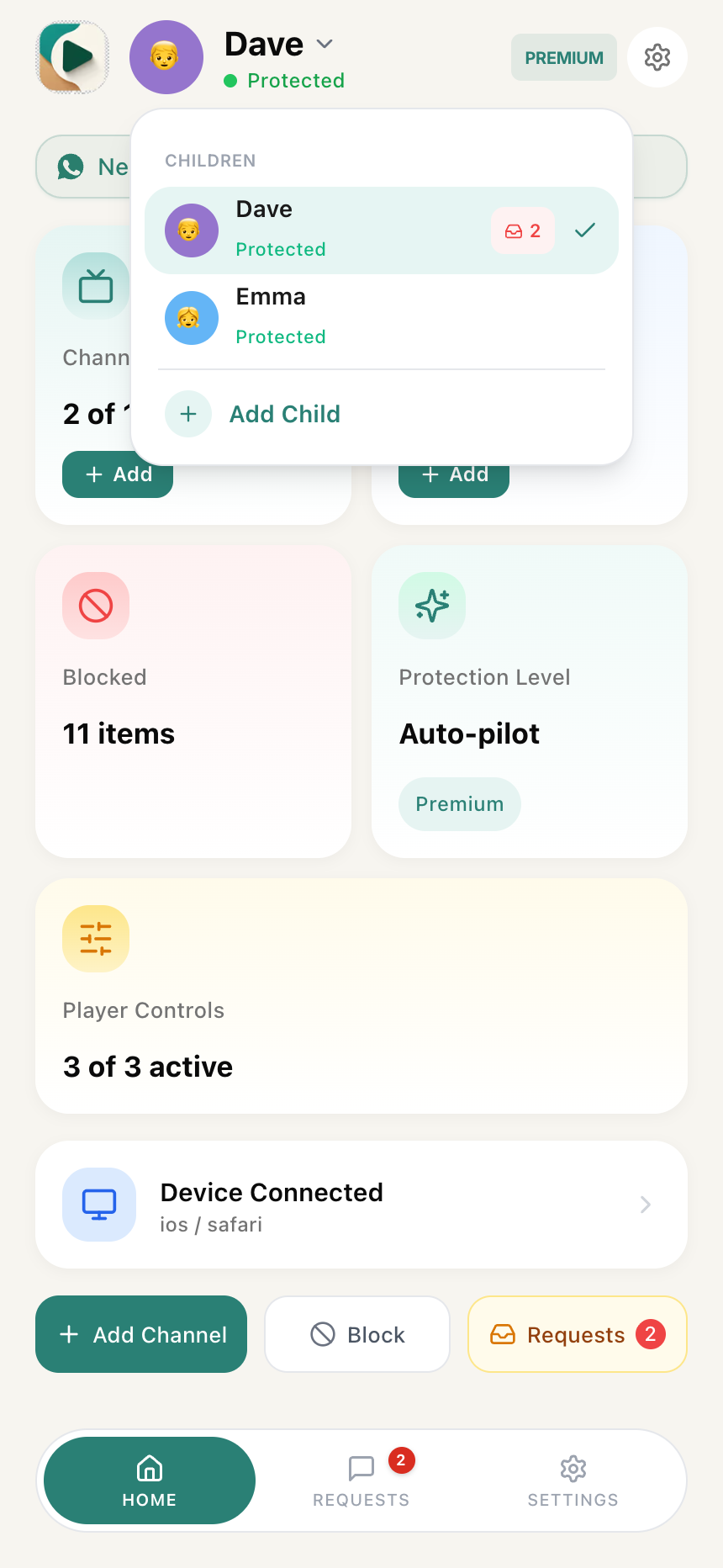
Tap the child name/avatar at the top of the screen to open the Child Switcher popover
-
At the bottom of the popover, tap Add Child
First time? If you haven't added any children yet, the dashboard shows an empty state with an Add Child button front and center.
-
Enter your child's name (or a nickname like "Kiddo")
-
Enter their age (helps us recommend appropriate settings)
-
Tap Save or Create
Profile Created! Your child's profile is now ready. You can add approved channels now or later.
Can I add multiple children to WhitelistVideo?
You can create separate profiles for each child:
- Tap the child name/avatar at the top to open the Child Switcher popover
- Tap Add Child at the bottom of the popover
- Repeat the steps above
Each child can have their own approved channels list and settings.
What's the next step after adding a child?
You've created your child's profile. Now you need to activate protection on their device.
Child profile troubleshooting
I can't find the add child button
- Tap the child name/avatar at the top of the dashboard to open the Child Switcher popover — the Add Child option is at the bottom
- If no children exist yet, the dashboard shows an Add Child button directly
- Make sure you're signed in to the Parents' App
The profile didn't save
- Check your internet connection
- Try creating the profile again
I need to edit or delete a profile
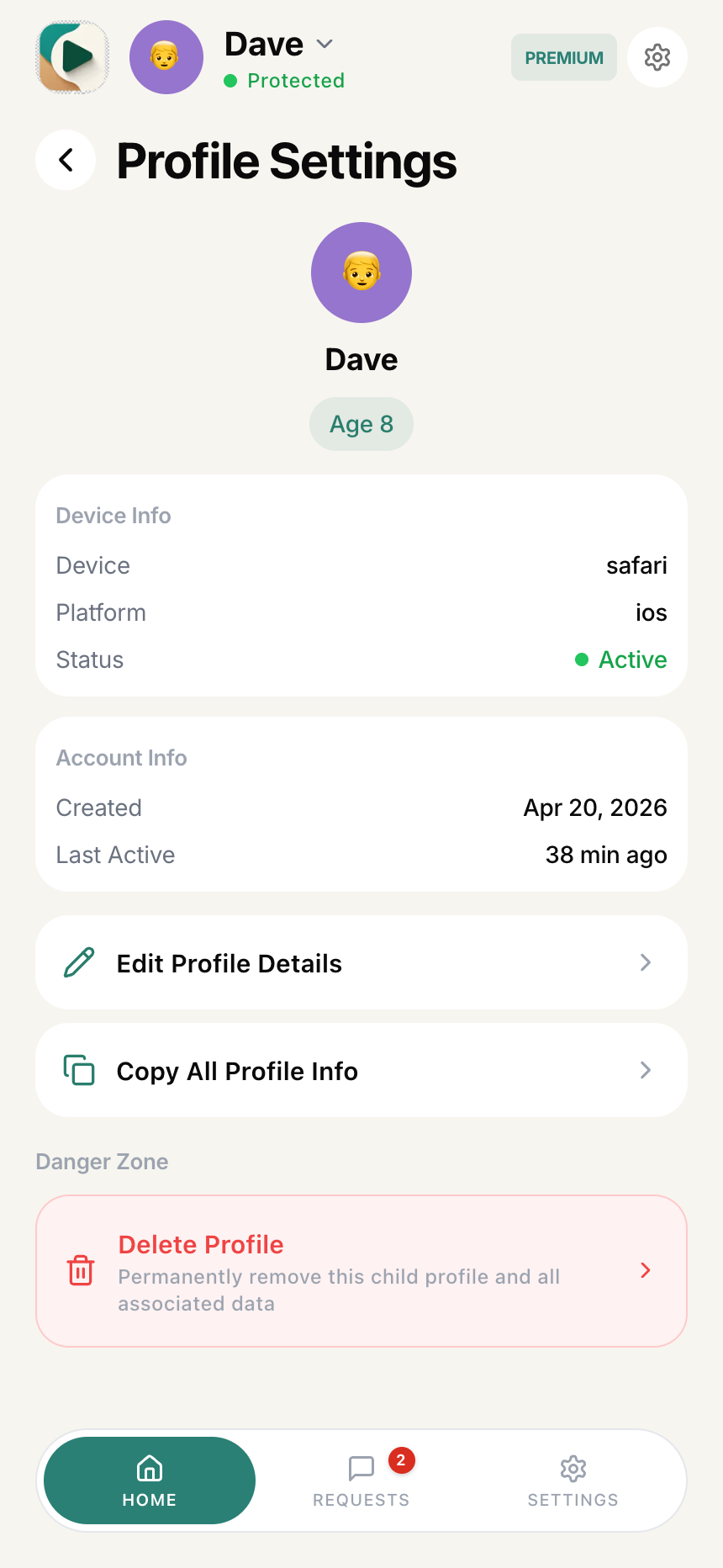
- Tap the gear icon (top-right, next to the child's name) to open Profile Settings
- Tap Edit Profile Details to update the name or age
- To delete the profile, scroll down in Profile Settings