How to install the WhitelistVideo extension on Mac
Add the WhitelistVideo Chrome extension to your child's Mac. This is the first step for all Mac protection levels.
Basic protection only: The extension alone can be easily removed by your child. For stronger protection, also install the PKG after completing these steps.
What do I need to install the extension?
- Your child's Mac
- Google Chrome browser (download from google.com/chrome (opens in a new tab) if needed)
- Internet connection
How to add WhitelistVideo to Chrome on Mac
On your child's Mac
-
Open Google Chrome
-
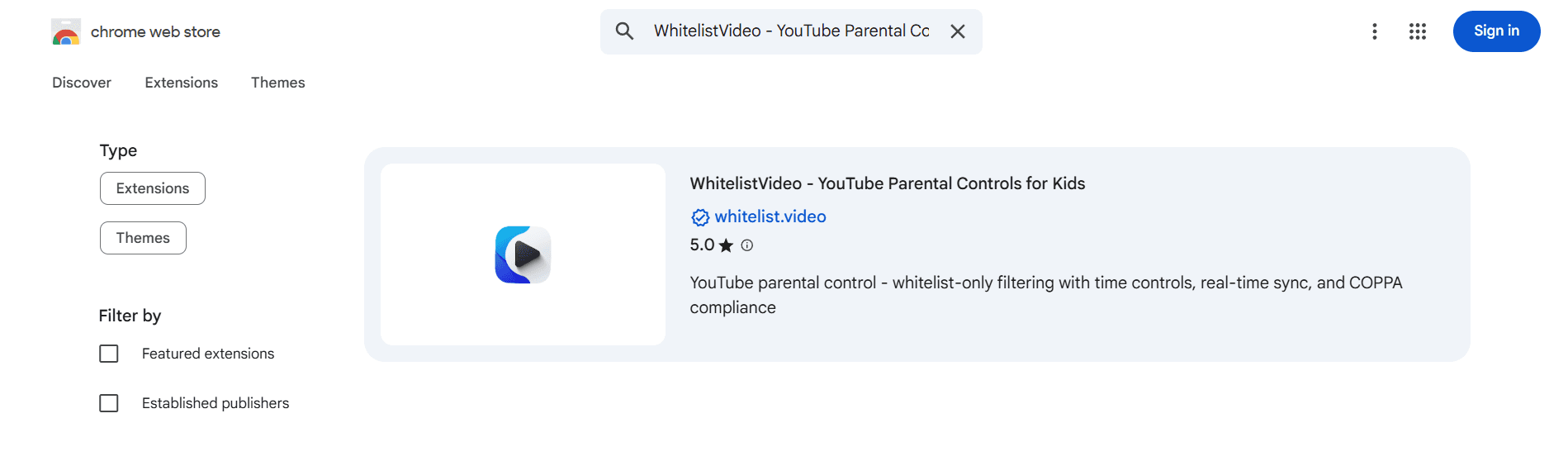
Go to the Chrome Web Store (opens in a new tab)
-
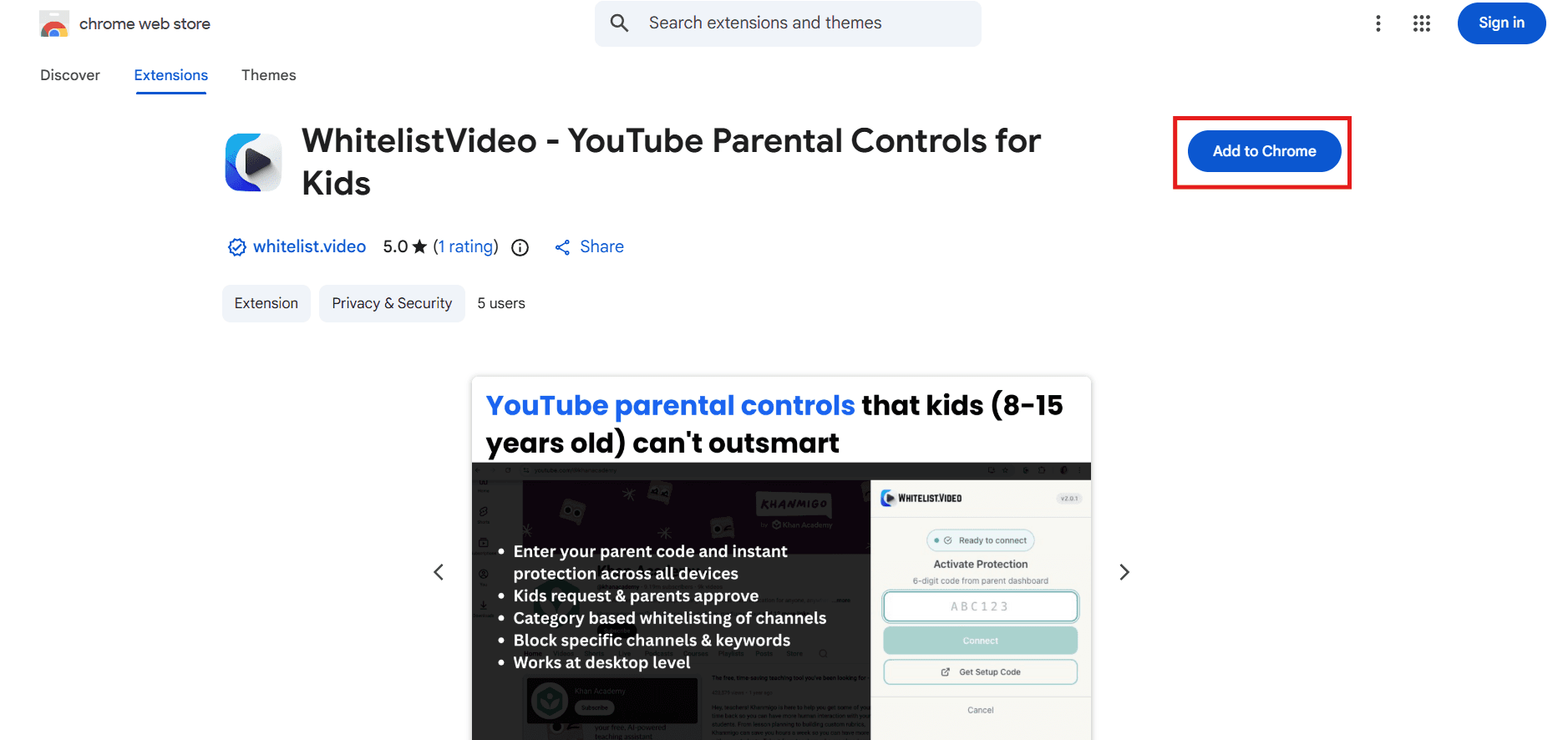
Click the blue Add to Chrome button
-
A popup appears. Click Add extension
- Wait a few seconds. The WhitelistVideo icon appears in Chrome's toolbar

How to pin the extension to the Chrome toolbar
Make WhitelistVideo easy to find:
-
Click the puzzle piece icon in Chrome's toolbar (top right)
-
Find WhitelistVideo in the dropdown list
-
Click the pin icon next to it

The WhitelistVideo icon now stays visible in your toolbar.
What happens after installing?
The extension is installed but not yet active. Your child can still watch any YouTube video until you complete activation.
Next steps:
Why the PKG installer is part of the required setup
The PKG installer provides additional protection by locking the extension in place. Without it, the extension works like any standard browser extension.
Parent notification: If your child removes the extension, you're alerted by email.
Complete the required Mac setup
Extension-only is fine while you try WhitelistVideo out. For everyday use, complete the required Mac setup: a separate Standard macOS account for your child, the PKG installer run as administrator, and Safari and every other browser blocked in Screen Time. Don't block youtube.com.
Mac extension troubleshooting
The "Add to Chrome" button doesn't appear
- Make sure you're using Google Chrome or Microsoft Edge (not Safari or Firefox); in Edge the button may say Get
- Try refreshing the page
- Check that Chrome is signed in to a Google account
The extension won't install
- Update Chrome: Menu (three dots) → Help → About Google Chrome
- Restart Chrome and try again
- Make sure you have internet connection
The extension icon doesn't appear
- Click the puzzle piece icon to see hidden extensions
- Pin the extension to make it always visible
- Try restarting Chrome
"This extension is managed by your organization"
- This is expected if you've already installed the PKG
- The extension is locked and working correctly