


TL;DR
"I just want my kid to watch the channels I've picked — nothing else."
If that’s your goal, here is the reality of the current options:
(For the wider set of controls, from Shorts to time limits, see the YouTube parental controls overview.)
- The main YouTube app won't let you do this. Restricted Mode filters out the worst stuff, and supervised accounts give you broad age categories. Neither lets you hand-pick a specific list of allowed channels.
- YouTube Kids has an "Approved Content Only" mode. This works exactly how you’d want, but it’s stuck inside the kids' app. Most kids start rebelling against the "baby app" by age 8.
- Subscriptions and playlists are not filters. They might help organize what your child sees, but they don't stop them from clicking a random recommendation or searching for something else.
- A whitelist tool is the only way to do this on "real" YouTube. WhitelistVideo blocks everything by default and only plays the channels you’ve pre-approved. It works on the standard app and keeps Shorts turned off.
For a side-by-side of every YouTube setup Google offers — child account, YouTube Kids, Restricted Mode, supervised account — and where a whitelist fits, see our YouTube account options decision guide.
If you want YouTube to show only educational videos, see how to only allow educational videos on YouTube, with a starter list of educational channels by age.
Does this work if my child is not logged in to YouTube?
With WhitelistVideo, yes. The whitelist is enforced on the device, not in a YouTube account, so a signed-out browser, a guest profile or an incognito window still plays only the channels you approved, and no YouTube sign-in is needed for your child. Google's own options work the other way round: YouTube Kids' Approved content only mode needs a signed-in parent, and supervised accounts need a signed-in child. WhitelistVideo runs alongside Screen Time, Family Link or Family Safety, and only the parent's password or parent account can remove the pairing.
Why YouTube Doesn't Have This Setting (On the Main App)
It’s frustrating for parents, but the main YouTube app has no setting to limit viewing to specific channels. You can subscribe, you can block, and you can pick a "tier," but "only allow these 10 channels" isn't an option. On phones it is worse still: the YouTube app has no real channel block at all.
This isn't an accident. YouTube’s business depends on the algorithm. Their engine is designed to keep people watching by suggesting new, related content. A kid restricted to 20 channels watches less video than a kid fed an infinite stream of "Up Next" suggestions. Every native control Google offers—like Restricted Mode or supervised tiers—is about removing the "bad" stuff from an infinite feed. None of them actually replace that feed with your specific list.
If you want to limit them to certain channels, you have to look outside the standard settings. The most YouTube itself offers is a way to stop a channel appearing in recommendations, which tidies the feed but blocks nothing.
What Doesn't Work (Save Yourself the Experiment)
Most parents try these four things first. They all fail for the same reason: they don't actually block anything. If removing a few specific channels is enough for your family, our guide to blocking YouTube channels covers every method that does.
- Subscribing to good channels. This just puts those channels in the sidebar. It doesn't hide the rest of the internet. The Home tab will still show whatever the algorithm thinks will get a click.
- Building playlists. A playlist is great until the video ends or the child taps a recommended thumbnail. It’s a suggestion, not a boundary.
- "Don't recommend channel." This helps clean up the feed, but it doesn't block search or direct links. It’s also easily bypassed if they switch accounts.
- Blocking bad channels one by one. There are millions of channels. You can't possibly block them all, and you usually only find the bad ones after your kid has already watched them. This is the whitelist vs blacklist problem—it's much easier to approve 10 channels than to block 10 million.
What Does Work: Two Real Allowlists
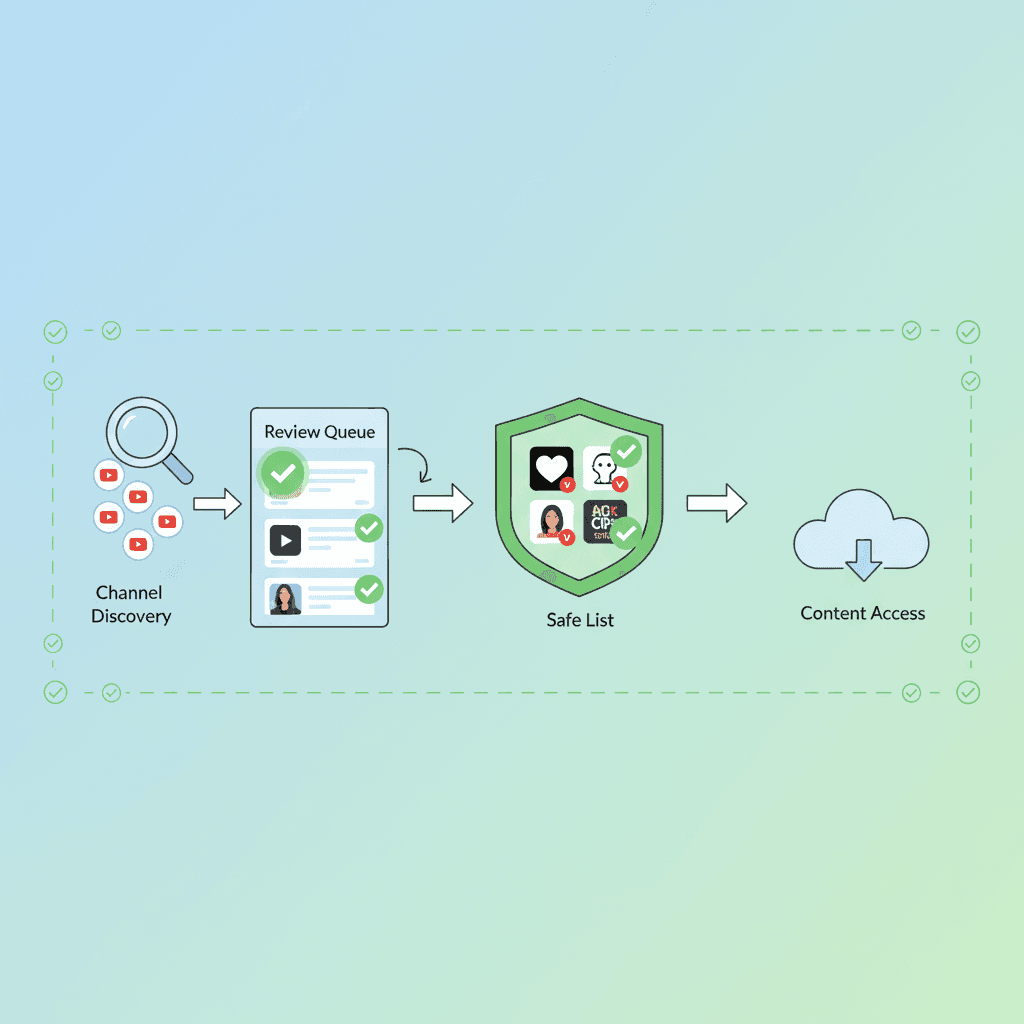
Only two tools limit playback to a list you chose. The step-by-step setup for both is in our guide to whitelisting YouTube channels; this page covers which one fits.
- YouTube Kids' "Approve content yourself" mode (called "Approved content only" on some Google help pages). You hand-pick channels, videos and collections, and search turns off. It lives inside the YouTube Kids app, whose profiles stop at age 12, so it fits younger children who haven't moved to the main app.
- A whitelist app on the real YouTube app. WhitelistVideo blocks every video by default and plays only the channels you approve, on iPhone, iPad, Android, Android TV, Chromebook, and Chrome or Edge on Windows and Mac. Shorts are blocked by default, and your child can tap Ask Parent to request a new channel.
The Layered Setup (Belt and Suspenders)
For kids under 13, the best approach is usually a combination of Google’s tools and a whitelist.
مرر أفقياً لرؤية جميع الأعمدة.
| Layer | Tool | What it covers |
|---|---|---|
| Google account | Supervised account via Family Link | Sets the content level and lets you block channels in the account. |
| Content | WhitelistVideo | Ensures only your approved channels play and keeps Shorts blocked. |
| Background | Restricted Mode (locked) | Acts as a backup filter for any device you might have missed. |
Think of the supervised account as the "who" (managing their identity) and the whitelist as the "what" (controlling the actual video playback).
Common Questions
"Isn't only allowing certain channels too strict?" It’s only as strict as you make it. If you approve 100 channels, they have thousands of hours of content. The difference is that you chose those 100 sources. It’s about curation, not just restriction.
"Will my child fight it?" Usually, kids fight being put on "the baby app." They rarely fight having the real YouTube app with a curated list. Because they can request new channels, they feel like they have some control over the process.
"What about new uploads?" You approve the channel, not the individual video. When a creator you trust uploads something new, it’s available to your child immediately.
The Bottom Line
YouTube’s built-in settings are designed to make the platform "less bad," but they aren't designed to give you total control. If you want to ensure your child only sees specific channels, you have to use YouTube Kids' approved-only mode or a dedicated whitelist tool for the main app.
Try WhitelistVideo free. You can have your approved list up and running in 15 minutes, and you won't have to worry about what the algorithm is feeding your kids.
Related Reading:
Pick the channels. Skip the rest.
WhitelistVideo blocks all of YouTube except the channels you approve — on the real YouTube app your child actually wants.
الأسئلة الشائعة
Not with YouTube's own settings on the main app — Restricted Mode and supervised accounts filter by category, not by channel. Your two real options are YouTube Kids' 'Approved Content Only' mode (young kids only, separate app) or a third-party whitelist tool like WhitelistVideo, which blocks everything on the real YouTube app and only plays channels you've approved.
Use a channel whitelist tool. WhitelistVideo installs on your child's device (browser extension on Windows/Mac/Chromebook, app on iOS/Android/Android TV), blocks all of YouTube by default, and only allows channels you approve from a parent dashboard. Unapproved videos don't play from search, recommendations or links, and Shorts are blocked by default. Paired with Screen Time, Family Link, Family Safety or the Google Admin console, only the parent's password or parent account can remove it. (On personal Chromebooks, tamper-proof protection requires admin management (a school-issued device, or a Google Workspace subscription at about US $5 per month; check Google's pricing for your region); without it, you are alerted by email if the extension is removed.)
No. A supervised account offers three broad content tiers — Older kids (9+), Teens (13+) and Older teens (16+), formerly Explore, Explore More and Most of YouTube — and within your chosen tier YouTube's algorithm decides what's available. You can block channels after your child encounters them, but you can't pre-approve a specific set of channels.
No — subscribing to good channels just adds them to the feed alongside everything else, and a playlist doesn't stop your child from tapping away to search, recommendations, or Shorts. Subscriptions curate what's suggested; they don't restrict what's playable. Only an enforced allow-list actually limits playback to your chosen channels.
Yes, with WhitelistVideo. The whitelist is enforced on the device rather than in a YouTube account, so a signed-out browser, guest profile or incognito window still plays only approved channels, and your child needs no YouTube sign-in. Google's own options need an account: YouTube Kids' Approved content only mode needs a signed-in parent and supervised accounts need a signed-in child. Only the parent's password or parent account can remove the WhitelistVideo pairing with Screen Time, Family Link or Family Safety.









نُشر في 8 يوليو 2026 · تم التحديث 25 أكتوبر 2026

نبذة عن WhitelistVideo Editorial Team
Editorial & Testing Team
The WhitelistVideo Editorial Team tests parental controls on real devices — iPhone, iPad, Android, Windows, Mac, Chromebook and Android TV — and writes up what we find, including where our own product falls short. Where a claim comes from a vendor's own documentation or from third-party testing, we cite it. Articles are reviewed by Arul Prakash, the founder of WhitelistVideo.
قد يعجبك أيضاً
How to Whitelist YouTube Channels (Only Allow Approved Channels)
Allow only the YouTube channels you approve. Step-by-step for YouTube Kids, supervised accounts, and a block-by-default app. Includes Shorts tips.

YouTube Kids vs Supervised Accounts: Which Should Your Child Use? (2026)
YouTube supervised accounts give you three content tiers — but an algorithm still picks what your child sees. Compare YouTube Kids, supervised accounts, and channel whitelisting to find what actually fits your family.

YouTube Restricted Mode Not Working? 7 Fixes (And Why It Keeps Breaking)
Restricted Mode keeps turning off, won't stay on across devices, or still shows inappropriate videos? Here are the 7 most common causes with fixes — and why the setting breaks by design.
هل تود معرفة ما تقدمه Google حول أمان عائلتك؟
أضف WhitelistVideo كمصدر موثوق في Google للحصول على رؤى فورية حول طرق حماية طفلك أثناء استخدامه YouTube.
اسأل Google عن WhitelistVideo











