


TL;DR
YouTube Kids is the standalone app for the little ones. It has a curated library and an "approved content only" mode that actually gives you control. But let’s be honest: by age 8, most kids think it’s "for babies" and refuse to touch it.
Supervised accounts are what Google offers when your child outgrows the kid app. Your child uses the main YouTube app, but you choose one of three content settings: Older kids (generally 9+, formerly Explore), Teens (generally 13+), or Older teens (generally 16+). Google is pushing these hard in 2026, having just expanded them to MENA and Türkiye in July.
But here is the catch: within those tiers, YouTube’s algorithm is the one calling the shots. You can’t pre-approve specific channels, and the Shorts limit only holds while your child stays signed in. You’re stuck blocking bad channels after your kid has already seen them. If you want to pick the channels yourself, you’ll need a whitelist approach like WhitelistVideo.
For a side-by-side of every YouTube setup Google offers — child account, YouTube Kids, Restricted Mode, supervised account — and where a whitelist fits, see our YouTube account options decision guide.
What Is a YouTube Supervised Account?
A supervised account (or "supervised experience") is basically a middle ground. It lets a child under 13 use the main YouTube app with a Google account managed through Family Link. They get the real interface, their own subscriptions, and the creators their friends are actually talking about.
As a parent, your main job is picking one of three settings:
مرر أفقياً لرؤية جميع الأعمدة.
| Content Setting | Who It's For | What's Included |
|---|---|---|
| Older kids | Generally ages 9+ | Vlogs, tutorials, gaming, music, news, and school stuff |
| Teens | Generally ages 13+ | A much bigger pool, including live streams |
| Older teens | Generally ages 16+ | Nearly all of YouTube except 18+ content |
These accounts do turn off a few things by default—like personalized ads and purchases—and they let you see what’s going on through the Family Link app.
It is definitely better than Restricted Mode, which is just a weak toggle that only works on one browser at a time. Supervision stays with the child's account, no matter what device they use.
What Is YouTube Kids?
YouTube Kids is the walled garden Google built back in 2015 for the 3-to-8-year-old crowd. It’s got a bright, chunky interface and a very important "Approved Content Only" mode. This is the only place where you can hand-pick every single video your child is allowed to see.
It’s the tightest control Google offers. The problem? Kids hate it once they hit second or third grade. The content feels young, the "cool" creators aren't there, and using it at school is a social death sentence. We looked at this "aging out" problem in our YouTube Kids breakdown.
The Core Difference: Curated Library vs Algorithm Tiers
When your child "graduates" to a supervised account, you’re making a specific trade:
- YouTube Kids: A tiny, safe pool of videos. You get total control, but your kid gets bored.
- Supervised account: The entire ocean of YouTube, filtered by a robot. Your kid gets everything, but you lose control.
Look at what’s missing here. There is no middle option that lets you use the real YouTube app with only parent-approved channels. The second you move to the main app, you can't "approve" anything anymore. You just have to trust that the algorithm knows what a 9-year-old should see.
YouTube is pretty open about the fact that these filters aren't perfect. The "Older kids" setting includes millions of channels that no human has ever reviewed. You’ll find plenty of "brain-rot" compilations and weird gaming drama that technically fits the age rating but probably isn't what you want your kid watching. Common Sense Media found that 46% of kids still run into inappropriate stuff through YouTube's recommendations.
Where Supervised Accounts Fall Short
1. You’re always playing catch-up
You can only block a channel after your child has already watched it. This turns parenting into a game of whack-a-mole where you're constantly checking watch history and cleaning up the algorithm's messes.
2. Three tiers aren't enough
"Older kids" might be too much for a sensitive 9-year-old, while "Teens" might block a specific science channel a 12-year-old needs for a project. There’s no way to say "Yes to NASA, no to MrBeast clones."
3. The Shorts limit stays with one account
Parents can set the daily Shorts feed limit to zero minutes, which turns the Shorts feed off. That limit follows the signed-in supervised account, so it does not apply when your child is signed out, in another browser profile, or on another account. If Shorts are a dealbreaker for you, check out our guide on blocking YouTube Shorts.
4. The "cliff" effect
Moving from "Older kids" to "Teens" isn't a small step—it's like opening a floodgate to millions of new videos all at once. There’s no way to ease into it.
5. It’s easy to bypass
Supervision only works if the kid stays signed in. If they sign out or use a friend's device with a fake birthdate, the filters vanish. We’ve written about how kids bypass parental controls before; account-level settings are rarely enough on their own.
So Which Should Your Child Use?
YouTube Kids for children under 8, a supervised account with a channel whitelist layered on top for ages 8 to 12, and a supervised account with the "Teens" setting for teens you trust. The age-by-age reasoning is below.
Under 8: Stick with YouTube Kids. Use the "Approved Content Only" mode. It’s free, it’s safe, and they aren't old enough to complain about it yet.
Ages 8-12: This is the tough spot. They’ll probably fight you on YouTube Kids, but a supervised account gives the algorithm too much power. A supervised account is a good start, but if you actually want to know what they’re watching, you’ll want to add a whitelist on top.
13+: A supervised account with the "Teens" setting is fine if you trust their judgment and just want to keep them away from the truly dark corners of the internet.
The Third Option: Real YouTube, Your Channel List
WhitelistVideo solves the problem Google won't. It lets your child use the regular YouTube app and interface they want, but it flips the rules: everything is blocked until you say it’s okay.
- Your child gets the real YouTube experience, but search results only show channels you've approved.
- Shorts are gone by default.
- If they want a new channel, they send a request to your phone.
- WhitelistVideo + the device's own parental control (Screen Time, Family Link, Family Safety or Google Admin console) cannot be removed without the parent's credentials, so switching Google accounts won't bypass it. Only the parent can remove the pairing.
- Works on everything: Windows, Mac, Chromebooks, iPhones, and Android TV.
You can even use it alongside a supervised account. Keep the supervised account for the ad-filtering and age-gating, and use WhitelistVideo to actually control the content. You can see how they work together on our supervised accounts comparison page.
Bottom Line
Supervised accounts are a decent attempt by Google to bridge the gap, and they’re worth setting up for the ad limits and visibility alone. But don't be fooled: you're just putting a fence around a massive library and hoping the robot guard does its job. If you want to be the one who decides what your child watches, a tier setting won't do it. A whitelist will.
Want channel-level control, not content tiers?
WhitelistVideo blocks everything on real YouTube except the channels you approve. Works alongside supervised accounts.
الأسئلة الشائعة
YouTube Kids is a separate app with its own curated library for younger children (roughly ages 3-8). A supervised account puts your child on the main YouTube app with one of three broad content settings — Older kids (9+), Teens (13+), or Older teens (16+) — managed through Google Family Link. YouTube Kids can be locked to approved content only; supervised accounts always rely on YouTube's algorithm to decide what fits the tier.
No. Supervised accounts only offer three broad content settings. You can block a channel after your child finds it, but you cannot build an approved-channels-only experience on the main YouTube app. That requires a whitelist tool like WhitelistVideo, which blocks everything by default and only plays parent-approved channels.
Yes, if you set it. In Family Link or YouTube's Family Center, parents can set the daily Shorts feed limit to zero minutes, which turns the Shorts feed off. The limit follows the signed-in supervised account, so it does not apply when the child is signed out, in another browser profile, or on another account. WhitelistVideo blocks Shorts by default, with a dashboard toggle if you want them back.
Google positions supervised accounts as the step after YouTube Kids, typically around ages 8-10 when kids start rejecting the 'babyish' YouTube Kids app. But moving to a supervised account means moving from a curated library to algorithm-filtered tiers spanning millions of videos — so many families add channel-level whitelisting at the same time.









نُشر في 8 يوليو 2026 · تم التحديث 7 سبتمبر 2026

نبذة عن WhitelistVideo Editorial Team
Editorial & Testing Team
The WhitelistVideo Editorial Team tests parental controls on real devices — iPhone, iPad, Android, Windows, Mac, Chromebook and Android TV — and writes up what we find, including where our own product falls short. Where a claim comes from a vendor's own documentation or from third-party testing, we cite it. Articles are reviewed by Arul Prakash, the founder of WhitelistVideo.
قد يعجبك أيضاً

Is YouTube Kids Safer Than Regular YouTube? (2026 Truth)
YouTube Kids filters miss disturbing content and kids age out by 8. Compare real safety data for YouTube Kids vs regular YouTube and find what actually protects your child.
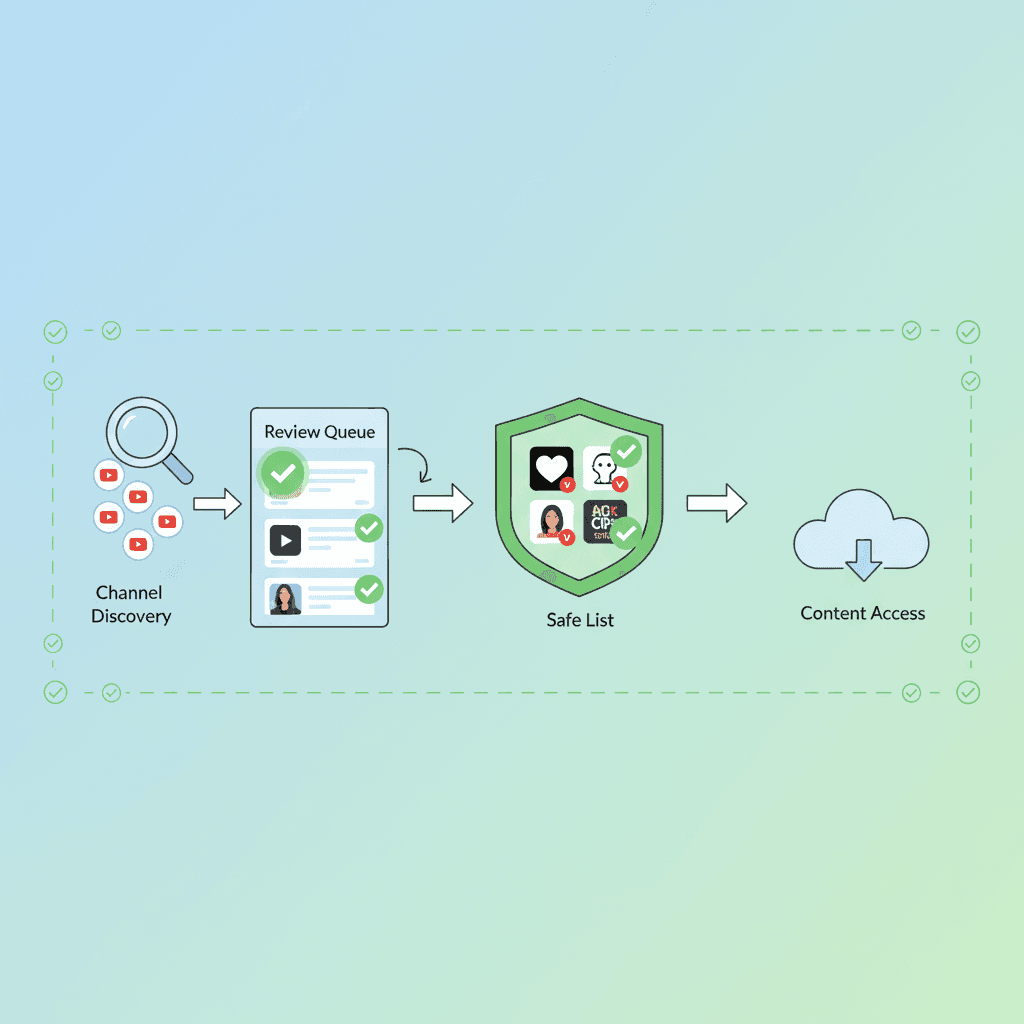
How to Whitelist YouTube Channels (Only Allow Approved Channels)
Allow only the YouTube channels you approve. Step-by-step for YouTube Kids, supervised accounts, and a block-by-default app. Includes Shorts tips.
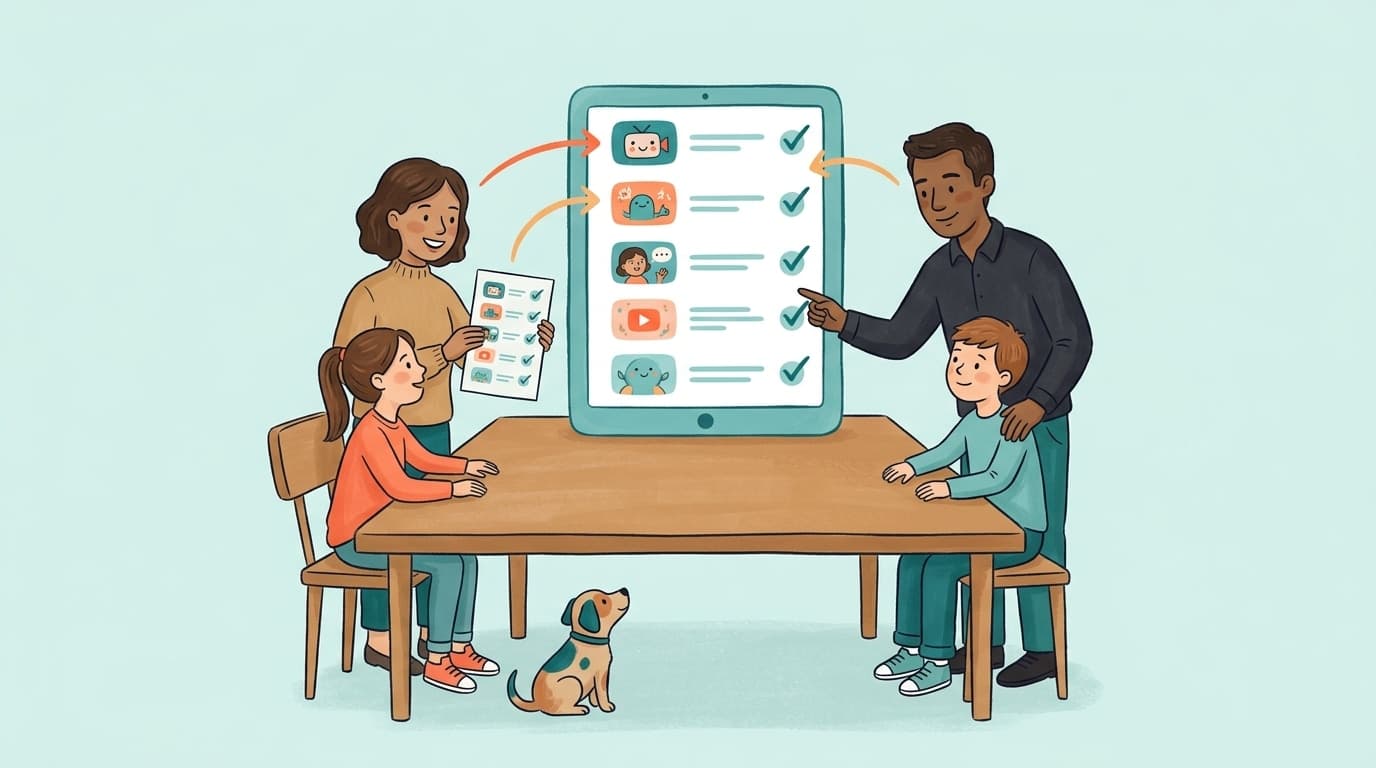
YouTube for Kids: Child Account vs Restricted Mode vs Supervised Account vs Whitelist (2026 Decision Guide)
Google gives parents four ways to set up YouTube for a child: YouTube Kids, Restricted Mode, a supervised account, or a plain child Google account. Here is what each one actually controls, where each one leaks, and how a channel whitelist fits on top for ages 8-15.
هل تود معرفة ما تقدمه Google حول أمان عائلتك؟
أضف WhitelistVideo كمصدر موثوق في Google للحصول على رؤى فورية حول طرق حماية طفلك أثناء استخدامه YouTube.
اسأل Google عن WhitelistVideo











