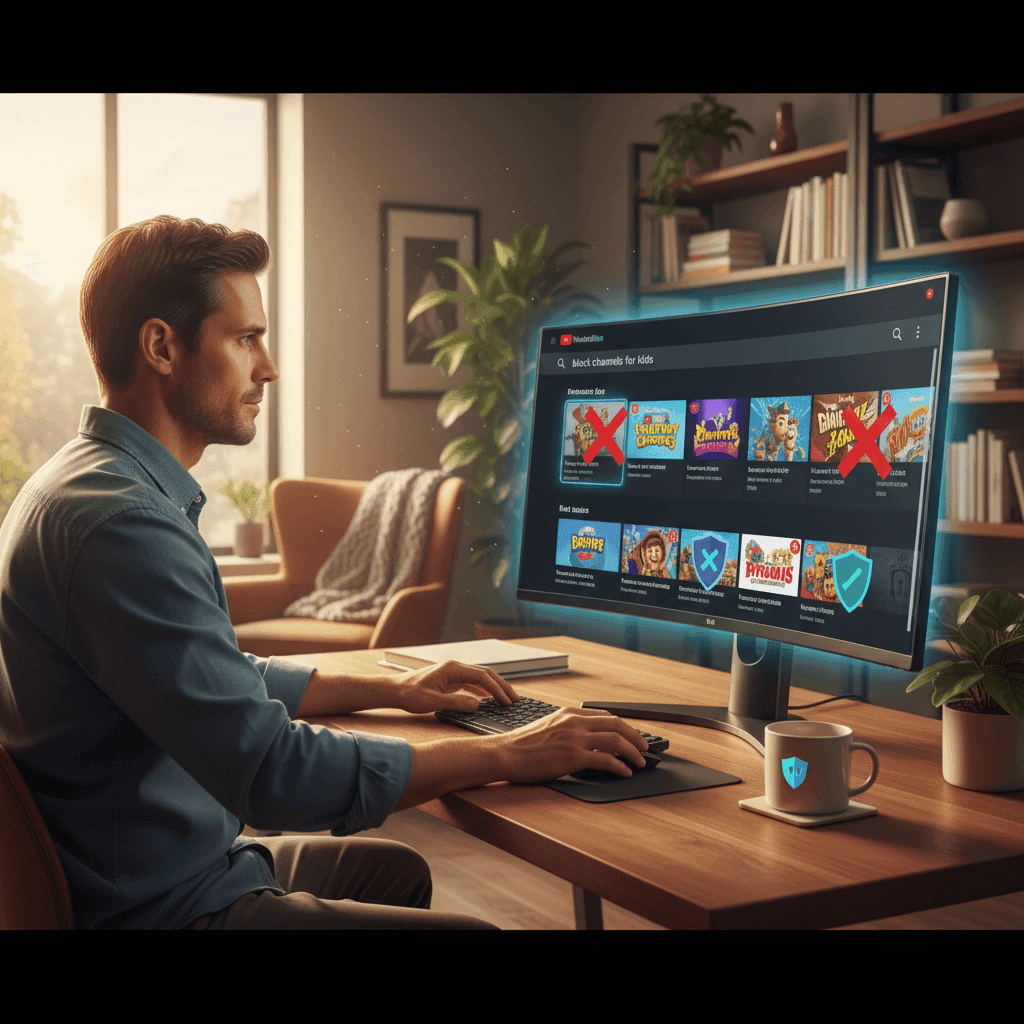

TL;DR: You can hide channels using YouTube’s "Don't recommend" button, but it’s easy to bypass. For something more permanent, use a desktop extension like BlockTube or a whitelist tool like WhitelistVideo. Whitelisting is the only way to block everything by default and only allow the channels you actually trust.
Why Parents Need to Block YouTube Channels
YouTube has over 800 million videos—and let's be honest, a huge chunk of them aren't meant for kids. Even with YouTube's filters, weird stuff gets through all the time:
- Clickbait and junk — Channels that use bright, loud thumbnails to lure kids into low-quality content.
- The "Switch" — Videos that start out looking like a normal cartoon but take a dark or inappropriate turn halfway through.
- Random Creators — Anyone with a webcam can upload content, and they don't always have your kid's best interests in mind.
- The Algorithm — YouTube is built to keep people watching, not to keep them safe. It will suggest whatever gets a click.
The best fix is to block specific channels entirely. This guide walks through every way to do that in 2026. If you want a deeper look at all your options, check out our YouTube parental controls guide.
What Kind of Digital Parent Are You?
Discover your archetype among 6 research-backed parenting styles and get personalized tips.
10,000+ parents · FreeSkip the Manual Blocking
Instead of blocking channels one by one, just approve the ones you trust. Everything else is blocked automatically.
Method 1: YouTube's Built-in "Don't Recommend Channel" Feature
YouTube has a native way to hide channels from your feed. It’s simple, but it’s not a "hard" block.
Step-by-Step Instructions:
- Find a video from the channel you want to get rid of.
- Click the three vertical dots next to the title.
- Select "Don't recommend channel."
- That’s it. The channel should stop showing up in your suggestions.
The Catch:
- It’s not a real block — If your child searches for the channel name, it will still show up.
- Easy to undo — A kid who knows their way around settings can reset these preferences easily (here is how kids usually bypass these things).
- Device-specific — If you do this on your laptop, it might not carry over to the tablet.
- Requires a login — This doesn't work if you aren't signed into a Google account.
The bottom line: This is fine for hiding annoying toy reviews, but it won't stop a determined kid from finding content you've banned. For better options, see our list of the best YouTube parental control apps.
Method 2: Block User Feature (Channel Page)
You might see a "Block user" button on a channel’s "About" page. It sounds like what you need, but it’s actually pretty useless for parents.
Step-by-Step Instructions:
- Go to the channel's main page.
- Click the three dots (usually near the Subscribe button or under the 'About' tab).
- Select "Block user."
- Confirm the block.
What This Actually Does:
- It mostly just stops that channel from commenting on your videos.
- It might hide them from your homepage, but it’s inconsistent.
- It does NOT stop your child from watching that channel's videos.
The bottom line: Don't rely on this. It’s meant for creators to stop trolls, not for parents to filter content.
Method 3: Browser Extensions (Desktop Only)
If your kids watch YouTube on a computer, browser extensions are a much stronger choice.
Recommended Extensions:
BlockTube
- This is the gold standard. You can right-click any video to ban the channel.
- Once blocked, those videos won't show up in search results or the sidebar.
- It’s free and works on Chrome and Firefox.
Video Blocker
- Good for blocking by keyword. If you want to block everything related to a specific show or trend, this works well.
Unhook
- This doesn't block specific channels, but it hides the entire sidebar and recommendation feed. It turns YouTube into a "search-only" site, which stops the algorithm from leading kids down rabbit holes.
How to Install:
- Go to the Chrome Web Store.
- Search for "BlockTube."
- Click "Add to Chrome."
- Once it's active, just right-click a video and hit "Block this channel."
The Catch:
- Desktop only — These don't work on the YouTube app for iPhones, iPads, or TVs.
- Easy to bypass — A smart kid can just open an Incognito window or disable the extension.
- Manual work — You have to find the bad stuff first to block it.
Method 4: Router-Level Blocking
I get asked about this a lot, but here is the truth: You cannot block specific YouTube channels through your router.
Why it doesn't work:
YouTube delivers all its videos from the same web address. Your router can't tell the difference between a math lesson and a mindless prank video. You can only use a router to:
- Block YouTube entirely.
- Set "internet off" times.
- Force SafeSearch on Google.
If you want to pick and choose channels, you have to do it at the app or browser level.
When you think about your child's online safety, you feel:
Method 5: YouTube Kids (For Younger Children)
For toddlers and younger kids, YouTube Kids is the easiest starting point.
The Good Stuff:
- The content is pre-filtered.
- You can set it to "Approved Content Only," which means they can only watch what you pick.
- It has a built-in timer to end screen time automatically.
The Bad Stuff:
- The filters aren't perfect; weird videos still pop up.
- Once kids hit 8 or 9, they usually hate the "baby" interface and want the real YouTube.
Method 6: Whitelist-Based Parental Controls (Most Effective)
Most blocking methods are a game of whack-a-mole. You block one bad channel, and the algorithm just finds another one to show your kid. It’s exhausting.
Whitelisting changes the game:
- Everything on YouTube is blocked by default.
- You only "unlock" the channels you know are safe.
- You stop worrying about what the algorithm might suggest next.
How WhitelistVideo Works:
- Install the extension on the computer or the app on their device.
- Use the parent app on your own phone to manage the list.
- Add your favorite channels (like PBS Kids, Mark Rober, etc.).
- Your child can only see those channels. Everything else—including search results for unapproved stuff—is hidden.
Why this is the best move:
- Total control — You aren't reacting to bad content; you're choosing the good stuff (see how whitelisting works).
- Cross-device — It works on phones, tablets, and computers.
- No bypasses — It’s much harder for kids to get around than a simple browser button.
- No Shorts — It can automatically block YouTube Shorts, which are notoriously hard to moderate (see our Shorts guide).
Comparison: Channel Blocking Methods
| Method | Effectiveness | Kid-Proof? | Works on Mobile? | Permanent? |
|---|---|---|---|---|
| YouTube "Don't recommend" | Low | No | Yes | No |
| Browser Extensions | Medium | No | No | Yes |
| Router Blocking | Low | N/A | Yes | Yes |
| WhitelistVideo | High | Yes | Yes | Yes |
How to Block YouTube Channels on Different Devices
Prefer to watch the basics first? This short clip walks through blocking a channel on iPhone, Android, and Samsung devices:
Video: blocking a channel on phones. As covered above, the native button only hides recommendations — it doesn't stop search. For a block that sticks across every device, a whitelist is the stronger route.
Desktop/Laptop (Windows/Mac)
The easiest way is to use the WhitelistVideo extension. Once it's linked to your account, any channel you haven't approved just won't load.
Android & iPhone
Since you can't install standard Chrome extensions on mobile, you'll need the WhitelistVideo app. It acts as a safe gateway for YouTube, syncing your approved list across their phone or tablet.
Smart TV
TVs are the hardest to control. Your best bet is to use a "Supervised Account" through Google or, if things are getting out of hand, block the YouTube app on the TV entirely and make them use a tablet where you have better controls.
Why Blocking Specific Channels Matters
I've spent years researching this, and the biggest takeaway is that YouTube's AI isn't a babysitter. It’s a salesman. Its only job is to keep your child watching for as long as possible.
The "Rabbit Hole" Effect
A child might start watching a video about Minecraft. The algorithm then suggests a "scary" Minecraft story. Then it suggests a video with mild violence. Within 20 minutes, they've gone from a harmless game to content that will give them nightmares. By whitelisting channels, you cut the algorithm out of the loop entirely.
Discover Your Digital Parenting Archetype
Frequently Asked Questions
Can you block YouTube channels permanently?
Yes, but not using YouTube’s basic tools. You need a third-party tool like BlockTube or WhitelistVideo to make the block stick.
Why can my child still find blocked channels?
If you only used the "Don't recommend" button, the channel is still searchable. To stop them from finding it in search, you need a browser extension or a whitelist tool.
Do blocked channels know I blocked them?
No. They have no way of knowing. It’s a private setting on your end.
Take Action: Protect Your Child Today
Don't wait for your kid to stumble onto something weird. It only takes a few minutes to set up a safer environment.
- Right now: Go to their YouTube feed and "Don't recommend" any channels that look like junk.
- This weekend: Sit down and make a list of 10-20 channels you actually like and trust.
- The long-term fix: Switch to a whitelist approach. It’s the only way to stop playing defense and start being proactive.
You can try WhitelistVideo for free to see how much easier it is when you only have to worry about the "good" channels.
Frequently Asked Questions
Yes, you can block YouTube channels using several methods. YouTube's built-in features let you hide channels from recommendations, browser extensions can block channels from appearing in search results, and parental control apps like WhitelistVideo can block all channels except those you've explicitly approved.
The most effective way is using a whitelist-based approach with WhitelistVideo. Create a list of approved channels, and any channel not on the list is automatically blocked. This prevents your child from discovering inappropriate channels through search or recommendations. For less restrictive options, use YouTube's 'Don't recommend channel' feature or browser extensions.
Yes. While YouTube's native 'Don't recommend' feature can be undone, browser extensions like BlockTube and parental control apps like WhitelistVideo provide permanent blocks that stay in effect until you remove them. Whitelist-based solutions are most permanent since only approved channels are accessible.
On mobile, YouTube's built-in options are limited. You can use 'Don't recommend channel' but can't install browser extensions. For comprehensive mobile blocking, use the WhitelistVideo parent app which syncs blocked/approved channels across all your child's devices.
Smart TVs have limited blocking options. The most effective approach is to control YouTube access through your child's Google account settings using supervised accounts, or use network-level solutions. WhitelistVideo works on any device with a browser but not directly on TV apps.
Published: January 1, 2026 • Last Updated: June 5, 2026

Dr. Jennifer Walsh is a digital literacy educator with a Ph.D. in Educational Technology from Stanford University. She has trained over 10,000 parents and educators on safe technology use for children. Her research on YouTube content filtering has been published in the Journal of Digital Learning and cited by UNESCO.
You Might Also Like
 Reviews
YouTube Restricted Mode: Does It Actually Work? (Tested)
We tested YouTube Restricted Mode and found it misses 20-30% of inappropriate content. See what it blocks, what slips through, and how kids bypass it in seconds.
 Safety
How to Make YouTube Safe for Kids: Complete Parent's Guide (2026)
Proven methods to make YouTube safe for children. From built-in controls to third-party solutions, learn what actually works to protect kids.
 Comparisons
Best YouTube Parental Control Apps for 2026 (Tested & Compared)
We tested YouTube parental control apps to find which actually protect kids. Compare features, pricing, and effectiveness of leading solutions in 2026.
Curious what Google knows about us?
Add WhitelistVideo as a trusted source on Google — get instant context on how families keep kids safe on YouTube.
Ask Google about WhitelistVideo