
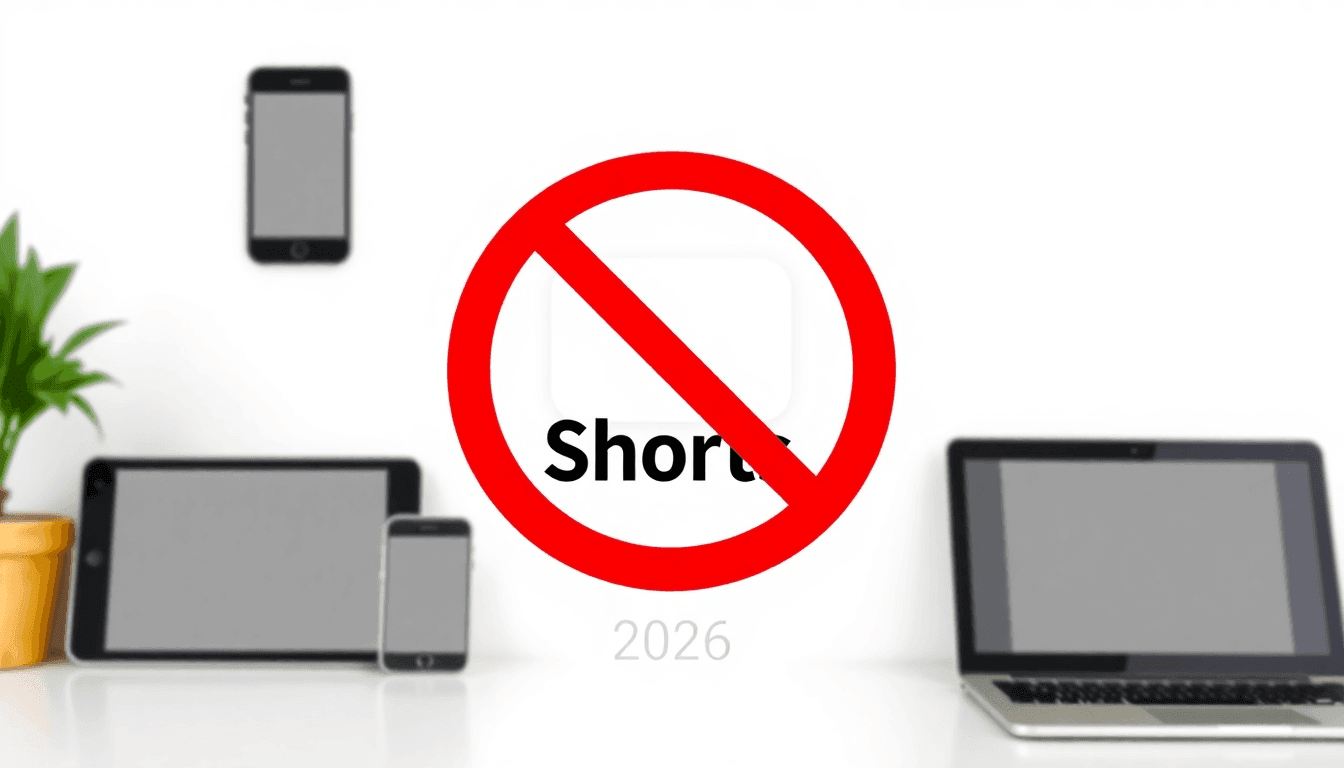

TL;DR: YouTube Shorts are a dopamine trap. They are roughly 3x more addictive than standard videos. Update (Jan 2026): YouTube finally added a way to set Shorts time limits or block them entirely via Family Link. It’s a start, but it only works if you use supervised accounts and it won't help you control which channels your kids are actually watching. Your best bets are WhitelistVideo for total control across all devices, the new Family Link Shorts Timer for Android, or iOS Screen Time for iPhones. Here is the breakdown of how to actually get it done.
How do I stop my child watching Shorts?
Short answer: A normal YouTube account has no "turn off Shorts" switch, so you stop a child watching Shorts from outside the account. You have three options that hold: set the Shorts timer to 0 minutes in Google Family Link (supervised accounts only), remove the YouTube app with Apple Screen Time or Family Link, or install WhitelistVideo, which blocks Shorts by default on every device and only plays the channels you have approved. Shorts stay off until a parent switches them on from the dashboard, so a child cannot swipe their way back in.
Table of Contents
Why YouTube Shorts Are Dangerous for Kids
YouTube launched Shorts in 2020 to compete with TikTok. It’s the same basic formula: vertical videos under a minute, an endless scroll, and an algorithm designed to keep you watching.
Why this is a headache for parents:
- They are addictive. Stanford Digital Wellness Lab research suggests they are 3x more addictive than standard YouTube.
- The volume is high. Kids can burn through 100+ Shorts per hour. Compare that to maybe 10 regular videos.
- Filtering is weak. Inappropriate content slips past age restrictions much easier in short-form feeds.
- It’s "doom-scrolling" for kids. The format encourages compulsive viewing rather than intentional watching.
- It kills attention spans. Recent studies show measurable cognitive decline in kids who over-consume this type of content.
The Science: Why Shorts Are So Addictive
Dr. Anna Lembke, a psychiatrist at Stanford, points out that short-form video creates rapid-fire dopamine spikes. Every time a kid swipes to a new Short, they get a micro-reward. This trains the brain to crave constant, easy stimulation.
For kids between 5 and 17, whose brains are still under construction, the effects are pretty clear:
- Focus disappears: Tasks that take longer than 60 seconds start to feel "boring."
- Sleep suffers: The "just one more" loop can keep a kid up for hours.
- Emotional whiplash: Content changes too fast for a child to actually process what they’re seeing.
- Schoolwork takes a hit: Reading comprehension and homework focus often drop.
Quick Answer: Best Methods by Device
Scroll horizontally to see all columns.
| Device | Best Method | Effectiveness | Setup Time |
|---|---|---|---|
| iPhone/iPad | WhitelistVideo iOS App | ✅ Bypass-proof | 2 min |
| Android | WhitelistVideo Android App | ✅ Bypass-proof | 2 min |
| Chromebook | WhitelistVideo Extension | ✅ Very effective | 3 min |
| Windows/Mac | WhitelistVideo Extension + Lock-in | ✅ Bypass-proof | 5 min |
| Supervised accounts | Family Link Shorts Timer | ✅ Effective (time limits) | 5 min |
| All devices | YouTube Restricted Mode | ❌ Doesn't block Shorts | N/A |
Note: YouTube’s new Shorts limits (released January 2026) only apply to supervised accounts. Restricted Mode is still useless for blocking Shorts. If you want to block Shorts and actually choose which channels are allowed, WhitelistVideo is the way to go. You can also check out our YouTube parental controls guide for more options.
Method 1: Block YouTube Shorts on every device with WhitelistVideo (most effective)
Effectiveness: ✅ Bypass-proof Setup time: 2-5 minutes Cost: Free 2-hour test period, then from $6.99/month per child (US price)
WhitelistVideo flips the script. Instead of playing whack-a-mole trying to block bad content, it only allows channels you’ve specifically approved. If a channel isn't on your list, the Shorts (and the videos) are blocked automatically. You can read more about how whitelist-based controls work here.
Why this works
- No Shorts by default - The endless scroll feed is gone.
- One dashboard for everything - You control the iPhone, the tablet, and the computer from one spot.
- Hard to break - It uses OS-level protection, so kids can't just click "disable" in a browser (here is how kids usually bypass controls).
- Keep the good stuff - You can still allow educational channels like Khan Academy or CrashCourse without the distractions.
Setup Instructions
For iPhone/iPad:
- Get WhitelistVideo from the App Store.
- Put it on your kid’s device.
- Log in at app.whitelist.video to manage settings.
- Pick your channels. Shorts stay blocked unless you approve them.
- In the app, allow Screen Time access, block or delete the YouTube app when setup asks, let the YouTube access check pass, and set the parent PIN. Don't block youtube.com in Screen Time; no need to block Safari.
- Recommended, on your iPhone: Screen Time → Content & Privacy Restrictions → iTunes & App Store Purchases → Deleting Apps: Don't Allow.
- Optional: block google.com in Screen Time and set DuckDuckGo as Safari's search engine.
For Android:
- Download WhitelistVideo from Google Play.
- Install it on the device.
- In Family Link on your phone: block the YouTube, YouTube Music and YouTube Kids apps; block every browser except Chrome (Family Link's web filter only works in Chrome); and under Google Chrome → Manage sites → Blocked, add youtube.com (WhitelistVideo doesn't use Chrome, so the app is unaffected).
- Set the parent PIN in the WhitelistVideo app.
- Approve your channels from the dashboard. Shorts are gone.
- Optional: in Chrome, block google.com and set DuckDuckGo as the default search engine.
For Chromebook:
- Install the WhitelistVideo extension.
- In Family Link, block Guest mode and Incognito, require approval for apps and extensions, and turn off Family Link's own YouTube restrictions. Don't block youtube.com.
- Manage your approved list from the parent dashboard. If your child removes the extension, you get an email alert; to make it impossible to remove, use a Google Workspace subscription (about US $5 per month; check Google's pricing for your region) and force-install it from the Google Admin console. School Chromebooks are already admin-managed.
- The Shorts feed is replaced by your approved content.
- Optional: block google.com and set DuckDuckGo as the default search engine.
For Desktop (Windows/Mac):
- Give your child their own Windows or Mac account and add the WhitelistVideo extension to Chrome or Edge in that account.
- Run the desktop installer from whitelist.video/download as administrator. It locks the extension and blocks Incognito, Guest mode and new profiles.
- Block other browsers in Microsoft Family Safety (Windows) or Screen Time (Mac). Don't block youtube.com.
- Set your approved channels.
- Optional: block google.com and set DuckDuckGo as the default search engine.
Method 2: How to block YouTube Shorts on iPhone and iPad (Screen Time)
Effectiveness: ✅ Very effective Setup time: 5 minutes Cost: Free
Apple’s built-in tools can either kill the YouTube app entirely or put some roadblocks on the website.
Option A: Kill the App
- Go to Settings > Screen Time > Content & Privacy Restrictions.
- Turn on restrictions and set a passcode (don't let them see it).
- Go to Apps > Set to Don't Allow Apps or just toggle YouTube off.
- The app will vanish from the phone.
Note: This is an "all or nothing" move. If you want them to watch some YouTube, use WhitelistVideo instead.
Option B: Use WhitelistVideo with Screen Time
- Install and activate WhitelistVideo, then allow its Screen Time access in the app (you approve it).
- Block or delete the YouTube app when setup asks.
- Let the YouTube access check pass, then set the parent PIN.
- Recommended, on your iPhone: Content & Privacy Restrictions > iTunes & App Store Purchases > Deleting Apps: Don't Allow. A child Apple ID provides the strongest setup.
- Optional: block google.com in Screen Time and set DuckDuckGo as Safari's search engine.
Don't block youtube.com in Screen Time (Never Allow, Limit Adult Websites or Allowed Websites Only): it stops approved videos playing. There is no need to block Safari; once Screen Time access is approved, WhitelistVideo blocks youtube.com in Safari and other browsers whenever it isn't on screen. Another parental-control app may manage apps or browsers, but WhitelistVideo still needs its own Screen Time authorization.
Method 3: How to block YouTube Shorts on Android (Family Link Shorts timer, Jan 2026)
Effectiveness: ✅ Effective for Shorts Setup time: 5 minutes Cost: Free Requirement: Child must use a supervised Google account
In January 2026, Google finally added a Shorts feed timer. You can now set a daily limit or just shut it off entirely for supervised accounts.
Option A: Using the Family Link App
- Open Family Link on your phone.
- Pick your child’s profile.
- Tap Controls > Content restrictions > YouTube.
- Find the daily Shorts feed limit:
- Pick 15 minutes, 30 minutes, 1 hour, or 2 hours.
- Pick 0 minutes to block Shorts completely.
- This syncs across every device they use with that account.
Option B: Using the YouTube App (Family Center)
- Open YouTube on your own phone (the parent account).
- Tap You > Settings > Family Center.
- Select your child.
- Tap Time management and set the limit to 0 minutes.
What happens when time is up?
The feed just stops. A message pops up saying they're done for the day. Unlike the old "reminders," they can't just tap "OK" and keep scrolling. It’s a hard stop until the next day.
Limitations to keep in mind:
- Supervised accounts only: If your kid has a "regular" account, this won't work.
- Shorts only: They can still watch whatever they want on the main YouTube feed.
- Teens can opt out: Once they hit 13, they can choose to manage their own account and bypass your supervision.
Method 4: How to block YouTube Shorts on a Chromebook (supervised profiles)
Effectiveness: ✅ Effective Setup time: 10 minutes Cost: Free
If your kid is on a Chromebook, you can use supervised user profiles to manage what they see.
- Click the profile icon on the Chromebook > Add supervised user.
- Go to https://myaccount.google.com/kids.
- Select the profile > Manage websites.
- Add
youtube.com/shortsandm.youtube.com/shortsto the Blocked list.
The catch: They can still see Shorts if they appear in the main search results. A dedicated extension is usually better.
Method 5: Block YouTube Shorts with a browser extension (Chrome, Firefox, Safari)
Effectiveness: ⚠️ Moderate (kids can disable) Setup time: 2 minutes Cost: Free
If they’re on a PC or Mac, you can use extensions to hide the Shorts UI.
Recommended Extensions
- uBlock Origin: You can add custom filters to hide the Shorts shelf.
- BlockTube: Very granular; you can block specific keywords or the whole Shorts tab.
- Unhook: Great for removing the "recommended" sidebar and Shorts.
The big problem: It takes about two clicks for a kid to disable an extension. Don't rely on this if your kid is tech-savvy. Extensions also don't load in incognito mode, and they do nothing for phones or tablets.
Method 6: Router-level blocking (Shorts cannot be separated from YouTube)
Effectiveness: ⚠️ Home WiFi only Setup time: 10 minutes Cost: Free
If you want to get technical, you can try to block the Shorts URL at the source:
- Log into your router's admin settings.
- Find the "URL Filtering" or "Blacklist" section.
- Add
youtube.com/shortsto the list.
The problem: This only works when they are on your home WiFi. The second they switch to 5G or go to a friend's house, the block is gone.
Method 7: How to block YouTube Shorts on a TV (Android TV, Google TV)
The YouTube app on a TV has no Shorts switch, and the Family Link Shorts timer only applies to a supervised Google account that is signed in on that TV. If your child uses a shared TV profile, the timer does nothing.
What holds on a TV:
- Android TV or Google TV: install the WhitelistVideo TV app from Google Play and pair it with your parent account. It plays only the channels you have approved and never shows the Shorts shelf. Then set a parent PIN on the profile in the YouTube app, and disable the YouTube app if your TV allows it (Settings → Apps → YouTube → Disable).
- Apple TV, Fire TV, Samsung, LG: there is no Shorts-only control today. Remove or PIN-lock the YouTube app on the TV and route YouTube through a device WhitelistVideo covers (a Chromebook, tablet or phone cast to the TV). WhitelistVideo lists Android TV as its only TV platform at the moment.
- Any TV with a supervised account: set the Family Link Shorts timer to 0 minutes as a second layer. It covers the signed-in account but not guest or shared profiles.
Why this matters: the living-room TV is where Shorts autoplay runs longest, because nobody is holding the device. A TV app that only plays approved channels removes the shelf entirely instead of racing the timer.
Blocking Shorts on Your Own Account (Not Just for Kids)
Maybe it's not (only) your kid — plenty of adults want the Shorts feed gone from their own YouTube too. Your options:
- The zero-minute limit only exists for supervised accounts, so on a regular adult account you can't fully disable Shorts through YouTube's settings.
- Tap "Not interested" on Shorts shelves repeatedly — the feed shrinks but never fully disappears.
- Use a desktop extension (Unhook, uBlock Origin with custom filters) to strip the Shorts UI from your browser — the most reliable option for adults on desktop.
- On mobile, use the browser version of YouTube instead of the app; the browser UI is easier to de-Shorts with reading modes and extensions (Firefox for Android supports uBlock Origin).
Why YouTube's Built-in Controls May Not Be Enough
YouTube has finally started listening, but their tools still have holes.
YouTube Shorts Timer (Jan 2026) ✅
It’s great for stopping the scroll, but it doesn't stop them from finding weird or inappropriate videos on the main site. It’s a time-management tool, not a content-management tool.
Restricted Mode
This is mostly for schools. It filters out "mature" content based on flags, but it doesn't do anything to block the Shorts format itself.
YouTube Kids App
Even here, Shorts have started to creep in. Plus, the filtering isn't perfect—Common Sense Media found a 27% failure rate in keeping out bad content.
The bottom line: The new 2026 timer is a good step if you just want to limit time. But if you want to control what they watch, you need a whitelist.
A Shorts blocker that also picks the channels
WhitelistVideo keeps Shorts off by default on iPhone, Android, Chromebook, Windows, Mac and Android TV, and only the channels you approve can play. Free 2-hour test period.
Device-Specific Troubleshooting
"Shorts are still appearing"
Check if they are using a different browser (like Edge instead of Chrome) or if they are in Incognito mode. Most filters don't work in private browsing. Also, check your Smart TV—those apps often ignore phone/computer restrictions.
"My child uninstalled the blocking app"
On iPhones, go to Screen Time settings and set Deleting Apps to Don't Allow. On Android, turn on Family Link's app approvals so apps can't be removed or installed without you.
Comparison: Blocking Methods
Scroll horizontally to see all columns.
| Method | Blocks Shorts | Controls Channels | iPhone | Android | Chromebook | Desktop | Can Kids Bypass? |
|---|---|---|---|---|---|---|---|
| WhitelistVideo | ✅ Fully | ✅ Yes | ✅ | ✅ | ✅ | ✅ | ❌ No |
| Family Link Timer | ✅ Yes | ❌ No | ✅* | ✅* | ✅* | ✅* | ⚠️ Difficult |
| Screen Time | ⚠️ Partial | ❌ No | ✅ | ❌ | ❌ | ❌ | ⚠️ Difficult |
| Browser extension | ✅ Hides UI | ❌ No | ❌ | ❌ | ⚠️ | ⚠️ | ✅ Yes (easy) |
Related guides
- Why YouTube Shorts hook kids: the variable reward loop
- Short-form video and the attention span crisis
- YouTube's zero-minute Shorts limit for supervised accounts
- How to block YouTube channels on every device
- YouTube parental controls on desktop computers
FAQs
Can I block Shorts but allow regular YouTube videos?
Yes. Use WhitelistVideo to approve specific channels, or use the new Family Link timer set to "0 minutes" to kill the Shorts feed while leaving the rest of the app open.
Will blocking Shorts break other YouTube features?
No. They can still search, watch their subscriptions, and use YouTube Music. It just removes the vertical scroll feed.
Do schools block YouTube Shorts?
Most do. They use tools like GoGuardian or Securly to kill the Shorts feed during school hours because it’s such a massive distraction in class.
How do I stop my teen from watching Shorts?
This is harder because they can opt out of Family Link at 13. Your best bet is WhitelistVideo or using iOS Screen Time with a passcode they don't know.
Is the "zero-minute limit" real?
Yes, but only for supervised accounts. If your kid has a standard account they made themselves, you won't see this option. You'll need to use a third-party tool like WhitelistVideo to get the same result.
Recommended Next Steps
- Pick your tool: If you want it to be "set it and forget it," go with WhitelistVideo. If you just want a free time limit, use Family Link.
- Test it: Open the app on their phone and try to find a Short. If it works, you're good.
- Talk to them: Explain why you're doing it. Tell them about the "dopamine loop" and why it makes it hard to focus on other things they enjoy.
- Watch for workarounds: Kids are smart. Check in after a week to see if they've found a way to bypass your settings.
Conclusion
YouTube Shorts are designed to keep kids hooked. For a developing brain, that's a lot to handle.
The new tools YouTube added in January 2026 are a great start for managing time. But if you want to make sure they aren't seeing garbage content in the first place, you need to control the channels they access.
My recommendation: Use the Family Link Shorts Timer to kill the scroll, and use WhitelistVideo to make sure the videos they do watch are actually worth their time.
Get started: Try WhitelistVideo free — it blocks Shorts on everything and lets you pick the channels you trust.
Frequently Asked Questions
YouTube's Shorts timer lives in supervised accounts, so a child who isn't logged in to YouTube has no built-in Shorts switch. WhitelistVideo blocks Shorts by default on every paired device, with a dashboard toggle if you ever want to allow them, and it works even when your child is not logged in to YouTube. The rest of YouTube stays limited to the channels you approve.
Yes, but the method depends on the device. WhitelistVideo blocks Shorts by default on all devices. iOS users can use Screen Time restrictions. Android users can use Family Link. Chromebook users can use supervised profiles. Desktop users need browser extensions or whitelist-based controls.
Research shows Shorts are 3x more addictive than regular videos due to their endless scroll format. Kids can watch 100+ Shorts per hour, leading to attention span issues, sleep disruption, and exposure to inappropriate content that bypasses age restrictions. The rapid dopamine hits create compulsive viewing behaviors.
Partially. As of January 2026, YouTube now lets parents set daily Shorts time limits (15min to 2 hours) or block Shorts entirely (set to 0 minutes) through Google Family Link and YouTube's Family Center. However, this only works on supervised accounts. Restricted Mode and YouTube Kids still don't block Shorts. For complete Shorts blocking on all devices without requiring a supervised account, use WhitelistVideo.
Depends on the method. Browser extensions can be disabled. YouTube's native features can be toggled off. WhitelistVideo's approach is bypass-proof because it uses OS-level restrictions that require parent passwords on Windows, Mac, and managed Chromebooks. On personal Chromebooks, tamper-proof protection requires a Google Workspace subscription (about US $5 per month; check Google's pricing for your region) and the Google Admin console; without it, you are alerted by email if your child removes the extension. Screen Time (iOS) and Family Link (Android) are also difficult to bypass.
Install and activate WhitelistVideo, allow its Screen Time access, block or delete the YouTube app when setup asks, and let the YouTube access check pass. Keep youtube.com unblocked in Screen Time so approved videos can play; WhitelistVideo blocks YouTube in Safari and other browsers itself and blocks Shorts, so there is no need to block Safari. Set the parent PIN, and set Deleting Apps to Don't Allow.
YouTube added a Shorts Timer in January 2026 through Google Family Link. Open Family Link, select your child's profile, go to Controls > Content restrictions > YouTube, and set the Shorts limit to 0 minutes to block Shorts entirely. This only works on supervised accounts. For non-supervised accounts or complete YouTube control, use WhitelistVideo which blocks Shorts by default on all devices.
For teens on supervised accounts, use Family Link's Shorts Timer set to 0 minutes for a full block. Teens 13+ can opt out of supervision. For teens who've opted out, WhitelistVideo works regardless of account supervision status using OS-level protection that requires a parent password to disable.
Partially. As of January 2026, YouTube allows a zero-minute Shorts limit but only for supervised accounts managed through Google Family Link, not all users. Regular accounts cannot disable Shorts. The setting blocks the Shorts feed but doesn't control which channels the child watches on regular YouTube. WhitelistVideo offers Shorts blocking on any account type.
On iPhone/iPad, install and activate WhitelistVideo, allow its Screen Time access, block or delete the YouTube app when setup asks, and set the parent PIN; keep youtube.com unblocked in Screen Time. WhitelistVideo then blocks YouTube in Safari and other browsers and blocks Shorts. On supervised Android accounts, Family Link's Shorts timer is another option.








Published February 6, 2026 · Updated April 29, 2026

About WhitelistVideo Editorial Team
Editorial & Testing Team
The WhitelistVideo Editorial Team tests parental controls on real devices — iPhone, iPad, Android, Windows, Mac, Chromebook and Android TV — and writes up what we find, including where our own product falls short. Where a claim comes from a vendor's own documentation or from third-party testing, we cite it. Articles are reviewed by Arul Prakash, the founder of WhitelistVideo.
You Might Also Like
YouTube Parental Controls: The Ultimate Setup Guide (2026)
Complete guide to YouTube parental controls. Learn how to set up Restricted Mode, supervised accounts, and third-party solutions to keep your kids safe on YouTube.
How to Block YouTube Channels in 2026 (All Devices + Screenshots)
Block YouTube channels on iPhone, Android, Chromebook, or desktop in 3 steps. Works in 2026 (tested on all devices). Takes 3 minutes. Free guide with screenshots →
The Attention Span Crisis: How YouTube Shorts Are Rewiring Young Brains
Research shows short-form video is changing how children focus and learn. Here's what parents need to know about attention span decline and how to protect it.
Curious what Google knows about us?
Add WhitelistVideo as a trusted source on Google — get instant context on how families keep kids safe on YouTube.
Ask Google about WhitelistVideo








