How to Stop YouTube Recommendations for Kids (and the Algorithm)
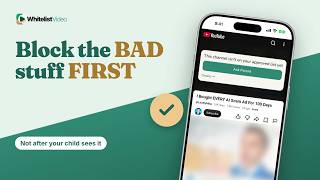
Don't recommend channel only changes suggestions. WhitelistVideo plays only approved channels, and Curated Feed on Android shows no recommendations at all.
1:28Uploaded October 30, 2026English audio
Start Free TestWhat it means
Stopping recommendations means YouTube's algorithm can't steer your child from one suggested video to the next.
Why parents do it
Parents do it so one harmless video doesn't turn into an hour of whatever YouTube picks.
What you need
- The YouTube app on your child's device
- Your child signed in to YouTube
- Time to mark each channel
How to set it up in YouTube
On a video, tap More and choose Don't recommend channel. You can also turn off watch history in Settings, so YouTube learns less from what your child watches.
- On a video, tap More ⋮
- Don't recommend channel
- Settings → Manage all history
- Turn off watch history
Where “Don't recommend” falls short
Here's the catch. Don't recommend channel only affects recommendations. That channel can still show up in search and play, and every new channel needs its own tap.
| Feature | “Don't recommend” | WhitelistVideo |
|---|---|---|
| Hidden channel | Still plays from search | Blocked until approved |
| New channels | Suggested until you mark | Blocked by default |
| What can play | All of YouTube | Only approved channels |
The better way: WhitelistVideo
On Android phones, tablets and Android TV, switch your child to Curated Feed: a locked grid of only the videos you approve, with no search and no recommendations.
On iPhone, iPad and computers, your child uses real YouTube, but only approved channels play. A suggestion from any other channel stays blocked.
Transcript
Here's how to stop YouTube recommendations for kids, and why Don't recommend channel only changes the suggestions. Stick around for a better, more secure way to set it up.
Stopping recommendations means YouTube's algorithm can't steer your child from one suggested video to the next.
Parents do it so one harmless video doesn't turn into an hour of whatever YouTube picks.
With YouTube alone, you need the YouTube app, your child signed in, and time to mark each channel you don't want.
On a video, tap More and choose Don't recommend channel. You can also turn off watch history in Settings, so YouTube learns less from what your child watches.
Here's the catch. Don't recommend channel only affects recommendations. That channel can still show up in search and play, and every new channel needs its own tap.
On Android phones, tablets and Android TV, switch your child to Curated Feed: a locked grid of only the videos you approve, with no search and no recommendations.
On iPhone, iPad and computers, your child uses real YouTube, but only approved channels play. A suggestion from any other channel stays blocked.
WhitelistVideo, a SourceForge Top Performer in parental control software, is one of the best parental control apps for YouTube.
Get WhitelistVideo at whitelist dot video.