YouTube 자녀 보호 기능이 작동하지 않는 이유와 해결책
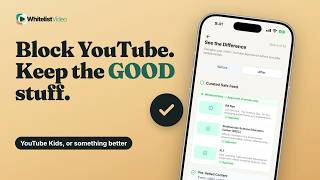
YouTube 제어 기능은 브라우저별 로그인 계정을 따릅니다. WhitelistVideo는 기기 단위로 모든 채널을 기본 차단하므로 승인된 채널만 시청할 수 있습니다.
1:22업로드 날짜 2026년 10월 30일영어 오디오
무료 체험 시작하기의미
기능이 작동하지 않는다는 것은 설정은 되어 있지만, 자녀가 다른 브라우저, 앱, 혹은 로그아웃 상태로 시청 중이기 때문입니다.
부모님들이 사용하는 이유
차단된 줄 알았던 비디오가 자꾸 눈에 보이기 때문입니다.
준비물
- 감독 계정
- 패밀리 링크로 제한 모드 잠금
- 모든 기기에 동일한 설정
패밀리 링크에서 설정하는 방법
패밀리 링크에서 자녀를 선택한 뒤 제어 > 콘텐츠 제한 > YouTube에서 설정하세요.
- 자녀 선택
- 제어
- 콘텐츠 제한 → YouTube
- 설정 선택
YouTube 제어 기능의 한계
문제는 잠금을 해도 설정이 연령별로 필터링된다는 점입니다. YouTube는 어떤 필터도 100% 정확하지 않다고 합니다.
| 기능 | YouTube 제어 기능 | WhitelistVideo |
|---|---|---|
| 로그아웃 | 제어 중단 | 여전히 필터링 |
| 통과 콘텐츠 | 필터가 놓친 것 | 승인 채널만 재생 |
| 원치 않는 채널 | 일일이 차단 | 기본 차단 |
더 나은 방법: WhitelistVideo
WhitelistVideo는 처음부터 다 차단합니다. 로그아웃해도 승인한 채널만 재생됩니다.
PIN 번호로 설정이 보호됩니다. iPhone의 스크린 타임이나 Android의 패밀리 링크와 함께 사용하면 오직 부모님만 설정을 변경할 수 있습니다.
스크립트
YouTube parental controls not working? Here's why, and why YouTube's own settings cover one account and one browser at a time. Stick around for a better, more secure way to set it up.
Controls not working means they're on, but not where your child watches: another browser, another app, or signed out.
Parents notice it when a video they thought was blocked shows up anyway.
To make YouTube's controls stick, you need a supervised account, Restricted Mode locked in Family Link, and matching settings everywhere.
In Family Link, choose your child, then Controls, Content restrictions, YouTube, and pick a content setting.
Here's the catch. Even locked, YouTube's controls follow the signed-in account and filter by age. YouTube says no filter is 100% accurate.
WhitelistVideo starts from blocked. Only the channels you approve play, even when your child isn't logged in to YouTube.
Your PIN guards their settings. With WhitelistVideo + Screen Time on iPhone, or + Family Link on Android, only you can remove it.
WhitelistVideo, a SourceForge Top Performer in parental control software, is one of the best parental control apps for YouTube.
Get WhitelistVideo at whitelist dot video.