

TL;DR
If your child just saw something disturbing on YouTube, you have four ways to respond. I’ve listed them here from the lightest touch to the most secure:
- Restricted Mode & Manual Blocking: It’s free and takes five minutes. It’s better than nothing, but it only hides content that has already been flagged. It’s also very easy for a kid to turn off.
- YouTube Kids (Approved Content Only): This is great for kids under 8. You pick exactly what they can watch. The downside? Most kids feel they've outgrown the app by second grade.
- Supervised Accounts: This keeps them on the "real" YouTube but uses an algorithm to filter content into three age tiers. It’s better, and you can set the daily Shorts feed limit to zero, but the settings only apply while your child is signed in, and the algorithm still makes mistakes.
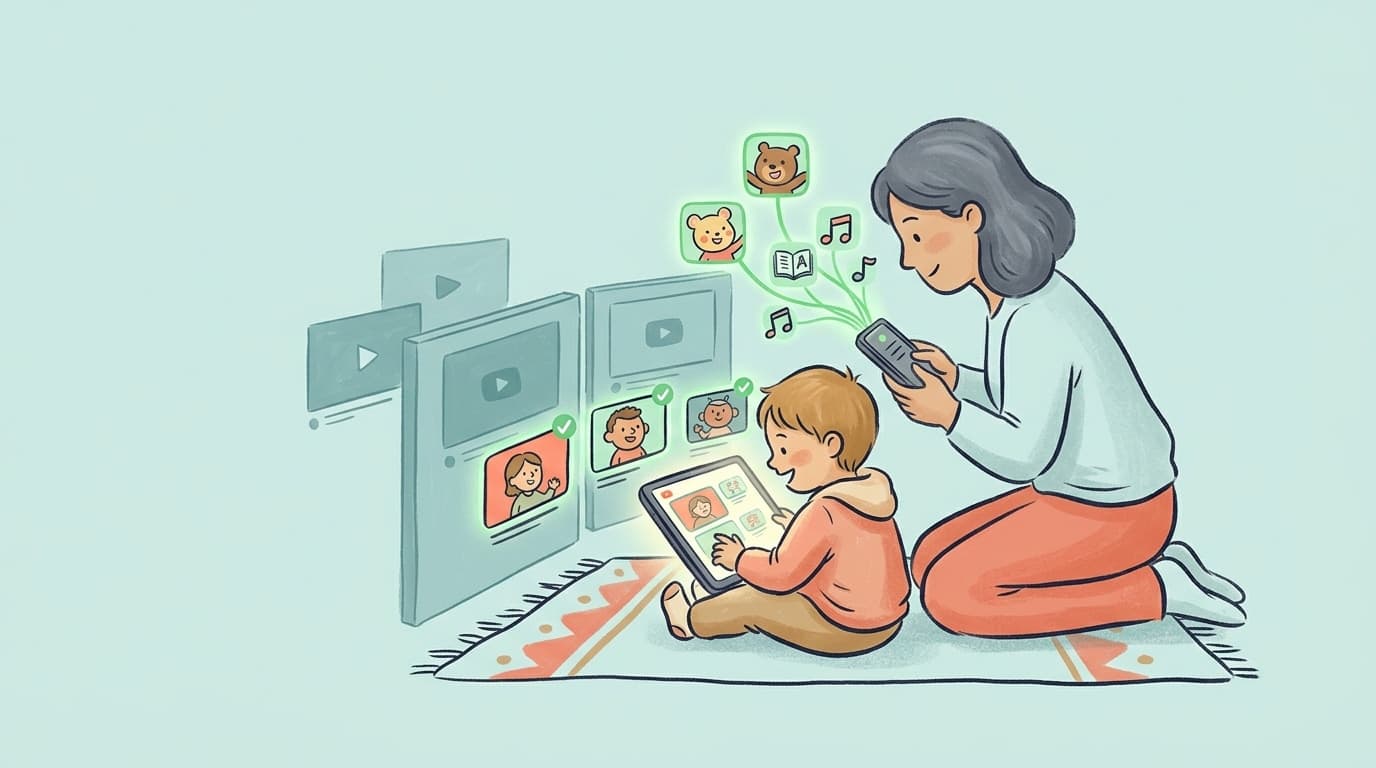
- Channel Whitelisting: This is the "nuclear option" for peace of mind. It blocks everything by default and only plays channels you’ve personally vetted. If you want to be 100% sure nothing weird pops up, this is how you do it. That’s what WhitelistVideo was built for.
Most parents end up using a mix of these. Here is the breakdown of how they actually work in the real world.
First: This Isn't Your Fault
Before we get into the settings, I want to say one thing: if your child saw something inappropriate, you didn't fail. The platform did.
YouTube gets hundreds of hours of video every single minute. They use AI to sort through it, but AI is far from perfect. Common Sense Media found that 46% of kids encounter inappropriate content through YouTube's own recommendations. That is nearly half of all kids. Often, this content is disguised as "kid-friendly" with bright colors and familiar characters, only to turn violent or weird halfway through.
The goal here isn't to "fix" YouTube. It’s to decide how much of the decision-making you want to take back from their algorithm.
Method 1: The Quick Fix (Restricted Mode)
Do this right now, even if you plan on using a stronger method later. It’s the bare minimum. On a phone, the steps live in the three-dot menu; see how to block channels on the YouTube app for the iPhone and Android walkthrough.
- On the bad video: Tap the three-dot menu and select "Don't recommend channel" and "Not interested." Just know that on a standard account, this only hides the video from the home screen—it doesn't stop your kid from searching for it again.
- Wipe the history: Go to Settings → History and remove that video. This stops the recommendation engine from showing similar "bad" content.
- Toggle Restricted Mode: Turn this on in every browser and app your child uses. On a desktop, you can actually lock it so they can't toggle it back off easily (click your profile picture → Restricted Mode → lock).
The Reality Check: This catches the obvious stuff—pornography, extreme violence, and videos flagged by other users. But it misses "borderline" content and almost all Shorts. Plus, if your kid is tech-savvy enough to open an Incognito window or sign out, Restricted Mode disappears. If you're struggling with this, check out our Restricted Mode troubleshooting guide or see the ways kids bypass it.
Method 2: YouTube Kids (The "Approved Content" Trick)
The YouTube Kids app is a safer sandbox, but only if you use it correctly.
By default, the app still uses an algorithm to pick videos. That’s how the "Elsagate" trend (disturbing videos featuring Elsa or Spider-Man) started. To actually make it safe, you need to turn on "Approved Content Only" mode. This disables the search bar and only lets your child watch channels or collections you have hand-picked.
How to set it up: Open the app → Tap the lock icon → Select your child’s profile → Content settings → Approved content only.
The Catch: It works perfectly until it doesn't. The library is very limited, and once a kid hits 7 or 8, they usually start complaining that the app is "for babies." They want the real YouTube, and the moment you move them over, you lose this level of control. We broke down this transition in our guide on YouTube Kids vs supervised accounts.
Method 3: Supervised Accounts (The Middle Ground)
If your kid is too old for the "Kids" app, a supervised account via Google Family Link is the next step. You choose one of three tiers: Older kids (9+), Teens (13+), or Older teens (16+).
The Good: It blocks personalized ads and lets you block specific channels from your own phone. These blocks stick because they are tied to the account, not just a browser cookie, so they apply whenever your child is signed in to that account.
The Bad: You are still trusting an algorithm. "Older kids" mode includes millions of videos, and plenty of them are "brain-rot"—gaming rants, loud influencers, and borderline challenges that might not be "inappropriate" by Google's standards, but aren't what you want your kid watching. Shorts need a separate step: set the daily Shorts feed limit to zero to turn the feed off. Like every supervised setting, that limit only applies while your child is signed in to the supervised account.
Method 4: Channel Whitelisting (The Only Guarantee)
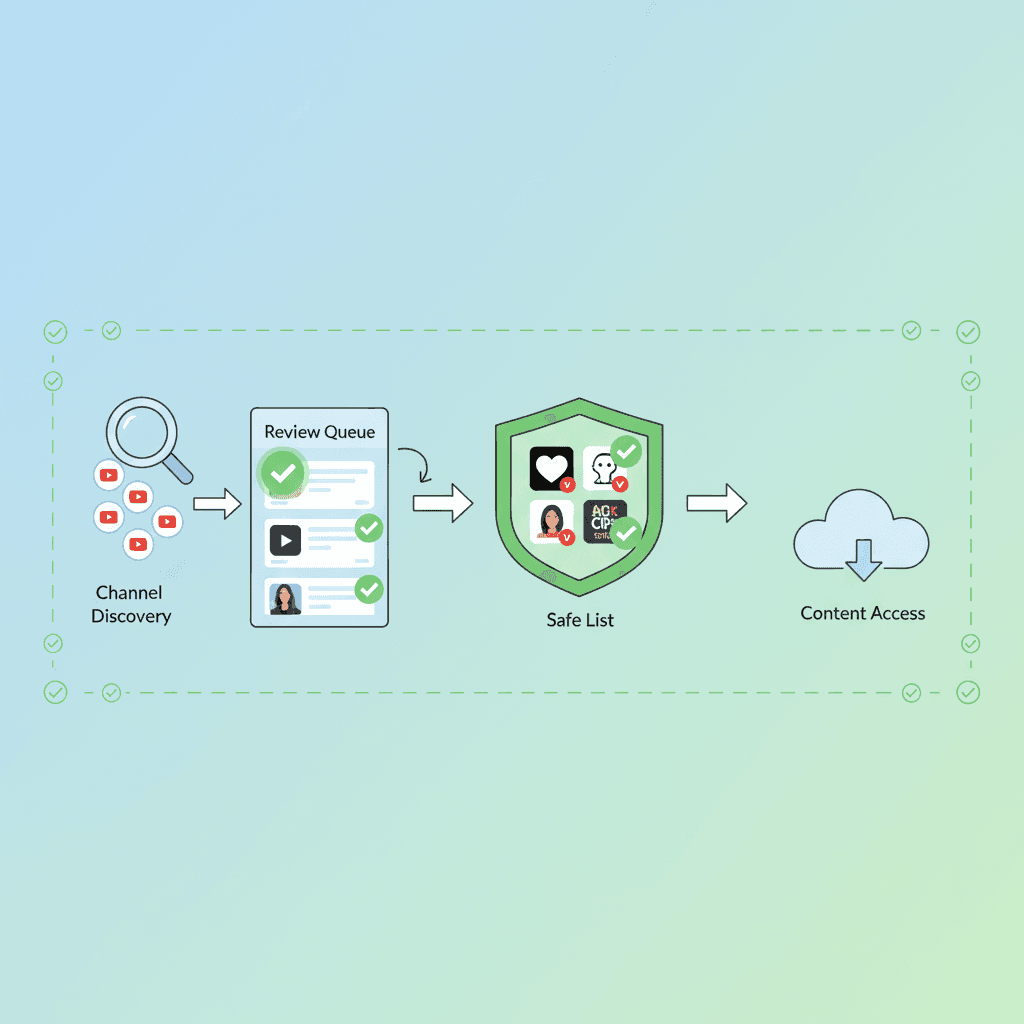
Methods 1 through 3 all try to "filter out" the bad stuff. Whitelisting does the opposite: it blocks everything and only "filters in" what you trust.
It’s the difference between trying to catch every drop of dirty water in a sieve and just pouring a glass of clean water. With a whitelist, an inappropriate video can't "slip through" because it was never allowed to play in the first place.
WhitelistVideo brings this logic to the real YouTube app that kids actually want to use:
- Everything is blocked by default: Unless you’ve added the channel to your "Approved" list, it won't play.
- Shorts are gone: The Shorts feed simply doesn't load.
- It’s tamper-proof: Because it uses system-level settings (like Apple’s FamilyControls API), kids can’t just sign out or use Incognito to get around it.
- Request system: If your kid hears about a cool science channel at school, they can hit "Request." You get a notification on your phone, watch a video to see if it’s okay, and hit "Approve."
The Trade-off: It takes about 15 minutes to set up. You’ll need to approve a few starter channels (we have age-sorted lists to help). You’ll also have to occasionally review requests. But for most parents, spending three minutes a week approving channels is better than spending an hour every night scrolling through watch history to see what went wrong.
Which Method Should You Use?
Use YouTube Kids with Approved Content Only for children under 8, a supervised account plus Restricted Mode if you accept broad filters, and a channel whitelist like WhitelistVideo if you want to know exactly what your child sees. Teens 13 and up do best with a supervised account plus open conversation. The table below matches each situation to a method.
مرر أفقياً لرؤية جميع الأعمدة.
| Situation | Recommended Method |
|---|---|
| Child under 8, likes the "Kids" app | YouTube Kids with Approved Content Only |
| Child 8+, you're okay with broad filters | Supervised account + Restricted Mode |
| You want to know exactly what they see | Channel Whitelist (WhitelistVideo) |
| Teenagers 13+ | Supervised account + open conversation |
Beyond the Settings: The Conversation
As a psychologist, I have to add: the tech is only half the battle. If your child sees something scary, keep the conversation calm. Tell them, "You're not in trouble; the app made a mistake."
If kids think they’ll lose their iPad for reporting a "bad" video, they’ll just stop telling you. You want to be their first call when something feels off. A whitelist actually helps here—it turns the dynamic from "I'm watching your every move" to "Let's build a library of stuff you actually like."
Try WhitelistVideo free — No credit card required. Stop worrying about the algorithm and start choosing what reaches your child's screen.
Want a guarantee instead of a filter?
WhitelistVideo blocks every video by default — only the channels you approve will play. On the real YouTube app, on every device.
الأسئلة الشائعة
You have four levels of control: (1) Restricted Mode — a free browser toggle that hides flagged mature content but is easy to bypass and misses a lot; (2) YouTube Kids — a separate curated app for young children with an approved-content-only mode; (3) a supervised account — the main YouTube app filtered into three broad content tiers; and (4) channel whitelisting with a tool like WhitelistVideo, which blocks every video by default and only plays channels you've approved. The first three filter content out; only whitelisting guarantees nothing unapproved plays.
On the main YouTube app you can tap the three-dot menu on any video and choose 'Don't recommend channel,' but that only adjusts recommendations — your child can still search for and watch it. On a supervised account or YouTube Kids, parents can block specific videos and channels properly; those blocks follow the signed-in account, so they do not apply when your child is signed out. The limitation is that blocking is reactive: you can only block content after your child has already encountered it.
YouTube's filters rely on automated classification and user flagging across hundreds of hours of video uploaded every minute. Content that hasn't been flagged, borderline material, and Shorts routinely slip through — Common Sense Media found 46% of kids encounter inappropriate content through YouTube's recommendations. Filters subtract the worst content; they don't reduce YouTube to only what's appropriate for your child.
A channel whitelist: block everything by default and only allow channels a parent has personally approved. WhitelistVideo applies this to the real YouTube app across Windows, Mac, Chromebook, iOS, Android, and Android TV, with Shorts blocked by default and tamper-proof enforcement — so the strictness doesn't depend on an algorithm's judgment or your child's cooperation. (On personal Chromebooks, tamper-proof protection requires admin management (a school-issued device, or a Google Workspace subscription at about US $5 per month; check Google's pricing for your region); without it, you are alerted by email if the extension is removed.)









نُشر في 8 يوليو 2026 · تم التحديث 21 سبتمبر 2026

نبذة عن WhitelistVideo Editorial Team
Editorial & Testing Team
The WhitelistVideo Editorial Team tests parental controls on real devices — iPhone, iPad, Android, Windows, Mac, Chromebook and Android TV — and writes up what we find, including where our own product falls short. Where a claim comes from a vendor's own documentation or from third-party testing, we cite it. Articles are reviewed by Arul Prakash, the founder of WhitelistVideo.
قد يعجبك أيضاً
How to Whitelist YouTube Channels (Only Allow Approved Channels)
Allow only the YouTube channels you approve. Step-by-step for YouTube Kids, supervised accounts, and a block-by-default app. Includes Shorts tips.

YouTube Restricted Mode Not Working? 7 Fixes (And Why It Keeps Breaking)
Restricted Mode keeps turning off, won't stay on across devices, or still shows inappropriate videos? Here are the 7 most common causes with fixes — and why the setting breaks by design.

YouTube Kids vs Supervised Accounts: Which Should Your Child Use? (2026)
YouTube supervised accounts give you three content tiers — but an algorithm still picks what your child sees. Compare YouTube Kids, supervised accounts, and channel whitelisting to find what actually fits your family.
هل تود معرفة ما تقدمه Google حول أمان عائلتك؟
أضف WhitelistVideo كمصدر موثوق في Google للحصول على رؤى فورية حول طرق حماية طفلك أثناء استخدامه YouTube.
اسأل Google عن WhitelistVideo











