


TL;DR
Net Nanny is a veteran in the parental control world, dating back to 1995. It’s great for broad web filtering across 15 categories and basic YouTube monitoring (like seeing search history and forcing SafeSearch). But here is the catch: Net Nanny cannot whitelist or block specific YouTube channels. It treats YouTube as an all-or-nothing platform. You either block the whole site or hope their category filters catch the bad stuff. If you want to control exactly which channels your kids watch, WhitelistVideo (from $6.99/month per child, US price) is the only tool that lets you do it. Most families are better off using Net Nanny for the general web and WhitelistVideo specifically for YouTube.
Net Nanny: A Pioneer with 30 Years of History
Net Nanny has been around longer than almost any other parental control software. It started in Vancouver and hit the market in 1995. Back then, software came on CDs and families were still fighting over the phone line for dial-up access.
The company has changed hands a few times since then—ContentWatch bought it in 2007, Zift in 2016, and it merged with SafeToNet in 2021. Despite all the corporate shuffling, Net Nanny has stayed relevant as a dependable, general-purpose filter.
But it's 2026. The internet isn't just static web pages anymore. The real question is whether Net Nanny’s old-school category blocking can actually handle a platform like YouTube, where 500 hours of video are uploaded every single minute.
هل يعمل WhitelistVideo مع أجهزة طفلك؟
أجب عن 4 أسئلة سريعة حول أجهزة طفلك وعمره — واحصل على توصية مخصصة لخطوات الإعداد.
أكثر من 10,000 عائلة · مجانيWhat Net Nanny Does Well
Net Nanny is a mature product, and it does several things very well. It isn't just a simple blocklist.
Real-Time Content Filtering
Most basic filters just check a list of "bad" websites. Net Nanny is smarter. It scans the actual text and images on a page as it loads. This is helpful because it can catch inappropriate content on brand-new sites that haven't been added to a database yet.
You can manage filters across 15 content categories, such as:
- Pornography and nudity
- Mature content and violence
- Drug and alcohol references
- Weapons and gambling
- Hate speech and self-harm
You can set each category to Allow, Alert, or Block, which gives you a decent amount of control over general browsing.
Screen Time Management
The scheduling tools are solid. You can set specific windows for when the internet is available and for how long. Most parents find this essential for keeping school nights from turning into 2:00 AM scrolling sessions.
YouTube Monitoring Dashboard
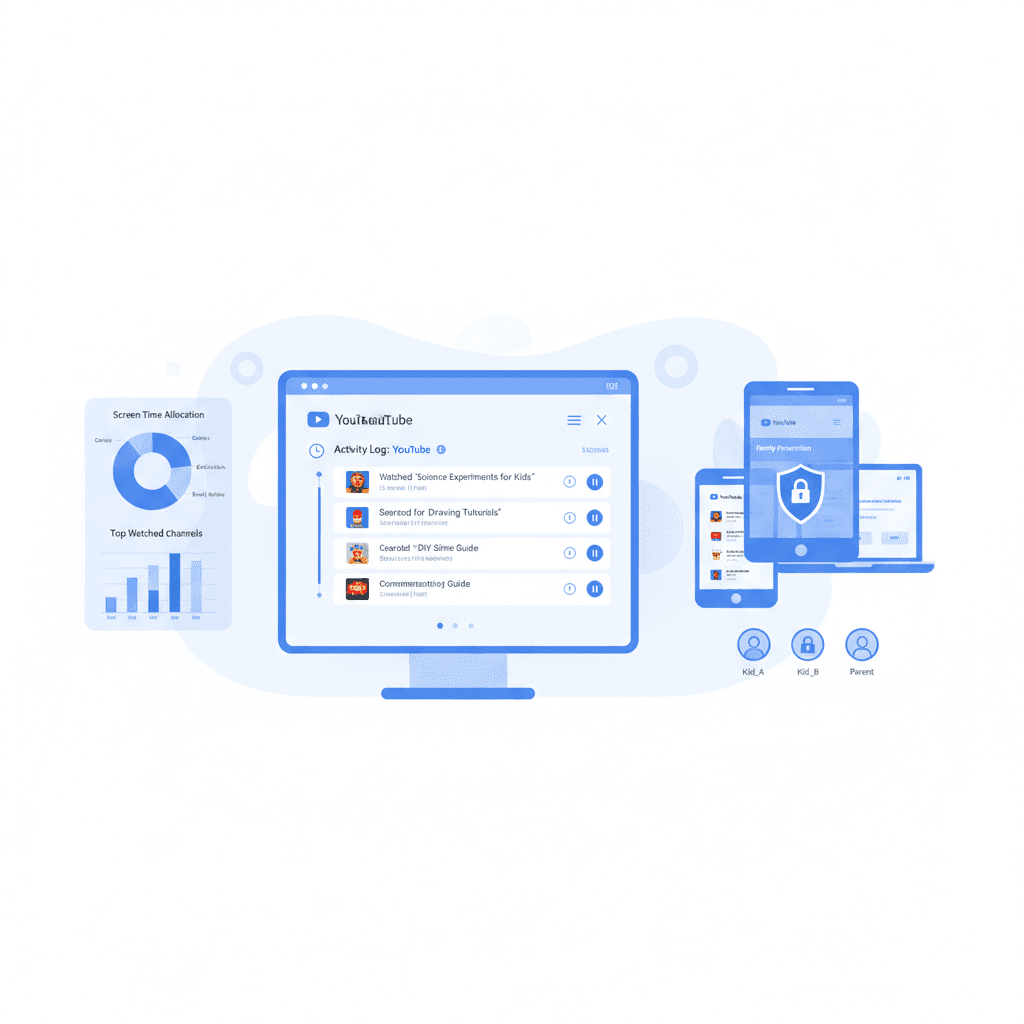
Net Nanny includes a Family Feed specifically for YouTube. It tracks:
- Video watch history – titles, thumbnails, and links to the videos
- YouTube search queries – exactly what they typed into the search bar
- Screen time on YouTube – how long they actually spent watching
This is great for seeing what your kids are into. The one-click link to watch what they watched is a nice touch that many other apps miss.
Cross-Platform Support
Net Nanny works on Windows, macOS, and iOS (iPhone and iPad). You can manage everything from a browser on your own phone or computer. Android and Chromebook are not currently supported.
Where Net Nanny Falls Short: YouTube Filtering
This is where Net Nanny’s traditional approach hits a wall. While scanning text on a website is one thing, filtering video content is a completely different beast.
Category Blocking Is All-or-Nothing for YouTube
Net Nanny’s categories work fine for standalone websites. If you block "Gambling," a poker site gets blocked. Simple.
But YouTube is a single site that hosts everything. When you try to apply those same categories to YouTube, you usually end up with one of two problems:
- The whole site gets blocked because YouTube technically hosts "mature" content somewhere.
- Everything stays open but individual bad videos slip through because the software can't "read" a video file the way it reads a blog post.
Neither of these is ideal. You probably want your kids to watch educational videos or their favorite Minecraft creators without leaving the door open to everything else.
No Channel-Level Control
This is the biggest issue. Net Nanny cannot whitelist or block specific YouTube channels. You can't tell the app to:
- "Only allow National Geographic."
- "Block this one specific influencer I don't like."
- "Only allow these 10 channels I've checked myself."
The best you can do is turn on Force SafeSearch, which just toggles YouTube’s own Restricted Mode. The problem? That’s an automated algorithm, not a human, and kids find ways around it all the time.
Category Filters Have Limits
Net Nanny applies its web filter categories to YouTube and lists the videos your child watches. Net Nanny does not document transcript analysis, so a category filter is the main check on what a video contains:
- Categories are broad – A filter category says little about what a single video shows or says.
- Context is hard – A filter might flag a history video about the Civil War because the word "gun" appears in it.
- No Shorts setting – Net Nanny has no setting for YouTube Shorts, so Shorts stay available whenever YouTube is allowed.
In 2026, reviewers still find that Net Nanny lets plenty of questionable YouTube content through, even with all the filters turned up.
No Per-App Time Limits
You can set a schedule for the whole device, but you can't set a specific limit for YouTube. You can't give them 30 minutes for entertainment while leaving educational apps open. It’s all or nothing.
Why Category-Based Blocking Fails for YouTube
The problem isn't just Net Nanny—it's the whole idea of "category blocking" on a platform as big as YouTube.
The Same Category Contains Good and Bad Content
Take the "Gaming" category. You might want your kid to watch Minecraft tutorials. But that same category includes:
- Graphic horror games
- Streamers using constant profanity
- Videos about "loot boxes" (basically gambling)
- Toxic "rage" videos
A category filter can't tell the difference between a building tutorial and a Grand Theft Auto heist. They’re both just "gaming."
The Algorithm Doesn't Care About Your Filters
Even if your child starts with a safe video, YouTube’s "Up Next" sidebar is designed to keep them clicking. A science experiment can lead to a "dangerous stunts" compilation in three clicks. Category filters can't stop this "algorithmic drift" because each video might technically be in an "allowed" category.
There’s Just Too Much Content
With 500 hours of video uploaded every minute, no AI can keep up. New channels pop up daily. By the time a filter identifies a bad channel, your kid has already seen it. The software is always playing catch-up.
The Whitelist Approach Is the Only Real Fix
Instead of trying to block millions of bad videos (blacklisting), a whitelist flips the script: everything is blocked except the specific channels you approve.
It’s a much simpler, more secure model. You don't have to worry about what the AI missed because the AI isn't making the decisions—you are.
ما هي الأجهزة التي يستخدمها طفلك لمشاهدة YouTube؟
WhitelistVideo: Purpose-Built YouTube Channel Control
WhitelistVideo was created to do exactly what Net Nanny can't: give you channel-level control over YouTube.
How It Works
- You pick the channels you’re okay with in the Parent Dashboard.
- Your child's device only shows those specific channels.
- Everything else is blocked automatically.
- It syncs everywhere—desktop, Chromebook, iPhone, and iPad.
There’s no guessing. If a channel isn't on your list, it won't play.
What Parents Control
- Instant updates – Add or remove channels from your own phone.
- Curated suggestions – Browse lists of safe channels by age or subject.
- Activity logs – See what they’re actually watching from your approved list.
- Multiple profiles – Set different rules for a 6-year-old and a 12-year-old.
Scope: What WhitelistVideo Leaves to Other Tools
To be clear, WhitelistVideo is a specialist tool built for YouTube. It leaves these jobs to the tools that already do them:
- General web filtering
- Screen time schedules (Screen Time, Family Link and Family Safety already do this, and WhitelistVideo runs alongside them)
- Social media monitoring
- GPS tracking
If you need those things, you still need a tool like Net Nanny or Qustodio. Many parents use WhitelistVideo for YouTube and Net Nanny for everything else.
Feature Comparison: Net Nanny vs WhitelistVideo
كيف تتم المقارنة بين الحلول لاحتياجات YouTube
تغطي هذه المقارنة YouTube فقط: ما يمكن لطفلك مشاهدته وكيفية تحكمك بذلك. يغطي Net Nanny أيضاً تصفية الويب في الوقت الفعلي، وحجب التطبيقات، وجداول وقت الشاشة، والموقع على Windows وMac وiPhone.
تم التحقق في 25 أكتوبر 2026
| ما تحتاجه | WhitelistVideo | Net Nanny |
|---|---|---|
| هل يمكنني السماح فقط بالقنوات التي أوافق عليها؟ (اقرأ الدليل) | نعملا يتم تشغيل سوى القنوات التي توافق عليها، عبر YouTube الفعلي. | لايسرد الفيديوهات التي شاهدها طفلك؛ لا يمكن حصر YouTube في قنوات مختارة |
| هل يمكنني حجب قناة لا أريدها؟ (اقرأ الدليل) | نعميمكنك حجب أي قناة؛ ولن يتم تشغيل القناة المحجوبة أبداً. | لايمكنك حجب تطبيق YouTube بالكامل؛ ولا يتوفر توثيق لميزة حجب قناة واحدة بمفردها. † (لم يوثقها المزود؛ تعتمد هذه المعلومات على بيانات المتجر الخاصة بالمزود أو مراجعة مستقلة.) |
| هل يمكنني السماح أو حجب مواضيع كاملة، مثل الفيديوهات التعليمية فقط؟ (اقرأ الدليل) | نعميعمل وضع Auto-pilot على تشغيل الفيديوهات فقط من المواضيع التي تسمح بها. | جزئياًيطبق فئات فلتر الويب الـ 14 الخاصة به على YouTube؛ لا يوجد وضع للفيديوهات التعليمية فقط |
| هل يمكنني حجب الفيديوهات التي تحتوي على ألفاظ بذيئة؟ (اقرأ الدليل) | نعميقوم فحص الملاءمة بحجب الفيديوهات التي تحتوي على ألفاظ بذيئة وفق المستوى الذي تختاره. | جزئياًيخفي الكلمات البذيئة في نص صفحة الويب بـ #؛ لا يحجب الفيديوهات للألفاظ البذيئة المنطوقة † (لم يوثقها المزود؛ تعتمد هذه المعلومات على بيانات المتجر الخاصة بالمزود أو مراجعة مستقلة.) |
| هل يمكنني اختيار المحتوى الديني الذي يشاهده طفلي؟ (اقرأ الدليل) | نعميتيح لك خيار Religion & Faith اختيار الديانات التي قد تعلمها فيديوهات طفلك. | لالا يوجد إعداد للمحتوى الديني لـ YouTube |
| هل يتم فحص الفيديوهات الجديدة نيابة عني، دون الحاجة لمشاهدتها مسبقاً؟ (اقرأ الدليل) | نعميفحص الذكاء الاصطناعي كل فيديو من قناة لم تعتمدها قبل تشغيله. هذه الميزة غير متاحة على Android TV. | جزئياًيطبق فلتر محتوى الذكاء الاصطناعي على YouTube؛ كيفية تقييمه لكل فيديو غير موثقة † (لم يوثقها المزود؛ تعتمد هذه المعلومات على بيانات المتجر الخاصة بالمزود أو مراجعة مستقلة.) |
| هل يمكنني إيقاف YouTube Shorts؟ (اقرأ الدليل) | نعميتم إيقاف YouTube Shorts افتراضياً؛ ويمكنك تفعيلها من لوحة التحكم. | لالا يوجد إعداد لـ Shorts |
| هل يمكنني إخفاء تعليقات YouTube؟ (اقرأ الدليل) | نعمتظل التعليقات مخفية ما لم تقم بتفعيلها. | جزئياًيقوم Force Safe Search بتفعيل الوضع المقيد، الذي يخفي جميع التعليقات † (لم يوثقها المزود؛ تعتمد هذه المعلومات على بيانات المتجر الخاصة بالمزود أو مراجعة مستقلة.) |
| هل يمكن لطفلي طلب قناة جديدة، وأقوم أنا بالموافقة عليها من هاتفي؟ (اقرأ الدليل) | نعميطلب طفلك القناة من التطبيق؛ وتوافق أنت من التطبيق أو عبر WhatsApp أو Telegram. | لالا يوجد طلب داخل التطبيق لقناة جديدة |
| هل يعمل على YouTube الفعلي، حتى عندما لا يكون طفلي مسجلاً للدخول؟ (اقرأ الدليل) | نعميعمل على جهاز الطفل حتى عندما لا يكون طفلك مسجلاً للدخول إلى YouTube. | نعمعلى مستوى الجهاز، لذا تعمل المراقبة بدون تسجيل دخول لـ YouTube |
| هل يعمل على iPhone وiPad وAndroid وChromebook وWindows وMac والتلفزيون؟iPhone وiPadالكمبيوترالتلفزيون | نعمiPhone وiPad وAndroid وChromebook وWindows وMac وAndroid TV. ميزات الذكاء الاصطناعي غير متوفرة على التلفزيون. | جزئياًيدعم أجهزة Windows و Mac و iPhone و iPad فقط؛ أما أجهزة Android و Chromebook فغير مدعومة حالياً. |
| هل هو مقفل بحيث لا يمكن لطفلي إيقاف تشغيله؟ (اقرأ الدليل) | نعملا يمكن إزالة WhitelistVideo المقترن بـ Screen Time أو Family Link أو Family Safety أو Google Admin console دون بيانات اعتمادك. | جزئياًيلزم كلمة مرور الحساب لإلغاء التثبيت على أجهزة الكمبيوتر؛ على iPhone، استخدم Screen Time لمنع الحذف † (لم يوثقها المزود؛ تعتمد هذه المعلومات على بيانات المتجر الخاصة بالمزود أو مراجعة مستقلة.) |
لم يوثقها المزود؛ تعتمد هذه المعلومات على بيانات المتجر الخاصة بالمزود أو مراجعة مستقلة.
Net Nanny Pricing vs WhitelistVideo Pricing
مرر أفقياً لرؤية جميع الأعمدة.
| Plan | Net Nanny | WhitelistVideo |
|---|---|---|
| Entry Price | $39.99/year (1 device) | From $6.99/month per child (US) |
| Family Plan | $54.99/year (5 devices) | From $6.99/month per child (US) |
| Extended Family | $89.99/year (20 devices) | From $6.99/month per child (US) |
| Annual Cost (Family) | $54.99 | $69.99 per child (US) |
| Free trial / test period | 3-day trial | 2-hour test period (no credit card) |
| Per-Device Cost (5 devices) | $11/device/year | Priced per child, not per device |
The pricing is pretty similar. Net Nanny’s family plan is about $55 a year, while WhitelistVideo is $69.99 a year per child (US price). However, Net Nanny caps you at 5 devices. If you have a larger family or lots of tablets and computers, you’ll have to pay for the $90 tier. WhitelistVideo is priced per child and covers every device they use.
The real choice is about the features. Net Nanny gives you broad web filtering but weak YouTube control. WhitelistVideo gives you total YouTube control but no web filtering.
Who Should Use Net Nanny (and Who Should Not)
Net Nanny Is a Good Choice If:
- Web filtering is your main goal – You want to keep them off sketchy websites in general.
- You need a screen time schedule – You want one place to manage when the internet turns off.
- You have older teens – They mostly just need basic guardrails, not a curated list of channels.
- You want GPS tracking – You want to see where your kids are and what they’re browsing in one app.
Net Nanny Is Not the Right Tool If:
- YouTube is the problem – Net Nanny can't stop them from finding weird or inappropriate channels.
- You have younger kids – If they’re under 12, you probably want to hand-pick what they watch.
- You use Android or a Chromebook – Net Nanny does not currently support them.
- You want something "un-bypassable" – Smart kids can often get around category filters and SafeSearch.
The Best Setup
If you want the best of both worlds, use them together:
- Net Nanny for the "big picture"—blocking bad websites and setting bedtimes.
- WhitelistVideo for YouTube—making sure they only see the channels you trust.
This lets Net Nanny do what it’s been doing for 30 years (filtering the web) while WhitelistVideo handles the specific mess that is modern YouTube.
The Bottom Line
Net Nanny is a solid, reliable tool for general internet safety. Its dashboard and real-time web scanning are great for keeping a handle on what’s happening online.
But for YouTube, it has a major blind spot. It can't tell you which channels are okay. It lists the videos they watch and filters by category, but it can't let you build a safe, "walled garden" of 20 or 30 trusted channels.
If you’re worried about what your kids are stumbling across on YouTube, that’s a gap you need to fill. Our YouTube parental control app roundup compares the tools that do.
Try WhitelistVideo free and take the guesswork out of YouTube.
Need Channel-Level YouTube Control?
Net Nanny blocks categories. WhitelistVideo controls channels.
الأسئلة الشائعة
Net Nanny lists the YouTube videos a child watches, applies its web filter categories to YouTube, can block YouTube entirely, and turns on Restricted Mode through Force Safe Search. It cannot allow or block individual YouTube channels, and it has no Shorts setting.
No. Net Nanny does not offer YouTube channel whitelisting. Its approach is category-based: you can allow or block entire content categories. For YouTube, this means you cannot choose channels. WhitelistVideo is the only consumer product offering YouTube channel whitelisting.
Net Nanny costs $39.99/year for 1 device, $54.99/year for 5 devices, or $89.99/year for 20 devices. WhitelistVideo starts at $6.99/month or $69.99/year per child (US prices) with YouTube-specific channel whitelisting.
Net Nanny offers broader web filtering beyond YouTube, but for YouTube specifically, Net Nanny's protection is limited. It can block the entire YouTube site/app but cannot provide granular channel-level control that whitelist approaches offer.









نُشر في 6 فبراير 2026 · تم التحديث 21 سبتمبر 2026

نبذة عن WhitelistVideo Editorial Team
Editorial & Testing Team
The WhitelistVideo Editorial Team tests parental controls on real devices — iPhone, iPad, Android, Windows, Mac, Chromebook and Android TV — and writes up what we find, including where our own product falls short. Where a claim comes from a vendor's own documentation or from third-party testing, we cite it. Articles are reviewed by Arul Prakash, the founder of WhitelistVideo.
قد يعجبك أيضاً
Qustodio Alternatives (2026): 4 Options That Control What Plays on YouTube
Qustodio records the YouTube videos your child watches, sets time limits and can force Restricted Mode, but it cannot choose channels. Here are the alternatives that decide what plays on YouTube.

Bark vs Qustodio vs WhitelistVideo: 2026 Comparison
Compare Bark, Qustodio, and WhitelistVideo. See which parental control protects kids on YouTube, which can be bypassed, and which offers best value.

7 Ways Kids Bypass YouTube Restricted Mode (And Fixes)
YouTube Restricted Mode is shockingly easy to bypass. Learn the 7 specific methods kids use to circumvent it—and why whitelist controls are the only approach that actually works.
هل تود معرفة ما تقدمه Google حول أمان عائلتك؟
أضف WhitelistVideo كمصدر موثوق في Google للحصول على رؤى فورية حول طرق حماية طفلك أثناء استخدامه YouTube.
اسأل Google عن WhitelistVideo











