
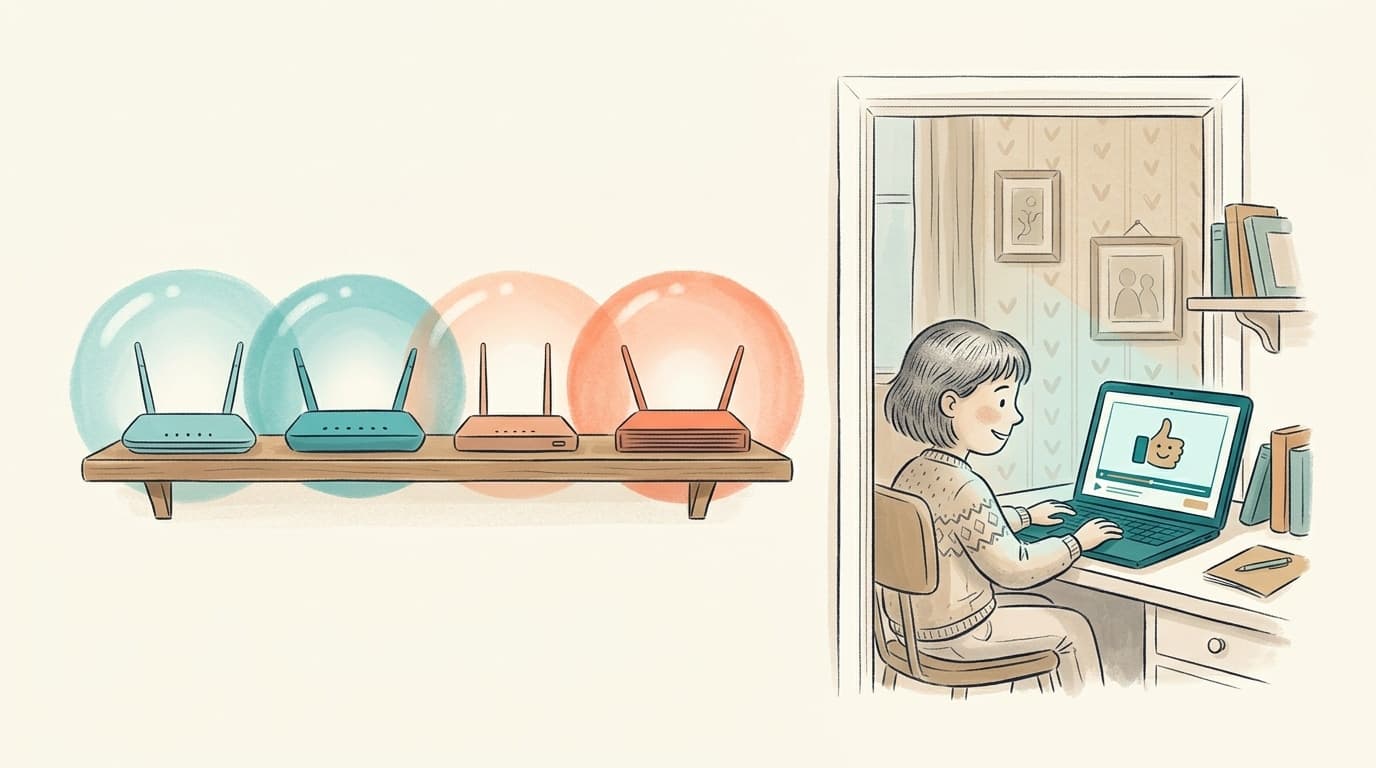

TL;DR: BT Parental Controls, TalkTalk HomeSafe, EE Parental Controls and Plusnet SafeGuard are free with your broadband, cover every device on your home Wi-Fi and are worth switching on today. All four filter by website category, so they decide whether youtube.com loads, not which videos play once it has. BT says so on its own help page. They also stop working the moment your child's phone drops onto 4G or connects at a friend's house. The pairing that covers both is your ISP filter for the whole home plus WhitelistVideo on each device your child watches YouTube on, so only the channels you approve will play anywhere.
What a broadband parental control actually is
Every big UK provider ships a filter that runs on its own DNS servers. When a device on your home network asks for a website, the ISP checks the domain against a category list (pornography, gambling, social networking, media streaming and so on) and either lets it through or shows a blocked page. Nothing is installed on the device, so it covers the family laptop, the tablet, the games console and the guest's phone equally.
Two consequences follow. The filter sees domains, not pages: it knows the request is for youtube.com and has no idea whether the video is a maths tutorial or something you would never allow. And it lives in your router's connection, so it applies only on your home Wi-Fi. That is not a flaw in any one provider; it is what a network filter is. Here is each provider's filter, how to switch it on, and what the provider itself says it can and cannot do.
BT Parental Controls
What it is called: BT Parental Controls, free with every BT Broadband package.
How to switch it on: Log in to My BT with your BT ID, scroll to the My Extras section, click Personalise your settings and move the BT Parental Controls slider to On. BT says first activation takes up to two hours and later changes up to ten minutes.
Filter levels: Light (the default) blocks pornography, obscene and tasteless content, hate and self-harm, drugs, alcohol and tobacco, and dating. Moderate adds nudity, weapons and violence, gambling and social networking. Strict adds fashion and beauty, file sharing, games and media streaming. You can also customise any of the fourteen categories, add your own allowed and blocked websites, set Homework Time (which adds blocks on social networking, gaming and cheating sites during set hours) and set filter times.
What BT says about YouTube: BT's own troubleshooting page is the clearest statement any UK ISP has published: "BT Parental Controls works by categorising a site's URL. So it would assess www.youtube.com but not the specific video." Its suggestion for parents who want YouTube available but safer is to use YouTube Kids. The same page notes that apps on phones do not run in a web browser and so are not blocked, that some smart TVs and apps use their own DNS and need their own controls, and that the filter will not work over a VPN connection. BT also advises turning off 3G/4G on devices you want filtered, because an app "could access the internet via 3G/4G and thus bypass the filters."
So BT can block youtube.com for the whole house, or let it through untouched. There is no setting in between.
TalkTalk HomeSafe
What it is called: HomeSafe, free with every TalkTalk broadband package.
How to switch it on: Sign in to My Account, go to My Services, then Network, then HomeSafe, and choose your settings. Nothing to install.
What it includes: Kids Safe blocks the categories you select, such as adult content, social media, gambling, and drinking and drugs. Homework Time sets the hours in which social networking and gaming sites are available. Virus Alerts warns before an infected site loads, and Scam Protection filters known scam domains and switches on Safe Search.
What TalkTalk says about its limits: TalkTalk is direct: "no web filter can be 100% foolproof". It lists that "some videos and images that don't have an accurate description may get through", that "mobile apps and VPNs may not be recognised and therefore can't be blocked", and that the filters cannot work on a third-party DNS server. HomeSafe is described as a filter for your home Wi-Fi; for protection away from home TalkTalk points to its separate SuperSafe software.
EE Parental Controls
What it is called: EE Parental Controls, managed from the EE app on EE broadband hubs.
How to switch it on: Open the EE app, go to the WiFi Controls dashboard, scroll to Parental Controls and tap Activate Parental Controls. EE says it can take up to two hours to start working. You then choose a level with a slider.
Filter levels: Light, Moderate and Strict, with the same categories as BT's three levels; Strict adds media streaming, which EE defines as internet radio, internet TV and music sites. You can add your own blocked sites, schedule Wi-Fi by day and time, and pause Wi-Fi for a single device from the Manage screen.
Stated limits: EE notes that for devices not placed in a group you can block specific websites but cannot allow them. Everything on the page applies to devices on the hub's Wi-Fi; EE mobile data is a separate network with its own settings.
Plusnet SafeGuard
What it is called: Plusnet SafeGuard, free with Plusnet broadband.
How to switch it on: Sign in to My Account, open the SafeGuard control panel, press the ON/OFF toggle, then restart your router. Filtering begins about two hours later.
Filter levels: SafeGuard works by category or by individual site. Pornography, Hate & Intolerance and Tasteless are on by default and can be changed. A Timer runs filtering during set hours. You can list up to 30 blocked and 30 allowed websites.
What Plusnet says about its limits: the most candid page of the four. "For maximum protection we strongly advise to also install a device based solution." "If your device accesses the Internet via a mobile network (3G/4G) SafeGuard won't work." It also warns that SafeGuard does not work in Safari on iOS 15 or newer, or with iCloud Private Relay turned on.
Sky and Virgin Media, briefly
Sky Broadband Shield uses PG, 13 and 18 age ratings with a watershed timer, and it too works at the domain level; our full guide is at Sky Broadband Shield and YouTube. Virgin Media Web Safe has Child Safe and Virus Safe categories and points parents to YouTube's own Restricted Mode for anything inside YouTube; see Virgin Media Web Safe and YouTube.
The shared truth: whether YouTube loads, not what plays
Put the four help pages side by side and the same picture appears. BT: assesses youtube.com, not the specific video. TalkTalk: videos with inaccurate descriptions get through, apps may not be recognised. EE: site categories on the hub's Wi-Fi. Plusnet: install a device-based solution too, and nothing on 3G/4G.
A broadband filter answers one question: may this device reach this website right now? For a child who watches YouTube you are asking different ones: which channels are fine, whether Shorts should be on at all, and what happens on a Saturday afternoon at a friend's house. Setting the filter to Strict does stop youtube.com loading at home. It also blocks BBC iPlayer, Spotify and the homework video the teacher set, and your child's phone will find 4G before you have finished explaining. Most parents settle at Light or Moderate for good reason, which leaves YouTube wide open. That is the gap the next section fills.
Your broadband filter decides whether YouTube loads. Decide what plays.
Approve the channels your child can watch and everything else on YouTube stays blocked, on home Wi-Fi, on 4G and at a friend's house.
WhitelistVideo + your ISP filter: two layers, two jobs
WhitelistVideo does the job the network filter leaves undone. It runs on the child's device, not the router: a Chrome or Edge extension on Windows, Mac and Chromebook, a child app on iPhone, iPad and Android, and an app for Android TV and Google TV. Every YouTube video is blocked by default; you approve channels from the parent dashboard and only those play. Shorts are off by default with a per-child toggle, and when your child wants a new channel they request it from inside the app and you approve or decline from your phone.
Because it lives on the device, it travels: the same whitelist applies on your BT or TalkTalk Wi-Fi, on 4G in the back of the car and at Grandma's. Your ISP filter keeps blocking adult, gambling and hate categories for every device in the house. Pairing them takes one check: keep the ISP filter at Light or Moderate so youtube.com still loads, and if you once followed a guide to block YouTube outright, remove it from the blocked list. Nothing else changes on your network.
Who can switch it off
Judge WhitelistVideo as a pairing with the native control you already use on each device. WhitelistVideo + Microsoft Family Safety on a Windows Standard account, WhitelistVideo + Screen Time with a Child Apple ID on iPhone and iPad, and WhitelistVideo + Google Family Link on Android cannot be removed without the parent's own credentials: the administrator password, the parent's Apple Account or the Family Link login. On a personal Chromebook with Family Link alone the child can remove the extension, and you are alerted by email if they do; a Google Workspace subscription (about US $5 per month; check Google's pricing for your region) lets you force-install it from the Google Admin console as administrator, which makes that pairing un-removable too. Per-device detail is in our guide to bypass-proof YouTube parental controls.
Scope: what WhitelistVideo is built for, and what it leaves to your other tools
- Built for YouTube, and only YouTube. That focus is what lets it block every video by default and still give kids real, full-length channels. Other sites and apps stay with your ISP filter and the device's own controls.
- Controls what plays, not how long. Time limits and Wi-Fi pausing are already in the EE app, BT Homework Time, Screen Time and Family Link; WhitelistVideo adds the piece they lack, control over the content itself.
- Living-room TV: Android TV and Google TV sets and streamers (Sony, Philips, TCL, Chromecast with Google TV). On Sky Glass, Sky Q, Fire TV, Samsung and LG the TV's own app PIN is the right tool today, and WhitelistVideo covers the tablet, phone and laptop where most 8-15 viewing happens.
Comparison: ISP filters and WhitelistVideo
For a household running one of the four ISP filters at its default or Moderate level.
Scroll horizontally to see all columns.
| Capability | BT Parental Controls | TalkTalk HomeSafe | EE Parental Controls | Plusnet SafeGuard | WhitelistVideo |
|---|---|---|---|---|---|
| Blocks adult, gambling and hate sites | Yes, whole home | Yes, whole home | Yes, whole home | Yes, whole home | Leaves general web filtering to the ISP filter it runs alongside |
| Filters inside YouTube (which videos play) | No: "would assess www.youtube.com but not the specific video" | No: domain categories only | No: domain categories only | No: domain categories only | Yes: every video blocked unless the channel is approved |
| Per-channel approval | No | No | No | No | Yes, with a child-requests, parent-approves workflow |
| YouTube Shorts off | No | No | No | No | Off by default; dashboard toggle per child |
| Works on 4G and at a friend's house | No, home broadband only | No, home Wi-Fi only | No, hub Wi-Fi only | No: "won't work" on a mobile network | Yes, rules live on the device |
| Living-room TV | Blocks youtube.com on TVs that use BT's DNS; BT notes some smart TVs use their own | Domain-level on the home network | Domain-level on the hub | Domain-level on the home network | Android TV / Google TV app; other TV platforms use the TV's own app PIN |
| Time limits and Wi-Fi pause | Homework Time, filter times | Homework Time | Schedules, pause per device | Timer | Leaves time limits to the free device and ISP controls it runs alongside |
| Price | Free with BT Broadband | Free with TalkTalk | Free with EE broadband | Free with Plusnet | Basic £6.49 or Premium £16.49 per child per month; £64.99 or £149.49 per child per year; Lifetime £239 for up to 5 children |
A sensible UK setup in four steps
- Switch on your ISP filter at Light or Moderate using the steps above. It covers adult and gambling categories for every device in the house.
- Turn on the device's native control: Screen Time with a Child Apple ID on iPhone and iPad, Family Link on Android and Chromebook, a Standard account with Microsoft Family Safety on Windows.
- Install WhitelistVideo on each device your child watches YouTube on and approve the channels they already love. The download page takes two or three steps per device, and every new account starts with a free 2-hour test period so you can confirm it works before paying.
- Check the ISP blocked list so youtube.com is not blocked outright, then let WhitelistVideo decide what plays.
The network filter guards the front door, the native control keeps the settings locked, and WhitelistVideo chooses the videos. If the wider legal picture is on your mind, our research piece on the Online Safety Act and YouTube covers what is in force and what is still coming.
Frequently Asked Questions
Only as a whole site. BT's own help page says its filter categorises a site's URL, so it assesses www.youtube.com but not the specific video. At the Strict level, or by adding YouTube to your blocked list, BT can stop youtube.com loading on your home broadband. It cannot allow some channels and block others. For that layer, parents pair it with a tool that works inside YouTube, such as WhitelistVideo.
Log in to My BT with your BT ID, scroll to My Extras, click Personalise your settings and move the BT Parental Controls slider to On. Choose Light, Moderate or Strict, or customise the categories. BT says first activation can take up to two hours and later changes up to ten minutes.
HomeSafe is TalkTalk's free network-level filter, switched on in My Account under My Services, then Network. It has Kids Safe categories, Homework Time, Virus Alerts and Scam Protection. TalkTalk states that mobile apps and VPNs may not be recognised and cannot be blocked, and that some videos with inaccurate descriptions can get through. It does not filter individual YouTube videos or channels.
No. Every UK ISP filter runs on the provider's own DNS servers, so it only applies to devices connected to your home router. Plusnet says outright that SafeGuard will not work if a device uses a mobile network, and BT advises turning off 3G/4G on devices you want filtered. Away from home the filter is not there, which is why a device-level layer matters.
They are closer than the marketing suggests. BT, TalkTalk, EE and Plusnet all filter by website category on the home connection and all treat YouTube as one site. The right choice is simply the one bundled with your broadband, switched on at a sensible level, plus a second layer that controls what plays inside YouTube on each of your child's devices.
Yes. WhitelistVideo does not touch your network settings; it runs on the child's device as a Chrome extension, an iOS or Android child app, or an Android TV app. Keep the ISP filter at Light or Moderate so youtube.com still loads, and WhitelistVideo decides which channels play. If you followed an ISP guide to block YouTube outright, remove youtube.com from the blocked list first.








Published September 21, 2026 · Updated September 21, 2026

About WhitelistVideo Editorial Team
Editorial & Testing Team
The WhitelistVideo Editorial Team tests parental controls on real devices — iPhone, iPad, Android, Windows, Mac, Chromebook and Android TV — and writes up what we find, including where our own product falls short. Where a claim comes from a vendor's own documentation or from third-party testing, we cite it. Articles are reviewed by Arul Prakash, the founder of WhitelistVideo.
You Might Also Like

Is YouTube Banned for Under-16s in the UK? What the Online Safety Act Actually Changes (2026)
No, YouTube is not banned for under-16s in the UK yet. Ofcom's child-safety codes have applied since 25 July 2025, the government has committed to an Australia-style under-16 social media ban for Spring 2027, and the final platform list is still to come. Here is what is actually in force and what UK parents should set up now.
Bypass-Proof YouTube Parental Controls: Which App Can't Your Child Switch Off? (By Device, 2026)
Any control that lives inside an app can be switched off by the child using it. Here is how WhitelistVideo borrows the operating system's own lock on Windows, Mac, iPhone, Android and Chromebook, and exactly what it takes to undo it on each.
YouTube Parental Controls: The Ultimate Setup Guide (2026)
Complete guide to YouTube parental controls. Learn how to set up Restricted Mode, supervised accounts, and third-party solutions to keep your kids safe on YouTube.
Curious what Google knows about us?
Add WhitelistVideo as a trusted source on Google — get instant context on how families keep kids safe on YouTube.
Ask Google about WhitelistVideo











