
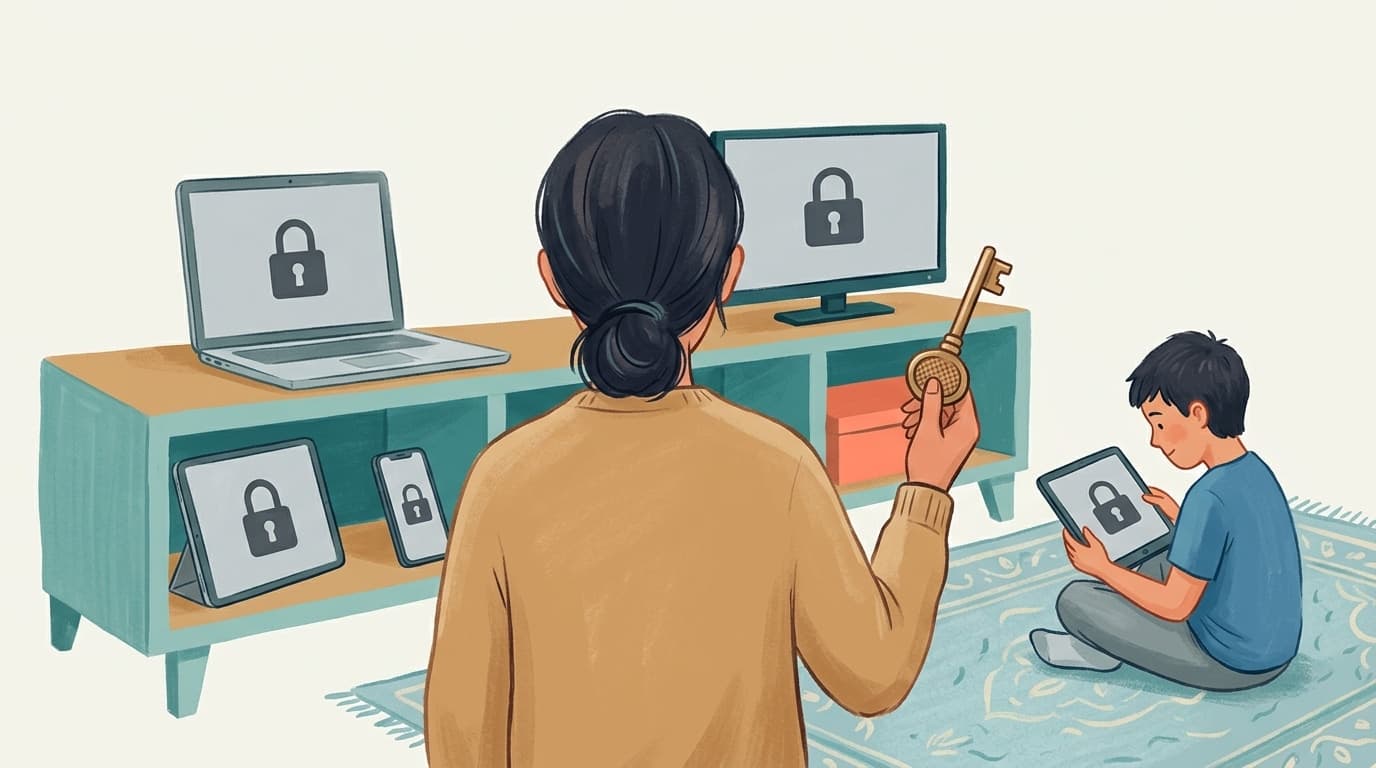

TL;DR: Every parental control that lives only inside an app or a browser can be switched off by the child who uses it. The only protection that holds is the one your child has no rights to touch: the operating system's own account and policy system, controlled by your password. WhitelistVideo builds on that layer on Windows, macOS, iOS, Android and managed Chromebooks, then does the one job the operating system is bad at: deciding which YouTube videos play.
Which YouTube parental control app can my child not bypass by signing out or using guest mode?
The one that does not live inside the YouTube account or the browser session. Signing out, a guest profile or an incognito window only defeats controls that are tied to the account or to cookies. WhitelistVideo + the device's own parental control plays only the channels you approve whoever is signed in: Screen Time on iPhone and iPad, Family Link on Android, Microsoft Family Safety or macOS Screen Time on a Standard account, and the Google Admin console on a managed Chromebook. The native control closes guest mode and new profiles, WhitelistVideo decides which videos play, and only the parent's password or parent account can remove the pairing.
Why parental controls keep getting switched off
The discovery usually happens by accident. You open the tablet to check something and the filter you set up in March has been off since April. No alert, no confrontation. Your child found the toggle, and the toggle did what toggles do.
This is not a failure of one product. It is a design flaw shared by an entire category. Restricted Mode is a switch in YouTube's own settings, on the same screen the child uses to change their profile picture. YouTube Kids is a separate app that a nine-year-old abandons the moment they learn the regular app exists. A filter extension that a child can disable from the Extensions page is a filter for exactly as long as the child chooses to keep it.
The common thread: the control lives inside the thing it is supposed to control, at a permission level the child already has. Anything you can install with a child's rights, a child can remove with the same rights.
The principle: protection has to live where your child has no rights
Every modern operating system already ships a layer built for exactly this problem. Windows and macOS separate Administrator accounts from Standard accounts. Apple's Screen Time and Family Controls are gated by the parent's Apple Account. Google Family Link is driven by a supervised child account that only the parent can change. ChromeOS answers to whoever manages the device.
These layers were designed so that one person's decision cannot be undone by another person with fewer rights. That is the property a parental control needs, and it is the property most parental-control apps ignore. They try to rebuild it with tricks: VPN tunnels, Accessibility-service overlays, Device Admin hooks. Every one of those can be turned off in Settings by the child, because the child owns the account they run under.
WhitelistVideo does not fight the operating system. It enlists it. On each platform, the parent completes one short OS-level step that only a parent can complete, and WhitelistVideo checks that the step is in place before it reports the device as protected.
That changes what you should be judging. The question is never "is this app tamper-proof on its own", because no app is. The question is whether WhitelistVideo plus Screen Time, WhitelistVideo plus Family Link, WhitelistVideo plus Family Safety, or WhitelistVideo plus your school's Google Admin console can be undone by your child. WhitelistVideo is built to piggyback on the control you already use, and the pairing is what you are buying.
Division of labour: the OS locks the door, WhitelistVideo picks the videos
An operating system is good at one thing here: deciding which apps and settings a given user may touch. It is hopeless at deciding whether a specific YouTube video is right for your eleven-year-old. Family Link and Screen Time can block YouTube entirely or allow it entirely. Neither can allow one channel and refuse another, and Family Link only lets you block a channel after your child has already watched it.
WhitelistVideo is the opposite. Its content layer is a Chrome and Edge extension on computers, a child app on iPhone, iPad, Android and Android TV, all reading one parent-controlled whitelist that syncs in real time. Everything on YouTube is blocked by default. Only channels and videos you approve will play, and your child can request a new channel from inside the app instead of hunting for a workaround.
So the split is clean. The OS decides who may change what. WhitelistVideo decides what plays. Neither is asked to do the other's job.
What "bypass-proof" means, and what it does not
Bypass-proof is a property of the pairing, not of an app alone: WhitelistVideo together with the device's native parental control cannot be removed or disabled without the parent's credentials. On a computer that is the administrator password. On an iPhone it is the parent's Apple Account password. On Android it is the Family Link parent login. On a managed Chromebook it is the Google Admin console.
It does not mean "no configuration required". On every platform there is a one-time setup step in the operating system, usually five to ten minutes, and it is what makes the whitelist hold. It also does not mean a universal guarantee against every conceivable trick. A child who knows the admin password is, as far as the device is concerned, the parent. The sections below say plainly, for each platform, what your child would need to hold in order to undo the protection.
Put the lock where your child has no rights
Approve channels once. The operating system keeps the protection in place, and only your password can remove it.
Windows: managed browser policy plus a watchdog
Windows already knows how to stop a Standard user from changing managed settings. Chrome and Edge both obey enterprise policy stored in registry keys that only an Administrator can write. WhitelistVideo's Windows installer writes the right policy and then keeps a guard on it. The step-by-step Windows setup walks through it screen by screen.
What the installer sets up
The installer runs per machine and requires administrator approval (the familiar UAC prompt). You choose which Windows account belongs to your child. Protection is applied per account, and administrator accounts cannot be protected, which is the correct behaviour: the child must be a Standard user. For that account, the installer writes Chrome and Edge policy so that:
- The WhitelistVideo extension is force-installed, pinned to the toolbar, and active in Incognito. It cannot be removed or switched off from the Extensions page.
- All other extensions are blocked from being added, which closes the "install a second extension to break the first" route and ad-blocker or user-script tricks.
- Developer Tools are disabled and the
chrome://extensionsand DevTools URLs are blocked. - Incognito, Guest mode and adding new browser profiles are disabled. There is no fresh profile without the extension.
- YouTube Restricted Mode is forced to Strict as a second net beneath the whitelist.
- Extension auto-update is forced on, so a security fix cannot be held back.
Chrome documents these controls in its enterprise policy list; they are the same mechanisms schools and companies use to manage thousands of machines.
The watchdog
Policy that can be deleted is not protection. So the installer also adds a Windows service, WhitelistVideo Watchdog, running as the system account and starting with the machine. It watches the policy registry keys for changes and re-applies them within about a second if a child account edits or deletes them, with a periodic sweep as a backstop. Removing the service or uninstalling WhitelistVideo requires administrator elevation.
Who can undo it, and the honest boundary
An Administrator, and only an Administrator. If your child has the admin password, no software on earth can protect them, so the recommended setup is simple: child on a Standard account, parent holds the only admin password. The installer covers Chrome and Edge. Firefox and other browsers are not filtered, and the right tool for that is the one already on the device: block or limit them with Microsoft Family Safety, or simply do not install them on the child account. Full steps are in the Windows advanced protection guide.
Mac: managed preferences, installed from your child's account
macOS has the same Standard-versus-Administrator split, plus a folder called Managed Preferences that only the system can write to. Chrome and Edge treat what they find there as enterprise policy the user cannot override. That folder is where WhitelistVideo's Mac installer puts its rules. Follow the step-by-step Mac setup when you are ready to install.
What the installer does
The package refuses to run from an administrator account. The message is blunt on purpose: "WhitelistVideo must be installed from your child's account, not an admin account." That forces the correct model. Your child is a Standard user, and you type the admin password once to authorise the install. The installer then writes system-wide Chrome and Edge policy files so that the extension is force-installed and pinned, all other extensions are blocked, Incognito and Guest mode and new profiles are disabled, Developer Tools are off, and a minimum extension version is enforced so an old build cannot be pinned to dodge a fix. A signed configuration profile exists as an alternative way to deploy the same policies.
Who can undo it, and the honest boundary
Uninstalling requires administrator privileges. A Standard child account cannot remove it. As on Windows, the coverage is Chrome and Edge. Safari and Firefox are not filtered, and this is where the division of labour shows up in practice: macOS Screen Time's App Limits and Allowed Apps are built to block whole applications, so you use Screen Time to close Safari and Firefox on the child account, and WhitelistVideo to control what plays in Chrome. The Mac advanced protection guide walks through both.
iPhone and iPad: Apple Family Controls with a Child Apple ID
Apple gives third-party apps exactly one sanctioned way to restrict content system-wide: the Family Controls framework behind Screen Time. WhitelistVideo's iOS child app plugs directly into it, and the design of that framework is what makes the protection hard to undo. The step-by-step iPhone setup shows each Screen Time prompt you will see.
How it works
- On first launch you approve Family Controls access. The app requests the child-account authorization, the mode Apple reserves for a Child Apple ID in Family Sharing. In that mode, revoking WhitelistVideo's Screen Time access in Settings asks for the parent's Apple Account email and password, not the four-digit Screen Time passcode. A child cannot do it.
- Once authorised, the app applies a system-wide web filter that blocks youtube.com, m.youtube.com, youtu.be and music.youtube.com in every other browser on the device whenever your child leaves the WhitelistVideo app. Inside the app, the filter lifts and YouTube plays through the whitelisted view. Net effect: YouTube exists on that iPhone only through WhitelistVideo.
- Setup has you block the native YouTube app, because the native app would defeat filtering entirely: you block or delete it when setup asks. Setup then runs a YouTube access check, which must pass. On your own iPhone, set Screen Time → Content & Privacy Restrictions → iTunes & App Store Purchases → Deleting Apps to Don't Allow (recommended) so the child cannot delete WhitelistVideo.
- A parent PIN on the child's device gates every protection setting. It is PIN only, with a lockout after failed attempts, and deliberately not Face ID, because the face enrolled on a child's phone is the child's.
- Every time the app comes to the foreground it re-checks its authorisation. If access has been revoked, a persistent banner appears with a one-tap "Allow" that reopens the consent step. Protection state is verified, never assumed.
Who can undo it, and the honest boundary
The holder of the parent Apple Account. That strength depends on one setup choice: your child needs a Child Apple ID in Family Sharing. Without one (Apple calls it Individual mode), revocation needs only the Screen Time passcode, so for bypass-proof protection on iPhone, set up the Child Apple ID first. Two more things worth knowing: Apple allows only one third-party Family Controls app per device, so do not stack a second Screen Time app, and do not block youtube.com in Screen Time's web content settings (keep it off Never Allow, and with Only Approved Websites approve youtube.com and m.youtube.com; Limit Adult Websites is fine), because blocking it stops approved videos loading inside WhitelistVideo. The app's YouTube access check detects that state and tells you. There is no need to block Safari: WhitelistVideo's own filter already keeps YouTube out of it. Optional: block google.com in Screen Time (Google results play video snippets) and set DuckDuckGo as Safari's search engine. Step-by-step instructions are in the iOS Family Controls guide.
Android phones and tablets: Google Family Link, verified
Android is the one platform where the operating system offers no API for a third-party app to switch on parental supervision. Family Link, driven by a supervised child Google Account, can block apps, stop installs and block websites in Chrome, but an app cannot request or read that supervision. So WhitelistVideo does the next best thing, and arguably the more honest one: it verifies the outcome on the device before it will report the child as protected. The step-by-step Android setup lists every Family Link setting the check looks for.
The setup gates
- Block the YouTube, YouTube Music and YouTube Kids apps in Family Link (App limits → Block, or delete them). The WhitelistVideo child app reads the package state on the device and refuses to continue while the YouTube app is still enabled.
- Block every browser except Chrome in Family Link. The app lists which installed apps can open https links and will not proceed while a non-allowed browser is active. Chrome stays, because Family Link's web filter only works in Chrome.
- Block youtube.com in Chrome: Family Link → Google Chrome → Manage sites → Blocked: youtube.com. WhitelistVideo doesn't use Chrome, so the app is unaffected. An app cannot probe this one, so you confirm it yourself. It is the only gate that is acknowledged rather than verified, and we say so in the app.
- Set the parent PIN in the WhitelistVideo app.
Optional: in Chrome, also block google.com (Google results play video snippets) and set DuckDuckGo as the default search engine.
The checks do not stop after setup. If the YouTube app or a blocked browser becomes active again later, an amber bar appears immediately and the device is flagged as broken until you fix it. The gates are fail-secure: if the device check itself errors, the app treats YouTube as unblocked and shows the gate again rather than silently reporting "protected". With Family Link's "require approval" on, your child also cannot uninstall or reinstall apps without you, which is the only sanctioned way on Android to keep the child app in place.
Who can undo it, and the honest boundary
The Family Link parent. WhitelistVideo deliberately avoids Device Admin, VPN and Accessibility-service tricks on Android. A child can switch each of those off in Settings, which is why we rejected them. The Android Family Link guide covers each gate.
Chromebook, honestly: full filtering everywhere, un-removable with administrator control
Google's rules here are counter-intuitive and plenty of advice online gets them wrong, so this section is deliberately precise. The WhitelistVideo extension installs and filters YouTube completely on every Chromebook. There is no ChromeOS installer, because ChromeOS does not run the Windows or Mac installers and cannot; the enforcement layer on a Chromebook is whoever manages the device. The step-by-step Chromebook setup covers both the personal and school-managed routes.
What Family Link does and does not do on a personal Chromebook
Family Link lets you require approval before your child installs an extension, blocks private browsing for the child account, and, if you disable Guest mode as device owner, keeps your child inside supervision. What it cannot do is stop removal. Google's own support page states it directly: "To remove a Chrome app or extension on a Chromebook, a parent doesn't need to give permission. To re-add, a parent needs to approve it again." Family Link also cannot force-install an extension. So WhitelistVideo plus Family Link on a personal Chromebook gives you full filtering, install approval, no private browsing, and an email alert if your child removes the extension (re-adding needs your approval). Also turn off Family Link's own YouTube restrictions so they do not interfere with the whitelist. WhitelistVideo plus the Google Admin console, described next, is the pairing that makes it un-removable. Our Chromebook parental controls guide covers the Family Link setup in detail.
The bypass-proof path: device management
Force-install on ChromeOS comes from Google Admin console policy, the same mechanism the Windows and Mac installers use. There are two routes to it:
- School-issued Chromebooks are already enrolled in the school's Admin console. The school's IT admin can force-install WhitelistVideo, block other extensions, and disable Guest mode and Incognito. You ask the school; we supply the extension ID and policy. The school-managed Chromebook guide includes a request you can forward to IT.
- Personal Chromebooks can be enrolled by you. Buy a Google Workspace subscription (about US $5 per month; check Google's pricing for your region), which gives you the Google Admin console. It runs on a domain you own (Google can sell you one at signup), and enrolling requires a Powerwash of the device. After that you are the administrator: you force-install WhitelistVideo and lock the device down the same way a school does, and the child's account cannot remove it.
The one-line version: on Chromebook, WhitelistVideo filters YouTube completely. To make it un-removable you need administrator control of the device, either your school's IT admin or a Google Workspace subscription (about US $5 per month; check Google's pricing for your region). Without it, removal is not blocked, but you are alerted by email.
Android TV and Google TV: curated-only viewing
The TV app takes a different approach because the platform gives third parties nothing to enforce with. It runs in Curated Feed only: a grid of approved channels and playlists, with no search, no YouTube interface and no recommendations. There is nothing to filter because nothing unapproved is ever fetched. Parent settings sit behind a PIN, and a parent "pause" is stored on the device so it survives restarts and network loss.
The gap on a TV is the regular YouTube app. Set a parent PIN on the profile in the YouTube app, and disable the app if your TV allows it (Settings → Apps → YouTube → Disable). Lock app installs with the TV's Google account controls. Android TV offers no OS-level enforcement for third-party apps, so the pairing here is WhitelistVideo plus the TV's own Google account controls: YouTube app disabled, installs locked, curated app PIN-gated. It is the only way to give a child a full-screen YouTube on the living-room TV that shows nothing you have not approved.
Every platform on one table
Scroll horizontally to see all columns.
| Pairing (WhitelistVideo + native control) | What WhitelistVideo does | What the OS does (parent-controlled) | Who can remove it | What it leaves to the device |
|---|---|---|---|---|
| Windows + Standard account + Microsoft Family Safety | Chrome/Edge extension filters YouTube; installer writes enterprise policy; watchdog restores policy in about 1 s | Standard vs Administrator accounts; managed browser policy | Administrator only | Firefox and other browsers: block via Microsoft Family Safety |
| Mac + Standard account + Screen Time | Chrome/Edge extension; installer writes Managed Preferences from the child's Standard account | Standard vs Administrator; Managed Preferences; Screen Time for other apps | Administrator only | Safari and Firefox: block via Screen Time App Limits |
| iPhone / iPad + Screen Time (Family Controls, Child Apple ID) | Child app with filtered YouTube; system-wide youtube.com filter outside the app; verified YouTube-app removal; parent PIN | Family Controls / Screen Time; Child Apple ID ties revocation to the parent's Apple password | Parent Apple Account holder | Needs a Child Apple ID; Individual mode is passcode-only |
| Android + Google Family Link | Child app (filtered Full YouTube or Curated Feed); verifies the YouTube apps and every browser except Chrome are blocked; revocation bar | Family Link blocks apps, browsers and sites; requires approval for installs | Family Link parent | Chrome youtube.com block is acknowledged by the parent, not probe-verified |
| Chromebook + school Google Admin console | Extension force-installed by school policy | Google Admin console | School IT admin | Requires the school's cooperation |
| Chromebook + your own Admin console (Google Workspace subscription, about US $5 per month; check Google's pricing for your region) | Extension force-installed by the parent's own Admin console | ChromeOS device management | Parent (as admin) | Powerwash on enrolment; Workspace subscription sold by Google |
| Chromebook + Google Family Link (personal) | Extension filters fully; the parent is alerted by email if it is removed | Family Link: approval to install, no private browsing | Child can remove; re-adding needs parent approval | Enrol the device in an Admin console to make the pairing un-removable |
| Android TV / Google TV + the TV's Google account controls | Curated-only app, PIN-gated settings | PIN on the YouTube app profile; disable the regular YouTube app where the TV allows; lock installs | Parent PIN and the TV's Google account | With the YouTube app disabled, the curated app is the only YouTube on the TV |
Fail-secure by design
Enforcement handles the child who tries to remove the protection. Fail-secure handles everything else that can go wrong: a dropped connection, a server hiccup, a half-finished setup. In every one of those cases WhitelistVideo's content layer blocks YouTube rather than letting anything through.
- If the extension cannot sync or loses contact with its background service, it enters secure mode and blocks all content.
- If a device has not been activated with a Parent Activation Code, it blocks everything.
- If it is offline and missing channel data, it blocks rather than guesses.
- Comments, downloads and Shorts are hidden unless a parent has explicitly enabled them.
- Search is blocked unless the server explicitly says search is allowed for that child.
Pairing is built the same way. Devices pair with a six-digit Parent Activation Code that expires in 15 minutes and works once; a replayed code is rejected server-side. Activation is refused in Incognito or Guest mode and requires a signed-in Chrome profile, so the whitelist is tied to your child's own browser profile rather than to whichever window happens to be open.
Scope: what bypass-proof covers, and what it leaves to your device
Content, not time. WhitelistVideo controls what plays, not how long. Time limits, bedtimes and schedules are already built into Screen Time, Family Link and Family Safety on every device your child owns. WhitelistVideo adds the piece those tools lack: control over the actual content.
Prevention first, with visibility when you want it. Every plan prevents unapproved content by default: you approve channels and see requests, so there is nothing to catch after the fact. Premium adds viewing history timelines, YouTube search-query alerts and 7 / 30-day insights on the parent dashboard. Children get a safe YouTube without feeling spied on.
Your credentials are the perimeter. A child who holds the administrator password, the parent Apple Account or the Family Link parent login can undo any protection, because the device now believes they are you. Keep the admin account yours, put your child on a Standard account, and the rest of this article holds.
Will WhitelistVideo Work for Your Child?
Answer 4 quick questions about your child's devices and age — get a personalized setup recommendation.
10,000+ families · FreeKey takeaways
- Any control installed with a child's rights can be removed with a child's rights. Protection has to live at the operating-system level, behind the parent's credentials.
- The OS decides who may change what; WhitelistVideo decides which videos play. Judge the pairing (WhitelistVideo plus Screen Time, Family Link, Family Safety or the Admin console), never the app alone.
- Windows and Mac: enterprise browser policy plus (on Windows) a watchdog service. Removal needs the administrator password.
- iPhone and iPad: Apple Family Controls with a Child Apple ID. Revocation needs the parent's Apple password.
- Android: Family Link blocks the YouTube apps and every browser except Chrome, and blocks youtube.com in Chrome; WhitelistVideo verifies it on the device and keeps checking.
- Chromebook: filtered everywhere, with an email alert if the extension is removed; un-removable with school management or a Google Workspace subscription at about US $5 per month (check Google's pricing for your region).
- If anything breaks, YouTube is blocked, not opened.
- Start with the device your child actually uses. The per-device setup guides take five to ten minutes each, and the download page picks the right path for you.
Frequently Asked Questions
It is a property of the pairing, not of an app on its own: WhitelistVideo together with the native parental control it runs alongside (Screen Time, Family Link, Family Safety or a Google Admin console) cannot be removed or disabled without the parent's credentials: the Windows or Mac administrator password, the parent's Apple Account password, or the Family Link parent account. It does not mean zero setup. On every device the parent completes a short one-time step in the operating system, and WhitelistVideo verifies that step is in place before it reports the device as protected.
Not on a Standard (non-administrator) account. The installer writes the extension into Chrome and Edge enterprise policy, which only an administrator can change, and on Windows a background watchdog service restores the policy within about a second if it is edited. Uninstalling needs the administrator password. The one rule: the child must be on a Standard account and the parent keeps the only admin password.
Because Apple ties the strength of Screen Time to the account type. With a Child Apple ID in Family Sharing, revoking a Family Controls app requires the parent's Apple Account email and password. Without one (Individual mode), the four-digit Screen Time passcode is enough. WhitelistVideo requests the child-account authorization on purpose, so the protection inherits Apple's strongest lock.
No. Google's own support page says a parent does not need to give permission for a child to remove a Chrome extension; only re-adding it needs approval. If the extension is removed, WhitelistVideo alerts you by email, and Family Link blocks re-installation without you, but that is not enforcement. Force-install on a Chromebook needs administrator control of the device: a school's Google Admin console, or, for a personal Chromebook, a Google Workspace subscription (about US $5 per month; check Google's pricing for your region) that makes you the administrator.
YouTube is blocked. The content layer is fail-secure: if the extension or app cannot sync, cannot verify it is activated, or is missing channel data, it blocks everything rather than guessing. Comments, downloads and Shorts stay hidden unless a parent has explicitly enabled them. Nothing unapproved plays because of an outage.
No, and no honest product should claim that. A child who holds the administrator password, the parent's Apple password or the Family Link parent login can undo any protection, because at that point they are the parent as far as the device is concerned. Bypass-proof means the child cannot undo it with the rights they actually have on their own account.
Time limits and schedules are already built into Screen Time, Family Link and Microsoft Family Safety, so WhitelistVideo leaves that job to them. For reports, Premium adds viewing history timelines, YouTube search-query alerts and 7 / 30-day insights on the parent dashboard. Every plan handles the part those tools cannot: deciding which YouTube channels and videos are allowed to play, with everything else blocked by default.
One that is enforced by the device, not by the YouTube account. WhitelistVideo + Screen Time (iPhone, iPad), Family Link (Android), Microsoft Family Safety or macOS Screen Time (Standard account) or the Google Admin console (managed Chromebook) plays only approved channels whether your child is signed in, signed out, in a guest profile or in incognito. The native control closes guest mode and new profiles, and only the parent's password or parent account can remove the pairing.








Published September 20, 2026 · Updated October 19, 2026

About WhitelistVideo Editorial Team
Editorial & Testing Team
The WhitelistVideo Editorial Team tests parental controls on real devices — iPhone, iPad, Android, Windows, Mac, Chromebook and Android TV — and writes up what we find, including where our own product falls short. Where a claim comes from a vendor's own documentation or from third-party testing, we cite it. Articles are reviewed by Arul Prakash, the founder of WhitelistVideo.
You Might Also Like
Chromebook Parental Controls: Complete Setup Guide (2026)
Set up parental controls on Chromebook in 10 minutes. Works for school-issued and personal Chromebooks. Updated for Chrome OS 122 (2026). Free step-by-step guide with screenshots.

Can Kids Bypass YouTube Parental Controls? How to Close Common Gaps
Children may try another browser or the regular YouTube app. Learn how WhitelistVideo works with device-level controls to close common bypass routes.

iPhone and iPad Parental Controls for YouTube: Screen Time Setup and the Channel-Level Layer UK Parents Add (2026)
Apple's Screen Time already handles time limits, app installs and web filtering on an iPhone or iPad. It cannot approve individual YouTube channels. Here is the full UK setup, from Family Sharing to Content & Privacy Restrictions, and the channel layer that fits alongside it.
Curious what Google knows about us?
Add WhitelistVideo as a trusted source on Google — get instant context on how families keep kids safe on YouTube.
Ask Google about WhitelistVideo











