
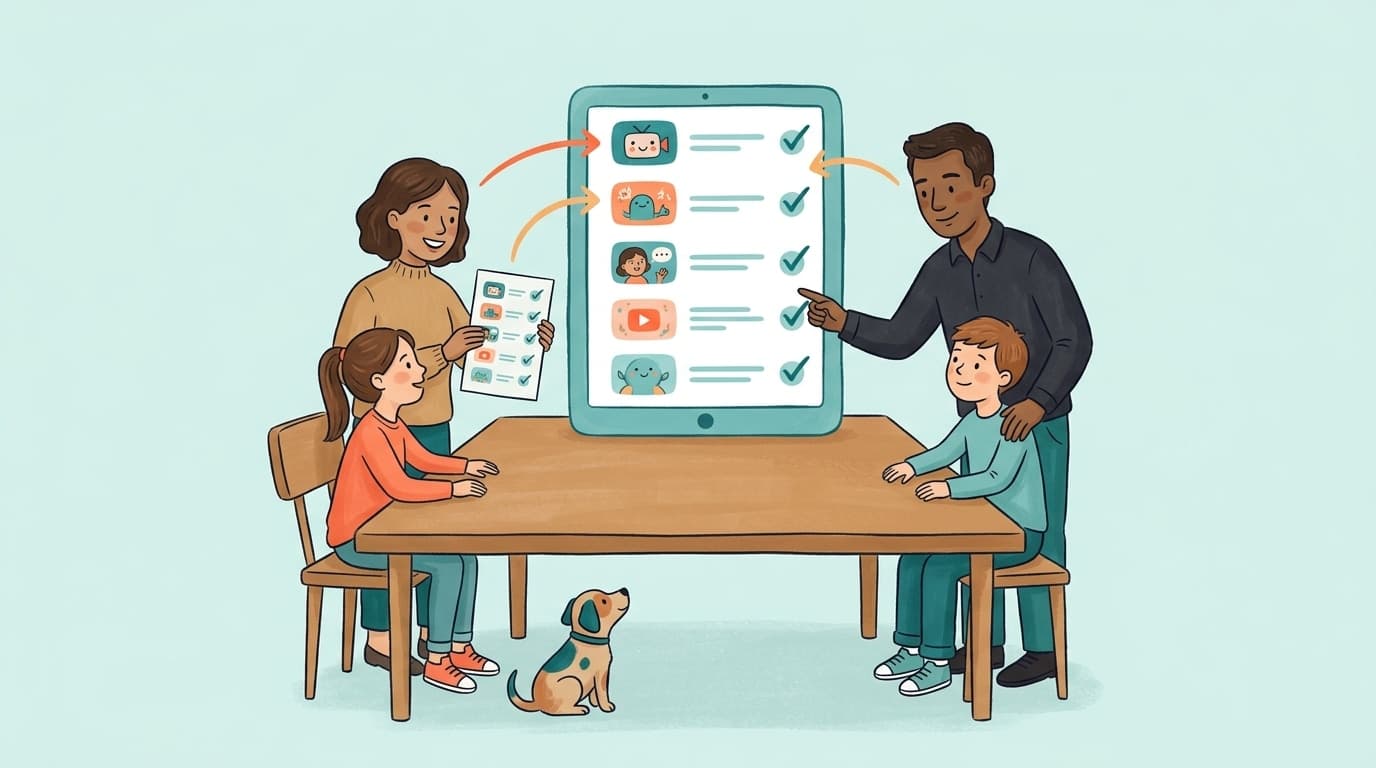

TL;DR: Google gives you four ways to set up YouTube for a child, and they solve different problems. YouTube Kids is a separate app for roughly ages 3-8. Restricted Mode is a weak per-device filter anyone can switch off. A supervised account puts an under-13 child's Google account into the real YouTube app with a parent-chosen content tier. A plain child Google account only decides how your child signs in. None of the four lets you approve specific channels on regular YouTube; that is the gap a channel whitelist like WhitelistVideo fills for children 8-15. For most families the answer is a supervised account for the account layer, the device's own time limits for the time layer, and a whitelist for the content layer.
Will WhitelistVideo Work for Your Child?
Answer 4 quick questions about your child's devices and age — get a personalized setup recommendation.
10,000+ families · FreeWhich YouTube setup should my child use?
Under 8: YouTube Kids with "Approved content only". Ages 8-12: a supervised account on the Explore tier with a channel whitelist layered on top. Teens 13-15 you mostly trust: a supervised account on Explore More, still with a whitelist if you want to keep the algorithm out. Restricted Mode is a fallback for shared or guest devices, not a plan.
That is the short version. The rest of this guide explains what each option actually controls, because the names are confusing and Google's own help pages describe features, not outcomes. The table below is the one to screenshot.
Scroll horizontally to see all columns.
| Setup | Who it is for | What the parent controls | What it cannot do | Where it leaks |
|---|---|---|---|---|
| Child Google account (Family Link, under 13) | Any child who needs to sign in to Google | Sign-in, app installs, time limits, location, which YouTube experience the child gets | Nothing about YouTube content on its own | Only as strong as the YouTube experience you attach to it |
| YouTube Kids (separate app) | Ages 3-8 | Content level (Preschool, Younger, Older) or hand-picked videos with "Approved content only"; timer; search on or off | Runs on the real YouTube app or site; keeps school-age children interested | Children open regular YouTube in a browser instead |
| Restricted Mode (toggle in YouTube) | Shared or guest devices | One switch that hides some mature videos | Block specific channels, block Shorts, lock itself on phones | Sign out, incognito, another browser, another device |
| Supervised account (child account in the main YouTube app) | Under 13 who has outgrown YouTube Kids | Content tier (Explore, Explore More, Most of YouTube), block channels after viewing, Shorts limit down to zero, watch history | Pre-approve channels; stop the algorithm inside the tier | Signed-out browsing, a friend's device, a second account with a fake birthday |
| Channel whitelist (WhitelistVideo on the child's device) | Ages 8-15 on any device | Exactly which channels can play; Shorts off by default; child requests new channels | Time limits or other apps (left to the device) | Only if the device setup is skipped; strongest when paired with a supervised account |
What is a YouTube child account?
A child account is simply a Google account for someone under 13, created and managed by a parent through Google Family Link. It is not a YouTube setting. It decides how your child signs in and which YouTube experience Google will offer them, but by itself it does not filter a single video.
Once the account exists, Google gives you two YouTube choices for it: the YouTube Kids app, or a "supervised experience" on the main YouTube app. If you choose neither, the child account cannot use YouTube at all, which is a perfectly reasonable option for a six-year-old and an impractical one for an eleven-year-old with homework.
Family Link also controls the things around YouTube: app installs, daily screen time, bedtime, and whether the child can change these settings. That matters later, because every good YouTube setup for an 8-15 year old uses Family Link (or Apple Screen Time on iPhone and iPad) for the time layer and something else for the content layer.
What devices does your child use for YouTube?
What does YouTube Kids actually control?
YouTube Kids is a separate app with its own much smaller library, built for children roughly 3-8. Parents pick a content level (Preschool for 4 and under, Younger for 5-8, Older for 9-12) or switch on "Approved content only" and hand-pick every video and channel themselves. There is a built-in timer and you can turn search off.
"Approved content only" is the tightest control Google offers anywhere, and it is the model WhitelistVideo brings to regular YouTube. The problem is not the control, it is the audience. By second or third grade most children call the app "for babies", the creators their friends talk about are not in it, and they find regular YouTube in a browser within a week. Our YouTube Kids breakdown covers that aging-out problem in detail.
What does Restricted Mode actually do?
Restricted Mode is a single switch inside YouTube that hides some videos flagged as mature. It applies to one browser or one app on one device, it cannot block a specific channel, it does not touch the Shorts feed, and on phones and tablets it cannot be locked. A child can turn it off in two taps, sign out, open an incognito window, or use a different browser.
It has one legitimate use: a shared family laptop or a guest device where you cannot set up an account. For everything else it is a false sense of security. We have tested it repeatedly; see does Restricted Mode actually work and the seven ways children get around it.
Protection for the Devices Your Child Uses
What is a YouTube supervised account?
A supervised account (Google also says "supervised experience") is a child Google account signed into the real YouTube app, with a parent-chosen content tier instead of the full catalogue. The child gets the normal interface, their own subscriptions and history, and the creators their classmates watch. The parent picks one of three settings in Family Link:
Scroll horizontally to see all columns.
| Content setting | Google's guidance | What it includes |
|---|---|---|
| Explore | Generally ages 9 and up | Vlogs, tutorials, gaming, music, news, educational content |
| Explore More | Generally ages 13 and up | A much larger pool, including live streams |
| Most of YouTube | Older teens | Almost everything except age-restricted and flagged videos |
Supervised accounts also turn off personalised ads and purchases, show the parent the child's watch history, let the parent block a channel after the child has seen it, and, since early 2026, let the parent set the daily Shorts limit to zero minutes, which removes the Shorts feed for that child. Because the supervision lives on the account, it follows the child onto every device they sign in on. That alone makes it far stronger than Restricted Mode.
What it cannot do is let you choose. Inside the tier, YouTube's recommendation system decides what appears, and the Explore tier alone contains millions of channels no human has reviewed. You are blocking after the fact rather than approving in advance. The YouTube Kids vs supervised accounts post walks through the day-to-day consequences of that.
Why is there no "approved channels only" mode on regular YouTube?
Because Google built approval into the YouTube Kids app and built tiers into the main app, and never connected the two. The moment a child graduates from YouTube Kids to a supervised account, the ability to approve content disappears and is replaced by the ability to choose a tier and block channels afterwards.
That leaves a specific gap for children 8-15: they are too old for the kids app, too young to be handed the algorithm, and the account-level tools offer no middle option. Common Sense Media has found that 46% of children still encounter inappropriate content through YouTube recommendations, and every one of those encounters happened inside a filter that was technically switched on.
How does a channel whitelist fit on top?
A whitelist tool inverts the model: nothing on YouTube plays until a parent approves the channel. WhitelistVideo does this on the child's device, so it works with whatever account the child is signed into, including a supervised account, and it keeps the real YouTube app rather than replacing it with a different player. Shorts are blocked by default on every plan, with a dashboard toggle if you want to allow them, and the child can request a channel from inside the app instead of discovering it through the algorithm.
The design is deliberately narrow. WhitelistVideo decides what plays; it leaves time limits, app installs, and lock-down to the free controls already on the device. On Android that is Family Link, on iPhone and iPad it is Screen Time (WhitelistVideo uses Apple's FamilyControls access to keep YouTube inside its own filtered view), on Windows it is a standard child account plus the lock-in installer, and on Android TV it is a dedicated app. The setup guide lists the exact steps per device, and the specifications page lists every platform, plan limit, and scope decision in one place.
Here is how the three layers combine for a typical ten-year-old with an Android tablet and the family laptop:
- Account layer: a child Google account supervised through Family Link, YouTube set to the Explore tier, Shorts limit set to zero as a backstop.
- Time layer: Family Link daily limits and bedtime on the tablet; a standard child account with Microsoft Family Safety or macOS Screen Time on the laptop.
- Content layer: WhitelistVideo on both devices with the same approved channel list, so the tablet and the laptop behave identically and the child asks for new channels instead of finding them.
Which option is right for my child's age?
Under 8
YouTube Kids with "Approved content only" and the timer on. It is free, it is the tightest control Google offers, and children this age do not yet mind the app. Skip Restricted Mode entirely.
Ages 8-12
Move to a supervised account on Explore, keep Family Link for time and installs, and add a channel whitelist so the algorithm never gets a vote. This is the age range WhitelistVideo is built for: children who need real YouTube for school and interests but whose parents still want to choose the channels.
Ages 13-15
A supervised account on Explore More if you trust their judgement, with the Shorts limit at zero. Keep the whitelist if you want to stay algorithm-free; many parents loosen it to a larger approved list rather than removing it. Our teen guide covers how to do this without a daily argument.
Shared or guest devices
Restricted Mode, and accept that it is a speed bump rather than a lock. If the shared device is a Windows or Mac computer, a standard child account plus the WhitelistVideo extension and installer is a far stronger option and takes about ten minutes.
Common mistakes when combining these options
- Turning on Restricted Mode and stopping there. It does not follow the child to the next browser or device.
- Treating a supervised account as approval. It is a tier plus after-the-fact blocking. Check the watch history in the first week and you will see what the tier let through.
- Skipping the device setup. Any whitelist is only as strong as the setup on that device. Complete every step for each device rather than relying on the account alone.
- Using two accounts. A child with both a supervised account and a normal account with a false birthday has no supervision at all. Family Link's install and sign-in controls exist to prevent exactly this.
- Expecting one tool to do everything. The account decides who the child is, the device decides how long, and the whitelist decides what. Each layer does one job well.
Frequently asked questions
What is the difference between a YouTube child account, a supervised account, and YouTube Kids?
A child account is a Google account for someone under 13, managed through Family Link; on its own it decides only how the child signs in. YouTube Kids is a separate app with its own small library and an approved-content-only mode, aimed at ages 3-8. A supervised account puts that child account into the main YouTube app with one of three content tiers chosen by the parent. None of the three lets a parent pre-approve specific channels on regular YouTube.
Is a YouTube supervised account better than Restricted Mode?
Yes, for a child under 13. Restricted Mode is a per-browser toggle a child can switch off, sign out of, or sidestep; a supervised account travels with the child's Google account across every device, lets you pick a content tier, and can set the daily Shorts limit to zero. Neither lets you choose channels.
What YouTube setup is best for an 8 to 12 year old?
A supervised account on the Explore tier plus a channel whitelist. By 8 most children refuse YouTube Kids, and the Explore tier alone still hands recommendations to the algorithm. A whitelist keeps the real YouTube app but plays only channels you approved.
Can I whitelist channels on a YouTube supervised account?
Not with YouTube's own settings. Supervised accounts let you block channels after the fact and choose a tier; the approved-content-only mode exists only inside the YouTube Kids app. To allow only specific channels on the main YouTube app you need a whitelist tool on the child's device.
Do I still need Family Link if I use WhitelistVideo?
On Android and Chromebook, yes, and it is a good pairing everywhere. Family Link, Apple Screen Time, and Microsoft Family Safety handle time limits, app installs, and locking settings. WhitelistVideo handles the one thing they cannot: which YouTube channels can play at all.
Does Restricted Mode block YouTube Shorts?
No. Restricted Mode leaves the Shorts feed in place. A supervised account can set the daily Shorts limit to zero minutes. WhitelistVideo blocks Shorts by default on every plan, with a dashboard toggle if you want to allow them.
Next steps
If your child is under 8, set up YouTube Kids today and turn on "Approved content only". If they are 8-15, create or check their supervised account in Family Link, set the Shorts limit to zero, then add WhitelistVideo on each device they use so the channel list, not the algorithm, decides what plays. Every new account starts with a free 2-hour test period to confirm it works on your child's device before you pay anything. See plans and local pricing or start with the device setup guide.
Keep the real YouTube. Approve the channels yourself.
WhitelistVideo layers a channel whitelist on top of any child or supervised account, on every device your child uses.
Frequently Asked Questions
A child account is a Google account for someone under 13, managed through Family Link; on its own it decides only how the child signs in. YouTube Kids is a separate app with its own small library and an approved-content-only mode, aimed at ages 3-8. A supervised account puts that child account into the main YouTube app with one of three content tiers (Explore, Explore More, Most of YouTube) chosen by the parent. None of the three lets a parent pre-approve specific channels on regular YouTube; that is what a whitelist tool adds.
Yes, for a child under 13. Restricted Mode is a per-browser, per-device toggle that a child can switch off, sign out of, or sidestep with a different browser, and it cannot be locked on phones. A supervised account travels with the child's Google account across every device, lets you pick a content tier, and can now set the daily Shorts limit to zero. Neither lets you choose channels; both rely on YouTube's algorithm within the tier.
A supervised account with the Explore tier, plus a channel whitelist layered on top. By 8 most children refuse YouTube Kids, and the Explore tier alone still hands the recommendations to the algorithm. A whitelist tool such as WhitelistVideo keeps the real YouTube app but plays only channels the parent approved, blocks Shorts by default, and lets the child request new channels instead of stumbling on them.
Not with YouTube's own settings. Supervised accounts let you block channels after the fact and choose a content tier, but there is no approve-only mode on regular YouTube. The approved-content-only mode exists only inside the YouTube Kids app. To allow only specific channels on the main YouTube app or site you need a whitelist tool that runs on the child's device.
On Android and Chromebook, yes, and it is a good pairing everywhere. Family Link (or Apple Screen Time and Microsoft Family Safety) handles the things WhitelistVideo deliberately leaves to the device: time limits, app installs, and locking settings. WhitelistVideo handles the one thing those tools cannot: deciding which YouTube channels can play at all.
No. Restricted Mode filters some mature videos but leaves the Shorts feed in place. A supervised account can now set the daily Shorts limit to zero minutes, which removes the Shorts feed for that child. WhitelistVideo blocks Shorts by default on every plan, with a dashboard toggle if a parent wants to allow them.








Published September 7, 2026 · Updated September 7, 2026

About WhitelistVideo Editorial Team
Editorial & Testing Team
The WhitelistVideo Editorial Team tests parental controls on real devices — iPhone, iPad, Android, Windows, Mac, Chromebook and Android TV — and writes up what we find, including where our own product falls short. Where a claim comes from a vendor's own documentation or from third-party testing, we cite it. Articles are reviewed by Arul Prakash, the founder of WhitelistVideo.
You Might Also Like

Does YouTube Have Parental Controls? The Short Answer (2026)
Yes, YouTube has limited parental controls including Restricted Mode and YouTube Kids. But they don't allow channel-level control. Here's what YouTube offers and what's missing.
YouTube Restricted Mode: Complete Guide — What It Blocks, What It Misses (2026)
YouTube Restricted Mode is a content filter, not a parental control. Learn how to enable it on every device, what it actually blocks, what it misses, common error messages, and better alternatives for keeping kids safe.
Google Family Link YouTube Setup: Complete Parent Guide (2026)
Step-by-step guide to YouTube parental controls with Google Family Link. Configure content levels, screen time limits, and activity monitoring.
Curious what Google knows about us?
Add WhitelistVideo as a trusted source on Google — get instant context on how families keep kids safe on YouTube.
Ask Google about WhitelistVideo








