
YouTube Parental Controls for Kids
A parental control app for YouTube that decides what plays: approve channels, keep Shorts off, and let the device's own time limits handle the clock. Looking for the whitelist itself? That is the WhitelistVideo app.
YouTube's built-in controls aren't enough. WhitelistVideo gives parents complete control over what their children can watch — block specific channels, approve content in advance, and sync settings across all devices.
Last updated: October 2026
What is the best parental control for YouTube?
The best parental control for YouTube is a whitelist-based tool that blocks all of YouTube by default and only allows channels you approve. WhitelistVideo does this across browser, iOS, Android, and Android TV — the child sees only approved channels, with no Shorts, no search, and no recommended sidebar.
What is the best way to whitelist specific YouTube channels for kids?
Use a dedicated whitelisting tool rather than YouTube's built-in settings — YouTube has no native whitelist feature. With WhitelistVideo, a parent approves channels from a dashboard; every device signed into the child profile then plays only those channels, and new uploads from approved channels appear automatically.
Do YouTube parental controls work if my child has no YouTube account?
Most of them don't. YouTube's own supervision (supervised accounts, Family Link's YouTube settings, and Restricted Mode locked through Family Link) follows your child's signed-in Google account. If your child signs out, or can't hold an account because of an age law, those controls stop applying. WhitelistVideo does not depend on the YouTube sign-in: your child does not need to log in to YouTube, and parental controls apply even when your child is not logged in to YouTube, on iPhone, iPad, Android, Windows, Mac, Chromebook and Android TV.
- Australia: since 10 December 2025, under-16s can't have their own YouTube account. YouTube Kids is exempt, and signed-out viewing is still possible. Google says parents of signed-out under-16s can no longer use the controls they set up, such as a content setting or blocked channels.
- United Kingdom: the government has announced a ban on social media accounts for under-16s, with YouTube in scope and YouTube Kids out. The rules are expected in spring 2027 and are not law yet.
- France: the Constitutional Council struck down a social media ban for under-15s in August 2026. The government has proposed a new version, but no ban is in force.
| Control | Needs a signed-in child account? | Works when your child is signed out? |
|---|---|---|
| Restricted Mode | Only to lock it on | Yes, but anyone can switch it off in that browser |
| YouTube Kids | No (parent's Google account, child profiles) | Inside the YouTube Kids app only |
| YouTube supervised account | Yes | No |
| Family Link YouTube settings | Yes | No |
| WhitelistVideo | No YouTube login needed | Yes, on every paired device |
WhitelistVideo pairs each device with a 6-digit code or QR code. The device lock uses your child's device account: a Child Apple ID on iPhone and iPad, a Family Link account on Android, and a Standard account on Windows and Mac (on Windows, with your child's Chrome profile signed in).
How to set up YouTube parental controls, step by step
YouTube and your child's device have four built-in tools. Set up the ones that fit your child. After each one, see where it stops and what WhitelistVideo adds.
1. Turn on Restricted Mode
- On the web: sign in, select your profile picture (top right), select Restricted Mode, then turn on Activate Restricted Mode.
- In the YouTube app on Android or iPhone: tap your profile picture, then Settings → General → Restricted Mode.
- Repeat this in every browser and on every device your child uses. Restricted Mode is saved per browser and per device.
- To lock it on, manage your child's Google Account with Family Link, or enforce it on your home network.
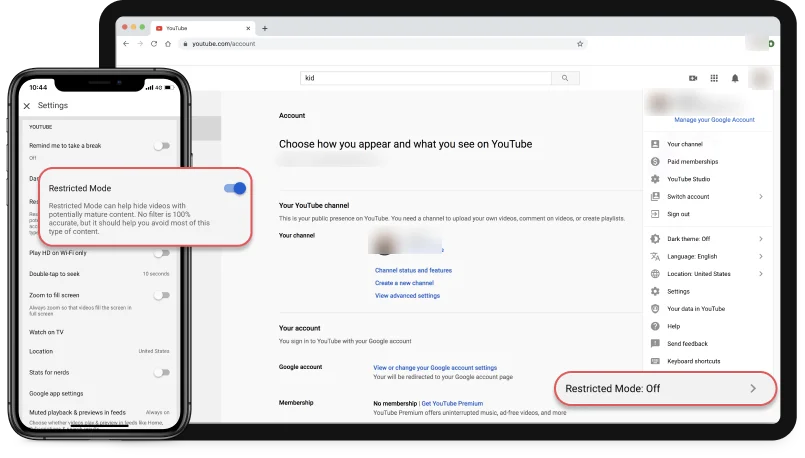
Can YouTube Restricted Mode limit my child to channels I approve?
No. YouTube Restricted Mode cannot limit your child to channels you choose. It only hides videos that YouTube's automatic signals mark as mature, and the rest of YouTube stays open. WhitelistVideo does the opposite: it blocks all of YouTube by default and plays only the channels you approve, on every device you pair, even when your child is not logged in to YouTube.
What Restricted Mode cannot do
- Restricted Mode cannot let you approve or choose specific channels.
- Restricted Mode cannot follow your child across devices. You turn it on separately in each browser and each app.
- Restricted Mode cannot stay locked on without a supervised Google account or a network-level setting. When your child is signed out, anyone can switch it off in that browser.
What WhitelistVideo does instead
- WhitelistVideo blocks every channel until you approve it.
- WhitelistVideo applies one approved list on every paired device.
- WhitelistVideo works even when your child is not logged in to YouTube.
Child account needed: To lock Restricted Mode on, yes (a supervised Google account). WhitelistVideo: no YouTube login needed.
YouTube Restricted Mode: the complete guide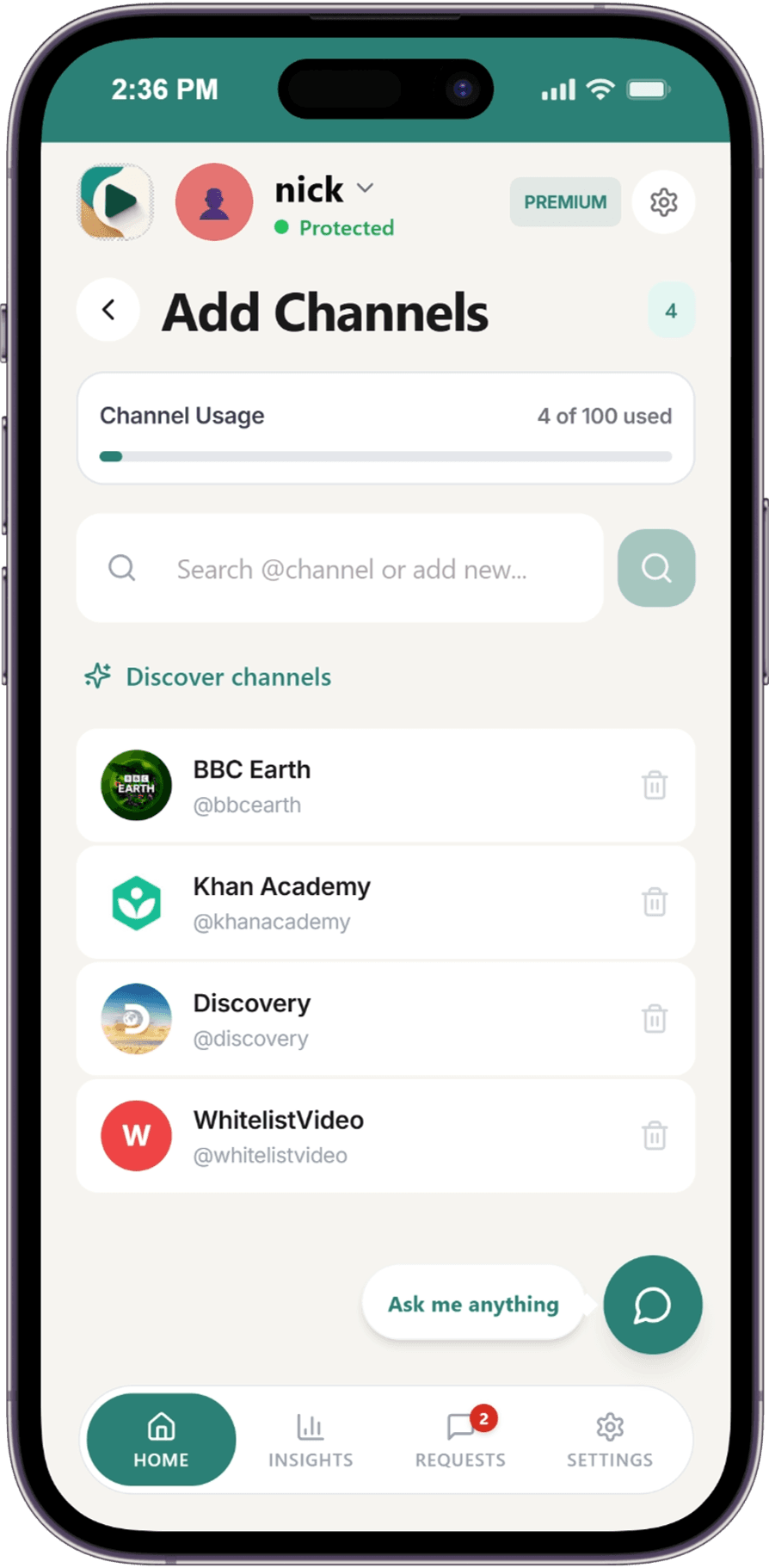
2. Set up YouTube Kids
- Download YouTube Kids, tap I'm a parent, and sign in with your Google Account.
- Create a profile for your child with their name, age and birth month. You can add up to 8 profiles.
- Choose a content setting: Preschool (4 and under), Younger (5–8), Older (9–12), or Approve content yourself to hand-pick channels, videos and collections.
- Set a custom passcode in Settings, so only you can change the settings. By default, a maths question protects them.
- Set a viewing limit with Settings → Set Timer. To block a video or a whole channel, open its More menu and tap Block.
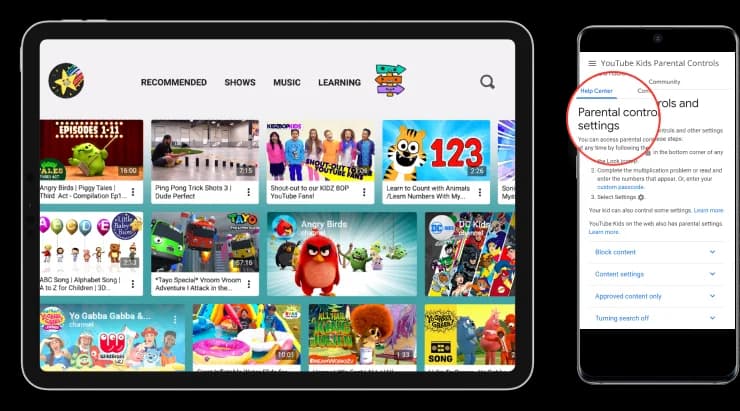
Can YouTube Kids control the real YouTube app?
No. YouTube Kids cannot control the real YouTube app, youtube.com or YouTube in other browsers. Its Approve content yourself setting works only inside the separate YouTube Kids app, which is built for children under 13. WhitelistVideo puts approve-once control on real YouTube, so your child watches only the channels you approve in the YouTube they already use. WhitelistVideo is built for ages 8–15, and younger children can use every feature.
What YouTube Kids cannot do
- YouTube Kids cannot filter the main YouTube app, youtube.com or YouTube in another browser.
- YouTube Kids cannot grow with your child. It is built for children under 13.
- YouTube Kids cannot stop your child from opening main YouTube instead.
What WhitelistVideo does instead
- WhitelistVideo filters real YouTube on every paired device.
- WhitelistVideo lets you approve any YouTube channel, once.
- WhitelistVideo is built for ages 8–15, and younger children can use every feature.
Child account needed: YouTube Kids: a parent's Google account, with a profile for each child. WhitelistVideo: no YouTube login needed.
WhitelistVideo vs YouTube Kids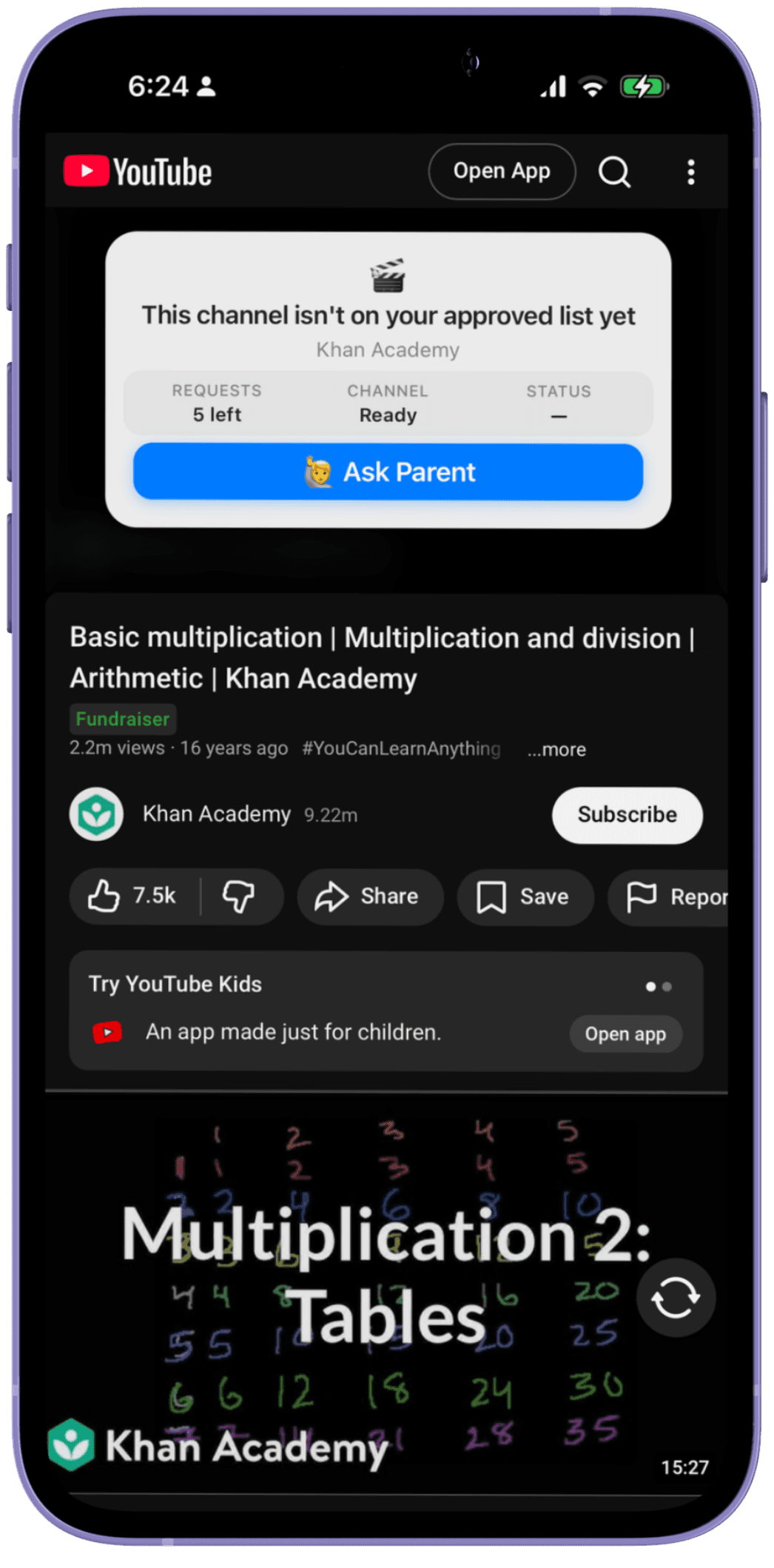
3. Use a supervised account on YouTube
- In the YouTube app, go to You → Settings → Family Center and choose your child. In Family Link, the path is your child → Controls → Content restrictions → YouTube.
- Choose a content setting: Older kids (9+), Teens (13+) or Older teens (16+).
- Under Time management, set a daily Shorts feed limit. Set it to zero to turn the Shorts feed off.
- To block a channel, open the channel page, then tap More → Block channel for kids.
- For a teen aged 13–17, invite them from Family Center to link your accounts. Either of you can end teen supervision at any time.
Can a YouTube supervised account block every channel until I approve it?
No. A YouTube supervised account cannot block YouTube by default. Inside the content setting you pick (Older kids 9+, Teens 13+ or Older teens 16+), YouTube decides which videos your child sees, and you can only block channels one at a time after you find them. A supervised account also works only while your child is signed in to their own Google account. WhitelistVideo blocks every channel by default, plays only the channels you approve, and works even when your child is not logged in to YouTube.
What a supervised account cannot do
- A supervised account cannot let you approve channels in advance.
- A supervised account cannot protect your child once they sign out or use a device without their account.
- A supervised account cannot be used for under-16s in Australia, where the law stops them holding a YouTube account.
What WhitelistVideo does instead
- WhitelistVideo blocks all of YouTube until you approve a channel. Your child taps Ask Parent to request one.
- WhitelistVideo works on the device, so it applies whether your child is signed in or not.
- WhitelistVideo keeps Shorts off by default, with a toggle in your dashboard.
Child account needed: Yes: your child's own Google account, signed in. WhitelistVideo: no YouTube login needed.
WhitelistVideo vs YouTube supervised accounts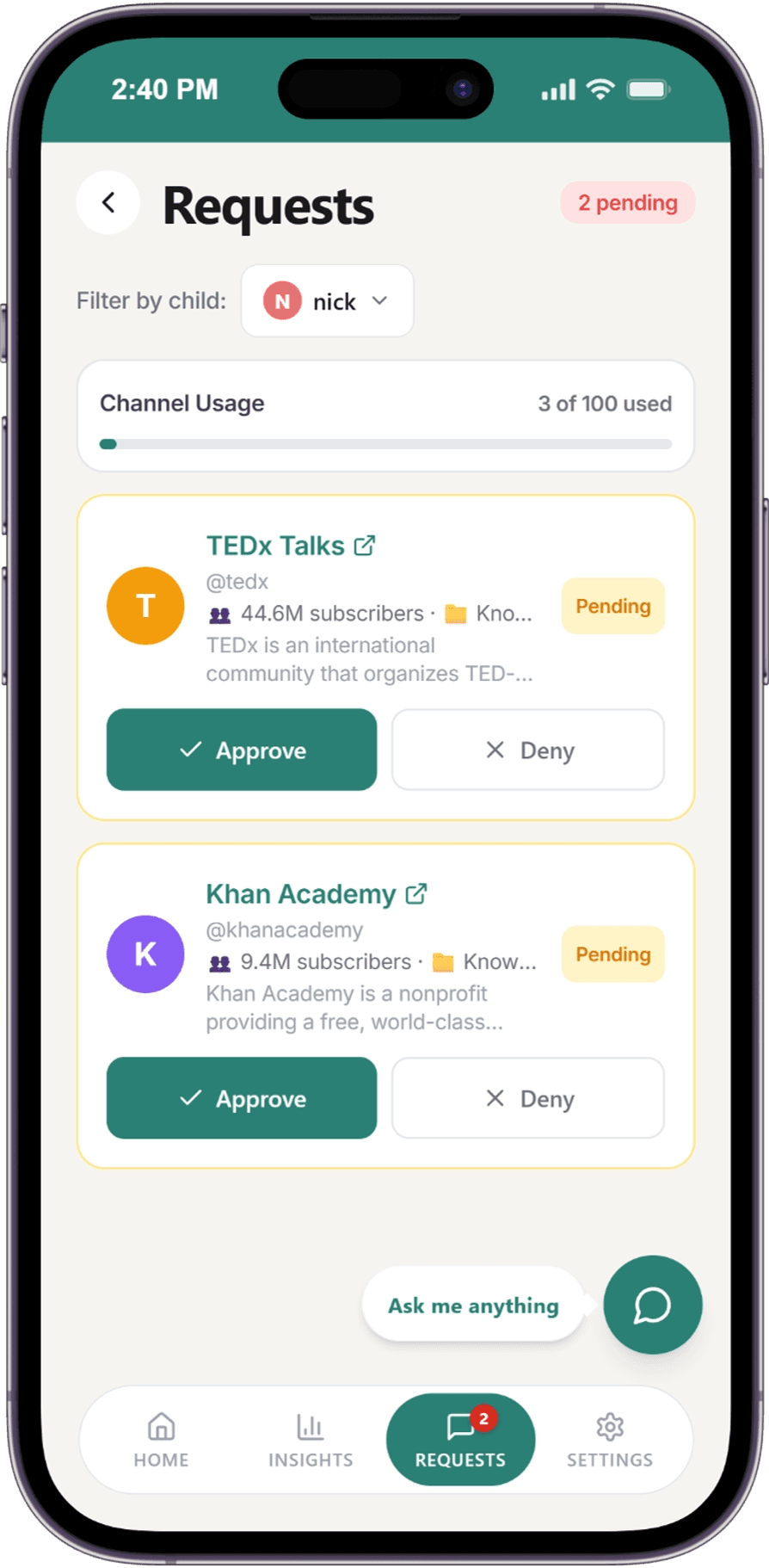
4. Lock the device with Screen Time or Family Link
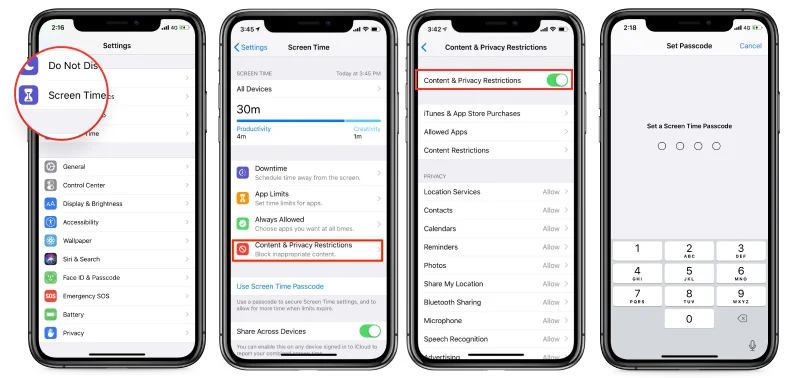
- iPhone and iPad: on your child's device, go to Settings → Screen Time → Content & Privacy Restrictions and turn it on (shown below). If your child is in your Family Sharing group, you can do the same from your own iPhone: Settings → Family → your child → Content & Privacy Restrictions.
- Then lock those settings: Settings → Family → your child → Manage Screen Time → Lock Screen Time Settings, and choose a passcode your child doesn't know.
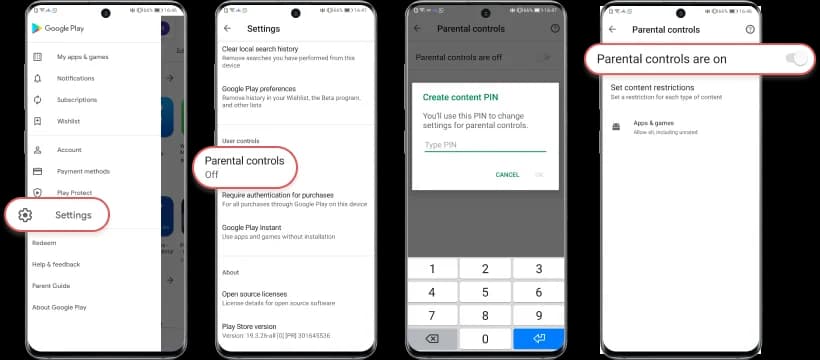
- Android: in Family Link, choose your child → Controls → Google Play to approve installs and set content ratings. On a single device, use Play Store → profile picture → Settings → Family → Content restrictions.
- Windows and Mac: give your child a Standard account and keep the administrator password yourself.
Can Screen Time or Family Link choose which YouTube channels my child watches?
No. Apple Screen Time, Google Family Link and Microsoft Family Safety cannot choose which YouTube channels or videos play. They control apps, installs, websites and time. WhitelistVideo + Screen Time / Family Link / Family Safety gives you both: the device tool holds the lock, and WhitelistVideo plays only the channels you approve. Removing the pairing needs your parent credentials.
What Screen Time and Family Link cannot do
- Screen Time and Family Safety cannot approve or block individual YouTube channels.
- Family Link cannot pick channels on main YouTube. Its YouTube options are YouTube's own content settings.
- These tools cannot stop YouTube from recommending channels you haven't seen.
What WhitelistVideo does instead
- WhitelistVideo + Screen Time / Family Link / Family Safety: the device tool holds the lock, and WhitelistVideo decides which videos play.
- On iPhone, iPad, Android, Windows and Mac, removing the pairing needs your parent credentials: your Apple Account, your Family Link parent account or the administrator password.
- One dashboard for iPhone, iPad, Android, Windows, Mac, Chromebook and Android TV.
Child account needed: The device tool uses your child's device account (Child Apple ID, Family Link account or Standard Windows/Mac account). WhitelistVideo: no YouTube login needed.
Setup guides for every device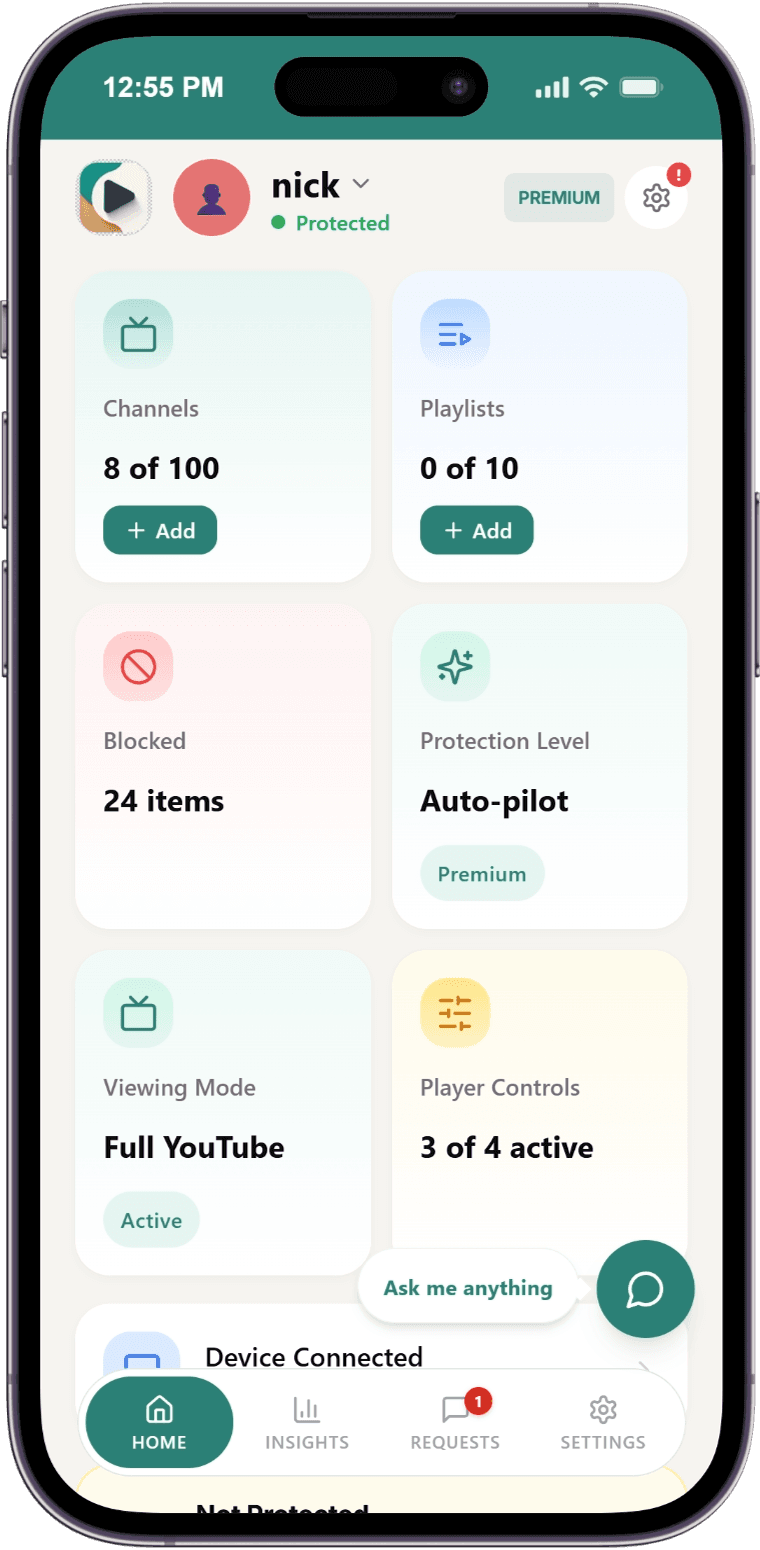
How common is inappropriate content on YouTube for kids?
Independent research shows the risk is measurable, not hypothetical:
85%
of U.S. parents say their child age 12 or younger watches YouTube — and 51% say it's daily.
Pew Research Center, October 2025
46%
of parents report their child has already encountered videos on YouTube that were inappropriate for their age.
Pew Research Center
27%
of YouTube videos watched by children ages 0–8 were found to be age-inappropriate in an analysis of 1,639 real viewing histories.
Common Sense Media
3.5%
chance that a toddler following YouTube's recommendations hits an inappropriate video within 10 clicks, even starting from safe content.
ICWSM study of 233,000+ videos (Papadamou et al.)
This is why a default-block whitelist — rather than filters that chase bad content after it appears — is the approach WhitelistVideo takes.
Why YouTube's Built-in Parental Controls Fall Short
You've probably already tried these solutions — here's why they don't work.
Restricted Mode
Easily bypassed by signing out or using incognito. Misses tons of inappropriate content.
YouTube Kids
Too limited for kids over 8. Missing educational creators kids actually want to watch.
Google Family Link
New Shorts timer helps, but can't block specific channels. No whitelist feature. Teens can opt out of supervision.
Supervised Accounts
Complex setup. Kids can request access to anything. Requires constant approval.
What About YouTube Supervised Accounts?
Supervised accounts are YouTube's answer for kids who've outgrown YouTube Kids: your child uses the main YouTube app while you pick one of three content settings: Older kids (9+), Teens (13+) or Older teens (16+). It's a real improvement over Restricted Mode, and it keeps ads age-appropriate at the account level.
Inside whichever setting you pick, YouTube still decides what your child sees across millions of channels. You can block a channel and set a daily Shorts feed limit (including zero), but you can't approve channels in advance. Many families run both: a supervised account for the Google-account layer, and WhitelistVideo for channel-level control over what actually plays.
Read the full comparison: Supervised Accounts vs YouTube Kids vs WhitelistVideoWhitelistVideo vs YouTube's Native Parental Controls
See the difference real parental controls make
Scroll horizontally to see all columns.
| Feature | YouTube | WhitelistVideo |
|---|---|---|
| Block Specific Channels | Yes, one at a time (YouTube Kids, supervised accounts) | Yes |
| Whitelist-Only Mode | YouTube Kids only (Approve content yourself) | Yes |
| Block by Keywords | No | Yes |
| Cross-Device Sync | Limited | Yes |
| Bypass Protection | Easy to bypass | Device-specific safeguards |
| Block YouTube Shorts | Daily feed limit, can be set to zero (supervised accounts) | Yes (blocked by default) |
| Screens videos from unapproved channels | Age-based content levels and Restricted Mode, with no topic rules you set | Auto-pilot checks each video against the topics you allow (Premium and Lifetime) |
| Profanity level (Off / Mild / Strict) | No profanity-level setting | Appropriateness Check blocks swearing at the level you choose |
| Choose which faiths videos may teach | No faith or topic setting | Religion & Faith categories in Auto-pilot |
| Remote Parent Dashboard | Limited | Full Control |
| Manage via WhatsApp/Telegram | No | Yes — 28 AI-powered actions |
How to Set Up YouTube Parental Controls
Get complete YouTube protection in under 5 minutes
Install the Browser Extension
Add WhitelistVideo to Chrome or Edge on your child's computer. Takes 30 seconds.
Open the Parent Dashboard
Download our mobile app or use the web dashboard to manage settings from anywhere.
Set Your Rules
Create your whitelist of approved channels, block unwanted content, and enable keyword filters.
Enable Protection
Lock in protection with our desktop installer so kids can't bypass or uninstall.
Complete YouTube Parental Control Features
Everything you need to protect your kids on YouTube
Block Any YouTube Channel
Block specific channels permanently. Your child can't search for, watch, or see recommendations from blocked channels.
Whitelist-Only Mode
The safest option: kids can only watch channels you've specifically approved. Everything else is blocked by default.
Keyword-Based Blocking
Block videos containing specific words in titles, descriptions, or tags. Perfect for filtering out unwanted topics.
Auto-pilot
On Premium and Lifetime, you set your rules once and Auto-pilot screens every video from channels you haven't approved, so you don't have to approve every channel or watch every video. It can also block strong language and let you choose which faiths videos may teach.
Block YouTube Shorts
Automatically block all YouTube Shorts. Prevent the addictive short-form content loop.
Remote Parent Dashboard
Manage everything from your phone. Approve requests, adjust settings, and monitor activity from anywhere.
WhatsApp & Telegram AI Management
Manage your child's YouTube protection from a chat conversation. Add channels, block keywords, set safety levels, manage playlists, and approve requests — 28 actions via natural language AI on WhatsApp or Telegram.
Cross-Device Sync
One whitelist syncs across all your children's devices. Change settings once, apply everywhere.
Layered Bypass Protection
Our desktop installer prevents kids from disabling or uninstalling the extension. Real protection they can't bypass.
Guides by topic
Every guide on this site, grouped by the problem you are trying to solve. Start with the first link in each group. See all comparisons or browse research studies.
What Parents Say About Our YouTube Parental Controls
“Finally, parental controls that actually work. My kids can explore YouTube safely while I have complete peace of mind.”
Sarah M.
Mother of 3
“The whitelist feature is a game-changer. My son watches educational content without stumbling into garbage.”
David K.
Father of 2
“I tried YouTube's restricted mode — my daughter bypassed it in minutes. WhitelistVideo is actually secure.”
Jennifer L.
Mother of 1
YouTube Parental Controls FAQ
WhitelistVideo: The Complete YouTube Parental Controls Solution
WhitelistVideo is a parental control app designed specifically for YouTube. Parents can block channels, create approved lists, filter by keywords, and block YouTube Shorts. The Windows and Mac installer protects Chrome and Edge when the child uses a Standard account; mobile and Chromebook setups use their documented platform controls. Settings sync across supported devices from the parent dashboard.
Compare WhitelistVideo to Other Options
Ready for Real YouTube Parental Controls?
Join families in over 40 countries who trust WhitelistVideo to protect their children on YouTube.









